|
|
16
|
Evaluating Your Model
|
|
In This Section:
|
|
|
|
|
|
Evaluate >
Continuity > Curve
continuity

|
Checking the Continuity Between Curves
|
|
|
|
|
Purpose
Check the tangent and curvature continuity between curves.
How To
To show the continuity between two curves:
-
1
-
Click the Curve continuity icon, or choose Continuity > Curve continuity from the Evaluate palette menu.
-
2
-
Click the intersection between two curves.
-
The curves can be free curves or surface isoparms.
-
3
-
If the Curvature Check option is on, the Curve continuity tool prints a message about the curvature continuity in the prompt line.
|
|
|
-
This message goes by very quickly. Click the prompt line
history button (to the left of the prompt line) to see the
curvature message.
-
4
-
The Curve continuity tool prints a message about the tangent continuity in the prompt line (see Messages below).
|
|
|
-
5
-
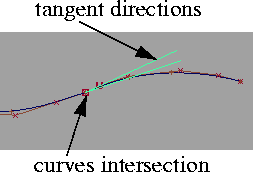
If the curves are not tangent continuous, the Curve continuity tool draws lines showing the tangents of each curve. The angle between the tangents is given on the prompt line.
-
Drag left or right to change the scale of these tangent lines,
or type a number to scale the lines exactly. This changes
the display of the lines only, and does not affect the curves.
Messages
The Curve curvature tool prints messages in the prompt line about the continuity at the intersection you clicked:
- Curves are curvature continuous.
-
The curves are exactly curvature continuous.
- Curves are curvature continuous within tolerance - curvature deviation is (1/cm) <deviation>
-
The curves are not exactly curvature continuous, but are
still within the tolerance set in Preferences > Construction
options. <deviation> is the difference in curvatures at
the intersection.
- Curvature deviation between curves is (1/cm) <deviation>
-
The curves are not curvature continuous. <deviation> is
the difference in curvatures at the intersection.
- "Curves are tangent vector continuous."
-
The curves are exactly tangent continuous.
- "Curves are tangent vector continuous within tolerance - angle is (degrees) <angle>."
-
The curves are not exactly tangent continuous, but are still
within the tolerance set in Preferences > Construction
options. <angle> is the angle between the curves tangents
at the intersection.
- "Angle between the curves at their intersection is (deg) <angle>."
-
The curves are not tangent continuous. <angle> is the
angle between the curves tangents at the intersection.
- "Select curve intersection."
-
You did not click where two curves (and only two curves)
intersect.
Options
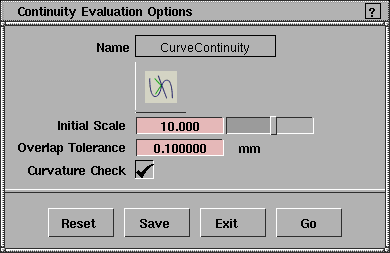
Initial Scale
-
- The initial scale of the lines which show the tangents of the two curves. The actual length of the lines is proportional to the angle times this scaling value.
-
- You can change this value interactively when you use the tool.
Overlap Tolerance
-
- The maximum distance allowed between curve endpoints when clicking an intersection to examine.
Curvature Check
-
- Print a message in the prompt line about the curvature continuity before the tangency message.
-
- This message goes by very quickly. Click the prompt line history button (to the left of the prompt line) to see it.
See Also
|
Evaluate >
Continuity > Surface
continuity

|
Checking Continuity Between and Within Surfaces
|
|
|
|
|
Purpose
Check the positional, tangent plane, and curvature continuity between and inside surfaces.
Overview
The Surface continuity tool helps you diagnose surfaces that you may need to rebuild:
- Click common edges between surfaces to show the continuity along that boundary.
- The tool can also check for continuity breaks within the surfaces.
-
These checks are performed automatically at multi-knots,
and at every edit point on degree 1 (linear) surfaces when
the Check Interior option is on.
-
This is very useful since CAD systems, to which you may
want to transfer your model, do not allow interior
discontinuities in surfaces.
Selection and Display
Common Edges
When you click the common edge between two surfaces after selecting the Surface evaluation tool, the tool shows information about the continuity between the surfaces.
This information can take several forms: color-coded lines, symbols, comb and text. You control which ones you want to see.
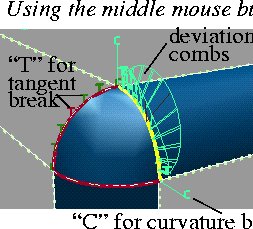
The comb shows the relative size of gaps, tangency and curvature breaks along the surface boundary. The longer the comb line, the larger the break between the surfaces.
Symbols and comb lines appear at each point on a boundary where a discontinuity is found. You control how often points are checked along a given boundary by adjusting the sampling density.
The tool uses the symbols and line colors listed in the table on page 514.
|
Tip:
|
You can prevent the creation of combs by turning off Show
Comb in the options window.
|
Surfaces
When you pick a single surface and click the Surface evaluation tool, or hold Shift and click a surface while within the Surface evaluation tool, the tool shows information about the internal continuity of the surface if the Check Interior option is turned on (see Options on page 511).
|
|
If the gap between the
surfaces is large, the tool
may fail to find the
adjacencies.
|
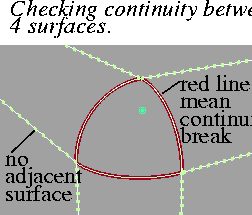
If you pick several surfaces, the tool tries to determine which surface edges are adjacent and gives continuity information along these edges as well.
The tool uses the symbols and line colors listed in the table on page 514.
|
Tip:
|
You can prevent the checks of internal surface continuity by
turning off Check Interior in the options window.
|
Common Symbols and Line Colors
|
|
A minimum deviation of 0.0
is not displayed.
|
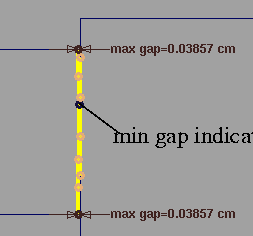
- The Surface continuity tool marks the minimum and maximum deviation points on all the boundaries it examines. On inactive boundaries, minimums are shown as blue symbols or comb lines; maximums are shown as red symbols or comb lines.
-
Clicking these symbols with the right mouse button will
show you the corresponding deviation values.
|
|
See Show Max Labels option
on page 518
.
|
-
Optionally, the tool also labels the maximum deviation
points.This allows you to quickly see the areas with the
largest continuity problems.
-
Minimum and maximum deviation points are also useful
when you want continuity at an angle. For example, if you
want to build a surface at 30 degrees to another surface,
+/- 0.1 degrees. The maximum and minimum tangent
angle deviations tell you if that tolerance has been
achieved.
- The Surface continuity tool uses the following symbols and line colors to show information about surfaces and common edges:
|
Symbol/Line
|
Meaning
|
|---|
|
Cross
|
Requested continuity achieved at this point.
|
|
T
|
Tangent/normal break at this point.
|
|
C
|
Curvature break at this point.
|
|
O
|
Gap in the common edge at this point (think of the "O" as a hole).
|
|
Pale green dotted line.
|
This edge has no adjacent surface, or the adjacent surface is not selected.
|
|
Thick bright green line
|
Requested continuity achieved along this isoparm.
|
|
Thick dark green line
|
Requested continuity achieved along this non-selected isoparm.
|
|
Thick yellow line
|
Continuity break at this isoparm.
|
|
Thick red line
|
Continuity break at this non-selected isoparm.
|
>
How To
To show the continuity in and between surfaces:
-
1
-
Pick the surfaces you want to check for internal continuity.
|
|

|
-
2
-
Double-click the Surface continuity icon, or choose Continuity > Surface continuity-
 from the Evaluate palette menu. from the Evaluate palette menu.
-
Turn on the Check Interior option in the option window if
you want to check the interior continuity of the surfaces.
Set any other option you may need (see Options on
page 517).
|
|
To check individual
boundaries, select the tool
first, then click on the
boundaries.
|
-
Click Go.
-
3
-
The Surface continuity tool checks the picked surfaces.
-
This step can take a long time for very large models. To
speed up the process, increase the Distance Between Checks
value (see Options on page 517).
-
To terminate the check before its normal completion, press
the Esc key.
-
4
-
The Surface continuity tool prints a message in the prompt line about the continuity between the surfaces.
-
The messages go by very fast. Click the prompt line
history button (to the left of the prompt line) to see the
continuity messages.
|
|
|
-
The Surface continuity tool draws lines and symbols
between (and possibly on) the picked surfaces to indicate
whether the required continuity exists, and if not, the
areas of discontinuity.
-
5
-
Use the mouse to show more detailed continuity information on the model:
- Hold the Shift key and click a surface to add it or remove it from the continuity calculations. The mouse buttons use the same interaction as with the Pick tool (Left: toggle, Middle: replace, Right: remove).
- Click a boundary with the left mouse button to add it or remove it (toggle) from the continuity calculations.
|
|
|
- Click a common edge between two surfaces with the middle mouse button to toggle between comb and symbol displays.
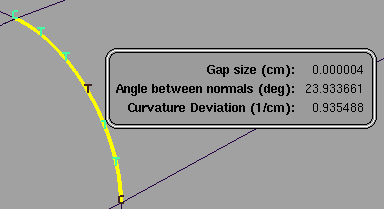
- Hold the right mouse button on a comb line or symbol to show a small window displaying information on the point you clicked. The window moves with the mouse pointer and disappears when you release the mouse button.
- Drag the left mouse button to change the scale of the active continuity combs on the common edges between surfaces.
- Drag the middle mouse button to change the sampling density along the active boundary.
>
|
Note:
|
If the Locator Persistence option is on, the combs created on
explicitely selected surface boundaries are locators, just like
those described in Introduction to Labeling and Locators on
page 362. Unless you remove each comb, they persist in the
scene even after you choose another tool.
|
|
|
For information on how to delete a comb, see page 364.
|
Tips and Notes
|
|
|
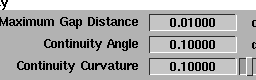
- Set the tolerances for continuity checks in the Tolerances > Continuity section of the Preferences > Construction options window:
- Maximum Gap Distance: the maximum allowable gap between adjacent surfaces.
- Continuity Angle: The maximum allowable angle deviation between tangents.
- Continuity Curvature: The maximum allowable difference between curvatures.
Options
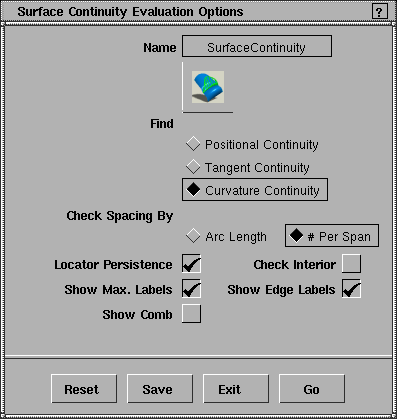
Find
Positional Continuity
-
- Only check for gaps between surfaces (labeled with "O" symbols).
Tangent Continuity
-
- Check for gaps and tangent discontinuities (labeled with "T" symbols).
Curvature Continuity
-
- Check for gaps, tangent, and curvature discontinuities (labeled with "C" symbols).
Check Spacing By
Arc Length
-
- Check the continuity at equally spaced points along the surface, determined by the Distance Between Checks option.
# Per Span
-
- Check the continuity at a number of points in each span equal to the value of the Fitting > Curve Fit Checkpoints option of the Preferences > Construction options window.
|
|
This option only appears
when Check Spacing By is
Arc Length.
|
Distance Between Checks
-
- The arc-length distance between continuity checks when using the Arc Length option.
Display Options
Locator Persistence
-
- If this option is toggled on, the surface continuity indicators have the ability to become a persistent locator which will update with changes to the geometry. Note that Locator Persistence only takes effect if boundaries are explicitly selected by clicking on them (not by selecting surfaces with a pickbox or prior to selecting the tool).
|
|
This option applies to the
case of surfaces selected with
the Shift key or selected
before clicking the tool.
|
Check Interior
-
- If this option is toggled on, continuity is checked and displayed along multiple-knot isoparms in the surface's interior.
Show Max Labels
-
- If this option is toggled on, points of maximum positional, tangency angle and curvature deviation are shown. Note however that these labels will only appear if part of the boundary has discontinuities (gaps, tangent or curvature breaks) that are out of tolerance.
Show Edge Labels
-
- If this option is toggled on, indicators showing areas of discontinuities ("O", "C" and "T" labels) are initially displayed along the boundaries. Red symbols indicate areas of maximum discontinuity. Blue symbols indicate areas of minimum discontinuity.
Show Comb
-
- This option only appears if Show Edge Labels is on. Toggle it on to see the comb lines for gaps, tangency breaks and curvature breaks.
Surface/Surface Continuity Evaluation Parameters
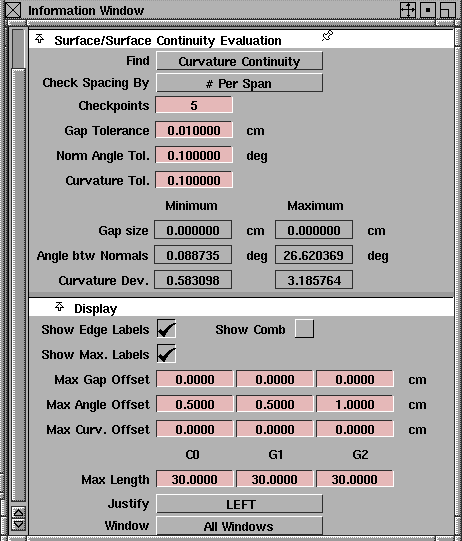
If Locator Persistence is on, the tool will create true locators on explicitely selected boundaries.
The following parameters are found in the Information Window when such a locator is selected:
|
|
Check Distance only
appears when Check
Spacing By is # Per Span.
|
Find, Check Spacing By, Check Distance
-
- Same as in Options.
|
|
Checkpoints only appears
when Check Spacing By is
Arc Length.
|
Checkpoints, Gap Tolerance, Norm Angle Tol, Curvature Tol.
-
- These are initially set to their corresponding values in the Tolerances section of the Construction Options window.
-
- You can change them to give each locator its own set of tolerances.
Min/Max Gap Size, Angle btw Mormals, Curvature Dev.
-
- These fields give the minimum and maximum deviation values for positional, tangent and curvature continuities.
-
- These fields are not editable.
Display Parameters
Show Edge Labels, Show Comb, Show Max. Labels
-
- Same as in Options.
|
|
Unlike other locators, the
Max Offset parameters
cannot be adjusted
interactively with the
mouse.
|
Max Gap/Angle/Curv. Offset
-
- Adjust the length of the leader for the three labels.
Max Length
-
- The length of the small horizontal line beside the labels (in pixels).
Justify
-
- Choose whether to justify the label text Left or Right.
Window
-
- Choose whether the locator appears in all windows or only the current window.
See Also
|
Windows >
Information >
Deviation Table
|
Examining Deviation Values
|
|
|
|
|
Purpose
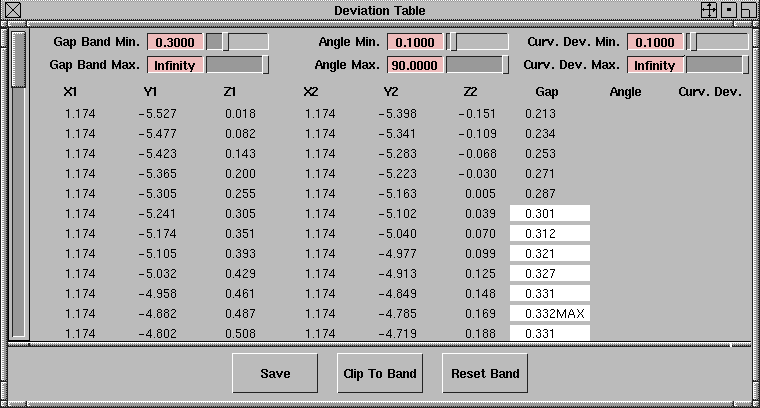
Show detailed, numeric deviation gap, angle, and curvature gap values in a scrolling window.
How To
To list deviation values in a table:
|
|
The comb must be a
persistent locator such as
those created by the
Locators tools or by clicking
a boundary in the Surface
Continuity tool.
|
-
1
-
Make sure there is a deviation comb locator somewhere in the scene. The deviation table only lists information from existing deviation combs.
-
2
-
Choose Windows > Information > Deviation table from the menus. The Deviation Table window appears.
|
|
|
To highlight values within a certain range:
-
1
-
Set the minimum and maximum values for the measurement you want to check.
-
For example, to find deviations greater than 0.01, set the
Gap Band Min. option to 0.01 and the Gap Band Max. option
to some very large value (or leave it as Infinity).
-
2
-
Values within the range you set are highlighted with a white background in the window.
-
3
-
You can choose to list only the samples that fall within the range:
- Click the Clip To Band button at the bottom of the window to show only samples that fall within the range.
- The Clip To Band button changes to Show All. Click the button again to show all samples.
-
4
-
To reset the ranges to the defaults, click the Reset Band button at the bottom of the window.
To save the information in a file:
-
1
-
Click the Save button at the bottom of the window.
-
2
-
Use the file requester to save the information to a file on disk.
Tips and Notes
- The deviation table updates interactively as you change the model.
- The clipping values in the deviation table window are affected by changing the threshold values in the control panel's Deviation tool.
|
|
|
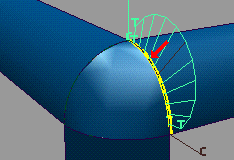
- Click and hold a mouse button over a row of the table to see a red arrow indicating the corresponding position on your model.
See Also
|
Evaluate > Surface
Curvature > Surf
curvature, Surf curv
params
|
Showing Surface Curvature
|
|
|
|
|
Purpose
Show the amount of curvature (or the radii) across a surface using a color texture.
Overview
The Surf curvature tool creates a QuickRender showing the amount of curvature at each point on the surface as a different color.
Use the Surf curv params tool to edit the color ramp used to show curvature values, as well as how values are mapped to colors.
The How To section lists a few "recipes" for diagnosing surfaces using this tool, but there are many more uses than can be listed here. When you need specific curvature information on a surface, asking yourself two questions will help you set the options for the diagnosis you want:
- What kind of curvature values am I looking for? High curvature (close to the maximum)? Zero curvature (inflections)? Use the answer to set the Range.
- What part or parts of the range do I want to highlight? The extremes? The middle? Use the answer to set the color ramp.
Setting the Range
The Range option has two settings:
- Automatic: this setting calculates the range of curvature values present in the model, then copies this range to the parameter window (the window that opens when you click the Surf curv params tool).
-
This takes about twice as long as the other setting.
- From Parameter Window: simply uses whatever range is set in the parameter window.
Here are some general rules you can use to get the best results:
- The first time you display curvature for a particular model, use the Automatic option to set the best range for the model.
- After you use the Automatic option the first time, set the option to From Parameter Window. This will double the speed of the evaluation.
- If you change the range in the parameter window (for example, to highlight inflections), do not use the Automatic option, since it overwrites the range in the parameter window with the values it calculates.
Setting the color ramp
See Ramp Texture Parameters in the Rendering book for information on editing a color ramp.
How To
To show the curvature across a surface:
|
|

|
- Click the Surf curvature icon, or choose Surface Curvature > Surf curvature from the Evaluate palette menu.
-
A QuickRender window opens and displays the curvature
values on the model using the color ramp and other
parameters in the parameters window.
To customize the parameters of the Surf curvature display:
|
|

|
- Click the Surf curv params icon, or choose Surface Curvature > Surf curve params from the Evaluate palette menu. The parameters window opens.
To find irregularly changing curvature:
Click the Surf curv params tool and set the following options in the parameters window:
- Set Curvature Type to Gaussian.
- Set Display to Curvature.
- Use the standard "rainbow" color ramp. The goal is to have as smooth a transition between colors as possible, so that irregularities stand out.
- Choose Render > QuickRender- from the menus. Set the Shading Frequency to 10 (the maximum). This ensures you don't confuse chunkiness in the texture with curvature irregularities.
Now use the Surf curvature tool to QuickRender the curvature values. Look for abrupt changes in the color ramp across the surface.
To create a diagnostic color ramp:
|
|
|
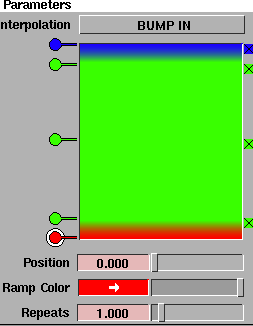
The default, "rainbow" color ramp is best for giving you an overall picture of the curvature across the whole surface.
However, another very useful technique is to set the Range to a small subset of all the values in the model. Only the values in this range will be mapped to colors in the color ramp. The rest of the model will render black.
To best highlight the range you are looking for, modify the color ramp as follows:
- Set almost the entire color ramp to a bright, noticeable color.
- At the top and bottom of the ramp, use another bright, contrasting color. Make sure to have crisp transitions to these extreme colors.
- You may want to add still more bright bands, for example at the center of the ramp, depending on the diagnostic technique you are using.
To find small radii:
For some manufacturing processes you must prevent a surface from having a radius smaller than some number. You can find small radii with the Surf curvature display.
Click the Surf curv params tool and set the following options in the parameters window:
- Set Curvature Type to Princ Max.
- Enter the minimum allowable radius as the Range max. Enter the negative of that number as the Range min.
- Use a diagnostic color ramp as explained above.
Now use the Surf curvature tool to QuickRender the radius values. Only the radii less than you minimum allowable radius show up. The rest of the model is rendered in black.
To find the areas with the most curvature:
Click the Surf curv params tool and set the following options in the parameter window:
- Note the maximum curvature of the model you are looking at. You can get this information in various ways:
- Use the Surf curvature tool with the Automatic option, then note the Range max. option in the parameter window.
- Set Curvature Type to Gaussian.
- Set Display to Curvature.
- Set both the Range min. and Range max. to the known maximum curvature value in the model to highlight only the areas with the maximum curvature. Increase the range to highlight areas with curvature close to the maximum.
- Use a diagnostic color ramp as explained above.
Now use the Surf curvature tool to QuickRender the curvature values. Only the curvature within the range you set will show up. The rest of the model is rendered in black.
To find inflections and saddle points:
|
|
|
Click the Surf curv params tool and set the following options in the parameter window:
- Set Curvature Type to Gaussian.
- Set Display to Curvature.
- Set the Range min. and Range max. to equal numbers around 0 (for example, -0.1 and 0.1).
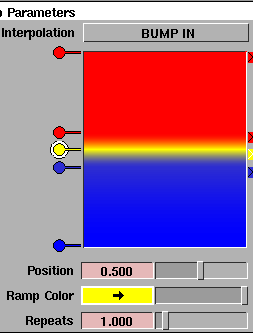
- Create a color ramp with a thin, bright, highly visible stripe across the halfway point (0.5), as well as different colors for the top and bottom halves.
-
The halfway point of the color ramp corresponds to the
halfway point in the range you set, which is 0 (the
inflection point). Thus, the stripe color will show up at
inflection points on the model.
|
|
|
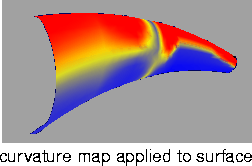
-
A saddle point has a negative Gaussian curvature, and
will be displayed in the botttom ramp color.
Now use the Surf curvature tool to QuickRender the curvature values. The bright stripe color appears at inflection points on the surface, and outlines dents.
Tips and Notes
- When you set a specific range in the parameters window, make sure you change the Range to From Parameter Window in the Surf curvature options window.
- Since the Automatic setting in the Surf curvature options window calculates the range of curvature of the model, you will have to use the Automatic setting every time you change the model.
Parameters
Name
-
- Assign a name to your shader.
|
|
For more information about
shaders and textures, see the
Rendering book.
|
-
- Clicking the arrow to the left of the Name field, opens the Common Shader Parameters window where you can choose different shaders, change color properties, and adjust raytrace parameters.
Curvature Texture Parameters
|
|
|
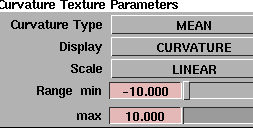
Curvature Type
-
- How to calculate the curvature values:
-
- Mean-use the average of the two principal curvatures to approximate the average curvature through each point.
-
- Gaussian-use the product of the two principal curvatures.
-
- Princ Min/Princ Max-use the minimum or maximum curvature values (that is, the curvature of the steepest or flattest curves that pass through each point).
-
- The Mean and Gaussian options are most useful for detecting surface irregularities. The Princ Min/Max options are most useful for finding inflection points.
Display
-
- Choose whether to show the Curvature or Radius at each point on the surface.
Scale
-
- Map the curvature values in the model to colors in the color ramp using a Linear or Logarithmic scale. Choose Log for models with a wide range of curvature values.
Range
-
- Enter the minimum and maximum curvature values in the model to map to the lowest and highest colors in the color ramp.
-
- The limits of the sliders are -10.0 to 10.0. You can enter smaller and large values in the text boxes with the keyboard.
|
|
|
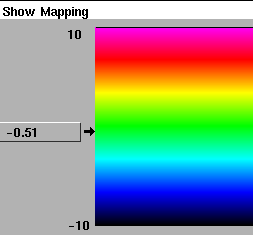
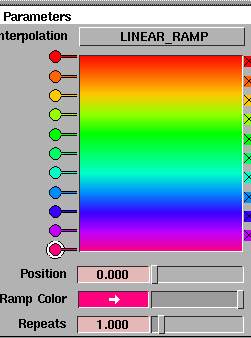
Show Mapping
This section shows a graphical representation of the mapping between curvature values and colors. Drag the indicator up and down the color ramp to show the color associated with each value.
Use this section to visualize the effects of the Scale and Range options.
|
|
|
Ramp Parameters and Color Balance
The Ramp and Color Balance sections are identical to the controls in normal color textures. See Ramp Texture Parameters and Color Balance in the Rendering book for information on editing a color ramp and using the Rgbmult and Rgboffset options.
Surf curvature options
Mode
-
- Choose whether to QuickRender only Active (picked) objects, or All objects.
Range
-
- Where to get the information for the range of curvature values to represent.
-
- Automatic-calculate the range from curvature values present in the model.
-
- From Parameter Window-use the range set in the parameter window (the Surf Curv Params tool).
See Also
|
Evaluate >
Highlights
|
Showing Surface Features with Highlights
|
|
|
|
|
Purpose
Show surface flaws by using a color texture to simulate natural highlights.
Overview
Highlight maps a color pattern onto a surface based on the angle (from 90 to -90 degrees) at which a viewing ray hits the surface.
The system simulates the object being surrounded by a patterned cylinder of infinite size that is aligned along a particular axis. The image shows what would be reflected by the surface under those conditions.
A common use for Highlight is to identify adjacent surfaces with mismatched tangents. You can also use Surface continuity for this, but Highlight gives you a clearer view of the surfaces.
How To
To show the highlights on a surface:
|
|

|
- Click the Highlight icon, or choose Highlights > Highlight from the Evaluate palette menu.
-
A QuickRender window opens and displays highlights on
the model using the color ramp and other parameters in
the parameters window.
To customize the parameters of the Highlight display:
|
|

|
- Click the Highlight parameters icon, or choose Highlights > Highlight parameters from the Evaluate palette menu. The parameters window opens.
Tips and Notes
- The color ramp is oriented perpendicular to the Direction.
- If you see a lot of aliasing (moire patterns and artifacts) where the highlight is oblique to the U and V directions, increase the subdivision values in Windows > Render stats.
|
|

|
- To find tangent discontinuities between surfaces, look for mismatched highlight stripes.
- You can change the standard zebra-stripe color ramp to get different effects.
-
For example, to simulate an auto showroom, place a few
white bands near the top of the range to represent rows of
lights. To simulate an outdoor scene, use a solid color on
the bottom half of the ramp (the ground), and a gradient
blue on the top half (the sky).
-
Another interesting technique is to create a blended color
map with two different colors at the top and bottom ends
of the ramp and black in the middle. This produces an
effect like lights shining on the surfaces from opposite
directions. It works more convincingly if the Range values
are 90 and -90.
- You can use highlight stripes to make sure a model is aligned with an axis by checking whether stripes along the edges run the length of the model.
- You can use a rainbow color ramp to check the orientation of surfaces. For example, if the ramp has red at the top, anything colored red is facing up.
Parameters
Name
-
- Assign a name to your shader.
|
|
For more information about
shaders and textures, see the
Rendering book.
|
-
- Clicking the arrow to the left of the Name field, opens the Common Shader Parameters window where you can choose different shaders, change color properties, and adjust raytrace parameters.
|
|
|
Highlight Texture Parameters
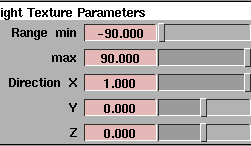
Range min/max
-
- The range of angles (minimum and maximum from 90 to -90 degrees) over which the highlight map will display.
Direction X,Y,Z
-
- These values represent the direction in which the highlights flow.
|
|
|
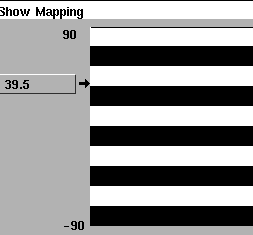
Show Mapping
This section shows a graphical representation of the mapping between angles and colors. Drag the indicator up and down the color ramp to show the color associated with each angle. Use this section to visualize the effects of the Range options.
|
|
|
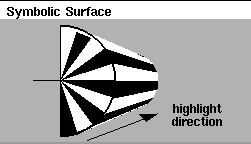
Symbolic Surface
The Symbolic Surface section shows how the highlight colors would be distributed on a smooth cylindrical surface.
Use this section to visualize how changes to the Range and Direction options and the color ramp change the highlight coverage and look.
|
|
|
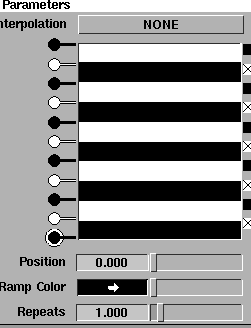
Ramp Parameters and Color Balance
The Ramp and Color Balance sections are identical to the controls in normal color textures. See Ramp Texture Parameters and Color Balance in the Rendering book for information on editing a color ramp and using the Rgbmult and Rgboffset options.
Highlight options
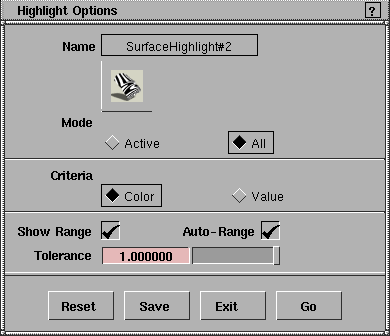
Mode
-
- Choose whether to QuickRender only Active (picked) objects, or All objects.
Criteria
|
|
If non-adaptive subdivisions
are used, triangles are
created evenly across the
surface which might lead to
loss of detail.
|
-
- Color-If Adaptive Subdivision is set in Windows > Render stats, the subdivision level is increased when the three corners of a subdivision triangle have different colors.
-
- Value-If Adaptive Subdivision is set in Windows > Render stats, the subdivision level is increased when the three corners of a subdivision triangle have different highlight angle values.
-
- Use Value to see very thin highlight lines.
Show Range
-
- Calculate and print the minimum and maximum values on the prompt line.
Auto-Range
-
- Automatically calculate the minimum and maximum highlight angles used in the rendering of the model, and set the Range options in the parameter window.
Tolerance
-
- This slider controls the quality of the rendering. Lower the tolerance for a higher quality but slower render. Raise the tolerance for a lower quality but faster render.
See Also
|