|
|
Preferences >
Interface > User
colors
|
Setting Colors for Your Alias Interface
|
|
|
|
|
Lets you set colors for the Alias interface.
You can set colors for active modeling, inactive modeling, and all modeling windows, and for the user interface.
>
|
Note:
|
Alias does not retrieve earlier versions of user color files. If
you customized your colors before and want your new
version of Alias to appear the same, you will have to
customize those colors again.
|
User Colors Options
Select Preferences > Interface > User colors. The User Colors window apears.
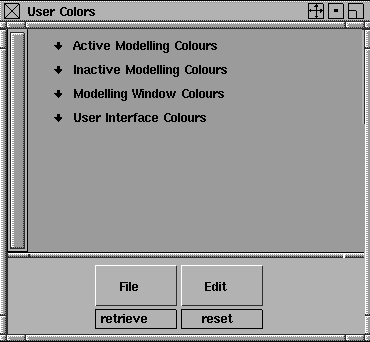
Click on the down arrows next to each section to set the various options. Remember that you will need to drag the scroll bar at the left edge of the window to see the complete list of options.
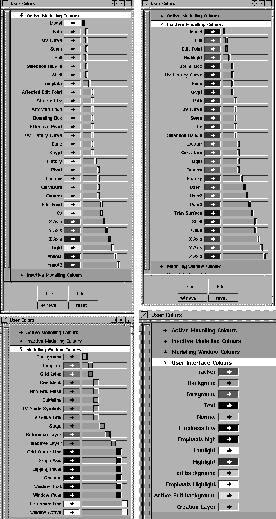
The complete set of controls is shown on the following page.
|
|
|
|
|
|
How to Use
To change the color of any element listed in the Color Editor, drag the slider next to the element to cycle through a number of available colors. Many of these colors will be shared among the elements listed.
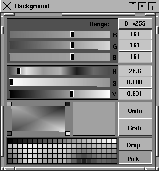
If you want more control when setting the colors, click the square beside the parameter heading. The Color Editor appears, where you can define exact colors.
|
|
This is the color editor for
the Background
of a
modelling window.
|
Active Modeling Colors
Use this section of the User Colors window to define colors of any active objects that you are modeling in Alias.
|
|
Consult the Global Index for
information about any of
these elements.
|
Each of the elements in this section should be recognized by experienced Alias users.
Inactive Modeling Colors
Use this section of the User Colors
window to define colors for objects in Alias that you are modeling, but are inactive.
|
|
Consult the Global Index for
information about any of
these elements.
|
Each of the elements in this section should be recognized by experienced Alias users.
Modeling Window Colors
The third section of the User Colors window is Modeling Window Colors:
|
|
Consult the Global Index for
information about any of the
elements not listed below.
|
Most of the elements in this section should be recognized by experienced Alias users. The following list provides information about less-recognizable elements:
Fine Grid Mesh
-
- The Fine Grid Mesh
color controls the fine dotted grid that subdivides the main grid if you have a Subdivisions level set higher than 1 in the Grid Spacing Options window (Grids > Grids > Grid spacing -
 ). ).
Stage
-
- To change the inactive stage color of the wireframe model, assign a different color to this field.
Window Active
-
- The active window has a white border. This replaces the three asterisks (***) next to the window name that used to indicate the active window.
-
- Use the Window Active option to change the color of this active window border from white.
Window Pane
-
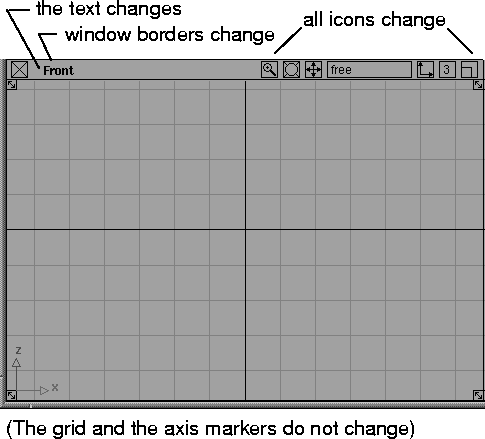
- Use this option to change the color of the text and the icons in the title bar of any modeling window.
|
Tip:
|
The window borders also change to the color you specify.
|
See the following example:
User Interface Colors
|
|
Consult the Global Index for
information about any of the
elements not listed below.
|
Most of the elements in this section should be recognized by experienced Alias users. The following list provides information about less-recognizable elements:
Lowlight/Highlight
-
- Use these options to further define the display of beveled items in the Alias interface menus and windows (for example, the mag, crv, and grid buttons and the time slider buttons).
Edit background
-
- The Edit background option sets the background color of edit fields in windows where you can type coordinates. The editable fields are a different background color to show that you can edit the field.
Active Edit background
-
- The Active Edit background option sets the background color of edit fields that you are typing in (that are active).
User Colors Window Buttons
Saving your color setup
|
|
|
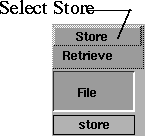
Select File > Store at the bottom of the User Colors window to save your color setup. The following File Requestor appears:
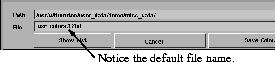
The next time you restart Alias, the system automatically searches in your $HOME/.Alias/Prefs.2/Colors directory for the default color file name; for example, usr_color.12bit
To save your user colors so they are read in every time, save them in a usr_colors file. Applicable color file names are usr_colors.4bit, usr_colors.8bit, and usr_colors.12bit.
>
|
Note:
|
If you change the name of this file, the color file is not
automatically loaded the next time you restart Alias. You
must retrieve the file using File Retrieve in the User Colors
window and search for the renamed color file in the file
browser.
|
Using the Edit menu options
|
|
|
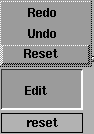
Use the Edit
menu options to edit your color setup before saving it.
Reset
-
- Resets all your colors to the Alias defaults.
Undo
-
- Resets the last changed color to the previous setting.
Redo
-
- Undoes the last Undo operation.
|


