|
|
15
|
Using the Direct Modeling Control Panel
|
|
In This Section:
Introduction
|
|
|
|
|
|
|
|
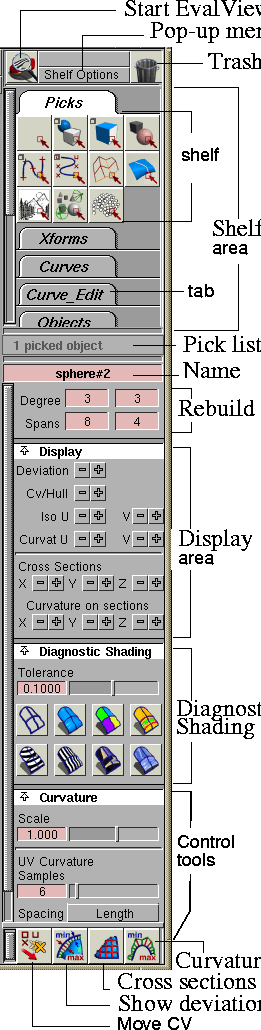
The Control Panel (also known as the Direct Modeling control panel) provides quick access to tools and options commonly used in the workflow of technical surfacing.
To show or hide the control panel, choose Preferences > Interface > Tgl Control Panel from the modeling window.
>
|
Note:
|
Depending on the options your purchased, your package
may not contain this tool. If this is the case, you still have
access to some of the Diagnostic Shading modes through
ObjectDisplay > Diagnostic Shading (see Diagnostic Shading
in the Basic Tools book).
|
The Control panel is useful for the following workflows:
Interface Summary
Start EvalViewer button
-
- Starts the EvalViewer tool and loads the picked geometry into it. For information, see the EvalViewer manual.
Shelf area, pop-up menu, and Trash icon
-
- The Shelf area contains shelf sets, which are sets of tools you can customize to help with your workflow. You can customize the contents and number of shelf sets in this area, and compress them or expand them using tabs.
-
- Use the following controls, at the top of the window, in conjunction with this area:
- Pop-up menu-lets you load and save shelf sets in the shelf area.
- Trash button-lets you remove tool icons or shelves from the shelf area (drag them with the middle mouse button).
-
- For more information on these controls, see Using the Shelf Area in the Control Panel on page 483.
Pick list
-
- This pop-up menu lets you pick a particular object from a number of picked objects. It is useful when you are trying to pick a particular object out of a clutter of objects in a small area; you can pick multiple objects in the modeling window and then pick the particular object you want to work with from this list.
-
- This list is useful when used in conjunction with controls, such as the Name and Geometry fields, that require that only one object be picked.
-
- The menu contains the names of all currently picked objects. As you move the mouse pointer over the items, the named object highlights in the view windows.
|
|
Alternatively, you can enter
the name in the Information
window.
|
Name
-
- Lets you rename the picked object. To use this tool, only one object can be picked (use the Pick list to select it).
-
- Naming objects makes it easier to find them in the SBD and Information windows, and allows you to pick objects by typing their names on the prompt line.
Rebuild tools: Degrees, Span
-
- These fields let you quickly change the degree (from 1 to 9) and the spans of the picked curve or surface.
-
- For more information on these tools, see Rebuilding geometry on page 485.
Display area
-
- These controls let you show or hide picked geometry-for example:
|
|
Controls available in this
area vary depending on the
type of geometry that is
picked
|
-
- To show a type of display feature for all picked geometry, click the plus sign; to hide it, click the minus sign.
-
- For more information on the display area, see Displaying or Hiding Features of the Picked Geometry on page 486.
Diagnostic Shading
-
- These icons shade your geometry so that you can see and evaluate your surfaces. You can continue to pull and tweek CVs while this shading is on.
-
- For more information, see Using Diagnostic Shading on page 488.
Control tools
-
- This area contains tools that help you with your workflow.
-
- The name of this area varies, as do the controls available in it, depending on which of the control tool buttons you've selected. These buttons help you with different workflows; access them at the bottom of the Control panel:
|
|

|
|
|

|
|
|

|
|
|

|
Using the Shelf Area in the Control Panel
|
|
|
|
|
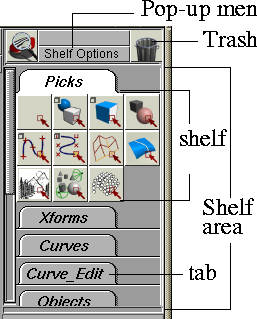
The Control panel's shelf area contains shelf sets, which are sets of tools you can customize to help with your workflow.
|
|
For more information on
shelves and on using the
Shelf window, see Basic Tools
in Alias.
|
This area is a compact alternative to the main Shelf window. For example, you can put all the symmetry tools in this area, and then close the main shelf window to free up the modeling window real estate for a larger view of your model.
|
|
|
You can customize the contents and number of shelf sets in this area, and compress them or expand them using tabs.
How To Use
To move tool icons or entire tool palettes to the shelf area of the Control Panel, drag them from the main Shelf window into the shelf area with the middle mouse button.
Use the following controls (above the shelf area) to control the shelf sets contained in this area:
Trash button
-
- Lets you remove tool icons or shelves from the shelf area. (Drag them with the middle mouse button and drop them over this icon.)
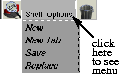
Shelf Options Pop-up menu
-
- Lets you load and save shelf sets in the shelf area.
|
|
|
- New-Adds a new shelf set to the shelf area. This will automatically delete the current shelf set.
- New Tab-Appends a new tab to the shelf set. A window appears to let you name the tab. Tabs provide a convenient way to organize your shelf set, and let you compress the tools they contain.
- Save-saves the current set of shelves to the default directory ($HOME/.Alias/Prefs.2/shelves/ControlPanelShelves). The file lister appears to prompt you for its file name, which subsequently appears in the pop-up menu.
- Replace-replaces the current set of shelves with a saved shelf file from disk. The file lister appears, from which you can choose a name from the list to load a shelf set saved in the default directory.
- List of available shelves-the list of previously stored shelf sets appears in the menu. Click on one of these entries to load that shelf set. It will replace the current shelf set.
|
Rebuild tools
|
Rebuilding geometry
|
|
|
|
|
Purpose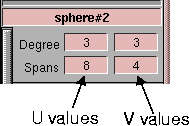
Change the degees and spans of a curve or surface.
This tool rebuilds the geometry with uniform parameteriza-tion, if the degree or spans of a curve or a surface are modified. The geometry can be changed in succession and the maximum deviation from the original geometry is reported in the prompt line with each change in degree or span.
|
|
See Interface Summary on
page 480 for a description of
other controls, including the
Pick list.
|
The rebuild tool works with only one curve or surface at a time. Use the Pick list to narrow down the curve or surface from a collection of curves and surfaces.
How To Use
To change a degree or span:
-
1
-
Pick the curve or surface whose degree or spans you want to modify.
-
2
-
Modify the appropriate field in the Rebuild tool:
- To modify the degree in the U direction, enter a value in the left-hand column of the Degree row. To modify the degree in the V direction, use the right-hand column of the Degree row.
- To modify the spans in the U direction, enter a value in the left-hand column of the Spans row. To modify the spans in the V direction, use the right-hand column of the Spans row
-
3
-
Check the maximum deviation in the prompt line to see if the deviation from the original geometry is acceptable. If not, modify the values in the fields some more.
-
4
-
To keep the changes, click the Accept button that appears in the lower right corner of the modeling view window. To cancel the changes, click the Cancel button.
Choosing another tool or unpicking the geometry before accepting the rebuild result cancels the changes to the geometry.
|
Display Area
|
Displaying or Hiding Features of the Picked Geometry
|
|
|
|
|
Purpose
|
|
|
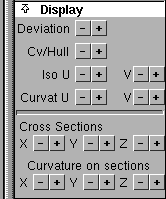
These controls let you display or hide the following items on the picked geometry:
Controls available in this area vary depending on the type of geometry that is picked. In fact, the way you use these controls varies depending on which of the buttons you've selected at the bottom of the Control panel.
For more information on how these controls will help you with your workflow, refer to the following:
How To Use
To display a feature:
-
1
-
Find the feature you want to display in the Display section of the Control Panel.
-
2
-
Click the plus sign to display that feature on the picked geometry.
To hide a feature:
-
1
-
Find the feature you want to hide in the Display section of the Control Panel.
-
2
-
Click the minus sign to hide that display feature on the picked geometry.
Features
|
|
For information, see
Measuring Scan Data to
Surface Deviation on
page 497.
|
Deviation
-
- Display/hide deviation combs and minimum/maximum deviation labels.
-
- Use the Show Deviation tool at the bottom of the Control panel to create and change deviation combs.
CV/Hull
-
- Display/hide CVs and hulls.
|
|
For information, see
Moving CVs on page 495.
|
-
- Use the Curvature tool at the bottom of the Control panel to create and change curvature combs.
Iso U/V
-
- Display/hide interior isoparms.
Curvat U/V
-
- Display/hide curvature combs on U and V isoparms.
|
|
For information, see
Curvature Button on
page 503.
|
-
- Use the Curvature tool at the bottom of the Control panel to create and change curvature combs.
Cross sections X/Y/Z
-
- Display/hide cross sections on the surface parallel to the X, Y, or Z axes.
|
|
For information, see
Viewing Cross Sections on a
Surface on page 499.
|
-
- Use the Cross sections tool at the bottom of the Control panel to change the display of cross sections.
Curvature on sections
-
- Display/hide curvature combs on the cross sections.
|
|
For information, see
Curvature Button on
page 503.
|
-
- Use the Curvature tool at the bottom of the Control panel to create and change the display of curvature combs.
|
Diagnostic Shading
Tools
|
Using Diagnostic Shading
|
|
|
|
|
Overview
|
|
|
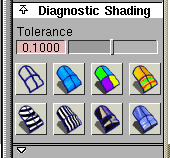
These options let you work with shaded geometry instead of wireframes so that you can see and evaluate your surfaces.
There are different shading modes available that provide different diagnostic information about your surfaces. These shading modes use highly optimized, high performance routines to allow you to interactively work in the shaded mode.
For example, with the Transparency option, you can visualize the model as you tumble the camera-you can see CVs and continue to pull and tweek them while any of the shading modes is turned on.
By default, Diagnostic Shading uses a point light located at the eye position of the camera. You cannot see or pick this light as an object, but you can change its parameters through the Diagnostic Shading options (see page 489).
How To Use
To shade objects:
-
1
-
Pick the objects you want to shade.
-
2
-
Click a shading button to shade the picked objects.
>
|
Note:
|
If no objects are picked, clicking a shading button shades all
objects.
|
To control the speed and quality of the shading:
|
|
The Tolerance slider controls
the accuracy of the
tesselation.
|
- Increase the Tolerance slider setting for a faster but rougher display.
- Decrease the Tolerance slider setting for a slower but more accurate display.
To change the options for a shading mode.
|
|
|
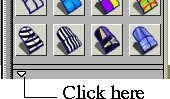
- Click the little arrow below the shading buttons to open the controls for the current diagnostic shading mode.
- When the arrow is pointing right, the options section is hidden. When the arrow is pointing down, the options are available beneath the shading mode buttons.
The Shading Modes
|
|
|
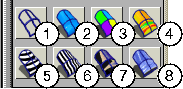
The illustration at left shows the different shading modes.
Refer to the following sections for information on each of these modes, and the options available for them.
|
|
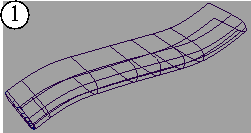
|
1. No shading
The wireframe model appears with no shading.
No settings are available with this shading mode.
|
|
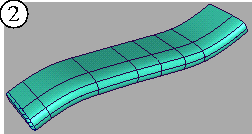
|
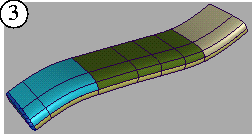
2 and 3. Single and random color
Single color mode shades all the picked surfaces with a single color which you can set.
Random color mode shades the surface with random colors. As a result the adjacent surfaces show up in different colors, making it easier to see the patch structure.
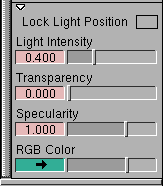
Control the type of shading with the following options:
|
|
|
Lock Light Position
-
- Normally the light source for the shading comes from the camera (like a headlight). Turn this option on to lock the light source in its current position.
Light Intensity
-
- Set the brightness of the light source.
Transparency
-
- Set the transparency of the shaded surfaces, from 0.0 (totally opaque) to 1.0 (totally transparent).
Specularity
-
- Set the "shinyness" of the surfaces.
|
|
|
RGB Color
-
- Click the color swatch to set the color, or drag the slider to change the color's brightness. (This option is available only in single color mode.)
Color Saturation
-
- Set the common saturation (the "vividness" of the color) for the random colors.
|
|
|
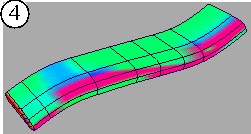
4. Surface evaluation map
This mode shows a curvature map, as well as a draft angle map (that is, this mode shows which parts of the surface are in-draft and out-of-draft).
>
|
Note:
|
This option is not available for all Alias products.
|
Control the type of shading with the following options:
Surface Evaluation Type
-
- Choose how to calculate the curvature:
-
- Mean-use the average of the two principal curvatures to approximate the average curvature through each point.
-
- Gaussian-use the product of the two principal curvatures.
-
- Princ Min-use the minimum curvature values (that is, the curvature of the flattest curves that pass through each point).
-
- Princ Max-use the maximum curvature values (that is, the curvature of the steepest curves that pass through each point).
-
- Draft Angle-color in-draft parts of the surface blue, out-of-draft parts of the surface red, and the parting line white. Distinct options appear for this evaluation type (see the description following the next section).
|
|
|
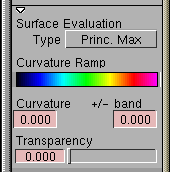
Mean, Gaussian, Princ Min, and Princ Max Types of Evaluation:
The following options are available for the Mean, Gaussian, Princ Min, and Princ Max surface evaluation types:
Curvature Ramp
-
- Shows the range of colors that will be applied to the curvature map.
-
- If +/- band is set to 0.0, the curvature map is relative, and the ramp colors, from left to right, represent increasing curvature values. (The colors are not associated to specific values.)
+/- band, Curvature
-
- When you choose a curvature value, there will be a narrow range of values around it that will be accepted as valid. Use these options to define this specific curvature range, or band. Curvature is the value at the center of the band. +/- band gives the width of the band on either side of the center value.
|
|
|
-
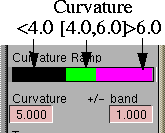
- If +/- band is set to something other than 0.0, the Curvature Ramp shows three discreet colors. The middle color will shade regions of the surface(s) with curvature within the specified range.
-
- For example, Curvature = 5.0 and +/- band = 1.0 defines a curvature band between 4.0 and 6.0. Regions with curvature lower than this range will be drawn in the left color, regions with higher curvature in the right color.
Draft Angle Evaluation:
Some manufacturing processes, like injection molding, need you to design molds. A section of a mold only moves in a certain direction during removal. This direction is the pull vector.
Angle-to-pull is the angle between the surface tangent plane at a surface point and the pull vector. When the angle-to-pull is 0 degrees, the pull vector is parallel to the surface tangent plane at that point. When the angle-to-pull is 90 degrees, the pull vector lies normal to the surface.
Most manufacturing processes require that the angle-to-pull for a molded surface be greater than some angle, for example 1 degree, or else the molded part will not separate from the mold. This angle is the draft angle.
When the angle-to-pull is less than the draft angle, the surface point is out-of-draft. When the angle-to-pull is more than the draft angle, the surface point is in-draft.
This shading mode shows you which parts of a surface are in-draft and out-of-draft for a specified pull vector and draft angle. In-draft points are shaded blue, while out-of-draft points are shaded red. Points on the boundary between these two regions, the parting line, are shaded white.
|
|
See Adding a Draft Angle
Measurement on page 395.
|
Use the Locators Deviation measures > Draft Properties tool to get an accurate curve-on-surface for the parting line. To see the changes made from the Draft Properties tool on the draft map, click on the surface evaluate shading button again.
|
|
|
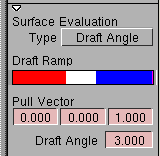
The following options are available for the Draft surface evaluation type:
Pull Vector
-
- X,Y,Z coordinates of a vector that defines the pull direction.
Draft Angle
-
- Angle defining the boundary between in-draft (blue) and out-of-draft (red).
Transparency
-
- Sets the transparency of the shaded surfaces, from 0.0 (totally opaque) to 1.0 (totally transparent).
|
|
|
|
|
|
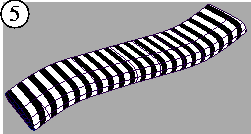
5. Horizontal highlights
This mode shows horizontal highlights on the surface.
>
|
Note:
|
Highlighting helps you find surface flaws by using a color
texture to simulate natural highlights. It maps a color
pattern onto a surface based on the angle (from 90 to -90
degrees) at which a viewing ray hits the surface.
|
|
|
A common use for highlighting is to identify adjacent
surfaces with mismatched tangents. (You can also use
Surface continuity for this, but highlighting gives you a
clearer view of the surfaces.)
|
|
|
Note also that not all Alias packages include the
highlighting features.
|
Control the type of shading with the following options:
|
|
|
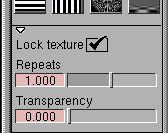
Lock Texture
-
- Normally the highlights are projected from the camera, so the projection changes as you move around the surface. (This is the unlocked mode.) You can turn this option on so that the texture remains locked relative to the surface.
Repeats
-
- Sets the rate at which the texture repeats. Increasing this number will increase the number of highlight lines on the surfaces.
Transparency
-
- Sets the transparency of the shaded surfaces, from 0.0 (totally opaque) to 1.0 (totally transparent).
|
|
|
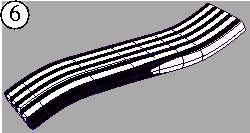
6. Vertical highlights
This mode shows a curvature map with vertical highlights.
Its options are the same as for horizontal highlights (see the note and desriptions above).
|
|
|
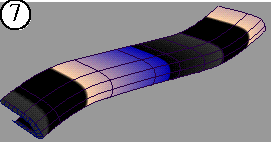
7. Double-horizon texture
This mode shows a texture map with a double-horizon image.
The options are the same as for horizontal highlights (see the note and desriptions above).
|
|
|
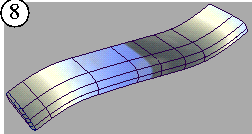
8. Texture
This mode shows a user-defined texture reflected on the picked surfaces. You can use the default horizon texture, or load one of your own.
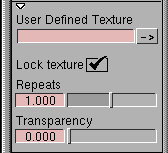
All options are the same as for horizontal highlights (see the note and desriptions above), except for:
|
|
|
User Defined Texture
-
- Enter the name of a texture file to use instead of the default horizon texture. You can use Alias PIX, SGI's RGB, TIF and various other image file formats. (The GIF and JPEG file formats are not supported.)
-
- Click the arrow button to choose the texture from a file requester.
Using Other Lights
|
|
For more information on
lights, see Lights in the
Rendering in Alias book.
|
Instead of the default Diagnostic Shading light, you may choose to use up to eight regular lights to illuminate your model while in Diagnostic Shading mode. These lights can be edited through the Multi-Lister in the usual fashion.
The following types of lights can be used: spot lights, point lights, directional lights (handled as point lights), ambient lights, and linear lights.
|
Move CV Button

|
Moving CVs
|
|
|
|
|
Purpose
Move CVs and hulls in world space or in the parameter space of the surface. This tool combines the functions of Move and Move CV normal.
How To
To move CVs using the Move CV tool:
-
1
-
Click the Move CV tool at the bottom of the control panel.
-
The CV Move section appears in the control tools area of
the Control panel.
-
2
-
Choose how to move the CV(s):
- Choose XYZ from the left Mode menu to move the CV(s) in absolute world space.
- Choose NUV from the left Mode menu to move the CV(s) in the surface's parameter space. This allows you to move the CV(s) along U and V contours of the surface, and up and down the surface normal.
- Choose SLIDE from the left Mode menu to move the CV(s) along their respective U or V hull lines.
-
3
-
Choose CV from the right Mode menu and click the CV you want to move, or choose HULL and click a hull to move an entire row of CVs.
-
To pick or unpick more CVs or hulls, hold down the Shift
key, and click or drag a pickbox around them.
-
4
-
Use the mouse or keyboard to move the CVs:
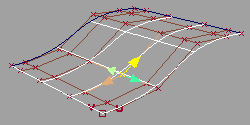
- Drag the left mouse button to move the CV along the X axis (in XYZ mode), or along the normal (in NUV mode).
- Drag the middle mouse button to move the CV along the Y axis (in XYZ mode), or along the U direction of the surface (in NUV mode).
- Drag the right mouse button to move the CV along the Z axis (in XYZ mode), or along the V direction of the surface (in NUV mode).
|
|
|
- In SLIDE mode, all mouse buttons behave the same way. You must click on one of the four arrowheads (two for curves) to determine the direction of motion.
- Use the arrow keys to move the CV by the amount you set in the Step Size field. In NUV mode the arrow keys move the CV along the normal. In XYZ mode the arrow keys move the CV along the unlocked axes (see Options X Y Z below).
- Type a 3D coordinate on the prompt line to move the CV(s) exactly.
- Use Edit > Undo if you need to undo the last move.
Options
|
|
|
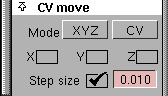
The CV Move options appear in the control tools section of the Control panel when you click the Move CV button:
Left Mode (XYZ/NUV/SLIDE)
-
- Choose whether to move the CV in absolute world space (XYZ), in parameter space (NUV) or along the hull lines (SLIDE).
Right Mode (CV/Hull)
-
- Choose whether to move single CVs or hulls.
-
- Note that even in CV mode, you can still click hulls to select them (using Shift + mouse button to create a pickbox).
|
|
These options appear when
the left Mode menu is XYZ.
|
X Y Z
-
- Click the boxes to lock the movement of the CV along the X, Y, and/or Z axes.
|
|
This option applies when the
left Mode menu is XYZ; in
NUV and SLIDE modes, it
acts as sensitivity only.
|
Step Size
-
- Enter the world space distance the CV(s) will move when you use the cursor keys.
-
- In SLIDE mode, this option controls the way the CV(s) move when you use the mouse. If it is off, all CVs move the same percentage of the way along their hulls. If it is on, they move in discreet steps equal to the specified distance.
|
Show Deviation
Button

|
Measuring Scan Data to Surface Deviation
|
|
|
|
|
Purpose
Create deviation combs and label minimum, maximum, and mean deviation points between scan-lines (or any curve) and surfaces.
|
|
See Examining Deviation
Values on page 521.
|
To view numeric deviation values, create a deviation locator, then choose Windows > Information > Deviation Table.
Overview
The Show Deviation tool sets up the deviation measure between scan-line (curves) and surfaces, and remembers the connection. The display attributes of the deviation comb can be set by the Deviation options.
Use the Deviation +/- buttons in the Display section of the Control panel to quickly display or hide the deviation comb. Hiding the deviation comb helps to reduce the clutter on the screen and improves the interactive performance. To display it again, you do not have to set up the deviation again.
How To
To create deviation combs:
-
1
-
Pick all the scan-lines (curves) and surfaces between which you want to calculate the deviation.
-
2
-
Click the Show Deviation tool in the Control panel.
To quickly display the deviation comb:
-
1
-
Pick either the surface or the scan-line (curve) which contains the deviation comb.
-
2
-
Click the "+" button next to Deviation in the Display area of the Control panel.
To quickly hide the deviation comb:
-
1
-
Pick either the surface or the scan-line (curve) which contains the deviation comb.
-
2
-
Click the "-" button next to Deviation in the Display area of the Control panel.
To delete deviation combs:
-
1
-
Click the Locator > Move Locator tool, and then click on the deviation comb. This will highlight the deviation comb.
-
2
-
Click the Delete > Del Locato > Active tool to delete this active locator.
Options
|
|
|
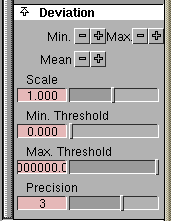
The Deviation options appear in the Control panel when you click the Show Deviation tool.
Pick the scan-line (curves) or surface to enable the buttons of Deviation options. Only those deviation combs whose related scan-line(curves) or surfaces are picked will be modified.
Min, Max, Mean
-
- Show/hide labels pointing to the points with maximum, minimum, and average (mean) deviation.
Scale
-
- The scale of the deviation quills. The deviation is multiplied by this number to get the length of the quills. To get a scale higher than the one given by the slider, type the value in the adjacent area.
Min./Max. Threshold
-
- Choose the minimum and maximum values to include in the comb and labels.
-
- Use these values to eliminate "rogue points" from scan data, or to highlight values in a specific range.
Precision
-
- Set the number of decimal places to print in labels.
|
Cross-Sections
Button

|
Viewing Cross Sections on a Surface
|
|
|
|
|
Purpose
Create cross-sections on a surface, trimmed surface or shells.
Overview
|
|
To see curvature combs on
cross-sections, see Working
with Curvature Combs on
page 503.
|
Cross-sections are displayed on the surface in the X, Y and Z planes of the current coordinate system. The cross-sections are maintained and automatically updated with any change to the surface.
|
|
Use Evaluate palette >Cross
section to set radial cross-
sections on the surface.
|
A surface cross-section can be switched between visual geometry and NURBS geometry. The NURBS geometry cross-sections are also automatically updated with a change to the surface; they are saved as curves in a file, and any operation can be applied to them similar to other curves and surfaces. However, they are slower in comparison to the visual geometry cross-sections.
Cross-sections at fixed steps
Cross-sections can be created in the X,Y or Z planes with a regular step size starting from the origin (zero point of the model space). For example, with a step size of 2.5 cm, the cross-sections are created at ... -2.5, 0.0, 2.5, 5.0 ... and so on.
Set fixed spacing with the options described below. By default, when the auto range option is turned on, the cross-sections are shown over the entire surface. However, you can also explicitly set the range over which you see the cross-section.
To display/remove cross-sections on objects with a fixed step size in the X, Y, or Z planes:
-
1
-
Pick the surfaces on which you want to display/remove cross sections.
-
2
-
Click the "+" or "-" buttons of the axis along which you want the cross-sections displayed or removed. The buttons appear under Cross-sections in the Display area of the Control Panel.
>
|
Note:
|
To change the cross-section settings, click the cross-section
tool to display the option box.
|
To display/remove cross-sections on objects with a fixed step size in an arbitrary plane:
|
|
Because cross-sections can
be created only in the X,Y,
and Z planes, to display
them in an arbitrary plane
you have to create and set a
construction plane which
matches the arbitrary plane.
|
-
1
-
Create a construction plane such that it matches that arbitrary plane. (Use Grids > Free Plane-see Snapping to Grids, Curves, and Points on page 35.)
-
2
-
Pick the surfaces on which you want to display/remove cross sections.
-
3
-
Click the "+" or "-" buttons of the construction plane axis along which you want the cross-sections displayed or removed. The buttons appear under Cross-sections in the Display area of the Control Panel.
>
|
Note:
|
To change the cross-section settings, click the cross-section
tool to display the option box.
|
Cross-sections in unevenly spaced scan lines
Sometimes the scan lines along which we need cross-sections are not regularly spaced. This uneven spacing can be achieved by specifying the corresponding scan-lines (curves) and using the Picked Curves spacing options in the cross-section options described below.
To set cross sections at uneven spacing in the X, Y or Z planes:
-
1
-
Pick the scan-lines(curves) to describe the surfaces on which you want to create cross section lines.
-
2
-
Click the Cross sections tool to open the options.
-
3
-
Set the Spacing option in Cross-section option to Picked Curves.
To display/hide cross sections at uneven spacing in the X, Y or Z planes:
-
1
-
Pick the cross-sectioned surfaces on which you have set irregular spacing cross-sections.
-
2
-
Click the +/- Cross-section buttons in the Display section of the Control Panel.
To set cross-sections on surfaces at uneven spacing in an arbitrary plane:
Use this workflow if the scan-lines (curves) in whose plane you want the cross-sections are irregularly spaced and lie in an arbitrary plane other than X, Y, or Z.
-
1
-
Create a construction plane such that it matches that arbitrary plane. Please refer to the section on Grids > FreePlane on how to create and set the construction plane.
-
2
-
Follow the steps in the "Cross-sections at fixed steps" section above.
Cross-section Options
|
|
|
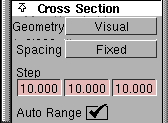
The Cross Section options appear in the Control panel when you click the Cross-sections tool:
Geometry
-
- Visual-show the cross-section lines using fast, display-only geometry.
-
- Nurbs-create NURBS geometry curves from the cross-section lines.
Spacing
-
- Fixed-create cross-sections at a fixed step size.
-
- Picked Curves-create cross-sections by projecting picked scan-data curves. The curves must be planar and perpendicular to the X, Y or Z axis.
|
|
This option appears when
Spacing is Fixed.
|
Step
-
- The distance between cross-section lines.
|
|
This option appears when
Spacing is Fixed.
|
Auto Range
-
- Turn this option on to project cross-sections across all the picked geometry.
-
- Turn this option off to project cross-sections only across an area you specify with the Start and End coordinates.
|
|
These options appears when
Auto Range is off.
|
Start
End
-
- Enter the 3D corners of a box within which the cross-sections will be created.
|
Curvature Button

|
Working with Curvature Combs
|
|
|
|
|
Purpose
Create a curvature comb on a curve, on a surface in the U and V directions, or on the surface cross-sections. The surface curvature can also be displayed as a color map on a surface.
The display of a curvature comb, a color map, and various settings of UV curvature can be set through the options for the Curvature tool of the Control Panel.
Curvature combs on curves or surface
The UV curvature comb on a surface creates a curvature comb in the U and V directions. These combs can be spaced in the U and V directions by two spacing methods. In the length spacing, any number of evenly spaced combs can be created in both U and V directions. This is useful even when the surface has uneven parameterization.
In the Parameter spacing, the curvature combs are created on the isoparms lines. This is useful even when surface has uneven parameterization.
The display of the curvature comb can be changed through Curvature Options in the Control Panel. Pick curvature combs with Locators > Move Locator, and delete them with Delete > Delete Locators > Active.
To show curvature combs on curves or surfaces:
-
1
-
Pick the curves or surfaces on which you want to show curvature combs.
|
|
See Displaying or Hiding
Features of the Picked
Geometry on page 486.
|
-
2
-
Click the Curvat U/V buttons in the Display section of the Control Panel.
-
3
-
To set the display options, see the Curvature options below.
Curvature combs on cross-sections
Curvature combs can also be displayed on surface cross-sections, and can be refined by picking the surface and decreasing the Diagnostic Shading tolerance in the Control Panel.
|
|
See Viewing Cross Sections on
a Surface on page 499.
|
To control the display of cross-sections, use the Cross-section tools in the Control panel.
|
|
See Working with Curvature
Combs on page 503.
|
To change the scaling of the curvature comb, use the Curvature tools in the Control Panel.
To show curvature combs on cross-sections:
-
1
-
Pick the surface.
-
2
-
Click on the desired axis of Curvature on Section buttons in the Display section of the Control Panel.
-
If the cross-sections are not already present, they are
created according the current settings.
Curvature map
|
|
See Using Diagnostic Shading
on page 488.
|
This option in Diagnostic shading shows the four types of surface curvatures - mean, Gaussian, principal minimum and principal maximum.
Curvature Options
|
|

|
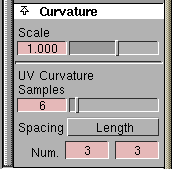
Click the Curvature button to use the curvature options in the Control panel. The controls in the curvature options are enabled only when a related geometry is picked. Otherwise, they remain disabled.
|
|
|
Scale
-
- This option scales the length of the curvature combs, on the surface as well as cross-sections on surface. This option also scales the curvature color map to show finer details of curvature variation.
|
|
The UV curvature options-
Samples, Spacing, and
Num- apply only to the
picked surfaces which have
UV curvature. Otherwise the
controls remain disabled.
|
Samples
-
- Enter the total number of samples to take on each comb. Increasing the sample results in a finer curvature comb.
Spacing
-
- Length- evenly space the curvature combs along the edge.
-
- Parameter-place the curvature combs only on edit point isoparms.
|
|
This option only appears
when Spacing is Length.
|
Num
-
- Set the number of curvature combs on the surface in each direction.
|


