|
|
Locators >
Curve curvature

|
Adding a Curvature Measurement to a Curve
|
|
|
|
|
Purpose
Add a locator that shows the curvature or radius comb of a curve.
Overview
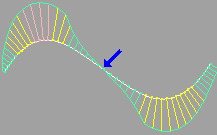
The curve curvature comb shows the amount of curvature at different sample points along the curve. It also shows how the curvature changes along the curve, the tangent and normal directions, inflection points, and torsion.
Use the curvature comb to detect the following potential curve problems:
- Inflection points (or ogees) are marked approximately with an arrow. You can find the exact inflection point by zooming in to find the point where the comb outline crosses the curve.
- Torsion is the amount the curve bends out of the plane of curvature. You can turn on an option to plot secondary, perpendicular quills on the curve showing the torsion.
- Tangent discontinuities appear as two separate Unit Normal quills (see Options) originating from the same point on the curve but pointing in different directions.
-
Because the telltale quills are always at an edit point, you
can see them more clearly by setting Density Type to Per
Span and lowering the Density to 2. Make sure the scale is
high enough to tell whether there is more than one quill.
-
Tangent discontinues occur when two curves are not
properly aligned. (Or, when a CV on a cubic curve has a
multiplicity of 3.) It can also happen at a multi-knot, if the
corresponding edit point has been moved.
- Curvature discontinuities appear as sudden steps in the outline of the curvature comb. You should use a high sampling rate (Density Value) to detect curvature discontinuities.
|
|
Degree 2 curves are not
curvature continuous by
nature. (See Degree on
page 12 and Continuity on
page 23.)
|
-
Curvature discontinuities between curves occur when two
curves not have the same curvature at their end, or when a
CV on a cubic curve has a multiplicity of 2 or 3. The curve
join may be smooth, but the curvature values do not
change smoothly.
Display
The Curve curvature locator samples points along the curve and displays colored lines (called "quills" because of their resemblance to the spines on the back of a porcupine) showing the amount of curvature at that point:
- Green quills have low curvature.
-
When output to a plotter, green quills are represented by
long dashes.
- Yellow quills have medium curvature.
-
When output to a plotter, yellow quills are represented by
short dashes close together.
- Rose quills have high curvature.
-
When output to a plotter, rose quills are represented by
short dashes far apart.
How To
To add a curvature comb to a curve:
|
|

|
-
1
-
Click the Curve curvature icon, or choose Curve curvature from the Locators palette menu.
-
2
-
Click the curve you want to attach the curvature comb to.
-
3
-
You can drag the mouse to change properties of the curvature comb:
- Drag the left mouse button to change the sampling density of the comb.
- Drag the middle mouse button to change the scale of the quills.
To edit a curve curvature comb:
-
1
-
Choose Windows > Information > Information window to open the Information Window.
|
|

|
-
2
-
Click the Move locator icon, or choose Move locator from the Locator palette menu.
-
3
-
Click the curve curvature comb you want to edit.
- Drag the left mouse button to change the sampling density of the comb.
- Drag the middle mouse button to change the scale of the quills.
To change the curvature of a curve:
There are many ways you can modify a curve when you are trying to fix curvature problems:
- When you move a CV toward the curve along the normal, curvature is reduced near the CV.
- When you move a CV away from the curve along the normal, curvature is increased.
- When you move a CV along the curve, curvature is decreased behind the CV and increased ahead of the CV.
- Use curve editing tools such as Curve editor, Project tangent, and Align.
- Smooth the curve using the Smooth tool.
Tips and Notes
- Longer quills reveal changes better, but they can obscure other objects when you are trying to model.
- If you are moving CVs to achieve better curvature, you should make sure Locator Updates > During Xform is on in Preferences > Performance options.
-
When Locator Updates > During Xform is on, the comb will
update interactively as you move the CVs, allowing you to
see the effects on the curvature.
- If you are looking for specific values of curvature, change the color ranges in the Information Window (see below) so that the values you are looking for are drawn in one color.
- You can also use the Curve curvature tool to display a radius comb or a simple normal comb, using the Plot Value option (see below).
Curve Curvature Parameters
The following parameters are found in the Information Window when a Curve Curvature locator is selected:
Density Value
-
- The initial sampling density. You can change this value after creating the comb by dragging the left mouse button.
Density Type
-
- Choose whether the Density Value sets the number of samples per span or per the entire curve.
Plot Value
-
- Curvature-the quill lengths indicate the curvature at that point on the curve (default).
-
- Radius-the quill lengths indicate the radius at that point on the curve.
|
|
This option is called Unit
Normal in the Option
window.
|
-
- Unit Curvature-the quill length is constant, so the quills only indicate the direction of the normal at that point on the curve.
Comb
-
- Show the comb quills.
Outline
-
- Show the comb outline (the line connecting the endpoints of the comb quills).
Torsion
-
- Show torsion quills on the curve
Inflection Points
-
- Show the inflection points on the curve with small blue arrows.
-
- To speed up display, the arrows are only close approximations. To see the true inflection point, look for the point where the comb outline crosses the curve.
Scale
-
- The scale applied to the quills.
Plot Cutoff
-
- Limit quills to this length.
-
- This option is necessary because some plot values, such as the radius of a straight line, are infinite, or very large.
|
|
|
Color Ranges
-
- Enter the boundary values between the three colors.
-
- Curvature values less than the first field will be colored with the left color. Values between the first and second fields will be colored with the middle color. Values greater than the second field will be colored with the right color.
|
|

|
-
- Click the color swatches to edit the colors.
Surf Relative
-
- Display the curvature quills, for surface curves, in the direction of the surface normals.
-
- This option has no effect on free curves.
Window
-
- Choose whether the annotation appears in all windows or only the current window.
Options
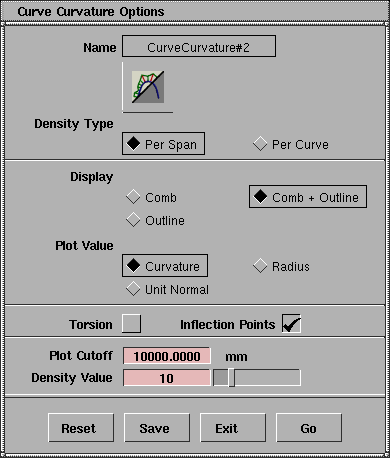
See definition for these options under Curve Curvature Parameters on the previous page.
See Also
|
Locators >
Curvature properties

|
Adding a Curvature Measurement to a Surface
|
|
|
|
|
Purpose
Add a locator that shows the curvature values across a surface.
Overview
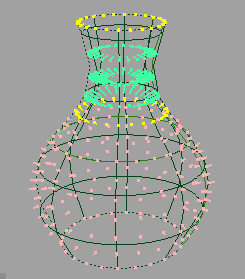
The surface curvature "quills" show the amount of curvature at different sample points across the surface. It also shows how the curvature changes along the surface, as well as the normal directions.
Use the curvature quills to detect the following potential curve problems:
- Inflection points (or ogees) occur where the quill lines change sides (that is, from pointing away from one side to pointing away from the other side).
- Flat areas have curvature close to zero, resulting in minimum-length quills, which look like dots.
- Saddle points have a negative Gauss curvature value.
- Tangent discontinuities appear as sudden steps in the length of the quill lines. You should use a high sampling rate to detect tangent discontinuities.
Curvature properties locators display the same type of information as the Surf curvature evaluation tool (see Showing Surface Curvature on page 523), but in a different way and with less detail.
Display
The Curvature properties locator samples points across the surface and displays colored lines (called "quills" because of their resemblance to the spines on the back of a porcupine) showing the amount of curvature at that point:
- Green quills have higher curvature.
-
When output to a plotter, green quills are represented by
squares.
- Yellow quills have medium curvature.
-
When output to a plotter, yellow quills are represented by
two horizontal lines (=).
- Rose quills have lower curvature.
-
When output to a plotter, rose quills are represented by an
"x".
>
|
Note:
|
The advantage of Curvature properties over Surf curvature
is that Curvature properties creates a locator. Hence you can
use it to observe changes in the surface interactively (for
example, as you move CVs).
|
|
|
The disadvantage compared to Surf curvature is that
Curvature properties measurements do not allow a very
high level of detail. You can increase the sampling density,
but the display can become hard to interpret. Use the Surf
curvature tool to see more detail.
|
How To
To add curvature quills to a surface:
|
|

|
-
1
-
Click the Curvature properties icon, or choose Curvature properties from the Locators palette menu.
-
2
-
Click the surface to attach the curvature locator to.
|
|
|
-
3
-
You can drag the mouse to change properties of the curvature locator:
- Drag the left mouse button to change the U sampling density of the quills.
- Drag the middle mouse button to change the V sampling density of the quills.
- Drag the right mouse button to change the scale of the quills.
To see detailed curvature measurements across the surface:
-
1
-
Choose Windows > Information > Information window to open the Information window.
|
|

|
-
2
-
Click the Move locator tool, or choose Move locator from the Locator palette menu.
-
3
-
Click a quill of the locator to select it.
|
|
|
-
4
-
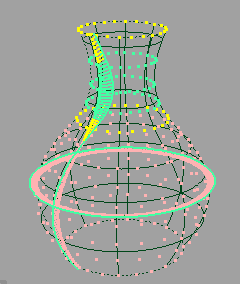
Click an isoparm of the surface with the left mouse button and hold, to show a detailed curvature comb along the two isoparms that intersect where you clicked. As you drag the mouse over the surface, the curvature comb for other pairs of isoparms is displayed.
-
This display is temporary and disappears when you
release the mouse button, unless the Sticky Isoparms option
is turned on. (See Surface Curvature Parameters below.)
To see detailed information about a particular sample point:
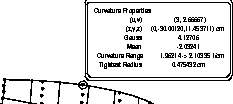
Click a quill (of an already selected locator) with the right mouse button. The following information pops up:
- The U and V parameters of the sample point.
- The 3D world space location of the sample point.
- The Gauss and Mean curvature values.
- The range of curvatures at the sample point.
- The tightest radius of curvature at the sample point.
-
This is the radius of the largest sphere that can fit snugly
to the surface at this point. You may need this information
to design an object which contains this surface.
To edit a surface curvature locator:
-
1
-
Choose Windows > Information > Information window to open the Information window.
|
|

|
-
2
-
Click the Move locator tool, or choose Move locator from the Locator palette menu.
-
3
-
Click a quill of the locator you want to edit.
- Drag the left mouse button to change the U sampling density of the quills.
- Drag the middle mouse button to change the V sampling density of the quills.
- Drag the right mouse button to change the scale of the quills.
Tips and Notes
- Longer quills reveal differences better, but they can obscure other objects when you are trying to model.
- If you are moving CVs to achieve better curvature, you should make sure Locator Updates > During Xform is on in Preferences > Performance options.
-
When Locator Updates > During Xform is on, the quills will
update interactively as you move the CVs, allowing you to
see the effects on the curvature.
- If you are looking for specific values of curvature, change the Color Ranges in the Information Window so that the values you are looking for are drawn in one color.
Surface Curvature Parameters
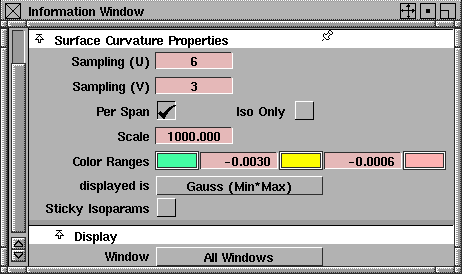
Sampling (U)
Sampling (V)
-
- The number of times per span the tool samples the curvature in the U and V directions.
-
- The greater the sampling density, the slower the feedback.
-
- You can set these values interactively when you use the tool.
Per Span
-
- If on, the Sampling values set the number of samples per span, rather than for the entire surface.
Iso Only
-
- If on, samples are only taken along the isoparms, rather than everywhere across the surface.
Scale
-
- The scale applied to the quills. You can set this value interactively when you use the tool.
Color Ranges
-
- Enter the boundary values between the three colors.
-
- Values less than the first field will be colored with the left color. Values between the first and second fields will be colored with the middle color. Values greater than the second field will be colored with the right color.
-
- Click the color swatches to edit the colors.
displayed is (curvature type)
-
- How to calculate the curvature values:
-
- Mean-use the average of the two principal curvatures to approximate the average curvature through each point.
-
- Gaussian-use the product of the two principal curvatures.
-
- Princ Min/Princ Max-use the minimum or maximum curvature values (that is, the curvature of the steepest or flattest curves that pass through each point).
-
- The Mean and Gaussian options are most useful for detecting surface irregularities. The Princ Min/Max options are most useful for finding inflection points. Principal Max. curvature is especially useful for finding out if a surface can be manufactured.
Sticky Isoparms
-
- Turn this option on to keep the detailed curvature comb that appear on the surface when you click an isoparm.
-
- Normally, the comb disappears when you release the mouse button.
Window
-
- Choose whether the annotation appears in all windows or only the current window.
See Also
|
Locators >
Deviation
Measures >
Deviation

|
Adding a Curve Deviation Measurement
|
|
|
|
|
Purpose
Add a locator showing the distance between a point on one curve and the closest point on another curve.
How To
To add a measurement between two curves or to the seam between two surfaces:
|
|

|
-
1
-
Click the Deviation icon, or choose Deviation measures > Deviation from the Locators palette menu.
-
2
-
Click the first curve, then click the second curve. You can use free curves, isoparms, trim edges, or curves on surface.
-
or
|
|
|
-
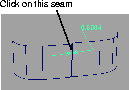
Click the seam between two surfaces.
-
You can move the new measurement while the mouse
button is down. When you release the mouse button, the
measurement is attached to the geometry. Note that you
are moving the indicator along the first curve you clicked.
-
3
-
The new locator appears.
- Drag one of the arrow heads to move the measurement along the curve.
- Drag the leader line or the label to move the label.
To edit a curve deviation measurement:
-
1
-
Choose Windows > Information > Information window to open the Information Window.
|
|

|
-
2
-
Click the Move locator icon, or choose Move locator from the Locator palette menu.
-
3
-
Click the deviation measurement you want to edit.
- Drag the arrow heads to move the measurement along the curve.
- Drag the leader to change its length.
Tips and Notes
- Use the deviation measure to find gaps between surface edges that need to be coincident.
Curve Deviation Parameters
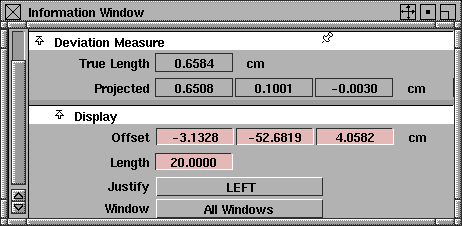
True Length
-
- The distance between the two curves at this point. You cannot edit this field.
Projected
-
- The projected distances between the two curves at this point, along the X, Y, and Z axes. You cannot edit these fields.
Offset
-
- The offset of the leader's end point from its start point. This is used to adjust the length and direction of the leader.
Length
-
- The length of the small horizontal line beside the label (in pixels).
Justify
-
- Choose whether to justify the label text Left or Right.
Window
-
- Choose whether the annotation appears in all windows or only the current window.
See Also
|
Locators >
Deviation
Measures >
MinMax deviation,
MinMax SrfSrf dev.,
MinMax CrvSrf dev.,
MinMax cloud
|
Adding Min/Max Deviation Measurements
|
|
|
|
|
Purpose
Add a locator showing the deviation between two curves, labeling the minimum and maximum.
How To
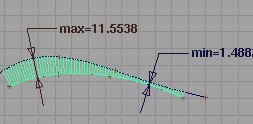
To add a deviation comb between two curves:
|
|

|
-
1
-
Click the MinMax deviation icon, or choose Deviation measures > MinMax deviation from the Locators palette menu.
-
2
-
Click the first curve, then click the second curve. You can use free curves, isoparms, trim edges, or curves on surface.
|
|
|
-
3
-
The new deviation comb appears.
- Drag the comb with the left mouse button to change the scale of the quills.
- Drag the comb with the middle mouse button to change the sampling density of the quills.
- Click and drag a label to move it.
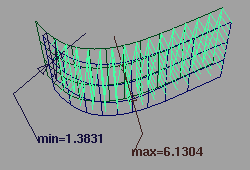
To add a deviation comb between two surfaces:
|
|

|
-
1
-
Click the MinMaxSrfSrf deviation icon, or choose Deviation measures > MinMaxSrfSrf deviation from the Locators palette menu.
-
2
-
Click the first surface, then click the second surface.
|
|
|
-
3
-
The new deviation comb appears.
- Drag the comb with the left mouse button to change the scale of the quills.
- Drag the comb with the middle mouse button to change the sampling density of the quills.
- Click and drag a label to move it.
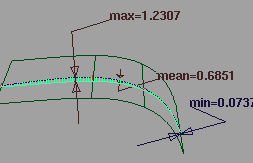
To add a deviation comb between a curve and a surface:
|
|

|
-
1
-
Click the MinMaxCrvSrf deviation icon, or choose Deviation measures > MinMaxCrvSrf deviation from the Locators palette menu.
-
2
-
Click the curve, then click the surface. You can use free curves, isoparms, trim edges, or curves on surface.
|
|
|
-
3
-
The new deviation comb appears.
- Drag the comb with the left mouse button to change the scale of the quills.
- Drag the comb with the middle mouse button to change the sampling density of the quills.
- Click and drag a label to move it.
To add a deviation comb between a surface and a point cloud:
|
|

|
-
1
-
Click the MinMax cloud icon, or choose Deviation measures > MinMax cloud from the Locators palette menu.
-
2
-
Click the cloud, then click the surface.
-
3
-
The new deviation comb appears.
- Drag the comb with the left mouse button to change the scale of the quills.
- Drag the comb with the middle mouse button to change the sampling density of the quills.
- CLick and drag a label to move it.
Tips and Notes
- The MinMax cloud tool is especially useful since you can check the fit between raw cloud data and surfaces created to fit the data.
MinMax Parameters
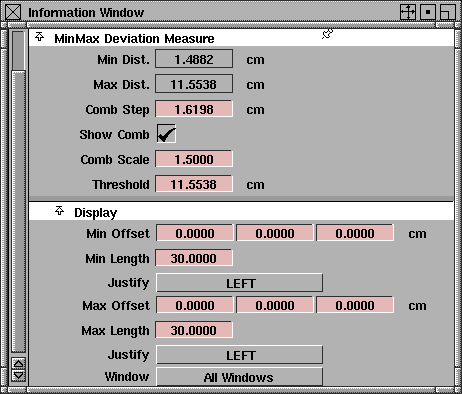
Min Dist.
Max Dist.
-
- The minimum and maximum distances between points on the two objects. You cannot edit these fields.
Comb Step
-
- The distance between quills in the comb.
Show Comb
-
- Show the comb.
Comb Scale
-
- The scale of the quills. The deviation is multiplied by this value to get the length of a quill.
Threshold
-
- A tolerance value for the deviation between two objects. In locations where the deviation is greater than this value, quills will be drawn in brown. The Threshold is initially set to be equal to Max Dist.
Display parameters
Min Offset
-
- The offset of the leader's end point from its start point for the Min deviation measurement. This is used to adjust the length and direction of the leader.
Min Length
-
- The length of the small horizontal line beside the label for the Min deviation measurement (in pixels).
Justify
-
- Choose whether to justify the annotation text Left or Right.
Max Offset
-
- The offset of the leader's end point from its start point for the Max deviation measurement. This is used to adjust the length and direction of the leader.
Max Length
-
- The length of the small horizontal line beside the label for the Max deviation measurement (in pixels).
Window
-
- Choose whether the annotation appears in all windows or only the current window.
See also
- Working with Point Cloud Data on page 457
|
Locators >
Deviation
Measures >
Draft properties

|
Adding a Draft Angle Measurement
|
|
|
|
|
Purpose
- Add a locator showing the angle between a set of surfaces and a pull direction, and the undercuts of those surfaces.
- Creates curves-on-surface at the boundaries of out-of-draft areas.
Overview
|
|
|
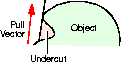
Some manufacturing processes, such as injection molding, impose restrictions on the shape of an object. To avoid problems you should understand the following concepts:
- The mold parts are pulled away from the object in a straight line, the pull vector.
|
|
|
- If the sides of the mold are too steep, the object cannot leave the mold. As well, the object cannot leave the mold if the mold undercuts itself. (See figure on the left.)
- The minimum allowable angle between the sides of the mold and the pull vector is the draft angle.
- If part of a surface has an angle less than the draft angle, it is said to be out-of-draft.
Display
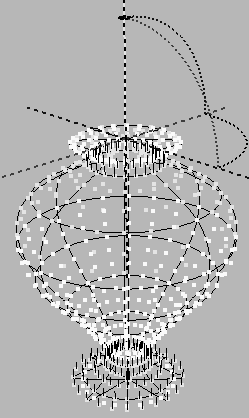
The Draft properties locator samples points across the surface and displays colored dots showing how the point relates to the current draft angle:
- Green dots are in-draft. The angle at that point on the surface is greater than the draft angle.
-
When output to a plotter, green dots are represented by
squares.
- Yellow dots are within a tolerance range from the draft angle.
-
When output to a plotter, yellow dots are represented by
two horizontal lines.
- Rose dots are out-of-draft. The angle at that point on the surface is less than the draft angle.
-
When output to a plotter, rose dots are represented by an
"x".
- Dots with lines along the pull vector are undercut.
How To
To add a draft angle measurement:
|
|

|
-
1
-
Click the Draft properties icon, or choose Deviation measures > Draft properties from the Locators palette menu.
-
2
-
Pick the surface or surfaces you want to measure.
-
3
-
Click Go.
|
|
|
-
Dots appear on the surface showing which points are in-
draft (green), within the tolerance range (yellow), and out-
of-draft (rose). Dots with lines show parts of the surface
that are undercut.
-
The Draft properties tool also creates curves-on-surface at
the boundaries of out-of-draft areas, also called parting
line.
- Drag the left mouse button to change the U sampling density of the quills.
- Drag the middle mouse button to change the V sampling density of the quills.
- Drag the right mouse button to change the length of the undercut indicator lines.
-
4
-
Change the pull vector by using the manipulator, as described below.
-
The pull vector, draft angle and other parameters are
initially set to the values in the option box. The default
pull vector is along the "up" axis (i.e. Z, for a Z-up system)
and the default draft angle is 1.0 degree. (See Options/
Parameters on page 400.)
-
The pull vector and draft angle can also be entered using
the keyboard:
- Type "p" followed by the X, Y, Z coordinates of the pull vector (e.g. p 0,1,0 for the Y axis).
- Type "u" followed by the X, Y, Z rotations of the pull vector around the "up" vector.
- Type "d" followed by the draft angle.
To use the draft angle manipulator:
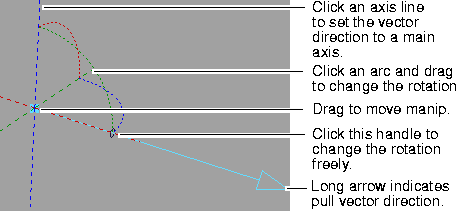
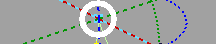
- Click an axis line to set the pull vector direction.
|
|
|
- Click the center handle, to move the manipulator.
-
The location of the manipulator has no effect on the pull
vector, but you may want to move it to improve visibility.
|
|
|
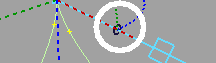
- Drag the rotation handle (the small circle on the arrow), with the different mouse buttons to change the rotation freely, or type rotational coordinates.
- Click an arc, then drag left and right to change the rotation in that plane.
To see detailed information about a particular sample point:
|
|
Select Windows >
Information > Information
window to view additional
information about surface
draft properties in the
Information Window.
|
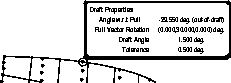
Click a dot with the right mouse button. The following information pops up in a small window:
- The angle to the pull vector at this point.
- The current pull vector (as X, Y, Z rotations from the up vector), draft angle, and tolerance.
The color of the window border indicates whether that point is in-draft, out-of-draft, or within tolerance.
To edit a draft properties locator:
-
1
-
Choose Windows > Information > Information window to open the Information Window.
|
|

|
-
2
-
Click the Draft properties icon, or choose Deviation measures > Draft properties from the Locator palette menu.
-
3
-
Click a dot of the locator you want to edit with the left mouse button.
- Use the manipulator to modify the pull vector vector.
- Use the mouse buttons to modify the sampling rates or length of the undercut lines.
- Use the options in the Information Window to edit the locator. See Options/Parameters below.
To align a pull vector along a line drawn between two points:
-
1
-
Build a line representing the direction you want the draft vector to be aligned to.
-
Select Curves > Lines > Line and click on the two points
representing the direction.
-
2
-
Select Deviation measures > Draft properties from the Locator palette menu. The draft tool manipulator appears, including the pull vector.
-
3
-
Turn on the snapping mode you want. (In this case, the crv button beside the prompt line.)
-
4
-
Select the move handle at the center of the manipulator. It stays highlighted.
-
5
-
Click on the line you built and drag the mouse towards the opposite end from which you want the pull vector to point. The base of the pull vector is now snapped onto the line.
-
6
-
Click on the free rotation handle. Because curve snap is still on, it stays highlighted. Click on the other end of the line; the pull vector snaps in the direction of the curve.
>
|
Note:
|
You can snap to any other snappable objects. For example,
for snapping endpoints to grid points, use grid snap.
|
Tips and Notes
- The Draft properties locator requires more calculation than the other measurement tools. Increasing the sampling rate will increase calculation time significantly.
-
If you need only a rough indication of the draft properties
of a surface, decrease the sampling density to speed up the
display.
- Use the tolerance option to check surfaces for use with multiple draft angles, materials, or surface finishes.
-
For example, if you design a surface based on a 3-degree
draft, you can find out if the surface can support a 1.5-
degree draft by setting the tolerance to -1.5 degrees. Now
Yellow (within-tolerance) dots show which parts of the
surface will be out-of-draft using the new draft angle.
- The Draft properties locator is much faster when undercut lines are not shown. Only set the Undercut Display Length to a value greater than 0 when you want to check the undercut, then set the length back to 0 to hide the lines again.
Options/Parameters
Initially, the parameters are set to their option box values. After the locator is created, they can be changed interactively through the Information Window.
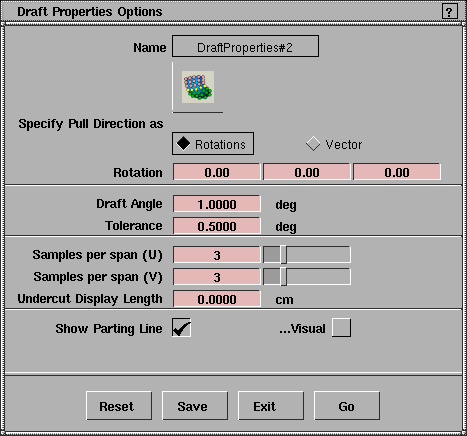
Specify Pull Direction as
-
- Choose whether you want to set the pull vector as rotations from the up vector, or as a vector.
|
|
This option appears when
Specify Pull Direction is
Rotation.
|
Rotation
-
- Enter the rotation away from the "up" vector in X, Y, and Z.
|
|

|
-
- For example, in a Z-up scene, if you want the pull vector to be 30 degrees away from "up" (Z-axis) around the X axis, enter 30, 0, 0.
|
|
This option appears when
Specify Pull Direction is
Vector.
|
Vector
-
- Enter 3D coordinates to define a vector.
-
- For example, if you want the pull vector to run along the Z axis, enter 0, 0, 1.
Draft Angle
-
- Enter the draft angle.
-
- If the angle between a surface point and the pull vector is less than this value, the surface point is out-of-draft, and is colored pink.
-
- If the angle between a surface point and the pull vector is more than this value, the surface point is in-draft, and is colored green.
Tolerance
-
- If the angle between a surface point and the pull vector is within this tolerance, the surface point is colored yellow.
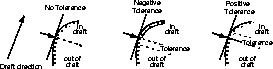
Samples per span (U/V)
-
- Enter the number of samples the tool takes for each span in the U and V directions.
-
- Note that the more samples, the slower the updates. If you need only a rough indication of the draft properties of a surface, reduce the sampling density to speed up the display.
Undercut Display Length
-
- The length of the lines showing undercuts.
-
- Set this value to 0 to hide the undercut lines.
-
- The Draft properties locator is much faster when undercut lines are hidden.
Show Parting Line
-
- Draw the parting line on the object.
-
- Normally this is done with curves-on-surface.
-
- The curves-on-surface update automatically when you change the draft angle or pull vector. These updates can be slow for complex geometry.
-
- If you turn on the Visual option, the parting lines are drawn using faster polylines instead of curves-on-surface.
Visual
-
- Draw the parting lines with fast polylines instead of curves-on-surface.
-
- Unlike curves-on-surface, these lines are for display only, and cannot be picked or used to create geometry.
|
|
This option is only found in
the Information WIndow.
|
Window
-
- Choose whether the annotation appears in all windows or only the current window.
|
Locators >
Arc length

|
Measuring Arc Lengths
|
|
|
|
|
Purpose
Display the arc length of a curve, curve segment, or surface.
How To
To measure the arc length of a curve or curve segment:
-
1
-
Click the Arc length icon, or choose Arc length from the Locators palette menu.
|
|
|
-
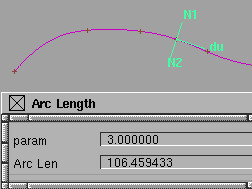
2
-
Click and hold the curve you want to measure.
-
A locator appears on the curve, and a window opens
showing the locator's parameter, and the arc length from
the beginning of the curve to the locator.
-
3
-
Drag left and right to move the locator along the curve, or type a parameter value.
-
Move the locator to the end of the curve to see the arc
length of the entire curve.
|
|
|
To measure the arc length of a surface:
-
1
-
Click the Arc length icon, or choose Arc length from the Locators palette menu.
-
2
-
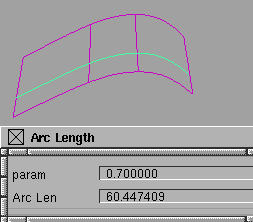
Click a U or V isoparm. A window appears showing the parameter of the isoparm and its arc length.
-
Drag across the surface, or type a parameter a value, to
measure other isoparms.
Tips and Notes
|
|
See Reversing Direction and
Normals on page 120.
|
- To measure a curve from the end rather than from the beginning of the curve, you must reverse the curve.
- Arc length is not a locators like the others discussed in this section. It does not persist after you leave the tool.
|


