|
|
Advanced Modeling
|
|
|
12
|
Blend Curves
|
|
In This Section:
|
Curves >
Blend curve toolbox

|
Introduction to Blend Curves
|
|
|
|
|
Purpose
Blend curves let you create and edit curves that maintain a large amount of construction history. You manipulate blend curves by placing constraints on the shape of the curve, including continuity with other objects.
Overview
Blend curves provide higher-level, simpler methods for shaping and manipulating curves. They provide a level of abstraction on top of the actual geometry of the curve. Blend curves let you focus on what the curve needs to do, and have the system calculate the right curve to fulfill those requirements.
In another sense, however, blend curves are just normal NURBS curves with more construction history: you can use all the normal curve tools on blend curves, and when you are not using blend curve tools, they look like any other curve.
You can create blend curves to intersect surfaces, other curves, and point clouds. When you move either the intersected objects or the intersecting constraint, the blend curve updates automatically.
Blend curves are controlled by constraints:
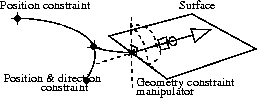
You create the curve by interactively setting up all the constraints, such as
- what points in space the curve should pass through,
- which surfaces it should be tangent to,
- which existing curves the blend curve should intersect,
- what direction it should be travelling at a certain point,
and so on. Alias draws the curve to satisfy the constraints, and automatically updates the curve when the constraints, or the objects the curve is constrained to, change.
Types of Constraints
There are three main types of constraint. Each constraint type affects the curve it controls in different ways:
- Location: force the curve to pass through the constraint's location in space.
-
The location constraint is like the edit points of a standard
curve. It is the type of constraint you create when you first
draw a blend curve.
- Direction: force the curve to pass through the constraint's location in space travelling in a certain world space direction.
-
There are two sub-types of direction constraints:
- Directed: you set an actual direction for the curve tangent. Use this type when the specific tangent direction at the point of the constraint is important.
- Parallel: you set a line to which the tangent direction must be parallel. This is easier to enforce and results in better curve continuity.
- Geometry: force the curve to pass through a point on a curve or surface and travel in a tangent direction relative to that curve or surface.
The following table shows the icons used to represent the different constraints:
|
Type
|
Not attached
|
Attached to blend curve
|
Attached to regular curve
|
|---|
|
Location
|

|

|

|
|
Direction
|

|

|

|
How To
To show the Blend Curve toolbox:
|
|

|
-
1
-
Click the Blend curve toolbox icon, or choose Blend curve toolbox from the Curves palette menu.
-
2
-
The Blend Curve window appears, with its own palette of blend curve tools. You can use these tools exactly like the tools in the standard tool palettes.
-
3
-
To close the Blend Curve window, click the Blend curve toolbox icon again, or click the window's close box.
|
BlendCrv Tools >
Blend curve create

|
Drawing Blend Curves
|
|
|
|
|
Purpose
Create new blend curves in the scene by placing location constraints and edit existing blend curves.
You will use the Blend curve create tool to create the initial shape of the curve. Then you can add, edit, or delete the initial constraints using the constraint tools.
How To
To create a blend curve:
-
1
-
Click the Blend curve create icon, or choose Blend curve create from the Blend Curves palette menu.
|
|
|
-
2
-
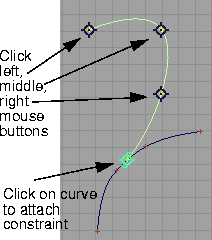
Click to place the initial location constraints of the new curve. You can continue to move the constraint while the mouse button is down. When you release the mouse button, the new constraint is added to the curve.
- Click the left mouse button to place a constraint.
- Click the middle mouse button to place a constraint horizontal to the previous one.
- Click the right mouse button to place a constraint vertical to the previous one.
- Click another curve to attach a new constraint to that curve.
- Type a 3D coordinate to place a constraint exactly.
|
|
|
-
3
-
You can also go back and edit the current curve as you draw:
- Click the current curve to add another constraint between two previous constraints.
- Double-click and drag a constrain on the current curve to move the constraint.
-
4
-
Continue adding constraints to the end of the curve as in Step 2 (see Tips and Notes below).
-
5
-
Click the Blend curve create tool again to start another curve, or choose another tool.
To continue adding to or editing an existing blend curve:
|
|

|
-
1
-
Click the Blend curve create icon, or choose Blend curve create from the Blend Curves palette menu.
-
2
-
Shift-click the previously completed blend curve.
-
3
-
You can now continue to add to or edit the curve as described above.
Tips and Notes
- If you insert a constraint in the current curve, then try to add a new constraint, the new constraint will be added to the end closest to the inserted constraint.
-
For example, if you draw a blend curve by placing three
constraints, then insert a constraint between the first and
second constraints (that is, near the beginning of the
curve), the next constraint you add will be added to the
beginning of the curve, rather than at the end.
- You can change a blend curve's knot spacing and degree easily with the Blend curve chord, Blend curve uniform, and Blend curve degree tools. See page 426.
Options
|
|
"Knot" is another term for
edit point.
|
Knot Spacing
-
- Chord-the new curve's edit points will be parameterized by the chord length of the curve in current units. The chord length is the cumulative straight line distance between consecutive edit points.The starting point of the curve has the parameter 0.0, and the ending point has the parameter equal to the total chord length of the curve.
|
|
See Parameterization on
page 10.
|
-
- Uniform-the new curve's edit points will have integral parameters: the first edit point will be parameter 0.0, the second will be 1.0, and so on.
|
|
See Degree on page 12.
|
Curve Degree
-
- The mathematical degree of the curve created, which control the number of CVs per span: 1 (linear), 2 (quadratic), 3 (cubic), 5 or 7. The default is 5. (For some products the default may be 3.)
>
|
Note:
|
Degree 2, 5 and 7 curves are not available for all Alias
products.
|
See Also
|
BlendCrv Tools >
Blend curve edit,
Constraint Edits >
Dissociate,
Delete, Make master
|
Editing Blend Curves
|
|
|
|
|
Purpose
- Select constraints for use with constraint editing tools.
- Attach and detach constraints to/from other objects.
Overview
To edit the constraints on a blend curve, you must first select the blend curve with the Blend curve edit tool. This tool allows you to move constraints and attach them to curves or surfaces.
You also use the Blend curve edit tool to select constraints before using the constraint editing tools (such as Blend curve interp direction) to change their properties. See Changing the Type of a Constraint on page 418.
- To add constraints to an existing curve, use the Blend curve create tool (see page 411).
How To
To begin editing a curve:
|
|

|
-
1
-
Click the Blend curve edit icon, or choose Blend curve edit from the Blend Curves palette menu.
-
2
-
Click the curve you want to edit.
To move a constraint:
|
|

|
-
1
-
Select the curve to edit using the Blend curve edit tool (see above).
-
2
-
Double-click and drag the constraint you want to move.
-
or
-
Click the constraint and type a 3D coordinate to place the
constraint exactly.
To attach a constraint to a curve, surface, or point cloud:
|
|

|
-
1
-
Select the curve to edit using the Blend curve edit tool (see above).
-
2
-
Click the constraint you want to attach.
-
3
-
Click the curve or surface you want to attach the constraint to, or click a point in a point cloud.
-
4
-
A dialog box appears asking you to confirm the action. Click Yes to attach the constraint to the object.
-
The constraint's position is now locked to the curve,
surface, or point cloud.
To detach (dissociate) a constraint from a curve or surface:
|
|

|
-
1
-
Select the curve to edit using the Blend curve edit tool (see above).
-
2
-
Click the constraint you want to detach.
|
|

|
-
3
-
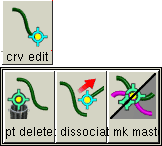
Click the Blend constraint dissociate icon, or choose Constraint Edits > Blend constraint dissociate from the Blend Curves palette menu.
-
The constraint stays in the same place, but is no longer
constrained to the curve or surface. It is now a simple
location constraint.
To delete a constraint:
|
|

|
-
1
-
Select the curve to edit using the Blend curve edit tool (see above).
-
2
-
Click the constraint you want to delete.
|
|

|
-
3
-
Click the Blend constraint delete icon, or choose Constraint Edits > Blend constraint delete from the Blend Curves palette menu.
-
The selected constraint point is deleted and the curve is re-
interpolated.
>
|
Note:
|
Do not use the Delete key to delete constraints! The Delete key
will delete the entire curve, not the selected constraint.
|
To reverse the master-slave relationship between attached blend curves
|
|
|
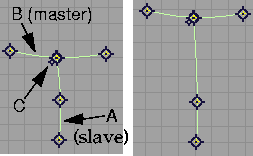
A master-slave relationship between two blend curves is defined as follow. Imagine that curve A is attached to curve B at constraint C. Moving curve B causes curve A to follow. Hence, curve B is the master, and curve A is the slave at constraint C. To reverse this relationship:
|
|

|
-
1
-
Select the slave curve using the Blend curve edit tool (see above).
-
2
-
Click the constraint for which you want to change the master-slave relationship.
|
|

|
-
3
-
Click the Blend pt make master icon, or choose Constraint Edits > Blend pt make master from the Blend Curves palette menu.
|
|
|
-
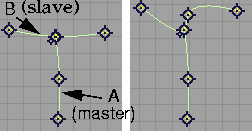
When you use the Blend pt make master tool on constraint
C, the tool creates a new constraint attaching curve B to
curve A, and dissociates constraint C. Now moving curve
A causes curve B to follow (the master/slave relationship
is reversed).
Tips and Notes
- To edit a different curve while using the Blend curve edit tool, hold down the Shift key and pick another curve.
|
|
See Checking the Continuity
Between Curves on page 509.
|
- To evaluate the curvature of the curve as you edit it, click the Curve curvature tool in the Locators palette, then use Blend curve edit to edit the curve.
|
|
See page 418 to learn how to
create a direction constraint.
|
- If you use the Blend constraint dissociate tool to detach a direction constraint that was based on the direction of the curve or surface, the direction information is lost and the constraint reverts to a location constraint.
See Also
|
BlendCrv Tools >
Constraint Interp.
Direction >
B.C. interp location,
B.C. interp direction,
B.C. interp geometry
BlendCrv Tools >
Constraint direction
type > B.C. directed,
B.C. parallel
|
Changing the Type of a Constraint
|
|
|
|
|
Purpose
Change how a constraint affects the blend curve.
See Types of Constraints on page 409 for information on the different types of constraints.
How To
To constrain the curve to simply pass through the constraint:
-
1
-
Select the curve to edit using the Blend curve edit tool (see page 414).

-
2
-
Click the constraint you want to change.
|
|

|
-
3
-
Click the B.C. interp location icon, or choose Constraint Interp. Direction > B.C. interp location from the Blend Curves palette menu.
-
The curve will now pass through the constraint freely.
-
This is the way constraints are created by default.
To constrain the curve to pass through the constraint in a certain direction:
|
|

|
-
1
-
Select the curve to edit using the Blend curve edit tool (see page 414).
-
2
-
Click the constraint you want to change.
|
|

|
-
3
-
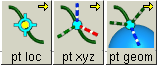
Click the Blend constraint interp direction icon, or choose Constraint Interpolation Direction > Blend constraint interp direction from the Blend Curves palette menu. (Note: the short icon label for the Blend constraint interp direction tool is "pt xyz").
-
4
-
Use the direction manipulator (see page 420) to set the direction of the curve at this point.
-
The curve will now pass through the constraint in the
direction you set with the manipulator.
To change the sub-type of a direction constraint:
|
|

|
-
1
-
Select the curve to edit using the Blend curve edit tool (see page 414).
-
2
-
Click the direction constraint you want to change.
-
3
-
Click one of the Constraint Direction Type tools:
|
|

|
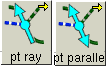
- To set an actual direction for the tangent, click the Blend constraint directed icon, or choose Constraint Direction Type > Blend constraint directed from the Blend Curves palette menu. (Note: the short icon label for the Blend constraint directed tool is "pt ray"). This is shown as a single ended arrow on the manipulator.
|
|

|
- To set a line to which the tangent must be parallel, click the Blend constraint parallel icon, or choose Constraint Direction Type > Blend constraint parallel from the Blend Curves palette menu. This is shown as a double ended arrow on the manipulator.
To constrain the curve tangent relative to another curve, surface, or point cloud:
|
|

|
-
1
-
Select the curve to edit using the Blend curve edit tool (see page 414).
-
2
-
Click the attached constraint you want to change.
-
See page 415 for information on attaching constraints to
geometry.
|
|

|
-
3
-
Click the Blend constraint interp geometry icon, or choose Constraint Interpolation Direction > Blend constraint interp geometry from the Blend Curves palette menu.
-
You can only use this tool with constraints that are
attached to other objects.
-
4
-
Use the direction manipulator (see page 420) to set the direction of the curve at this point, relative to the object it is attached to.
-
The curve will now pass through the constraint in the
direction you set with the manipulator.
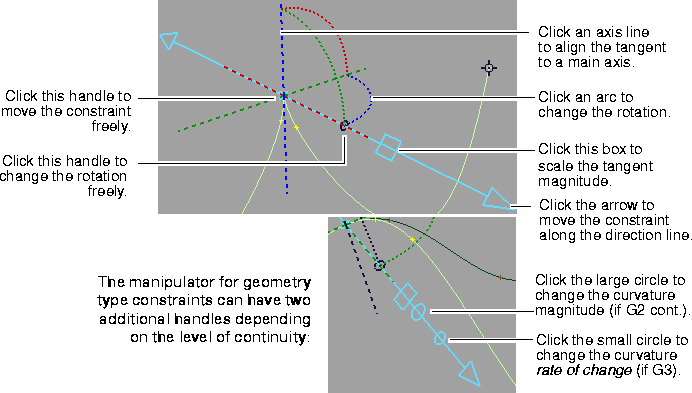
To use the tangent direction manipulator:
|
|
|
- Click an axis line to set the tangent direction.
-
For direction constraints, the axis lines relate to world
space (X, Y, Z). For geometry constraints, the axis lines
relate to the curve, surface, or point cloud (U, V, Normal).
|
|

|
- Click the center handle, to move the constraint, or type a 3D coordinate.
|
|
|
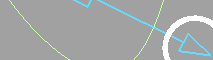
- Click the arrow, then drag left or right to move the constraint along the manipulator direction line.
-
Note that the constraint will not move if it is attached to
another curve, surface, or point cloud.
|
|
|
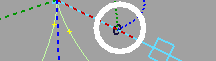
- Click the rotation handle (the small circle on the arrow), then drag with the different mouse buttons to change the rotation freely, or type rotational coordinates.
- Click an arc, then drag left and right to change the rotation in that plane, or type a rotation angle.
|
|
|
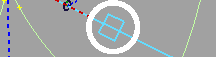
- Click the square, then drag left or right to change the tangent magnitude, or type a value.
|
|

|
- Click the large circle, then drag left or right to change the curvature magnitude, or type a value. The default is 1.0.
-
This handle appears when the constraint's continuity is set
to G2 or higher (see Changing the Continuity of a Constraint
on page 422).
|
|

|
- Click the small circle, then drag left or right to change the curvature rate of change, or type a value. The default is 1.0.
-
This handle appears when the constraint's continuity is set
to G3 or higher (see Changing the Continuity of a Constraint
on page 422).
Tips and Notes
|
|
|
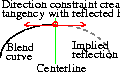
- You can use a direction constraint to ensure tangent continuity with an imaginary reflected half.
-
In the example at left, the direction constraint ensures the
blend curve (on the left) is perpendicular to the centerline
(usually a major axis). When you reflect the blend curve to
create the other half, the tangent at the centerline will be
continuous.
See Also
|
BlendCrv Tools >
Constraint Continuity
> G0 - G4
|
Changing the Continuity of a Constraint
|
|
|
|
|
Purpose
Change the continuity required at a constraint.
Overview
When you first create them, all constraints have G2 (curvature) continuity. Use these tools to require less or more continuity at a constraint.
The names of tools correspond to the mathematical terms for the different types of continuity:
- G3: constant rate of change of the curvature.
- G4: constant rate of change of the rate of change of the curvature.
See Continuity on page 23 for explanations of the different types of continuity.
How To
To change the continuity at a constraint:
|
|

|
-
1
-
Select the curve to edit using the Blend curve edit tool (see page 414).
-
2
-
Click the attached constraint you want to change.
-
You can only change the continuity on constraints that are
attached to other objects. See page 415 for information on
attaching constraints.
-
3
-
Click one of the Constraint Continuity icons (G0, G1, G2, G3 or G4), or choose from the Constraint Continuity sub-menu of the Blend Curves palette menu.
Tips and Notes
- Use G4 continuity when you want a blend curve to match an existing curve's shape as much as possible. This level of continuity creates a curve join that is difficult to detect.
See Also
|
BlendCrv Tools >
Constraint Curvature
Type > Geometric,
Parametric
|
Changing the Curvature Type of a Constraint
|
|
|
|
|
Purpose
Change how curvature is calculated when a geometry constraint is attached to a surface.
Overview
|
|
|
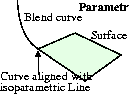
-
Align the curvature to an isoparametric direction of the
surface.
-
This type of curvature is especially useful to achieve
curvature continuity with the edge of a surface.
|
|
|
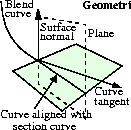
- Construct a plane from the surface normal and the constraint direction (or the normal and the tangent of the curve at the attach point for location constraints).
- Create a section curve by intersecting this plane with the surface.
- Align the curvature to this section curve.
How To
To change the way curvature continuity is calculated for a constraint:
|
|

|
-
1
-
Select the curve to edit using the Blend curve edit tool (see page 414).
-
2
-
Click the attached curvature continuous constraint you want to change.
-
You can only change the curvature type of constraints that
are attached to other objects, and have G2 or greater
continuity. See page 415 for information on attaching
constraints, and page 422 for information on setting
continuity.
|
|
|
-
3
-
Click one of the Constraint Curvature Type tools (Geometric or Parametric), or choose from the Constraint Curvature Type sub-menu of the Blend Curves palette menu.
Tips and Notes
- You must use geometric curvature if you want the blend curve to be planar (all points on the curve lie in the same plane).
See Also
|
BlendCrv Tools >
Blend Curve Degree
> 1, 2, 3, 5, 7
Blend Crv Tools >
Curve Knot Spacing
> Blend curve chord,
Blend curve uniform
|
Changing the Degree and Parameterization Type
|
|
|
|
|
Purpose
Change the degree or parametrization of a blend curve.
See Parameterization on page 10 and Degree on page 12 for explanations of parameterization and degree.
How To
To change the degree of a blend curve:
-
1
-
Select the curve or curves to edit using the Blend curve edit tool (see page 414).

-
Remember that to pick more than one curve with the
Blend curve edit tool, you must hold down the Shift key
while you pick the other curves.
-
2
-
Click one of the Curve Degree icons (Blend curve degree 1,2,3,5, or 7), or choose from the Curve Degree sub-menu of the Blend Curves palette.
-
The Blend curve degree tool rebuilds the underlying curve
to the new degree.
To change the parameterization type of a blend curve:
|
|

|
-
1
-
Select the curve or curves to edit using the Blend curve edit tool (see page 414).
-
Remember that to pick more than one curve with the
Blend curve edit tool, you must hold down the Shift key
while you pick the other curves.
-
2
-
Click one of the Curve Knot Spacing icons, or choose from the Curve Knot Spacing sub-menu of the Blend Curves palette:
|
|

|
- For uniform edit point spacing, click Blend curve uniform.
|
|

|
- For chord-length edit point spacing, click Blend curve chord.
-
The Blend curve chord or Blend curve uniform tool rebuilds
the underlying curve to the new method of
parameterization.
Tips and Notes
- When you change the degree of a blend curve, surfaces constructed from the blend curve are also rebuilt to the new degree, unless they have constraints of their own that prevent regeneration.
- You can set the parameterization and degree of new blend curves by setting the corresponding options in the Blend curve create option box (see page 412).
See Also
|


