|
|
6
|
Creating Curves
|
|
In This Section:
|
|
|
|
|
|
Curves >
New Curve
|
Drawing Curves
|
|
|
|
|
Purpose
Create new NURBS curves in the scene.
How To
To create a curve by drawing edit points:
|
|

|
-
1
-
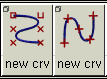
Click the New Curve (edit pts) icon, or choose New Curve > New Curve (edit pts) from the Curves palette menu.
|
|
|
-
2
-
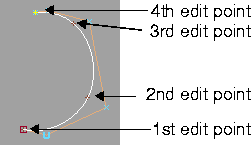
Click to place the edit points of the new curve. You can move the new point while the mouse button is down. When you release the mouse button, the new point is added to the curve.
- Click the left mouse button to place a point.
- Click the middle mouse button to place a point horizontally aligned to the previous one.
- Click the right mouse button to place a point vertically aligned to the previous one.
- Type a 3D coordinate to place a point exactly.
|
|
|
-
3
-
Click the New Curve tool again to start another curve, or choose another tool.
To create a curve by drawing CVs:
|
|

|
-
1
-
Click the New Curve (CVs) icon, or choose New Curve > New Curve (CVs) from the Curves palette menu.
|
|
|
-
2
-
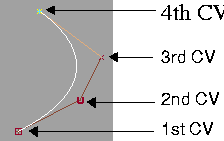
Click to place the points of the new curve. You can move the new point while the mouse button is down. When you release the mouse button, the new point is added to the curve.
- Click the left mouse button to place a point.
|
|
The first span of a curve will
not be displayed until the
first several CVs have been
placed.
|
- Click the middle mouse button to place a point horizontally aligned to the previous one.
- Click the right mouse button to place a point vertically aligned to the previous one.
- Type a 3D coordinate to place a point exactly.
|
|
|
-
3
-
Click the New Curve tool again to start another curve, or choose another tool.
|
|
This feature only affects
curve creation. No
construction history is
maintained.
|
To draw a curve tangent or perpendicular to a curve or isoparm:
-
1
-
Use curve snap to snap the first or last point of a curve to another curve or to an isoparm.
-
2
-
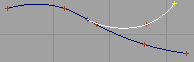
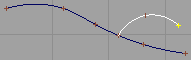
The prompt changes to include two options:
|
|
|
- Type T <return> to make the curve tangent.
|
|
|
- Type P <return> to make the curve perpendicular.
Tips and Notes
- You must use snapping to draw curves in a perspective view.
|
|
See Construction Planes on
page 38.
|
- When you draw in the perspective window while a construction plane is active, the points are automatically constrained to the construction plane.
- The first CV in the curve is shown as a square and the second as a "U" instead of a cross. This helps show the direction of the curve.
- The type of indicators (CVs, edit points, hulls) that are displayed while you draw curves is controlled by the NEW CRV settings in the Object Display > Control window.
- It may be easier for beginners to draw edit points rather than CVs, since edit points are directly on the curve.
Options
|
|
A "knot" is the parameter
value at an edit point.
|
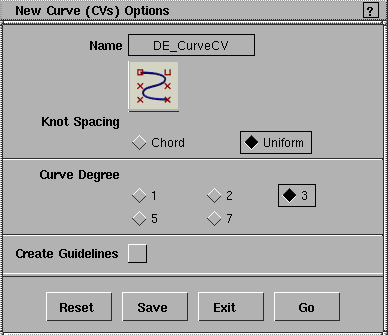
Knot Spacing
-
- Chord-the new curve's edit points will be parameterized by the chord length of the curve in current units. The chord length is the cumulative straight line distance between consecutive edit points.The starting point of the curve has the parameter 0.0, and the ending point has the parameter equal to the total chord length of the curve.
-
- Uniform-the new curve's edit points will have integral parameters: the first edit point will be parameter 0.0, the second will be 1.0, and so on.
-
- See Parameterization on page 10.
Curve Degree
-
- The mathematical degree of the curve created, which control the number of CVs per span: 1 (linear), 2 (quadratic), 3 (cubic), 5 or 7. The default is 3.
-
- See Degree on page 12.
>
|
Note:
|
Degree 2, 5 and 7 curves are only available in Studio and
AutoStudio.
|
Create Guidelines
-
- Create vertical and horizontal guidelines at each point you create.
-
- See Changing the Display Precision of Objects on page 53.
See Also
|
Curves >
New Curve (sketch)

|
Sketching New Curves Freehand
|
|
|
|
|
Purpose
Create a curve by sketching it freehand.
How To
To create a curve by sketching freehand:
|
|
|
-
1
-
Click the New Curve (sketch) icon, or choose New Curve > New Curve (sketch) from the Curves palette menu.
|
|
|
-
2
-
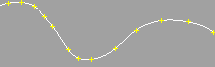
Drag the mouse to sketch a curve.
|
|
|
-
3
-
When you release the mouse button, the sketch tool fits a curve to the line you sketched.
- In orthographic windows, the curve is created in the axis plane. For example, in a Z-up world, drawing in the "Top" view creates a curve in the XY plane, at Z=0.
- In perspective windows, the curve is created in the view plane, that is, the plane perpendicular to the view vector of the camera.
Tips and Notes
- If you sketch a curve on a construction plane, the transformation of the construction plane is added to the DAG node of the curve.
- Sketched curves always have chord length parameterization, with a degree of 3 or greater.
-
(See Understanding Curves on page 8 for more on curve
degree and parameterization.)
|
|
See Construction Planes on
page 38.
|
- When you draw in the perspective window while a construction plane is active, the curve is automatically constrained to the construction plane.
- The sketch tool samples points every 5 pixels as you move the mouse.
Options
Curve Degree
-
- The mathematical degree of the curve created, which control the number of CVs per span: 3 (cubic), 5 or 7. The default is 3.
-
- See Degree on page 12.
See Also
|
Curves >
New curve on surf

|
Drawing Curves-on-Surface
|
|
|
|
|
Purpose
Create a curve-on-surface by manually drawing.
How To
To create a curve on surface by drawing edit points:
-
1
-
Double-click the New curve on surface icon, or choose Curves > New curve on surface-
 from the Curves palette menu. from the Curves palette menu.
-
2
-
Set Construction to Edit Point. Click Go.
-
3
-
Click the surface on which you will draw the new curve-on-surface.
-
4
-
Click to place the points of the new curve. You can move the new point while the mouse button is down. When you release the mouse button, the new point is added to the curve.
- Click the left mouse button to place a point.
- Click the middle mouse button to place a point with the same U coordinate as the previous one.
- Click the right mouse button to place a point with the same V coordinate as the previous one.
- Type a UV coordinate to place a point exactly.
- Use grid snapping to snap to the nearest isoparm intersection.
- Use magnet snapping to snap to the nearest edit point of a curve on surface on that surface.
|
|
|
- Use curve snapping to snap to another curve-on-surface, or to an isoparm.
To create a curve on surface by drawing freehand:
-
1
-
Double-click the New curve-on-surface icon, or choose Curves > New curve on surface- from the Curves palette menu.
-
2
-
Set Construction to Sketch. Click Go.
-
3
-
Click the surface on which you will draw the new curve on surface.
-
4
-
Drag the mouse to sketch a curve on the surface.
-
5
-
When you release the mouse button, the sketch tool fits a curve to the line you sketched.
>
|
Note:
|
The surface being sketched on must be of degree 3 or less.
|
Options
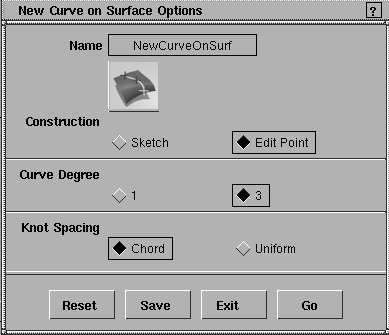
Construction
-
- The method by which curves on surface are created.
-
- Edit Point-click points on the surface to add edit points to the new curve.
-
- Sketch-sketch the new curve on the surface freehand.
Curve Degree
-
- The mathematical degree of the curve created, which control the number of CVs per span: 1 (linear) or 3 (cubic). The default is 3.
-
- See Degree on page 12.
|
|
A "knot" is the parameter
value of an edit point.
|
Knot Spacing
-
- Chord-the new curve's edit points will be parameterized by the chord length of the curve.
-
- Uniform-the new curve's edit points will have integral parameters: the first edit point will be parameter 0.0, the second will be 1.0, and so on.
-
- See Parameterization on page 10.
See Also
|
Fit Curve

|
Fitting a Curve to a Cross-section Line
|
|
|
|
|
Purpose
Create quality curves from cross-section line data.
How To
To build a curve by fitting to a scanned curve:
|
|
|
-
1
-
Click the Fit Curve tool, or choose Fit Curve from the Curves palette menu.
|
|
|
-
2
-
Click the curve you want to fit to.
-
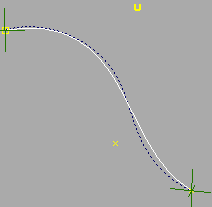
The Fit Curve tool creates the new curve, and attaches start
and end handles to the original curve. The Fit Curve Control
window appears.
-
3
-
Move the handles on the original curve to define the start and end points for the new curve.
-
You may want to create the new curve from a subset of the
original curve, usually an area with little variation in
curvature.
Fit Curve Options
Use the options in the Fit Curve Control window to adjust the fit and the type of curve created:
Curve Name
-
- Enter a name for the new curve.
Fitting Method
-
- Choose a curve fitting algorithm: Least Squares or Hull Fit. Try both methods to see which gives a better fit for your curve.
|
|
|
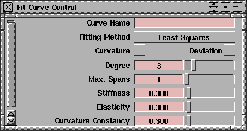
Curvature
-
- Show a curvature comb locator on the new surface.
Deviation
-
- Show a deviation comb locator between the new and original curves.
Degree
-
- Set the degree of the new curve. Increasing the degree allows a better fit, however curve degrees higher than 3 are not supported by all CAD systems.
Max Spans
-
- Set the maximum number of spans allowed in the new curve. Increasing the number of spans gives a better fit, but also increases the complexity of the model.
Stiffness, Elasticity
-
- These sliders control the new curve's resistance to bending and tendency to stretch. Try moving the sliders to see how they affect the new curve, then use them to improve the fit.
Curvature Constancy
-
- This slider controls the rate of change in curvature along the curve.
-
- Increasing the value enforces more constant curvature, but will probably increase the deviation from the original curve.
|
Curves >
Autotrace

|
Auto-tracing Curves from an Image Plane
|
|
|
|
|
Purpose
Automatically trace curves from outlines in an image plane.
Overview
Autotrace creates a black-and-white copy of your image, and then draws curves along the boundaries between black and white.
For grayscale images, the gray value of pixels is calculated with 3 bits (8 values). For color images, the gray value of pixels is calculated with 8 bits (256 values). Color images therefore offer a more accurate threshold.
The gray value of color pixels is calculated with the formula:
(0.3 x Red value) + (0.59 x Green value) + (0.11 x
Blue value)
How To
To auto-trace an image plane:
-
1
-
Click in an orthographic window to make it current.
-
2
-
Choose Import > Image plane from the File menu.
-
3
-
Choose the file you want to trace and click Load Image.
|
|
Press Esc to cancel the
autotracing process while in
progress.
|
-
4
-
Click the Autotrace icon, or choose Curves > Autotrace from the Curves palette menu.
-
The Autotrace tool scans the picture to create curves from
the image plane.
-
5
-
You will usually need to
- Delete curves you don't want.
Tips and Notes
- The stronger the edges in the picture, the better the auto-tracing will be.
- Black and white line art traces best.
- For full-color pictures, you may want to try using an image editor to increase the contrast.
- You may need to trace the same image several times with different Threshold values if the image has many subtle features in the light, dark and midtones (see Options below).
Options
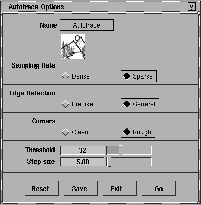
Sampling Rate
-
- Sparse-takes fewer samples, creates rougher curves, but faster and with fewer edit points.
-
- Dense-takes more samples, matching the image more closely, but slower and with more edit points.
Edge Detection
-
- Precise-match the image very closely by using more edit points.
-
- General-match the image less closely but use fewer edit points.
Corners
-
- Clean-remove extra CVs around corners.
-
- Rough-do not remove extra CVs.
Threshold
-
- The dividing gray value between light and dark pixels, between which the edge is drawn.
-
- For example, a value of 32 means an edge will be drawn between areas with a gray value of less than 32 and areas with a gray value greater than 32.
-
- Increase the Threshold for images with subtle light shadings. Decrease the Threshold for images with subtle dark shadings.
Step size
-
- The coarseness of the resulting curves.
-
- Increase the step size to use more edit points to create more accurate curves. Decrease the step size to use fewer edit points.
See Also
|
Curves >
Digitize, Setup
digitizer
|
Creating Curves Using a Digitizing Tablet
|
|
|
|
|
Purpose
Create curves from an existing real-world drawing, photograph, or sketch, by specifying points with a tablet.
|
|
|
Overview
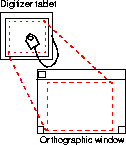
The digitize tool works by mapping coordinates on the digitizing tablet to screen coordinates in an orthographic window. Before you begin digitizing points, you must set up the mapping using the Setup digitizer tool.
Once the tablet is mapped to the screen, you can click the Digitize tool and then use the mapping with the normal curve tools. This allows you to concentrate on the drawing, and use the entire tablet without worrying about selecting objects on the screen such as tools and menus.
How To
>
|
Note:
|
The tablet mapping is initially set to map the entire tablet to
the current orthographic window. If this is sufficient, you do
not need to manually map the tablet to the window.
|
To map the tablet to a window:
-
1
-
Click the Setup digitizer icon, or choose Curves > Setup digitzer from the Curves palette menu.
-
The mouse cursor disappears and the prompt line begins
to walk you through the procedure.
-
2
-
Use the digitizer pointer to indicate the origin point: either the lower-left corner of the tablet or the lower-left corner of the drawing.
-
3
-
Use the digitizer pointer to indicate the reference point: the upper-right corner of the tablet or of the drawing.
-
4
-
Use the mouse pointer to click the lower-left corner of the orthographic window you will use to draw the curves.
-
5
-
Use the mouse pointer to click the upper-right corner of the orthographic window you will use to draw the curves.
-
All digitizer drawing will go to this window, regardless of
which is the current window at the time.
-
6
-
Choose a different tool to exit the Setup digitizer tool.
To digitize points from a real-world drawing:
-
1
-
Click the curve tool you want to draw with.
-
2
-
Click the Digitize icon, or choose Curves > Digitize from the Curves palette menu.
-
3
-
The mouse cursor disappears and the tablet uses the digitizer mapping. Use the tablet pointer to enter the points of the drawing.
-
4
-
Press the Enter key to exit digitizer mode.
Tips and Notes
- You can choose whether to:
- map the entire tablet surface. This is the general solution and does not require you to remap for each drawing. Note that this is the default setup.
- map the area of the drawing. This give greater accuracy, but requires you to remap for each new drawing.
- The instructions for the Setup Digitizer tool use lower-left and upper-right for simplicity. In fact, you can use any corner for the first (origin) point. Always use the opposite corner for the second (reference) point.
- Specifying different-sized rectangles when mapping the tablet to the screen will not stretch the drawing. The Setup digitizer tool always maintains a 1:1 aspect ratio.
|