|
|
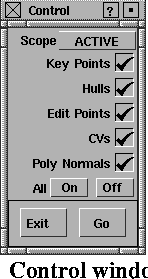
Use the Control window to view or hide CVs, hulls, edit points, polygon normals or keypoints. Select ObjectDisplay > Control- to open this window. to open this window.
Using the Control window
You can leave the Control window displayed while you perform other Alias operations.
- To accept the settings, click Go.
- To close the window, click Exit or the close box at the top left of its title bar.
- To turn the window into an icon, click the iconize box at the top right of its title bar.
- To move the window around on the screen, click in its title bar and drag it.
The Control window interface
|
|
|
Scope
-
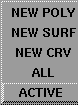
- Click to the right of the Scope
heading to specify the scope of the toggles in the window.
-
- ALL-
toggles controls for all objects.
-
- ACTIVE-
toggles controls for only those objects that are active.
-
- NEW CRV-
toggles controls for new curves.
-
- NEW SURF-
toggles controls for new surfaces.
-
- NEW POLY-
toggles controls for new polygons.
CVs, Hulls, Edit Points, Key Points and Poly Normals
-
- Click the toggle box beside these headings to view or hide CVs, hulls, edit points, keypoints and polygon normals respectively. A check mark indicates that the control is toggled ON
.
All
-
- Use the On and Off buttons to toggle all the controls on or off simultaneously.
|


