|
|
14
|
Working With Point Cloud Data
|
|
In This Section:
|
|
|
|
|
|
Pick > Cloud

DisplayTgls > Object
Toggles > Clouds
|
Introduction and General Cloud Procedures
|
|
|
|
|
Overview
Despite all the advances in modeling directly from concepts and criteria, it is still often necessary to digitize existing 3D models and transfer that point data into the computer so that it can be used as part of the design process. This is especially necessary when free-form shapes are involved.
Point clouds are collections of 3D points acquired from real world subjects through laser or touch scanners. Alias provides tools for working with and creating surfaces from these unstructured collections.
The basic workflow for creating surfaces from a point cloud is:
|
|
|
-
1
-
Import the data with File > Import > Cloud.
-
2
-
Pick the cloud using Pick > Cloud.
-
3
-
You can then:
- Create curves on the cloud with blend curves (see page 408) or with the Point Clouds > Project curve tool (see page 466).
- Create a surface over the cloud with the cloud surfacing tools (see page 470), such as Point Clouds > Surfaces > Gridded.
Other Tools
Cross-sectioned Data
We have specifically enhanced two tools to work with point clouds that is preprocessed into cross-sections:
|
|
See Projecting a Curve Onto a
Point Cloud on page 466.
|
- Project Crv: use the Approximate Point Location Method option to create quick curves on sectioned point clouds.
|
|
See Creating Surfaces From
Point Clouds on page 470.
|
- Gridded: use the Fit Surface to > Cross section Data or Scattered Data option to improve the fit of gridded surfaces to cross-section data.
The best way to create class-A surfaces is to:
- First, organize the raw point data into cross-sections using EvalViewer.
-
Cross-sectioning is the process of imposing order on the
scanned points by organizing them into a polygonal mesh,
then into sections. This is especially necessary with raw
laser-scanned data, which is usually not ordered in any
way.
- Then, import the data into Alias and build surfaces using blend curves (see page 408) and the point cloud tools presented in this chapter.
How To
To pick a point cloud:
|
|

|
-
1
-
Click the Pick > Cloud icon, or choose Cloud from the Pick palette menu.
-
2
-
Click a point in the point cloud to pick the entire cloud.
To transform a point cloud:
|
|

|
-
1
-
Pick the cloud using the Pick > Cloud tool.
-
2
-
You can now:
- Transform the cloud using the tools from the Xform palette.
- Use Edit > Zero transforms to reset the transformations of the cloud.
- Use Edit > Undo to undo the last transformation on the cloud.
To toggle the display of clouds on or off:
Once you have built curves and surfaces on top of a cloud, you will sometimes want to hide the point clouds in the scene to see only the curves and surfaces.
- To hide or show all the point clouds in the scene, choose DisplayTgls > Object Toggles > Clouds.
- To hide a picked point cloud, choose ObjectDisplay > Invisible. To reveal all invisible objects, choose ObjectDisplay > Visible.
To display information about clouds
-
1
-
Pick the cloud using the Pick > Cloud tool.
-
2
-
Choose Windows > Information > Informationwindow.
-
The Information Window shows the number of points in the
cloud, as well as the transformations and bounding box
information.
|
File > Import >
Cloud
|
Importing Point Cloud Data
|
|
|
|
|
Purpose
Import point cloud data from a file or directly from EvalViewer.
Overview
You should have some cloud data available from your own scanner, the network, DAT tape, or CD-ROM. Alias can currently import Cyberware, Hymarc, and IGES point cloud files.
How To
To import point clouds from storage:
-
1
-
Choose File > Import > Cloud from the menus.
-
The file requester appears.
-
2
-
Type the path to the cloud point file you want to import.
-
or
-
Use the file list to browse through directories, then
double-click the icon of the point cloud file you want to
import.
To import point clouds directly from EvalViewer:
-
1
-
In EvalViewer, choose Edit > Copy from the menus.
-
2
-
Switch to Studio, and choose Edit > Paste from the menus.
Tips and Notes
You may want to copy or link your scanner data directory to the relevant directory inside the
cloud directory of your project. For example:
- To copy Cyberware data to your Alias project directory from your current working directory, type the following in a Unix Shell window:
-
cp * ~/user_data/projdir/cloud/cyberware/
-
(Where projdir is the name of your project directory. The
default is demo).
- To link Steinbichler data on a CD-ROM into your Alias project directory, type the following:
-
mv ~/user_data/projdir/cloud/steinbichler
~/save.sb
-
ln -s /CDROM ~/user_data/projdir/cloud/
steinbichler
-
(Where projdir is the name of your project directory. The
default is demo).
-
These steps move your current steinbichler
subdirectory out of the way (to the directory save.sb)
and then create a symbolic link to the CD-ROM from your
cloud subdirectory.
Options
Sample every nth pt
-
- Only read in one out of a number of points you set. For example, set the option to 2 to only read every other point. Set the option to 3 to only read every 3rd point.
-
- Use this option as a last resort to import enormous point cloud files that are too large to load otherwise.
|
Point Clouds >
Subset, Merge
|
Dividing and Merging Point Clouds
|
|
|
|
|
Purpose
- Discard unwanted points from a cloud.
- Divide a large cloud into smaller clouds.
- Merge smaller clouds into a new large cloud.
Overview
When working with very large point clouds, you will want to divide the cloud into more manageable pieces. This allows you to work on one area without running into the rest of the cloud. Use the Subset tool to divide the cloud into smaller sub-clouds.
On the other hand, you may need to merge these divided clouds back into a large cloud. Or, you may want to merge several small clouds gathered from different sources. Use the Merge tool to merge clouds into a larger combined cloud.
How To
To take a subset of a cloud:
|
|

|
-
1
-
Use the Pick > Cloud tool to pick the cloud you want to divide.
|
|

|
-
2
-
Double-click the Subset icon, or choose Subset from the Point Clouds palette menu.
-
The Point Cloud Subset Options window appears.
-
3
-
Choose whether you want to:
- keep only the points you select (choose Points inside region).
- discard the points you select (choose Points outside region).
- create a new cloud containing the points you select (choose Both).
-
4
-
Click Go to close the option window.
-
5
-
Use the mouse to select/deselect the points for the subset. You can drag a pick box to select/deselect many points at once.
-
6
-
Click Go.
-
The Subset tool either creates a subset of the cloud
containing the points you selected, deletes the subset you
selected and keeps the remaining points, or makes a new
cloud from the subset, depending on the option you chose.
To merge point clouds:
|
|

|
-
1
-
Use the Pick > Cloud tool to pick the clouds you want to merge.
|
|

|
-
2
-
Click the Merge icon, or choose Merge from the Point Clouds palette menu.
-
3
-
Click Go.
Subset Options
Keep which region
-
- Points inside region-keep the points you select, delete the rest of the cloud.
-
- Points outside region-delete the points you select, keep the rest of the cloud.
-
- Both-create a new point cloud with the points you select, while keeping the unselected points in the original cloud.
|
Point Clouds >
Project curve

|
Projecting a Curve Onto a Point Cloud
|
|
|
|
|
Purpose
Create a new curve by projecting an existing curve onto a point cloud.
Overview
Use this tool to create a curve on a point cloud by projecting any curve onto the cloud.
The Project curve tool requires that you choose a vector along which to project the curve. You can use either of the following:
- the view direction of the current window, or
- the current projection vector (set with the Move project vector tool).
The Project curve tool has two different internal methods of projecting the curve:
- One method keeps the same number of spans as the original curve.
- The other method fits the curve to the cloud within a tolerance value you set. This is the default.
Set the Initial Projection option depending on whether it is more important to you to preserve the number of spans of the curve, or to fit closely to the point cloud.
Once the curve is projected, you can adjust the fit to the point cloud by changing the tolerance. When Create History is on, you can modify the original curve and the projected curve will update automatically.
How To
To project a curve onto a point cloud:
|
|

|
-
1
-
Use the Pick > Cloud tool to pick the cloud you want to project the curve onto.
|
|

|
-
2
-
Click the Project curve icon, or choose Project curve from the Point Clouds palette menu.
-
3
-
If the Initial Projection option is To Tolerance, type the initial tolerance.
-
4
-
Click a curve to project onto the point cloud.
-
If the Projection Vector options is set to Active Window, make
sure to click the curve in the window whose view
direction you want to use.
-
5
-
You can adjust the curve's fit to the cloud by typing a new tolerance from the prompt line.
-
6
-
Click another curve to project onto the same point cloud, or choose another tool.
To change the projection vector of the Project curve tool:
See the information on the Move project vector tool on page 321.
Tips and Notes
- The To Tolerance option creates a very complex curve. In many cases you will want to use the Same Number Spans option instead.
- To make a projection quickly:
- Set the Projection Vector to Active Window.
- Tumble, track and dolly the perspective window to "sight" down the direction you want to project along. Or use the orthographic windows when the projection direction is along a major axis.
- For numerical precision in setting the projection vector, use the Move project vector tool.
Options
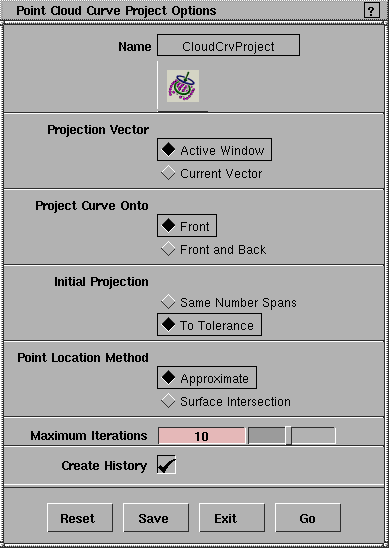
Projection Vector
-
- Active Window-project the curve onto the point cloud along the view direction of the active window.
-
- Current Vector-project the curve onto the point cloud along the vector set with the Move project vector or Vector from window tools.
Project Curve Onto
-
- Front-Project the curve onto the front of the point cloud (that is, the first part of the cloud it "hits" along the projection direction).
-
- Front and Back-Project the curve onto both the front and back of the cloud.
Initial Projection
-
- Same Number Spans-the projected curve has the same number of spans as the original curve.
-
- To Tolerance-the projected curve fits the point cloud within the tolerance you set.
Point Location Method
-
- Approximate-quicker but less accurate projection. Use this option with cross-sectioned data, or when you don't require high precision.
-
- Surface Intersection-slower but more accurate projection.
Maximum Iterations
-
- The maximum number of iterations to try when fitting within a tolerance. More iterations is slower but may give a better fit.
-
- You will usually not need to change this option.
Create History
-
- Save the construction history of the projected curve for later editing. If you turn Create History on, you can modify the curve that was used to create the projected curve, and the projected curve will update.
See Also
|
Point Clouds >
Surfaces
|
Creating Surfaces From Point Clouds
|
|
|
|
|
Purpose
Create new surfaces from point clouds.
Overview
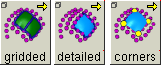
The three tools provide different ways of creating surfaces from point clouds:
- Gridded: takes four boundary curves and creates a surface between them that fits to a sampling of the points in the cloud.
-
Use the Gridded tool to quickly creates surfaces. This tool
gives you control over the amount of cloud detail used to
create the surface, and has an option for better fits to cross-
sectioned data.
- Detailed: takes any number of boundary curves and creates a surface from all the points in the bounded area of the cloud.
-
This tool uses more detail from the cloud than Gridded.
Unlike Gridded, it automatically creates trimmed surfaces,
depending on the number of boundary curves you select.
This tool also typically takes longer than Gridded.
- Corners: takes four points from the cloud and creates a surface with those points at the corners.
-
This tool does not allow continuity with adjacent surfaces.
How To
To create a surface from a sampling of the cloud points:
|
|
You can use the Project
curve tool to create curves
that fit to the point cloud
(see page 466).
|
-
1
-
Create four curves that will be the boundaries of the new surface. These boundary curves must intersect each other.
-
You can also create curves to use as isoparms of the new
surface. The isoparm curves must intersect the boundary
curves.
|
|

|
-
2
-
Use the Pick > Cloud tool to pick the cloud you want to create a surface from.
|
|

|
-
3
-
Click the Gridded tool, or choose Surfaces > Gridded from the Point Clouds palette menu.
-
4
-
Click the four boundary curves (in any order), then click Go.
-
5
-
Click any curves you want to use as isoparms on the new surface, then click Go.
-
6
-
The system prompts you to set both the density of the sampling grid and the number of spans on the surface.
-
A red grid appears when you press a mouse button,
showing the sampling grid. The tool samples the point
cloud at the vertices of the grid and uses the sampled
points to create the surface. The default grid is 15 by 15.
- Drag the left mouse button to set both the U and V sampling density at the same time.
- Drag the middle mouse button to set the U sampling density.
- Drag the right mouse button to set the V sampling density.
- Type two numbers to set the number of spans in U and V. The default is (2,2).
-
7
-
Click Go to create the surface.
To create a detailed surface with any number of edges:
|
|
You can use the Project
curve tool to create curves
that fit to the point cloud
(see page 466).
|
-
1
-
Create three or more curves that will be the boundaries of the new surface. These boundary curves must intersect each other.
|
|

|
-
2
-
Use the Pick > Cloud tool to pick the cloud you want to create a surface from.
|
|

|
-
3
-
Click the Detailed tool, or choose Surfaces > Detailed from the Point Clouds palette menu.
-
4
-
Click all the boundary curves, then click Go.
-
The Detailed tool builds the new surface. To abort the
process, press the Esc key. You may have to press the Esc
key more than once.
-
If the Detailed tool could create the surface within the
required tolerance, the new surface will appear.
Otherwise, the prompt line will show an error message.
To create a surface by specifying corner points:
|
|

|
-
1
-
Use the Pick > Cloud tool to pick the cloud you want to create a surface from.
|
|

|
-
2
-
Click the Corners tool, or choose Surfaces > Corners from the Point Clouds palette menu.
-
3
-
Click four points in the point cloud to serve as the corners of the new surface.
-
The Corners tool builds the new surface. To abort the
process, press the Esc key. You may have to press the Esc
key more than once.
Tips and Notes
- You may not be able to see the new surface clearly, especially if it achieved a very good fit to the point cloud.
-
Choose DisplayTgls > Object Toggles > Clouds from the
menus to hide the point cloud and see the new surface
clearly.
Options
Gridded options
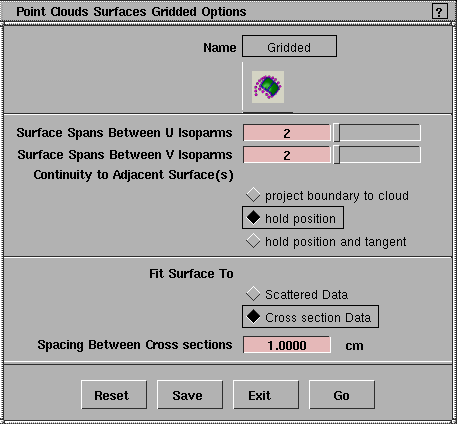
Spans Between U/V Isoparms
-
- The number of spans (the distance between two edit points) between each of the original boundary and/or isoparm curves used to create the surface.
-
- Set the values for the U and the V directions. You can adjust these values interactively when using the tool.
Continuity to Adjacent Surface(s)
-
- The kind of influence neighboring surfaces have on the new surfaces. This option only works when you use isoparms or edges of another surface as construction curves for the new surface.
-
- project boundary to cloud-this creates a better fit to the point cloud, but may cause the edges of the new surface to pull away from neighboring surfaces. Do not use this option if you have already projected the curves onto the point cloud.
-
- hold position-this option keeps the edges of the new surface on the boundary curves, and so keeps positional continuity with neighboring surfaces.
-
- hold position and tangent-this option keeps the edges of the new surface on the boundary curves, and also tries to maintain tangency with neighboring surfaces.
Fit Surface To
-
- Choose the type of data you are fitting the surface to.
-
- For cross-sectioned data, enter the spacing between cross-section slices in the Spacing Between Cross sections field. This allows the Gridded tool to calculate a much better fit.
Detailed options
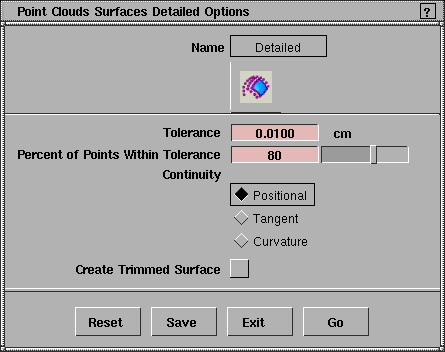
Tolerance
-
- The maximum distance allowed between the new surface and the point cloud.
Percent of Points Within Tolerance
-
- The percentage of points that must be within the tolerance range for the surface to build.
-
- This accounts for "stray" points in the cloud that might otherwise keep the surface from building.
Continuity
-
- The degree of continuity with neighboring surfaces (Positional, Tangent, or Curvature).
-
- This option only works when you use isoparms or edges of another surface as construction curves for the new surface.
|
|
This option only affects
surfaces with four boundary
curves. All other surfaces are
trimmed automatically.
|
Create Trimmed Surface
-
- Make surfaces created from four boundary curves be trimmed surfaces.
Corners options
Tolerance
-
- The maximum distance allowed between the new surface and the point cloud.
Percent of Points Within Tolerance
-
- The percentage of points that must be within the tolerance range for the surface to build.
-
- This accounts for "stray" points in the cloud that might otherwise keep the surface from building.
See Also
|
Point Clouds >
Tessellate

|
Creating a Polyset From a Point Cloud
|
|
|
|
|
Purpose
Create a polyset by sampling points in a point cloud.
How To
To create a polyset from a point cloud:
|
|

|
-
1
-
Use the Pick > Cloud tool to pick the cloud you want to create a polyset from.
|
|

|
-
2
-
Click the Tessellate tool, or choose Tessellate from the Point Clouds palette menu.
-
3
-
A representation of the new polyset appears, and the prompt line displays the number of polygons in the new polyset and the current sampling resolution.
- Drag the left mouse button to set both the latitude and longitude density at the same time.
- Drag the middle mouse button to set the latitude sampling density.
- Drag the right mouse button to set the longitude sampling density.
- Type two numbers to set the latitude and longitude sampling densities.
-
4
-
Click Go to create the polyset.
Tips and Notes
- In addition to creating a polyset for use in modeling, you can use this tool to simply help visualize the point cloud.
-
Create a polyset using the Tessellate tool, then choose
DisplayTgls > Polygon Control-
 from the menus to shade the
polyset. from the menus to shade the
polyset.
Options
Latitude/Longitude Resolution
-
- The number of points along each latitude or longitude line to use in the new polyset.
-
- Set the values for the latitude and the longitude directions. You can adjust these values interactively when using the tool.
See Also
- The Polygonal Modeling book.
- DisplayTgls > Polygon Control in Polygonal Modeling in Alias.
|