|
|
9
|
Building Surfaces
|
|
In This Section:
|
|
|
|
|
|
Surfaces >
Set planar

|
Making a Planar Face from Bounding Curves
|
|
|
|
|
Purpose
Create a planar face or trimmed NURBS surface from a set of planar boundary curves.
Overview
|
|
|
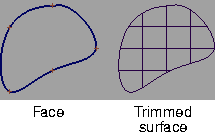
Faces are lightweight, planar objects that render quickly. They have no V parameters or isoparms and are not supported by tools that work on surfaces. Because they are geometrically more closely related to curves than surfaces, they will, however, work with most curve editing tools. In many cases, unless you are trying to reduce file size and rendering time, you will want to use the trimmed surface option instead.
The Trim Surface option simply creates a NURBS plane, then trims it to look like the surface you want. This is clear if you use the Untrim tool on a trim surface created with Set planar. Trimmed surfaces are much more versatile than faces, but render slower.
Display
Faces are represented in view windows as a thick curve. When rendered, the two kinds of planar surfaces look identical.
How To
To create a planar face:
-
1
-
Double click the Set planar icon, or choose Set planar-
 from the Surfaces palette menu. from the Surfaces palette menu.
|
|
|
-
2
-
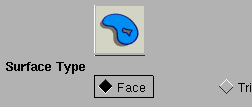
Set the Surface Type to Face, then click Go.
|
|
|
-
3
-
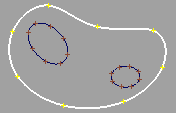
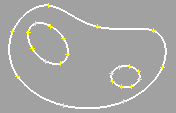
Click the closed outer boundary curve. This curve defines the outer edge of the face, and encloses any holes ("inner faces") in the face.
-
The curve line thickens, indicating it is now the border of a
face.
|
|
|
-
4
-
If you want holes in the face, click closed curves inside the outer curve.
-
5
-
When you are finished, click the Set planar tool again to create another face, or choose another tool.
To create a planar trimmed surface:
-
1
-
Double click the Set planar icon, or choose Set planar- from the Surfaces palette menu.
|
|
|
-
2
-
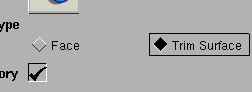
Set the Surface Type to Trim Surface, then click Go.
-
3
-
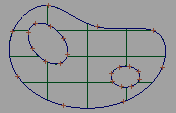
Click all the curves that define the planar surface.
|
|

|
- Curves that cross other curves become part of the perimeter.
|
|

|
- Curves that are completely enclosed by other curves become holes.
|
|

|
- Curves may be separate from each other. This will create what appears to be separate surfaces.
|
|
|
-
4
-
Click Go.
-
5
-
The Set planar tool creates a NURBS plane and then trims it using the curves you clicked.
Tips and Notes
- The "planar-ness" of trimmed surfaces is not automatically maintained. If you modify the surface, it can bend and warp like any 3D surface.
|
|
|
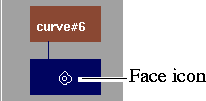
- Faces have a unique icon in the SBD window, shown at left.
- You can mix boundary curves of different degrees when creating faces and trim surfaces.
Options
Surface Type
-
- Face-create special, lightweight face objects.
-
- Trim Surface-create trimmed NURBS surfaces.
|
|
This option is only available
when Surface Type is set to
Trim Surface.
|
Create History
-
- Save the history of the new planar surface for later editing. If you turn Create History on, you can modify the curves that were used to create the surface, and the surface will update.
See Also
|
Surfaces > Skin

|
Skinning a Surface Across Curves
|
|
|
|
|
Purpose
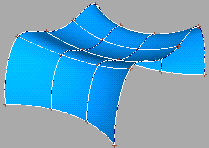
Create a surface by "skinning" a NURBS surface across cross-section curves. This is the simplest and most common tool for creating a surface quickly.
How To
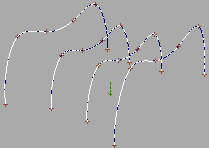
To skin a surface along a series of curves (with Auto Recalc on):
-
1
-
Click the Skin icon, or choose Skin from the Surfaces palette menu.
|
|
|
-
2
-
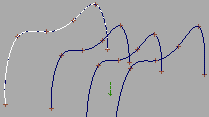
Click the first curve to skin from.
|
|
|
-
3
-
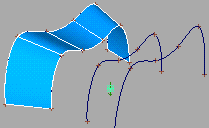
Click the second curve.
|
|
|
-
4
-
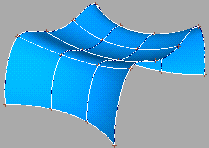
The Skin tool creates a surface between the two curves.
- Hold the Shift key and click more curves to continue building the surface. The new surface automatically updates as more curves are added.
- Shift-click the previous curve again to deselect it and undo the last part of the surface. Curves can be deselected all the way back to the first curve.
- Click a curve without holding Shift to start a new surface.
To skin a surface along a series of curves (with Auto Recalc off):
|
|

|
-
1
-
Double-click the Skin icon, or choose Skin- from the Surfaces palette menu.
-
2
-
Turn Auto Recalc off, then click Go.
|
|
|
-
3
-
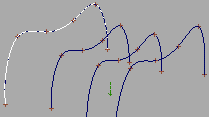
Click the first curve to skin from.
|
|
|
-
4
-
The curve is highlighted.
- Click the remaining curves for the surface
- Click the previous curve again to deselect it.
|
|
|
-
5
-
When you are done adding curves, click Go to build the surface.
Tips and Notes
- The best way to minimize problems with the resulting surface is to create the first curve, and duplicate it to create the other cross-section curves. This way all the curves will have the same degree and parameterization.
- If you are having problems skinning between curves that have a very different parameterization, turn the Rebuild option on.
- Surfaces created with Chord Length parameterized curves (drawn with the New curve (edit pts) tool) are more complex than surfaces created from uniformly parameterized curves.
Options
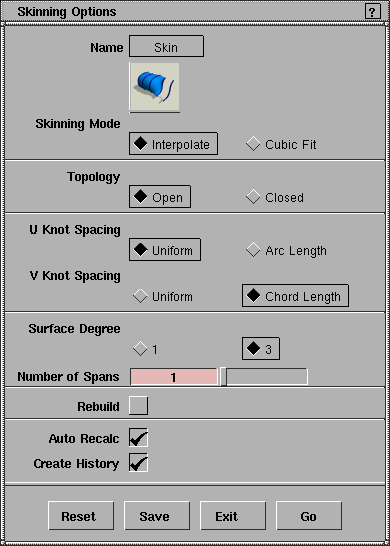
Skinning Mode
This option controls the V parameterization of the new surface.
Interpolate
-
- Place V isoparms at the locations of the original curves. This is the default.
|
|
This option cannot be used
when creating a degree 1
surface.
|
Cubic Fit
-
- Place V isoparms according to a fitting algorithm. In some cases this option can eliminate unwanted variations in the skinned surface.
Topology
Open
-
- Leave the resulting surface open.
Closed
-
- Connect the first curve to the last curve to create a closed (periodic) surface.
U Knot Spacing
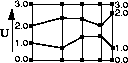
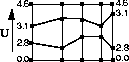
The U direction of the surface runs along the original construction curves. This option controls how the U parameters relate to the actual surface. See Parameterization on page 10.
|
|
|
Uniform
-
- The isoparms corresponding to edit points on the original construction curves will have integral parameters: the first edit point will be parameter 0.0, the second will be 1.0, and so on.
|
|
|
Arc Length
-
- The new curve's edit points will be parameterized by the average length along the original construction curves at those points.
-
- The starting edge of the surface has the parameter 0.0, and the opposite edge has the parameter equal to the average total length of the original construction curves.
V Knot Spacing
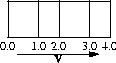
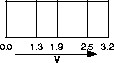
The V direction of the surface runs between the original construction curves. This option controls how the V parameters relate to the actual surface. See Parameterization on page 10.
|
|
|
Uniform
-
- The isoparms corresponding to the original construction curves will have integral parameters: the first edit point will be parameter 0.0, the second will be 1.0, and so on. This option only applies to Interpolate skinning mode.
|
|
|
Chord Length
-
- The new curve's edit points will be parameterized by the length of the surface.
-
- The starting edge of the surface has the parameter 0.0, and the opposite edge has the parameter equal to the length of the surface.
|
|
This option is only available
when Skinning Mode is
Interpolate.
|
Surface Degree
The degree of the new surface's V direction: 1 (linear), or 3 (cubic, the default). See Degree on page 12.
Other Options
|
|
|
Number of Spans
-
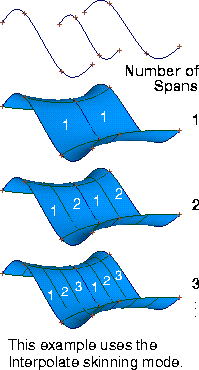
- This option controls the number of spans between the original isoparms of the skin surface (as determined by the Skinning Mode).
- As shown at left, a value of 1 creates no additional isoparms, besides the original ones.
- A value of 2 creates two spans between the original isoparms, so one additional isoparm is created between each pair of original isoparms.
- A value of 3 creates three spans, and two additional isoparms between each pair of original isoparms, and so on.
Rebuild
-
- Before building the surface, rebuild the other construction curves to match the parameterization of the first curve.
-
- When using this option, make sure the first curve you click has the parameterization you want for the new surface.
Auto Recalc
-
- Automatically update the surface as curves are added.
-
- This option changes the procedure for using the tool. When Auto Recalc is on, you must hold down the Shift key when you click more curves to add to the surface.
Create History
-
- Save the history of the new surface for later editing. If you turn Create History on, you can modify the curves that were used to create the surface, and the surface will update.
See Also
|
Surfaces > Revolve

|
Revolving a Curve
|
|
|
|
|
Purpose
Create a new surface by sweeping a curve, isoparm, curve on surface, or trim boundary around an axis, creating an effect similar to that of a lathe.
How To
To create a surface by revolving a curve:
|
|
|
-
1
-
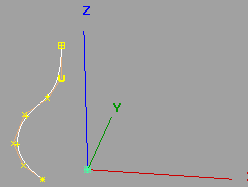
If you want to revolve one or more free curves, or a whole hierarchy, in the same fashion, pick the curves or groups of curves. (If you want to revolve a single surface curve, go to step 2.)
- If the Axes option is set to Local, you can only revolve a single curve or a group of curves.
- If the Axes option is set to Global, you can revolve more than one individual curve or group.
|
|
|
-
2
-
Click the Revolve icon, or choose Revolve from the Surfaces palette menu.
-
(If some curves were already picked, they are revolved.
Go to step 4.)
-
3
-
Click the free curve, isoparm, curve on surface, or trim edge you want to revolve.
-
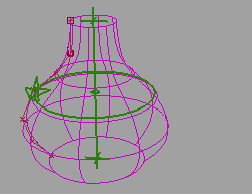
The Revolve tool creates the new surface with handles for
editing.
|
|
|
-
4
-
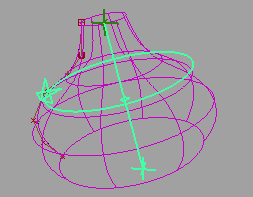
Use the handles to change the start and end point of the sweep, and the position and orientation of the rotation axis (see below).
-
5
-
Click another curve to revolve, or choose another tool.
To use the revolve manipulator:
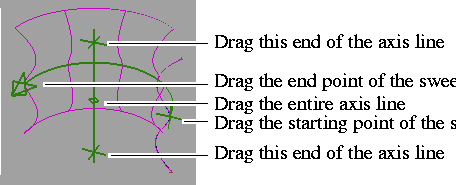
- Click and drag the handles to move them in the view window.
- Click a handle, then drag the mouse left or right to change the value. Be careful not to click on geometry. If you select geometry by mistake while attempting to click a handle, the selected curve will be revolved and you will loose the original manipulator.
- Click any of the handles and type exact values.
- Click either end or the center handle of the axis line, then type a 3D coordinate to change the orientation or position of the revolution axis.
- Click the start or end point of the sweep arc, then type an angle value (in the current angular units). The start point controls the angle between the original curve and the beginning of the sweep. The end point controls the total angle swept by the revolved surface.
To edit the construction history of a revolved surface:
-
1
-
Pick a surface created by the Revolve tool.
-
2
-
Click the Revolve icon, or choose Revolve from the Surfaces palette menu.
-
The manipulator handles reappear for editing.
Tips and Notes
- You cannot revolve a curve more than 360 degrees.
- If you select geometry by mistake while attempting to click a handle, the selected curve will be revolved and you will loose the original manipulator. To remedy this problem, immediately select Delete > Del active to remove the new geometry, and go back to step 1 above to bring back the manipulator on your original surface.
Options
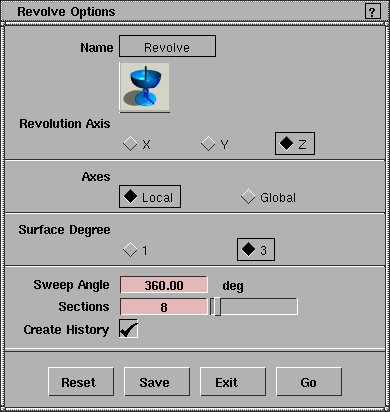
Revolution Axis
-
- The initial axis around which to revolve the surface (X, Y, or Z). After creating the surface, you can move and rotate this axis using the manipulator handles.
Axes
-
- Local-revolve around the object's (or group's) pivot point and local axes.
-
- Global-revolve around the global (world) or current construction plane's origin and axes.
Surface Degree
-
- The degree of the new surface's V direction: 1 (linear), or 3 (cubic, the default). See Degree on page 12.
Sweep Angle
-
- The angle of revolution (in the current angular units). After creating the surface, you can change this angle by using the manipulator handles.
Sections
-
- The number of spans in the revolved surface.
-
- For sweeps of 360 degrees, 6 to 8 sections is usually sufficient. Using more than 12 section is not recommended and generally will not improve the surface.
Create History
-
- Save the history of the new surface for later editing. If you turn Create History on, you can modify the curve that was revolved to create a surface, and the surface will update. You can also bring back the manipulator handles for further editing.
See Also
|
Surfaces >
Swept Surfaces >
Extrude

|
Extruding a Curve
|
|
|
|
|
Purpose
Create a new surface by extruding a generation curve along a path curve. Normally used to make tubular objects with symmetrical cross sections.
How To
To extrude a profile curve along a path curve:
|
|
|
-
1
-
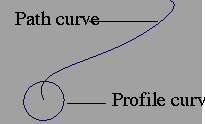
Create the curves you will use for the profile and path.
-
2
-
Click the Extrude icon, or choose Swept surfaces > Extrude from the Surfaces menu.
|
|
|
-
3
-
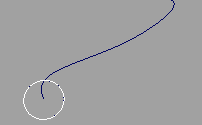
Pick the curve or curves you want to extrude.
-
You can select free curves, curves on surface, isoparms,
trim edges or even faces.
-
4
-
Click Go.
|
|
|
-
5
-
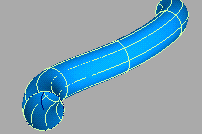
Pick the path curve to extrude along.
-
You can select a free curve, a curve on surface, an isoparm,
or a trim edge.
-
The Extrude tool creates the new surface starting at the
position of the generation curve and following the shape
of the path curve.
Tips and Notes
- The generation curve does not have to be near or intersect the path curve. However, placing it as near as possible will help you visualize the result.
- If you need more control over how the surface is created, use the Swept or Birail tools.
- This tool works best for closed and/or symmetrical profile curves. If you need to control the twist of the profile, use the Swept or Birail tools.
- To extrude a face made of multiple curves (e.g. Text) as a single object, select it before choosing the Extrude tool.
- In most cases, you will want the profile curve to be perpendicular to the starting point of the path.
-
To accomplish this, use the Surface plane tool to create a
construction plane at the start of the path curve,
perpendicular to the tangent. Then create the profile curve
on the new construction plane.
- If the path curve has severe bends or corners, the extruded surface may have unwanted twists.
-
To correct this problem, use the Insert tool to increase the
number of edit points/CVs on the path curve in the
problem areas, so that transitions between CVs are more
gradual.
Options
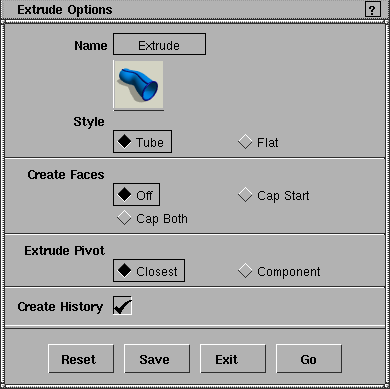
Create History
-
- Save the history of the new surface for later editing. If you turn Create History on, you can modify the curves that were used to create the surface, and the surface will update.
Style
|
|
|
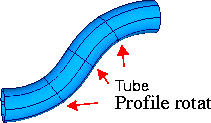
Tube
-
- As the profile curve sweeps along the path, it pivots to maintain the same angle to the path curve.
|
|
|
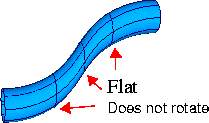
Flat
-
- As the profile curve sweeps along the path, it maintains its original orientation.
Create Faces
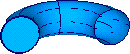
Caps can be created at the ends of the surfaces if the extruded objects are faces or closed planar curves.
|
|
|
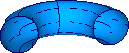
Off
-
- Do not create faces at the ends of the extruded surface.
|
|
|
Cap Start
-
- Create a face to cap the first end of the extruded surface.
|
|

|
Cap Both
-
- Create faces to cap both ends of the extruded surface.
|
|
The Extrude Pivot option
appears when Style is Tube.
|
Extrude Pivot
This option controls which pivot point to use when you are extruding more than one profile curve.
Closest
-
- Pivot the profile curves around the endpoint of the path curve closest to the bounding box of all the profile curves.
-
This option is the default. It works best when you have a
profile curve close to the start or end points of the path
curve.
Component
-
- Pivot each curve around its own individual pivot point.
-
- This option works best when you want to extrude text.
See Also
|