|
|
8
|
Creating Curves from Other Curves
|
|
In This Section:
|
Curve Edit > Create
> Duplicate curve

|
Duplicating Curves
|
|
|
|
|
Purpose
Create a free curve copy of a free curve, curve on surface, trim edge, or interior isoparm at the exact same position.
The common uses of Duplicate curve are:
- Converting isoparms, edges, and curves on surface to free curves.
- Creating quick, exact copies of free curves without resetting all the options of Edit > Duplicate object-
 . .
How To
|
|
|
To duplicate one or more curve:
-
1
-
Click the Duplicate curve icon, or choose Create > Duplicate curve from the Curve Edit palette menu.
-
(If some curves or curves on surface were already picked,
they are duplicated.)
-
2
-
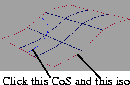
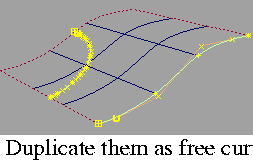
Click any free curves, curves on surface, trim edges or interior isoparms you want to duplicate.
|
|
|
-
3
-
When you are finished duplicating, choose another tool.
To create a curve from an arbitrary isoparm:
Use this procedure to create a free curve from a surface isoparm that is not currently visible.
-
1
-
Pick nothing.
|
|
|
-
2
-
Double-click the Duplicate curve icon, or choose Create > Duplicate curve- from the Curve Edit palette menu.
-
3
-
In the Duplicate Curve window, turn on Interactive.
-
4
-
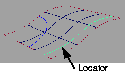
In a view window, click an existing isoparm on the surface. A locator appears on the surface.
-
5
-
Drag to the arbitrary isoparm location, or type an exact parameter.
-
6
-
Click Go to create a free curve from this isoparm.
Tips and Notes
- The Duplicate curve tool duplicates any curves that are picked when you click the tool, and any curves you click while the tool is active.
- Remember, the new curve occupies the same space as the original, so in many cases you will not actually see the separate curves until you move one of them.
- Because they use different mathematical representations, free curves duplicated from curves on surface and trim edges are only close approximations of the originals.
- The new curve's DAG node is not grouped, regardless of the grouping of the original curve. All transformations of the original curve are applied directly to the CVs of the new curve.
Duplicate Curve window
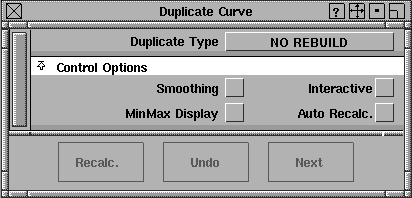
Duplicate Type
No Rebuild
-
- Do not rebuild the curve after duplicating it.
|
|
See Rebuild Curve Option
Window on page 193.
|
Curvature, Reduce Spans, Del Multi Knots, Uniform Knots,
Match Knots
-
- Rebuild the curve after duplicating it.
-
- See the discussion of the Rebuild Type option of the Rebuild curve tool for information on the rebuild types and their options.
Control Options
Smoothing
-
- After duplicating, automatically switch to the Smooth tool to allow you to smooth the resulting curve.
Interactive
-
- Allows you to specify an arbitrary surface isoparm to duplicate, rather than a visible one.
MixMax Display
-
- Automatically create a Min-Max deviation comb for the original and duplicated/rebuilt curves.
Auto Recalc.
-
- Automatically update the new curve when the values in the Duplicate Curve window change.
Buttons
Recalc
-
- When Auto Recalc. is turned off, use this button to update the duplicated curve with the current values.
Undo
-
- Undo all the changes made by the Duplicate Curve tool and return to the original curve.
Next
-
- Finish duplicating the current curve and prompt for a new curve to duplicate.
See Also
|
Curve Edit > Create
> Combine curves

|
Projecting Two Planar Curves into a 3D Curve
|
|
|
|
|
Purpose
Create a 3D curve from two planar curves representing orthogonal projections.
Use this tool to create 3D curves from traditional "plan and elevation" type drawings.
Overview
|
|
|
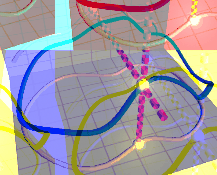
This tool takes two planar profile curves and uses them as orthogonal views to draw a 3D curve. This is essentially the reverse of the process by which 3D curves in your scene are projected into the 2D orthogonal windows (Top, Front, and Right).
As shown in the illustration at left, the tool matches 2D points from the two profile curves (for example, an XY point on the "top view" curve and a YZ point on the "right side view" curve) into a 3D points on the new curve.
(This example uses a right and top view, but you could also use a right view and a front view, or a front view and a top view).
How To
To create a 3D curve from two planar orthogonal curves:
|
|
See Flattening Curves onto a
Plane on page 198.
|
-
1
-
Make sure the curves are planar. You can use the Curve planarize tool to flatten the curves.
-
2
-
Click the Combine curve icon, or choose Create > Combine curve from the Curve Edit palette menu.
-
3
-
Click the first profile curve.
-
4
-
Click the second profile curve.
-
5
-
If Automatic Direction is off, or if Combine curve cannot figure out the projection directions, it will prompt you to enter
- the projection axis of the first curve (x, y or z), and
- the projection axis of the second curve (x, y, or z).
-
6
-
Combine curve creates the curve by projecting the two planar curves into a 3D curve.
-
In some cases more than one solution may be possible. In
these cases, Combine curve creates all the possible curves.
When it is finished, delete the curves you don't want.
Tips and Notes
- If the Create History option is on, you can edit the profile curves and the 3D curve will automatically update.
Options
Automatic Direction
-
- Try to figure out the projection axes for the two curves automatically. Leave this option on unless Combine curve guesses wrong and you need to set the axes manually.
-
- In some cases the Combine curve tool cannot automatically figure out the projection directions (for example, if the two curves are in the same plane). In these cases, you must type the projection axes for the first and second profile curves.
Create History
-
- Save the Combine curve history for later editing. If you turn on Create History, you can edit the profile curves and the combined curve will automatically update.
See Also
|
Curve Edit > Create
> Fillet curves

|
Adding a Fillet Between Curves
|
|
|
|
|
Purpose
Create a fillet curve between two existing curves.
How To
To create a fillet with a specific radius:
|
|
|
-
1
-
Double-click the Fillet curves icon, or choose Create > Fillet curves- from the Curve Edit palette menu.
-
2
-
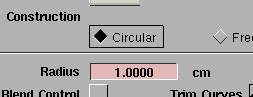
Set Construction to Circular, then click Go.
|
|
|
-
3
-
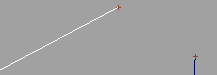
Click the first curve.
|
|
|
-
4
-
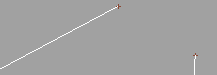
Click the second curve.
|
|

|
-
5
-
If you want a different radius from the default (displayed in the prompt line), type the new radius.
|
|
|
-
6
-
Click at the approximate location of the fillet.
-
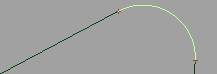
If the current radius is too small or too large to build a
fillet near the point you clicked, the Fillet curves tool
reports an error and does not build the fillet. Type a new
radius and try again.
-
When the fillet is built, the original curves are trimmed to
both ends of the fillet. To keep the curves intact, turn off
the Trim Curves option.
To create a fillet between two specific points on the curves:
|
|

|
-
1
-
Double-click the Fillet curves icon, or choose Create > Fillet curves- from the Curve Edit palette menu.
|
|
|
-
2
-
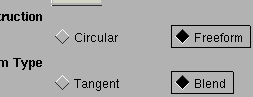
Set Construction to Freeform, then click Go.
|
|
|
-
3
-
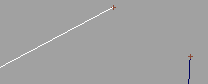
Click the first curve at the point you want the fillet to begin.
|
|
|
-
4
-
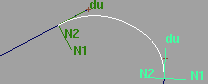
Click the second curve at the point you want the fillet to end.
-
5
-
Curve locators appear on the two curves where you clicked.
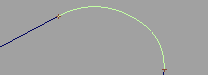
- Drag the locators to move the contact points of the fillet on the curves.
- Click Go to create the fillet.
|
|
|
-
6
-
If Blend Control is on, after the fillet is created you can click the Tangent and Blend buttons in the bottom right corner of the view window to see the different types of fillet. Click Go again to finish the fillet.
Tips and Notes
- If Create History is on in the options, you can edit the curves and the fillet will automatically update.
Options
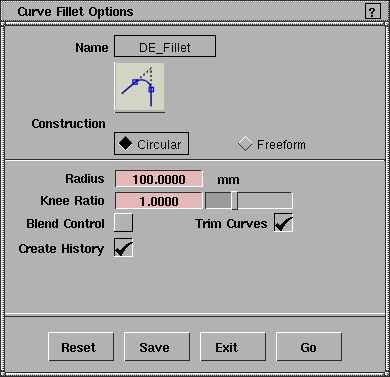
Construction
-
- Circular-create a circular fillet with a true radius.
-
- Freeform-create a fillet between two contact points.
|
|
This option is available
when Construction is
Freeform, or Blend Control is
on.
|
Freeform Type
-
- Tangent-project the tangents at the two contact points, and create the fillet in the direction of the tangent intersection.
-
- Blend-average the positions of the two contact points to create the fillet. Blend
fillets sometimes have an inflection and tend to be shallower thanTangent
fillets.
|
|
This option is available
when Construction is
Circular.
|
Radius
-
- The default radius of circular fillets. You can enter a new value at the prompt line when you use the tool.
|
|
This option is available
when Construction is
Circular and Blend Control is
off.
|
Knee ratio
-
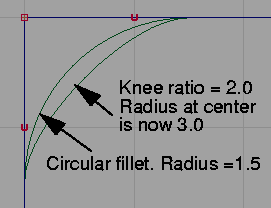
- Specify a radius at the center (or knee) of the fillet as a ratio (or multiple) of the original radius.
|
|
|
-
- The resulting fillet, of course, will not be truly circular, but its endpoints will correspond to those of a circular fillet with the original radius.
Blend Control
-
- Allows you to change the fillet type (Tangent or Blend) after it is created.
Trim Curves
-
- Automatically trim the original curves back to the endpoints of the fillet.
Create History
-
- Save the Fillet curves history for later editing. If you turn on Create History, you can edit the original curves and the fillet will automatically update.
See Also
|
Curve Edit >
Cut/Join >
Break curve at
keypoint, Join curves
|
Cutting and Joining Keypoint Curves
|
|
|
|
|
Purpose
- Cut a keypoint curve at a keypoint to create two new keypoint curves.
- Join a keypoint curve to another curve at their overlapping endpoints.
How To
To cut a keypoint curve:
|
|

|
-
1
-
Click the Break curve at keypoint icon, or choose
Cut/Join > Break curve at keypoint from the Curve Edit palette menu.
|
|
|
-
2
-
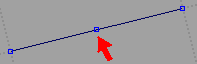
Click a keypoint on a keypoint curve.
|
|
|
-
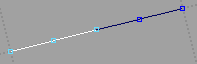
The Break curve at keypoint tool breaks the keypoint curve
into two curves at the point where you clicked.
To join a keypoint curve to another curve:
-
1
-
Make sure the keypoints you want to join overlap in the view window.
|
|

|
-
2
-
Click the Join Curves icon, or choose Cut/Join > Join Curves from the Curve Edit palette menu.
|
|
|
-
3
-
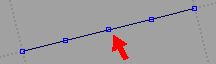
Click the point where the endpoints of the two curves overlap.
|
|
|
-
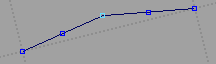
The Join curves tool joins the curves into a composite
keypoint curve.
-
If the two curves had different degrees, the composite
curve will have the higher degree. This may cause the
insertion of multi-knots on the curve.
Tips and Notes
- Use Edit > Undo to undo the effects of the Break curve at keypoint and Join curves tools.
- If you join a keypoint curve to a normal curve, keypoints are added to the curve.
- Use the Break curve at keypoint tool to break single lines and arcs at their midpoints, and composite curves at midpoints and between segments.
See Also
|
Curve Edit >
Cut/Join >
Break curve at
inflections

|
Detaching a Curve at the Points of Inflection
|
|
|
|
|
Purpose
Automatically detach a curve at all the inflection points.
How To
To break a curve into separate curves at all inflection points:
-
1
-
Click the Break curve at inflections icon, or choose Cut/Join > Break curve at inflections from the Curve Edit palette menu.
|
|
|
-
2
-
Pick the curves you want to break. Click a curve again to unpick it.
-
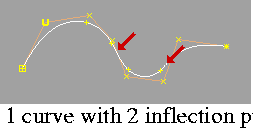
The Break curve at inflections tool highlights the inflection
points on the picked curve(s) with red arrows.
|
|
|
-
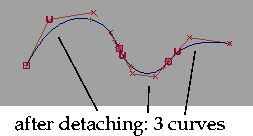
3
-
Click Go to detach the curve(s) at each inflection point.
Tips and Notes
- Use Edit > Undo to restore the original curve.
- When a curve is cut by the Break curve at inflections tool, only one of the new curves will retain construction history.
See Also
|
Curve Edit >
Cut/Join >
Delete segment

|
Deleting a Segment of a Curve
|
|
|
|
|
Purpose
Delete spans of a curve between two edit points without changing the shape of the curve.
How To
To delete spans from a curve:
|
|
|
-
1
-
Click the Delete segment icon, or choose
Cut/Join > Delete segment from the Curve Edit palette menu.
-
2
-
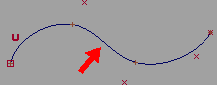
Click the span between two edit points you want to delete.
-
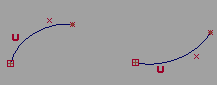
The Delete segment tool removes the span from the curve.
|
|
|
-
If the span was not at one of the ends of the curve, the
original curve is separated into two curves.
-
3
-
You can continue to delete spans, or choose another tool.
Tips and Notes
- Use Edit > Undo to restore the last deleted segment. There is only one level of undo.
- When a curve is separated by the Delete curve segment tool, only one of the new curves will retain construction history.
- If the curve has keypoints, this tool will remove them.
- If a blend curve is attached to the segment you delete, the blend curve may change unpredictably.
-
If this happens, use Undo to restore the segment. Then
delete construction history from the blend curve or detach
it from the segment you want to delete.
|
Curve Edit >
Curve section

|
Sectioning Curves
|
|
|
|
|
Purpose
Define points on a group of curves at:
- Intersections with a free curve, surface, or construction plane.
- Specific distances from their endpoints.
Then use these points to do one of the following:
- Create a curve that passes through the intersections.
How To
To section a group of curves at the intersections with a sectioning curve or surface:
|
|
|
-
1
-
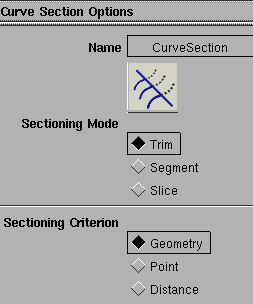
Double-click the Curve section icon, or choose Curve section- from the Curve Edit palette menu.
- To trim the curves, set the Sectioning Mode to Trim.
- To detach the curves, set the Sectioning Mode to Segment.
- To insert edit points on the curves, set the Sectioning Mode to Slice and the Slice Creation Mode to Insert Edit Points.
- To create a new curve that passes through the intersections, set the Sectioning Mode to Slice and the Slice Creation Mode to Create Curve.
-
2
-
Set the Sectioning Criterion to Geometry. Then click Go.
|
|
|
-
3
-
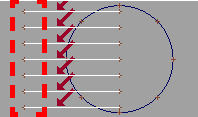
Pick the curves you want to trim. You can draw a pick box to pick multiple curves at once.
- Pick the curves in the view window where the curves and the sectioning curve/surface intersect.
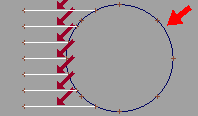
- For trims, click the part of the curve you want to keep. Red arrows show the "kept" part of the curve.
- Pick a curve again to unpick it.
-
4
-
Click the Go button.
|
|
|
-
5
-
Click the curve, surface, or construction plane you want to section with.
-
If there is a problem, you can use Undo to reverse the
operation.
To section a group a curves based on parameter or distance:
|
|

|
-
1
-
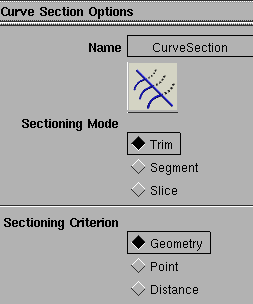
Double-click the Curve section icon, or choose Curve section- from the Curve Edit palette menu.
- To trim the curves, set the Sectioning Mode to Trim.
- To detach the curves, set the Sectioning Mode to Segment.
|
|
|
- To insert edit points on the curves, set the Sectioning Mode to Slice and the Slice Creation Mode to Insert Edit Points.
- To create a new curve that passes through the intersections, set the Sectioning Mode to Slice and the Slice Creation Mode to Create Curve.
-
2
-
Set the Sectioning Criterion:
- To section each curve at a specific parameter, set the criterion to Point.
- To section each curve at a specific length, set the criterion to Distance.
-
3
-
Click Go.
|
|
|
-
4
-
Pick the curves you want to trim.
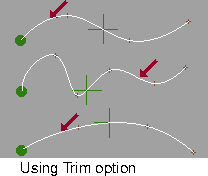
- For trims, click the part of the curve you want to keep. Red arrows show the "kept" part of the curve.
- Pick a curve again to unpick it.
- Green locators show the current sectioning point for each curve. Click on a locator to see the corresponding parameter/distance on the prompt line.
- Drag the green locators to change the sectioning point on a curve, or click a locator and type an exact value.
|
|
|
-
5
-
Click the Go button.
-
If there is a problem you can use Undo to reverse the
operation.
-
6
-
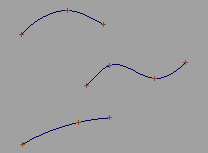
After the Trim/Segment/Slice operation, locators reappear on each curve segment. Drag them to another location if you want to continue sectioning.
-
7
-
Click another tool to exit Curve section.
Tips and Notes
- If you pick the curves to section in an orthographic windows, the intersections are visual. That is, where the curves appear to cross in the view window.
-
Remember to pick the curves in the orthographic view
where they cross the sectioning curve or surface.
- If you pick the curves to section in a perspective window, the intersections are exact. The curves must actually intersect the sectioning curve or surface in space.
- Using the Section curves tool with the Segment and Point options effectively allows you to detach a curve at an arbitrary parameter, unlike the Detach tool, which only works at edit points.
Options
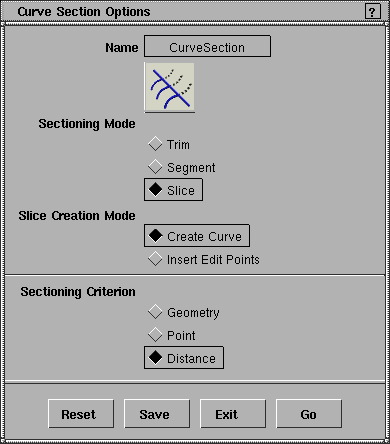
Sectioning Mode
-
- Trim-trim back curves by deleting the part of the curve beyond the intersection point. The part of the curve you clicked on is retained.
-
- Segment-detach the curves at the intersections.
-
- Slice-has different effect depending on the Slice Creation Mode.
|
|
This option is available
when Sectioning Mode is
Slice.
|
Slice Creation Mode
-
- Create Curve-create a curve that passes through the intersections.
-
- Insert Edit Points-insert new edit points at the intersections.
Sectioning Criterion
-
- Geometry-perform sectioning operation at the intersections with a free curve, surface, or construction plane.
-
- Point-perform sectioning operation at a specified parameter on each curve.
-
- Distance-perform sectioning operation at a specified distance from the start point of each curve.
See Also
|


