|
|
Surfaces >
Fillet Surfaces >
Bevel

|
Extruding with a Beveled Edge
|
|
|
|
|
Purpose
Create an extruded surface with a beveled edge.
How To
To extrude a beveled surface from a curve:
|
|
|
-
1
-
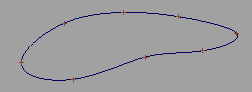
Pick the curves and/or faces you want to extrude.
-
2
-
Click the Bevel icon, or choose Fillet Surfaces > Bevel from the Surfaces palette menu.
|
|
|
-
3
-
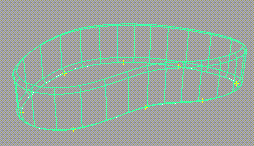
An approximation of the beveled extrusion appears.
- Drag with the left mouse button to change the bevel width.
- Drag with the middle mouse button to change the bevel depth.
- Drag with the right mouse button to change the extrusion depth.
|
|
|
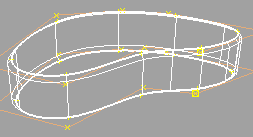
- Type the bevel width, bevel depth, and extrusion depth separated by spaces to set the values exactly.
- Click Go to create the surface.
Tips and Notes
- Use a negative bevel depth to reverse the bevel. Use a negative extrusion depth to reverse the direction of the extrusion.
- An open curve will be automatically closed by joining both ends with a straight line segment, before being bevelled.
- If the Front Cap or Back Cap option is turned on, the curve must be two-dimensional (all CVs in the same plane) since caps are faces.
Options
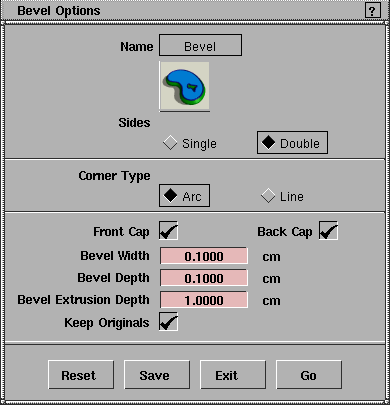
Sides
-
- Single-only bevel one side of the extrusion.
-
- Double-bevel both sides of the extrusion.
Corner Type
-
- Arc-circular rounded bevel.
-
- Line-straight line bevel.
Front Cap
Back Cap
-
- Create a face to cap the front/back side of the extrusion.
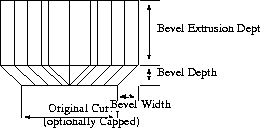
Bevel Width
Bevel Depth
Bevel Extrusion Depth
-
- Enter initial values for the bevel parameters. You can change these values interactively when you use the Bevel tool.
Keep Originals
-
- Do not delete the original curves used to create the new surface.
See Also
|
Surfaces >
Fillet Surfaces >
Fillet

|
Creating a Fillet Between Surfaces
|
|
|
|
|
Purpose
Create a fillet surface between two existing surfaces, or a fillet curve between two existing curves.
Fillet produces surfaces similar to those you can create with the Round tool. Fillet does not require the surfaces to meet exactly, or even intersect. However, Fillet cannot produce the variable-radius fillets and rounded corners like those available from Round.
How To
To get the correct fillet:
The fillet is built on the "normal" sides of the surfaces. That is, the side indicated by the direction of the surface normal.
|
|

|
This is easier to remember using the diagram at left:
- The arrows represent the normal direction.
- The thick lines are the existing surfaces.
- The thin lines are the resulting fillet surfaces for the different combinations of normal directions.
For example, if the normals of the horizontal surface point "up", and the normals of the vertical surface point "left", the resulting surface will look like the one in the upper left corner of the diagram.
To create a circular fillet surface with a specific radius:
-
1
-
Double-click the Fillet icon, or choose Fillet surfaces > Fillet-
 from the Surfaces palette menu. from the Surfaces palette menu.
-
2
-
The Fillet options window appears.
- Set Construction to Circular.
- Set the Radius text box to the radius you want for the new fillet surface.
- If you're planning to trim the surfaces to the edges of the fillet, turn on Trim Curves. The Fillet tool will automatically create curves on surface at the fillet edges.
|
|
|
-
3
-
Click the first surface.
-
4
-
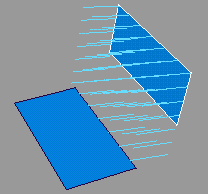
The Fillet tool displays the normals of the surface:
- Click Reverse to reverse the normals.
- Click Accept to use the current normal direction.
-
5
-
Click the second surface.
-
6
-
The Fillet tool displays the normals of the surface:
- Click Reverse to reverse the normals.
- Click Accept to use the current normal direction.
|
|
|
-
7
-
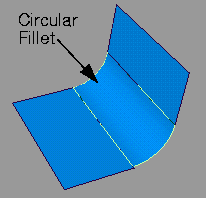
The Fillet tool creates a fillet surface.
-
If the current radius is too small or too large to create a
fillet between the surfaces, the Fillet tool reports an error
and does not build the fillet.
-
8
-
Adjust the knee ratio by entering a value through the keyboard if necessary (see Options on page 291).
-
9
-
Click Accept when you are satisfied with the fillet.
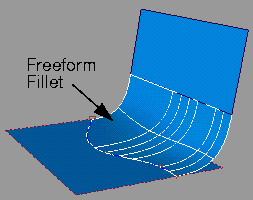
To create a freeform fillet between surface curves:
-
1
-
Double-click the Fillet icon, or choose Fillet surfaces > Fillet- from the Surfaces palette menu.
-
2
-
The Fillet options window appears.
- Set Construction to Freeform.
|
|
|
-
3
-
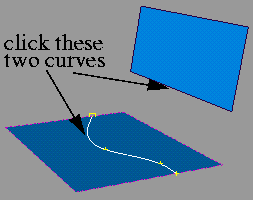
Click a surface curve on the first surface. You must click one of the following:
- A curve on surface or trim edge.
-
4
-
Click a surface curve on the second surface. You must click one of the following:
- A curve on surface or trim edge.
|
|
|
-
5
-
The Fillet tool creates a fillet surface.
To use the Blend Control option:
If Blend Control is on, the Fillet tool adds an extra step, allowing you to change the shape of the fillet blend:
- Use the buttons in the lower right corner to control the degrees of freedom of the fillet surface:
- Primary favors the first surface you picked.
- Secondary favors the second surface you picked.
- Blend blends equally between the two surfaces.
- Ortho makes no distinction between the surfaces, and simply touches the surfaces at right angles.
- Drag the left mouse button to change the depth of the fillet arc.
- Drag the middle mouse button to change the blend bias between the primary and secondary surfaces.
- Type two numbers separated by spaces to set the depth and bias exactly.
- Click Go to finish modifying the fillet.
Tips and Notes
- Construction history is particularly useful with the Fillet tool. Until you trim the surfaces, you can move and reshape them and the fillet will automatically update.
- If you are trying to create a freeform fillet and there is no suitable visible isoparm, you can:
- Use the Insert tool to add an edit point isoparm, or
- Use the Patch precision tool to increase the display of interior isoparms.
- If you don't require exact tangency, set Tangency Achieved to Approx. Approx is much faster than Accurate.
Options
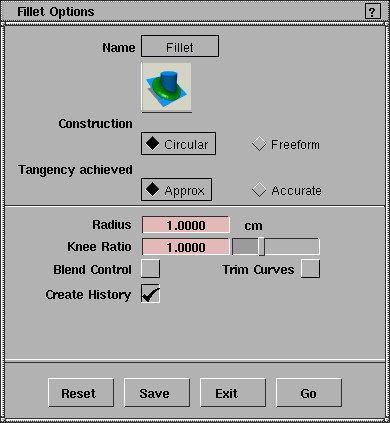
Construction
-
- Circular-create a circular fillet with a true radius.
-
- Freeform-create a fillet between two contact curves.
|
|
The regular tolerances for
tangency are set by choosing
Construction Options from
the Preferences menu.
|
Tangency Achieved
-
- Approx-do not use the regular tangent tolerances. Instead use an "eyeball" tangent tolerance (typically between 1 and 5 degrees).
-
- Accurate-try to achieve tangency within the regular tangent tolerance (Continuity Angle value).
|
|
This option is available
when Construction is
Freeform, or Blend Control is
on.
|
Freeform Type
-
- Tangent-project the tangent planes at the two contact curves and create the fillet in the direction of the tangent planes intersection.
-
- Blend-average the positions of the two contact curves to create the fillet. Blend
fillets sometimes have an inflection and tend to be shallower than Tangent
fillets.
|
|
This option is available
when Construction is
Circular.
|
Radius
-
- The default radius of circular fillets. You can enter a new value at the prompt line when you use the tool.
|
|
This option is available
when Construction is
Circular and Blend Control is
off.
|
Knee ratio
-
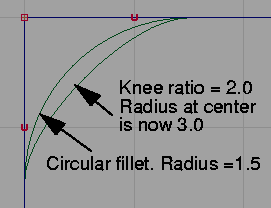
- Specify a radius at the center (or knee) of the fillet as a ratio (or multiple) of the original radius.
|
|
|
-
- The resulting fillet, of course, will not be truly circular, but its contact edges will correspond to those of a circular fillet with the original radius.
Blend Control
-
- Allows you to change the blend type and blend parameters after the fillet surface is created.
Trim Curves
-
- The Fillet tool will automatically create curves on surface on the original surfaces at the fillet edges.
-
- Often, the next step after creating a fillet between two surfaces is to trim away the parts of the original surfaces that extend beyond the new fillet. This option makes that step much easier.
Create History
-
- Save the Fillet history for later editing. If you turn on Create History, you can edit the original curves and the fillet will automatically update.
See Also
|
Surfaces >
Fillet Surfaces >
Blend

|
Blending a New Surface Between Surface Boundaries
|
|
|
|
|
Purpose
Create a new surface that blends between two existing boundaries, where a boundary can consist of several surface curves.
How To
To create a blending surface between two existing surfaces:
-
1
-
Click the Blend icon, or choose Fillet surfaces > Blend from the Surfaces palette.
|
|

|
-
2
-
Click all the surface curves you want to blend from. You can use curves from more than one surface as a common edge.
-
Click the curves in order, from one end of the common
edge to the other. For best results, the curves should be
tangent continuous with each other.
- Click a surface edge, isoparm, curve on surface, or trim edge to add it to the common edge.
- Click the previous curve again to deselect it.
- If the end of the curve is close to the beginning of the first curve, the common edge closes up.
-
3
-
Click Go.
|
|

|
-
4
-
Click all the surface curves you want to blend to. You can use curves from more than one surface as a common edge.
-
Click the curves in order, from one end of the common
edge to the other. For best results, the curves should be
tangent continuous with each other.
- Click a surface edge, isoparm, curve on surface, or trim edge to add it to the common edge.
- Click the previous curve again to deselect it.
- If the end of the curve is close to the beginning of the first curve, the common edge closes up.
-
5
-
Click Go.
|
|

|
-
6
-
A locator for the new surface appears. Each edge displays a direction line (labeled with a "D"), and lines are drawn between the two edges to approximate the new surface.
- Drag the left mouse button to move the locator along the common edge. Use this to correct minor problems mapping one surface to the other.
- Click the middle mouse button to reverse the current segment of the common edge. Use this to correct twists in the new surface.
- Click the right mouse button to switch to the locator on the other edge.
|
|

|
-
7
-
Click Go to create the new surface.
Tips and Notes
- Construction history is particularly useful with the Blend tool. You can move and reshape the original surfaces, and the blend surface will automatically update.
- Any changes to the parameterization of the original surfaces will break the construction history of the blend surface.
- The Blend tool is useful for blending surfaces over joints of an animated model. As the original surfaces are animated, construction history rebuilds the blended surface at each frame.
|
Surfaces >
Fillet Surfaces >
Round

|
Creating Rounded Edges, Corners and Fillets
|
|
|
|
|
Purpose
Create fillet surfaces and rounded edges and corners between existing surfaces.
Round produces surfaces similar to those you can create with the Fillet tool. Unlike Fillet, Round requires that the surfaces meet exactly. However, Round can produce variable-radius fillets and rounded corners which Fillet cannot.
How To
To create rounded edges and corners between surfaces:
-
1
-
Click the Round icon, or choose Fillet surfaces > Round from the Surfaces palette menu.
|
|
|
-
2
-
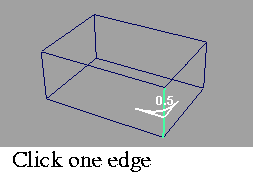
Click the common edge between two surfaces.
-
3
-
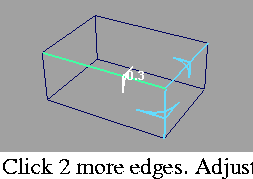
A radius indicator appears on the edge.
- See below for how to use the button menu and how to specify more than one radius on an edge.
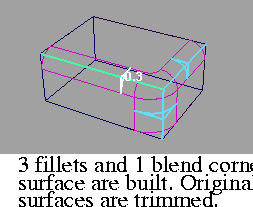
- Repeat step 2 to add another edge to the round operation. Where three or four rounded edges meet, the Round tool will create a blended corner surface.
|
|
|
- Drag the left mouse button to change the radius of the current indicator, or type a number to set the radius exactly.
- Drag the middle mouse button to move the indicator along the edge.
- Click another indicator to make it the active locator.
|
|
|
-
4
-
When you have selected all the edges you want to round, click the Build button (in the lower right corner of the window).
- You can continue to edit the parameters and edges, then click Build again to see the results.
- Click the Undo all button (in the lower right corner of the window) to start over.
To create a variable-radius fillet or rounded edge:
-
1
-
Click the Round icon, or choose Fillet surfaces > Round from the Surfaces palette menu.
|
|
|
-
2
-
Click the common edge between the two surfaces.
-
A radius indicator appears on the edge.
-
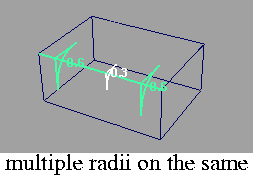
3
-
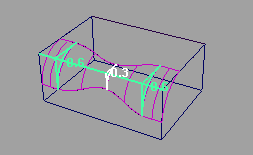
Click twice at another point on the edge to add another radius indicator.
- You can add as many indicators as you want to set the radius of the fillet at several point along the edge.
- To remove a radius indicator, click the indicator to make it active, then click the Delete button.
|
|
|
-
4
-
Click Build to create the new surface.
To use the Round buttons:
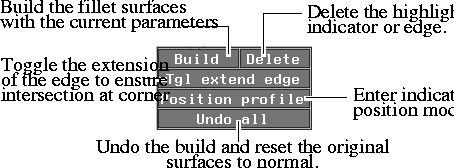
Build
-
- Create the rounded surfaces using the current specifications. You can continue to edit the edges, then click Build again to update the surfaces.
Delete
-
- Remove the highlighted indicator or edge from the build operation.
-
- For example, click a radius indicator and click Delete to remove it. Click an edge and click Delete to remove the rounded surface from the edge in the next build.
Tgl extend edge
-
- Toggle to extend/not extend the edge when the new rounded surface is built. You will need to extend the edge when the resulting surface does not intersect properly with another fillet or side surface at a corner (see example below).
Position profile
-
- Normally keyboard input sets the radius of the current indicator. Click this button to enter the position of the indicator along the edge as a percentage of arc-length instead.
-
- For example, 0.0 is the beginning of the edge, 0.5 is halfway along the edge, and 1.0 is the end of the edge.
-
- Click another edge to exit positioning mode.
Undo all
-
- Undo the built surfaces, deselect all the edges, and return the surfaces to their original state.
|
|
|
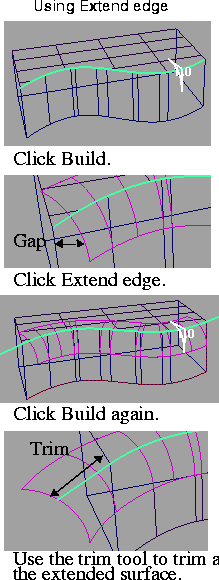
To use the Extend edge button to make sure corners intersect:
-
1
-
In the example at left, the wavy edge is selected to round.
-
2
-
When you click Build, the new rounded surface is created. Because the new surface ends at an angle to the side surface, there is a gap. The surfaces do not meet at the corner.
-
3
-
Click Extend edge. the highlighted edge line extends beyond the original surfaces.
-
4
-
Click Build. The rounded surface is rebuilt to extend beyond the side surface.
-
5
-
Now you can Intersect the side surface and the rounded surface, then Trim the extended part of the surface back to the corner.
-
See Creating Curves-on-Surface from Geometry on page 319
and Trimming Surfaces with Curves-on-Surface on page 329.
To edit the construction history of a Round surface:
-
1
-
Pick the surface you want to edit.
-
2
-
Click the Round icon, or choose Fillet surfaces > Round from the Surfaces palette menu.
-
The edges, radius indicators, and button menu reappear.
Tips and Notes
- Unfortunately, the Round tool cannot automatically determine which edges need to be extended, or trim them once they are extended.
-
Make sure to check if any edges need to be extended after
your initial build.
- Trimming any of the surfaces created by the Round tool will break construction history.
- If you don't require exact tangency, set Tangency Achieved to Approx. Approx is much faster than Accurate.
- The following table shows how the Round tool deals with different numbers and types of edges meeting at a corner:
|
Edges
|
Conditions
|
Result
|
|---|
|
2
|
|
Corner is a simple intersect and trim.
|
- Different radii. or single radius and variable radius.
- Different geometry degree.
|
None. Trim manually.
|
|
3
|
All edges have same radius.
|
Corner is either a trimmed sphere, or a triangular degenerate surface with a zero-length side.
|
|
One of the edges has a radius of 0.
|
Same as with 2 edges.
|
|
Two of the edges have radii of 0.
|
Tries to trim the non-zero fillet back to the intersecting surface.
|
|
All other cases.
|
Corner is a normal four-sided surface that blends between all fillets.
|
|
4
|
All cases.
|
Corner is a normal four-sided surface between the four points where the four fillets edges intersect.
|
Options
Trim Type
Automatic
-
- Automatically trim the surfaces where they intersect. This is the default.
-
- This option does not apply to surfaces that must be extended with the Extend edge button. You must trim those surfaces manually.
Curves on Surface
-
- Create curves on surface where the surfaces intersect, but do not trim them.
Off
-
- Do not create curves on surface or trim the surfaces.
Tangency Achieved
Approx
-
- Do not use the regular tangent tolerance. Instead use an "eyeball" tangent tolerance (typically between 1 and 5 degrees).
|
|
The regular tolerance for
tangency is set in the
Continuity Angle option
(choose Preferences >
Construction Options).
|
Accurate
-
- Try to achieve tangency within the regular tangent tolerance.
See Also
|


