|
|
Surfaces >
Boundary Surfaces>
Boundary

|
Building From Three/Four Boundary Curves
|
|
|
|
|
Purpose
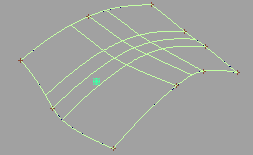
Create a new surface by blending between three or four boundary curves.
How To
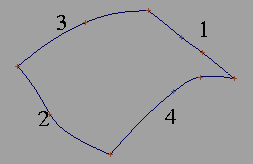
To create a four sided surface:
|
|
|
-
1
-
Double click the Boundary icon, or choose Boundary Surfaces > Boundary-
 from the Surfaces palette menu. from the Surfaces palette menu.
-
2
-
Set Boundary Curves to Four, then click Go.
-
3
-
Click one boundary curve.
|
|
|
-
4
-
Click the opposite boundary curve.
-
5
-
Click one of the remaining boundary curves.
-
6
-
Click the final boundary curve.
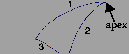
To create a three sided surface:
|
|
|
-
1
-
Double click the Boundary icon, or choose Boundary Surfaces > Boundary- from the Surfaces palette menu.
-
2
-
Set Boundary Curves to Three, then click Go.
|
|
|
-
3
-
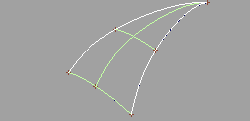
Click one of the boundary curves which form the apex of the triangle.
-
4
-
Click the second boundary curve which form the apex.
-
5
-
Click the remaining boundary curve (the curve opposite the apex).
Tips and Notes
|
|
See Snapping to Grids, Curves,
and Points on page 35.
|
- For best results, use the snapping tools to make sure the curves intersect at their endpoints. This is not required, but it makes the resulting surface more predictable.
|
|
See Reversing Direction and
Normals on page 120.
|
- If the surface is twisted, make sure opposing boundary curves have the same direction.
- The triangular surface is a regular four sided NURBS surface where one side has zero length. This is sometimes called a degenerate surface.
-
If you are planning to use your model as input to a
manufacturing system, make sure your system can handle
this type of surface.
- The first curve you click defines the U direction of the new surface.
- The boundary curves of the four-sided surface can be picked in any order.
- If you need the surface to maintain continuity with adjacent surfaces, use the Square tool.
Options
Boundary Curves
-
- Three-create a triangular surface by blending three boundary curves.
-
- Four-create a surface by blending four boundary curves.
Create History
-
- Save the history of the new surface for later editing. If you turn Create History on, you can modify the curves that were used to create the surface, and the surface will update.
See Also
|
Surfaces >
Boundary Surfaces>
Square

|
Building from Four Boundary Curves with Continuity
|
|
|
|
|
Purpose
Create surfaces by blending four boundary curves (or curve segments), while maintaining continuity with adjacent surfaces.
How To
To create a new surface by blending four boundary curves (or curve segments):
-
1
-
Double click the Square icon, or choose Boundary surfaces > Square- from the Surfaces palette menu.
-
The Square Control window appears.
|
|
|
-
2
-
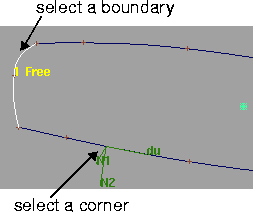
Click the first boundary curve, or
-
Click a point on the curve (to use as a corner) by holding
down the Ctrl and Alt key.
- You can use free curves, curves on surface, isoparms, and/or trim edges.
- To maintain continuity with another surface, you must pick an isoparm or trim edge on that surface, not a construction curve used to create that surface.
- You can use a segment of a longer curve. The Square tool will use the section of the curve bounded by the other curves you click.
|
|
|
-
3
-
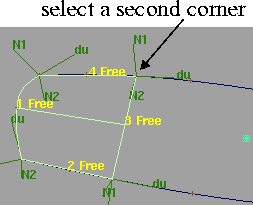
Click the remaining curves and/or points (corners) in clockwise or counter-clockwise order.
- You can select either four curves, four corners, one corner and two curves, or two corners and one curve.
- If two adjacent boundary curves do not intersect, the Square tool displays an error in the prompt line. Otherwise, the surface is built.
|
|
|
-
4
-
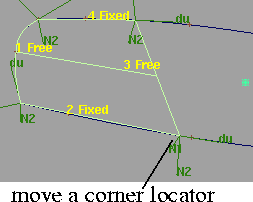
Move the corner locators (if any) to change the position of the corners.
-
5
-
Use the options in the Square Control window to set the continuity you want at each edge (see below).
To use the tangent angle manipulator:
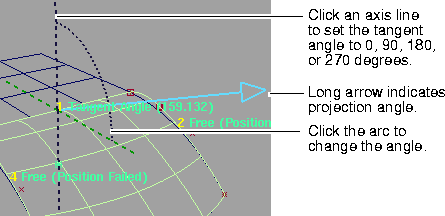
This manipulator appears when you set an edge to Tangent Angle in the Square Control window (see below).
- Click an axis line to set the tangent angle to 0, 90, 180, or 270 degrees.
- Click an arc, then drag the mouse left and right to change the angle value, or type a number to set the value exactly.
- When you are finished, click the Go button.
To edit the construction history of a Square surface:
-
1
-
Pick the surface you want to edit.
-
2
-
Click the Square icon, or choose Boundary surfaces > Square from the Surfaces palette menu.
-
The Square Control window appears.
-
3
-
Use the curve modification tools (in the Xform, Curve Edit, and Object Edit palettes) to reshape the curves used to create the surface, and use the Square Control window to change the surface creation options.
Tips and Notes
- To make sure the boundary curves intersect, use:
- Use the Project tangent tool to make sure the curves are already continuous before creating the surface. This will ensure the Square tool can achieve continuity and decrease calculation time.
- The first curve you click defines the U direction of the new surface. The second curve defines the V direction.
- You can select several boundary curves at a time by dragging a pick box around them, but you cannot control in what order they will be picked.
|
|
|
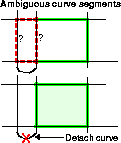
- Curve segments can be ambiguous. In the example at left, it is not clear which part of the U-shaped boundary curve should be used as the left edge of the new surface.
-
In these cases, the Square tool will guess which segment to
use. If it guesses incorrectly, detach the ambiguous curve
to create two separate, non-ambiguous curves.
- If you know the boundary curves already have matching parameterization and minimum spans, you should turn the Rebuild checkboxes off. Rebuilding can sometimes inhibit continuity.
- For the continuity options to work for some edges, the adjacent edges (for example, edges 2 and 4 are adjacent to edge 1) must usually be free.
-
If you have continuity constraints on all edges, the
constraints may sometimes conflict and fail.
- If your surface has a bulge or dent, try reducing the Influence slider for the edges whose continuity is Fixed or Free.
-
The Influence sliders are found in the Square Control
window when Blend Type is Cubic.
Options
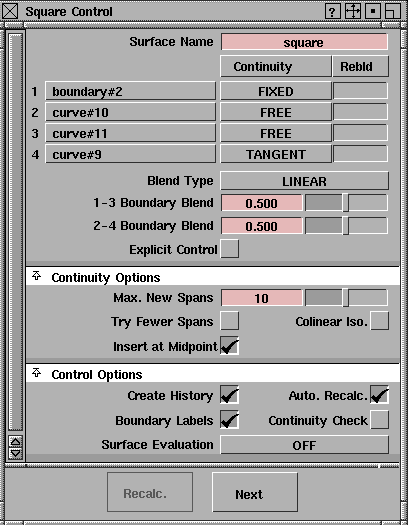
Surface Name
-
- Enter a name for the new surface. The default name is "Square" followed by a number.
Continuity Table
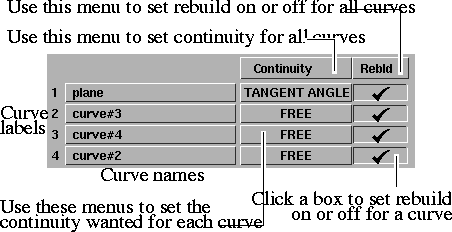
The Continuity Table displays one row for each boundary curve involved in the Square operation.
|
|
|
- Use the pop-up menu next to each curve to set the level of continuity you want across that curve.
|
|
|
- Use the Continuity pop-up menu above the table to set the continuity you want for all of the curves at once.
|
|
|
- Click the checkboxes at the end of each row to rebuild the curves to reduce data and improve parameterization.
- Use the Rebuild pop-up menu to set rebuild on or off for all the curves at once.
Free
-
- This edge is free to move if required by another edge's continuity or by the Influence sliders (see below). This is the default.
Fixed Boundary
-
- Keep this edge exactly like the boundary curve that created it. In other words, do not let the edge move as with the Free option. This is equivalent to positional continuity.
|
|
|
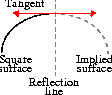
Implied Tangent
-
- Try to keep tangency with an implied surface that shares this edge. The implied surface is the surface that would be created by mirroring the new surface.
-
- This is a powerful feature. It lets you model one half of a symmetrical surface (such as a car body), and maintain continuity at the seam. When you duplicate the surface to create the other half, the seam will already be continuous. (See also Setting Symmetry on Layers in the Basic Tools book.)
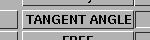
Tangent Angle
-
- Try to keep tangency at an angle with a surface that shares this edge.
- When you set this continuity type for an edge, a manipulator appears on the edge. Use the manipulator to set the tangent angle.
- The two adjacent edges of the new surface should be Free to allow the Tangent Angle edge to move.
- Setting the Tangent Angle manipulator to 0 or 180 degrees is the same as using Tangent continuity.
- This continuity type can be very slow to calculate.
Tangent
-
- Try to keep tangency with a surface that shares this edge.
Curvature
-
- Try to keep curvature continuity with a surface that shares this edge.
Blend Type
Linear
-
- Create the new surface by blending the free CVs (CVs not controlled by the continuity options) of the four boundary curves.
Cubic
-
- Create the new surface by interpolating the boundaries (as in Linear), plus the tangent and curvature ribbons. The interpolation is cubic (if only tangent continuity is needed) or quintic (if curvature continuity is needed).
-
- Depending on how much the tangent and curvature ribbons change, Cubic blends can be much wavier than Linear blends.
1-3/2-4 Boundary Blend
-
- These sliders control the point of equal influence of opposite boundaries (in other words, the midpoint of the blend between opposite boundaries): that is, between 1 and 3, and between 2 and 4. Values can effectively range from 0.17 to 0.83.
-
- Changing the surface using the Boundary Blend sliders is slow, because continuity must be recalculated. For very complex surfaces, or when using Curvature or Tangent Angle continuity, you may want to turn off the Auto Recalc option.
|
|
These options appear when
Blend Type is Cubic.
|
1-3/2-4 Influence
-
- These sliders control how much each set of boundary curves influences the new surface.
-
- For example, if you set the 2-4 Influence slider to 0.0, the new surface will mostly blend between edges 1 and 3, and will have little of the shape of edges 2 and 4.
-
- Changing the surface using the Influence sliders is much faster than with the Boundary Blend sliders, because continuity is not affected.
|
|
Explicit Control is only
available in Studio,
AutoStudio and
SurfaceStudio.
|
Explicit Control
-
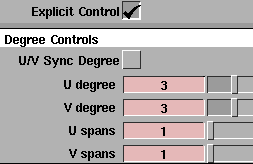
- Turn on this option to open the Surface Degree Controls section that allows you to explicitly specify the degree and number of spans of the surface in both the U and V direction.
Surface Degree Controls
|
|
|
U/V Sync Degree
-
- Couple the U Degree and V Degree sliders. When this control is turned on, adjusting one slider automatically adjusts the other to the same value.
U Degree / V Degree
-
- Degree of the square surface in the U and V direction respectively.
|
|
More spans may be added if
needed to maintain the
requested level of continuity,
up to the value of Max. New
Spans.
|
U Spans / V Spans
-
- Number of spans on the square surface in the U and V direction respectively.
Continuity Options
Max. New Spans
-
- Maximum number of spans the Square tool can insert on each edge of the new surface as it tries to achieve continuity.
-
- If the Square tool cannot achieve tangency without inserting more than the allowed number of spans, it displays an error in the prompt line.
Try Fewer Spans
-
- Turning this option on can potentially reduce the complexity of the new surface. However it is slower, and is not effective when boundaries are wavy.
-
- Off-the Square tool creates the surface without continuity first, then projects tangents at each isoparm onto the adjacent surfaces. This is the default.
-
- On-the Square tool creates the surface with continuity from the beginning by interpolating the formulas for the tangents at the ends of each boundary.
Colinear Iso.
-
- Line up the isoparms of the new surface with adjacent surfaces. This is similar to turning off Skews in the Align tool (see Aligning Curves and Surfaces on page 85).
Insert at Midpoint
-
- On-Insert extra edit points at the midpoint of the span with the largest continuity deviation. This is the default, and results in a better distribution of the isoparms.
-
- Off-Insert extra edit points at the location of the largest continuity deviation.
Control Options
Create History
-
- Save the history of the new surface for later editing. If you turn Create History on, you can modify the curves that were used to create the surface, and the surface will update.
Auto Recalc
-
- Update the new surface automatically as you change the values in the Square Control window.
Boundary Labels
-
- Label the boundary curves in the view windows. The labels also show
- the kind of continuity wanted,
- whether the continuity failed,
- which tangents are implied or averaged, and
- the angle on edges with Tangent Angle continuity.
|
|
See Checking Continuity
Between and Within Surfaces
on page 512 for information
on the surface continuity
locator.
|
Continuity Check
-
- Display the surface continuity locator at the boundaries between the birail surface and adjacent surfaces. The locator is persistent and will remain after you exit the Square tool. To remove it, use Locators > Move Locator to pick the locator, then select Del > Del locators > Active, or toggle the checkmark off when entering birail again.
Surface Evaluation
None
-
- Do not perform any surface evaluation on the surface.
Curvature
Highlight
Quick Render
-
- Display a curvature render, highlight render, or Quick Render of the new surface.
-
- For more information, see:
|
|
For more information, see
Creating Cross-Section Lines
on page 535.
|
Cross Section
-
- Calculate and display cross-section lines on the new surface. Choosing this option displays the Show Previous Xsect option.
|
|
This option appears when
the Surface Evaluation type
is Cross Section.
|
Show Previous Xsect
-
- Display the previous cross-section lines along with the current cross-section lines.
-
- This lets you make changes to the surface creation options and observe the effect on the cross-sections.
Buttons
Recalc
-
- Recalculate the surface with the current values in the Square Control window.
Next
-
- Finish the current surface and prompt for new curves.
See Also
|
Surfaces >
Boundary Surfaces>
N-sided

|
Building an N-Sided Surface
|
|
|
|
|
Purpose
Create a new surface with up to 8 sides.
Overview
The N-sided tool does the following:
-
1
-
Creates a normal (four-sided) NURBS surface that simulates a blend between the boundary curves.
-
2
-
Trims the surface using the boundary curves to create the appearance of a surface with up to 8 sides.
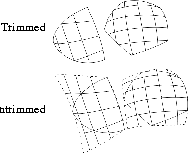
Unlike the Boundary tool, triangular surfaces created by N-sided are not degenerate (that is, they do not have a zero-length side). The surface is only trimmed to appear triangular.
How To
To create a surface with up to 8 sides:
-
1
-
Double click the N-sided icon, or choose Boundary surfaces > N-sided- from the Surfaces palette menu.
-
The N-sided Control window appears.
|
|
|
-
2
-
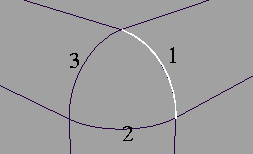
Click the first boundary curve.
- You can use free curves, isoparms, curves on surface and/or trim edges.
- To maintain continuity with another surface, you must pick an isoparm or trim edge on that surface, not a construction curve used to create that surface.
|
|
|
-
3
-
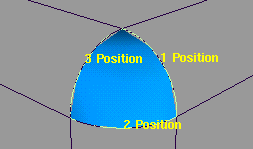
Click each remaining curve (up to a total of 8) in clockwise or counter-clockwise order.
- If two adjacent boundary curves do not intersect, the N-sided tool averages their endpoints.
- If a curve intersects the first curve, N-sided creates the surface. Otherwise it displays the Go button and allows you to continue selecting curves.
- If you have selected all the boundary curves, click Go.
-
4
-
Use the options in the Square Control window to set the continuity you want at each edge (see below).
To edit the construction history of an N-sided surface:
-
1
-
Pick the surface you want to edit.
-
2
-
Click the N-sided icon, or choose Boundary surfaces > N-sided from the Surfaces palette menu.
-
The N-sided Control window appears.
-
3
-
Use the curve modification tools (in the Xform, Curve Edit, and Object Edit palettes) to reshape the curves used to create the surface, and use the N-sided Control window to change the surface creation options.
Tips and Notes
|
|
See Snapping to Grids, Curves,
and Points on page 35.
|
- For best results, use the snapping tools to make sure the curves intersect at their endpoints. This is not required, but it makes the resulting surface more predictable.
- If you only want to see the effects of the Center Adjust options, try setting all the edges to Free continuity, since Free edges have the fastest interaction.
- The N-sided tool does not use labels to show whether the desired continuity was achieved. Instead you must look in the Surface Continuity Feedback section of the N-sided Control window.
-
Click an edge named in the N-sided Control window to
view the continuity feedback for that edge.
-
Lines of text indicate whether continuity was achieved. If
it was not achieved, text boxes show how far out of
tolerance the current edge is for each type of continuity.
Options
Surface Name
-
- Enter a name for the new surface. The default name is "nsided" followed by a number.
Continuity Table
|
|
|
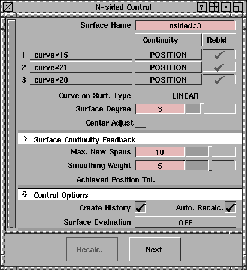
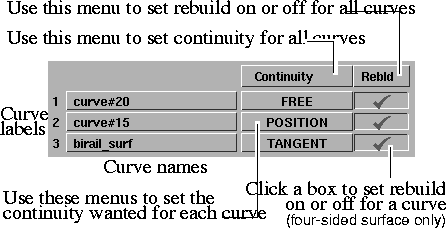
The Continuity Table displays one row for each boundary curve involved in the N-sided operation.
- Use the pop-up menu next to each curve to set the level of continuity across that boundary.
- Use the Continuity pop-up menu above the table to set the level of continuity across all curves at once.
All boundary curves are automatically rebuilt to create N-sided trimmed surfaces. In this case, the Rebld checkboxes are disabled.
The following controls can only be used on four-sided (i.e. non-trimmed) surfaces:
- Click the checkboxes at the end of each row to rebuild the curves to reduce data and improve parameterization.
- Use the Rebuild pop-up menu to set rebuild on or off for all the curves at once.
Free
-
- This edge is free to move if required by another edge's continuity.
Position
-
- Only keep positional continuity. This is the default.
Tangent
-
- Try to keep tangency with a surface that shares this edge.
Curvature
-
- Try to keep curvature continuity with a surface that shares this edge.
Curve on Surf. Type
This option controls the degree of the curve on surface used to trim the new surface. Note that Linear is much faster than Cubic.
Linear
-
- The trim edges will be linear curves (degree 1).
Cubic
-
- The trim edges will be cubic curves (degree 3).
Surface Degree
|
|
See Understanding Surfaces
on page 18.
|
This slider controls the degree of the new surface (from 1 to 7). The default is 3.
Center Adjust Options
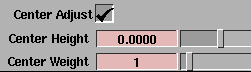
These options let you push or pull the surface toward or away from a center point. Center Height and Center Weight only appear when Center Adjust is on.
|
|
|
Center Adjust
-
- Display the center adjustment sliders and a distance locator on the model.
Center Height
-
- Increase or decrease the distance of the locator along the surface normal. This has the effect of pulling on or pushing in the center of the surface.
Center Weight
-
- Increase or decrease the influence of the locator on the surface. Decreasing this value increases the distance between the center point you specify and the actual center point on the surface. The locator displays this distance.
Continuity Options/Feedback
Max. New Spans
-
- Maximum number of spans the Square tool can insert in both U and V (on the initial untrimmed surface), as it tries to achieve continuity.
-
- If the Square tool cannot achieve tangency without inserting more than the allowed number of spans, it displays an error in the prompt line.
Smoothing Weight
-
- Use this slider to adjust the amount of smoothing to correct bumps and bulges. A higher weight smooths more.
|
|
|
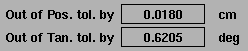
Continuity Feedback Text
-
- Click an edge name in the N-sided Control window to view the continuity feedback for that edge.
-
- Lines of text indicate whether continuity was achieved. If continuity was not achieved, text boxes show how far out of tolerance the current edge is for each type of continuity.
-
- For example, if an edge is 1 degree from tangency, and the tangency tolerance is 0.1 degrees, the tangent continuity feedback line shows 0.9 degrees.
Control Options
Create History
-
- Save the history of the new surface for later editing. If you turn Create History on, you can modify the curves that were used to create the surface, and the surface will update.
Auto Recalc
-
- Update the new surface automatically as you change the values in the N-sided Control window.
Surface Evaluation
Off
-
- Do not perform any surface evaluation on the surface.
Curvature
Highlight
Quick Render
-
- Display a curvature render, highlight render, or Quick Render of the new surface.
-
- For more information, see:
Cross Section
-
- Calculate and display cross-section lines on the new surface. Choosing this option displays the Show Previous Xsect option.
-
- For more information, see Creating Cross-Section Lines on page 535.
|
|
This option appears when
the Surface Evaluation type
is Cross Section.
|
Show Previous Xsect
-
- Display the previous cross-section lines along with the current cross-section lines.
-
- This lets you make changes to the surface creation options and observe the effect on the cross-sections.
Buttons
Recalc
-
- Recalculate the surface with the current values in the N-sided Control window.
Next
-
- Finish the current surface and prompt for new curves.
See Also
|


