|
|
Layers > Symmetry
|
Setting Symmetry on Layers
|
|
|
|
|
|
|
|
Purpose
To model half of a symmetrical model, while the system automatically maintains the mirrored half.
Overview
Almost every real-world model displays some form of symmetry. The usual practice is to create half of the model, then reflect it to create the other half.
Symmetry planes automate this process, by interactively updating the symmetrical half as you model. This feature gives you many advantages over the old, manual method, including:
- Visualize the entire model, instead of imagining what it will look like when complete.
- Pick, snap to, align to, and build surfaces from the "shadow" mirrored half.
- Changes to the symmetry plane are easy and automatic.
|
|
|
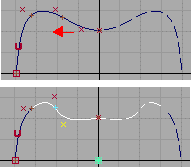
When the mirrored half is visible, every modeling action you take on one side of the symmetry plane is mirrored by dashed-line "pseudo-geometry" on the other side.
You can use the mirrored geometry exactly like regular objects except that you cannot reshape or transform it. You must change the actual geometry to change the mirrored half.
Mirrored geometry behaves in the same way as instances:
- You cannot show or edit control points.
- You cannot assign independent shaders to mirrored geometry.
- You cannot apply independent clusters or deformation frames to mirrored geometry.
Display
|
|
|
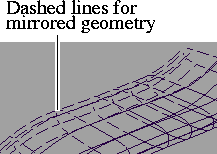
Mirrored geometry is drawn using a dashed wireframe. In shaded modes and renders, mirrored surfaces are rendered normally using the same shader as their original objects.
>
|
Note:
|
If you want to hide the mirror geometry, do not pick it and
try to delete it. This will delete your original geometry! Instead,
use the procedure for hiding the mirror geometry on
page 265.
|
How To Set Up Symmetry Planes
To set the plane across which the model will be mirrored:
|
|
|
-
1
-
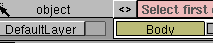
In the layer bar (below the prompt line), click the name of the layer(s) for which you want to set the symmetry plane. (Use Shift-click to select more than one layer.)
-
The name of the layer should have a white outline.
-
2
-
In the Layers menu, choose Symmetry > Set plane.
-
The Symmetry plane manipulator appears. Initially, the
manipulator is located at the origin, and mirrors across the
XZ plane.
-
3
-
Use the plane manipulator to set the symmetry plane:
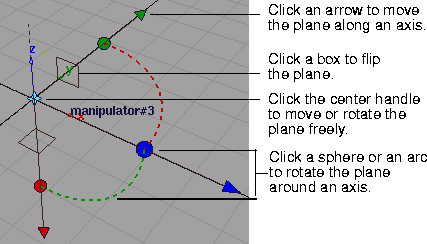
- To quickly lock the manipulator to the end of a curve, click the center move handle, then use curve snapping to snap the manipulator to the curve.
- Drag a handle to move/rotate interactively.
- Click an arrow to change the center handle to the free move handle. Then drag the center handle to move the plane freely.
- Click a sphere to change the center handle to the free rotate handle. Then drag the center handle to rotate the plane freely.
-
4
-
Click the Set Plane button to set the plane.
To show or hide the mirrored geometry:
|
|
|
-
1
-
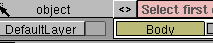
Click the name of a layer that has a symmetry plane set.
-
A white outline should appear around the name of the
layer.
-
2
-
Choose whether to show or hide the mirrored half for this layer:
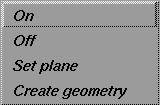
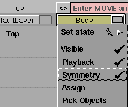
- To show the mirrored half for this layer, go to the Layers menu and choose Symmetry > On.
- To hide the mirrored half for this layer, go to the Layers menu and choose Symmetry > Off.
|
|
|
- To toggle back and forth, hold down the mouse button on the name of the layer (in the layer bar, below the prompt line) to open the pop-up menu, and then choose Symmetry.
How To Model With Symmetry
To align curves and surfaces with their mirrored half:
|
|

|
-
1
-
In the Object Edit palette, click the Symmetry Plane Align tool.
-
2
-
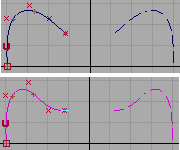
Click the curve or surface you want to align with its mirrored half. Click near the end you want to align (close to the symmetry plane).
-
The Symmetry Plane Align tool modifies the curve or surface
to have tangent continuity with its mirrored half.
-
|
|
|
>
|
Note:
|
If the object and its mirror do not touch on the symmetry
plane (that is, they are not positionally continuous), the
Symmetry Plane Align tool will modify the object as if they
were continuous, but will not actually make them
positionally continuous.
|
To convert the mirrored half into real geometry:
-
1
-
Ensure that Symmetry is turned On. (See To show or hide the mirrored geometry: on page 265.)
-
2
-
Select the layer(s) on which you want to convert the geometry. (Use Shift-click to select more than one layer.)
|
|
|
-
3
-
In the Layers menu, choose Symmetry > Create geometry.
-
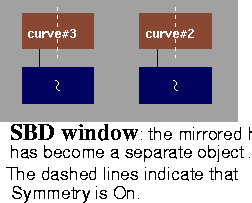
The mirrored geometry becomes a separate object (with its
own DAG node) and is now completely uncoupled from its
other half: changes to one object will not affect the other.
However, each of the two objects has its own mirrored
geometry.
-
4
-
Select Symmetry > Off to toggle off the mirrored geometry for each object.
-
5
-
If later you need to make more symmetrical modifications to one side of your model, delete one of the halves (or move it to a different layer) then select Symmetry > On.
|


