Lights |
|
11 |
Lights |
Lights illuminate objects. If your scene contains no lights, then it will render entirely black (unless, for example, you are using shaders with incandescence). You can also use lights to:
In This Section:
Creating a Light |
|
| |
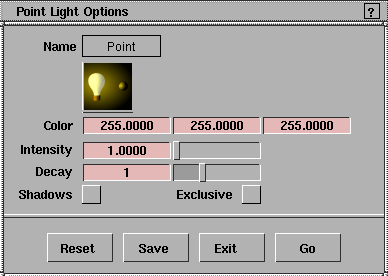
You can create a light using the Light tools or using the Multi-lister. You can use the light options to set properties for any new light you create. | |
|
Light#1 isn't used explicitly as a name; the first light with a given name is implicitly numbered 1. |
By default, lights are named sequentially as you create them: Light, Light#2, and so on. To avoid confusion, however, you should name all lights as you create them. If you let the system assign default names and later combine two or more files, all lights are renumbered to avoid duplicate names. It may then become difficult to distinguish lights by name. To create a light using the Light tools: |
To create a light using the Multi-lister: | |
To display the light options box: | |
| |
|
Objects palette > Lights > Point |
Light Options |
|
| |
The Color, Intensity, Decay, Shadows, and Exclusive options are common to all light types. Spot lights, volume lights, and directional lights also have additional options. Color
Intensity Decay Exclusive | |
|
DisplayTgls > ObjectToggles > Lights |
Displaying Light Icons |
|
| |
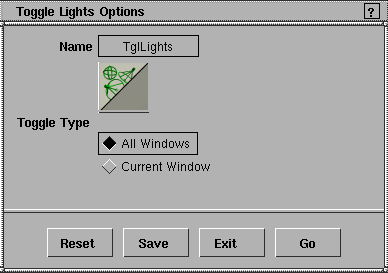
You can control whether light icons are displayed in the modeling windows. To toggle the display of lights on or off:
To open the Toggle Lights Options:
Toggle Lights Options
Toggle Type
| |
| Copyright © 1998, Alias|Wavefront, a division of Silicon Graphics Limited. All rights reserved. | Please send questions or comments regarding the documentation to: [email protected] |

 ), or
), or