|
Multi-lister Menus
|
|
|
|
|
The Multi-lister menus contain tools to create, edit, manage, and display shaders, textures, lights, and the environment. To display a menu, click and hold the mouse on a menu button at the bottom of the Multi-Lister window. The default active menu item is displayed below each button.

|
|
|
File Menu
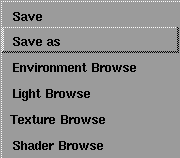
The File menu contains tools to save and retrieve environments, shaders, textures, and lights.
Shader Browse
-
- Opens the File Requestor and lets you retrieve any shader that was previously saved using File > Save in the Multi-lister. The default directory is the directory that you last used to save.
Texture Browse
-
- Opens the File Requestor and lets you retrieve any texture that was previously saved using File > Save in the Multi-lister, into the active Multi-lister swatch (environment, shader, texture, or light).
-
- The retrieved texture is automatically assigned to the Color parameter (if the active Multi-lister swatch is an environment, shader, or light) or to the Rgbmult parameter (if the active Multi-lister swatch is a texture). Only one Multi-lister swatch can be active when using Texture Browse.
Light Browse
-
- Opens the File Requestor and lets you retrieve any light (including glows, forces, and warps) that was previously saved using File > Save in the Multi-lister. The default directory is the directory that you last used to save.
Environment Browse
-
- Opens the File Requestor and lets you retrieve any environment that was previously saved using File > Save in the Multi-lister. If you retrieve an environment, it will automatically replace your current environment. The default directory is the directory that you last used to save.
Save as, Save
-
- Saves the active environment, shader, texture or light in the Multi-lister to a file that is independent from your scene's wire file. The file's name can either be the current environment/shader/texture/light name (Save) or a name that you specify when saving (Save as). You can retrieve files saved using Save as/Save into other wire files using Shader Browse, Texture Browse, Light Browse, and Environment Browse.
-
- Note the following when using Save as or Save:
- Files are saved to the current project's relevant subdirectory, or to the last place an item of that type was saved. Glows, forces and warps are saved in the lights subdirectory.
- Save does not prompt for a name or path. If a file of the same name exists, it will be overwritten without confirmation.
- If you save a shader that has associated textures, the shader and its textures are saved as a single file in the current shader directory. If you save a texture, the texture is saved as a single file in the current texture directory. If you save a shader and a texture at the same time (that is, both shader and texture are active in the Multi-lister), the shader is saved in the current shader directory, and the texture is saved in the current texture directory.
- When you use Save, a small icon representing the active object appears momentarily in the lower left corner of the screen.
- By default, whenever you save a wire file, the environment, and all shaders, textures, and lights are automatically stored within the wire file. When you later retrieve the wire file, the environment, and all shaders, textures, and lights associated with the file are also retrieved. For this reason, you do not have to explicitly save environments, shaders, textures, and lights from the Multi-lister (File > Save or File > Save as). However, you cannot easily access this information from other wire files.
|
|
|
Edit Menu
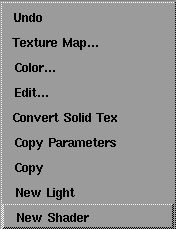
The Edit menu contains tools for creating and editing environments, shaders, textures, and lights.
New Shader
-
- Creates a new shader that is identical to the default shader. To create a new shader based on a shader other than the default shader, use Edit > Copy. To change the default shader for all future sessions, save a shader in the default shader directory with the name ShaderDefault. If you edit the default shader in the Multi-lister, but don't save it, the changes will only last for that session.
New Light
-
- Creates a new point light (based on the last point light you created) located at (0,0,0). To set options for the new light, change the values in the Point Light Options box and save them before selecting New Light. To create a new force or warp, select Edit > New Light and edit the light's parameters accordingly. To create a new light based on an existing light, use Edit > Copy.
Copy
-
- Creates a copy of the currently active shader or light. Note the following when using Copy:
- If a texture is active when you select Copy, the shader or light that the texture is assigned to will be copied.
- You cannot copy the environment.
|
|
See Editing an Environment,
Shader, Texture, or Light on
page 21.
|
- When you copy a shader/light, a number suffix is automatically added to the new shader/light name. (If the original shader/light name has a number suffix, the number is automatically incremented for the new shader/light name.)
- When you copy a light (including glows, forces, and warps), the new light appears in the scene in the same location as the original light.
|
|
See Copying Parameter
Settings on page 39.
|
Copy Parameters
-
- Copies selected parameter settings from one environment/shader/texture/light to another. Note the following when using Copy Parameters:
- You cannot copy Shading Model from one shader to another. If you attempt to copy one or more parameters that do not exist in the target shader (for example, because the shaders have different Shading Models), a warning message will appear, the operation will stop, and no parameters will be copied.
- You can use Copy Parameters to copy textures and texture parameters. This is particularly useful when matching Texture Placement and Label Mapping parameters.
- You can use Copy Parameters to copy parameters between dissimilar Multi-lister items. For example, you can copy a light's color to a shader's color.
Convert Solid Tex
-
- Creates a new shader for selected surfaces, where all solid textures are replaced by a file surface texture so that the appearance of the objects does not change. These surface textures recreate the shading qualities of the solid texture. In effect, this freezes the solid texture onto the surface.
-
- Note the following when using Convert Solid Tex:
- If you press Esc during the Convert Solid Tex operation, the files created up to that point will be correct, but will not necessarily be assigned. Also note that even if you delete the shader created by Convert Solid Tex, the image files will still exist in a directory with the same name as the original shader in the current pix directory. If you perform a second Convert Solid Tex operation using the same shader and objects, the previously created files will be silently overwritten.
- You can only use Convert Solid Tex for spline type surfaces. You cannot use Convert Solid Tex for polysets or faces.
- Any image files created are referenced on the Per Object Images list of the new file texture. Each surface gets its own image file for every solid texture converted. The file textures created have no default Image file, only per object files, therefore the shader swatch does not display the file texture.
- To display the texture on the shader swatch, copy any image file name from the Per Object Images list to the default Image field (click in the Object list to highlight the image file name, then click in the default Image field with the middle mouse button to paste).
-
- Use Convert Solid Tex in the following situations:
- You are animating several objects that all use the same shader. Because solid shaders can have only one texture node, the objects would appear to flow through the solid material, changing appearance as they move.
- You are using Blend Surfaces with a solid texture assigned, and as the objects change shape, their textures change as the surfaces move through the solid.
- You have a digitized head with a cylindrical scan image of the face. By converting a cylindrical projection map you can animate the face and have the skin texture behave properly.
- Generally, file textures are faster to render than solid textures. Speed is gained, however, at the cost of memory usage since file textures use more memory, especially if they are large and numerous.
- You can use several solid textures, like 3D paint brushes on a surface, by using the Overlay mapping technique (in the Effects section of the shader's Control Window) and turning Uwrap and Vwrap OFF for the textures (in the Label Mapping section of the shader's Control Window). When the desired effect is achieved, you can use Convert Solid Tex to both bind the texture to the surface and optimize render performance.
|
|
See Control Window on
page 33.
|
Edit
-
- Opens the Control Window for the active environment, shader, texture, or light. You can also open the Control Window by double-clicking the environment/shader/texture/light swatch in the Multi-lister.
|
|
See Color Editor on page 41.
|
Color
-
- Opens the Color Editor for the Color parameter of the active environment, shader, or light, or for the Rgbmult parameter of the active texture. You can also open the Color Editor by clicking the color field of a parameter in the Control Window.
|
|
See Texture Procedures
Window on page 94.
|
Texture Map
-
- Opens the Texture Procedures window for the Color parameter of the active environment, shader, or light, or for the Rgbmult parameter of the active texture. You can also open the Texture Procedures window by clicking the Map button beside a texturable parameter in the Control Window.
Undo
-
- Cancels all changes made to the active environment, shader, texture, or light since the environment/shader/texture/light became active. This includes all changes made to any textures assigned to the active environment/shader/texture/light.
|
|
|
List Menu
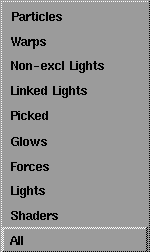
The menu item you use to open the Multi-lister determines the type of swatches initially displayed in the Multi-lister (see Opening the Multi-lister on page 16). The List menu lets you change the type of swatches that are displayed in the Multi-lister. The Multi-lister title bar indicates the type of swatches currently displayed in the Multi-lister.
All
-
- Displays the environment and all shaders, textures, lights, forces, and glows currently in memory.
Shaders
-
- Displays the environment and all shaders currently in memory, including textures that are assigned to the environment or to any shader.
|
|
See Light on page 238.
|
Lights
-
- Displays all lights in your scene that have a Light component, including textures that are assigned to any of these lights.
|
|
See Force on page 239.
|
Forces
-
- Displays all lights in your scene that have a Force component, including textures that are assigned to any of these lights.
|
|
See Active Effects on page 238
and Glow Intens (Glow
Intensity) on page 82.
|
Glows
-
- Displays all lights in your scene that have a Glow, Halo, Fog, or Lens Flare component, and all shaders currently in memory that have a Glow component, including textures that are assigned to any of these lights or shaders.
Picked
-
- Displays all lights in your scene that are picked (active), and all shaders currently in memory that are assigned to active objects, including textures that are assigned to any of these lights or shaders. Selecting List > Picked displays lights with or without a Light component.
|
|
See Linking a Light on
page 229.
|
Linked Lights
-
- Displays all lights in your scene that are linked to surfaces, including textures that are assigned to any of these lights. Selecting List > Linked Lights displays lights with or without a Light component.
|
|
See Exclusive Link on
page 244.
|
Non-excl Lights
-
- Displays all lights in your scene that have a Light component and are not exclusively linked to surfaces, including textures that are assigned to any of these lights.
|
|
See Warps on page 311.
|
Warps
-
- Displays all lights in your scene that have a Warp component, including textures that are assigned to any of these lights.
|
|
See Emit Particles on page 82
and page 243.
|
Particles
-
- Displays all lights in your scene and all shaders currently in memory that emit particles, including textures that are assigned to any of these lights or shaders. Selecting List > Particles displays lights with or without a Light component.
|
|
|
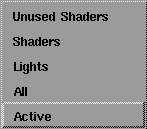
Delete Menu
The Delete menu contains tools to delete shaders, textures, and lights from the Multi-lister. You cannot delete the environment or the default shader. If you try to delete either of them, they will reset to their default parameters.
Active
-
- Deletes all selected shaders, textures, and lights, including textures that are assigned to them. To select multiple shaders, textures, and lights, click one shader/texture/light, then hold the Shift key and click on any other shaders/textures/lights.
All
-
- Deletes all shaders, textures, and lights.
Lights
-
- Deletes all lights, including textures that are assigned to lights. Selecting Delete > Lights deletes lights with or without a Light component.
Shaders
-
- Deletes all shaders, including textures that are assigned to shaders.
Unused Shaders
-
- Deletes all shaders not currently assigned to objects in your scene, including textures that are assigned to any of these shaders.
|
|
|
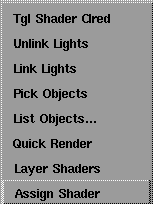
Shading Menu
The Shading menu contains tools to assign and layer shaders to objects, link and unlink lights, quick render surfaces, and pick and list objects.
Assign Shader
-
- Assigns the active shader to all active objects (surfaces or polygons) in your scene.
-
- If a shader is already assigned to an active object when you select Assign Shader, the active shader replaces it. If you assign a shader to the wrong object, or overwrite an existing shader assignment, you must re-assign the original shader to the object.
-
- You can assign shaders to individual polygons in a polyset, up to a maximum of 64 different shaders on a single polyset.
Layer Shaders
-
- Layers the active shader onto all active objects in your scene, on top of any shaders previously assigned or layered. The Transparency setting of a shader layered on top of another shader determines the visibility of shaders beneath it.
-
- Note the following when using Layer Shaders:
- You can achieve an effect similar to layered shaders by mapping a Stencil texture to a shader parameter (for example, Color). See Stencil Texture on page 174. The main advantage of using layered shaders is that each shader can have a different Shading Model and different Shading Parameters. For example, you can use layered shaders to simulate rust or dirt (low reflectivity) on metal (high reflectivity).
- Typically, the first shader you assign to an object represents its material properties. You can then layer additional shaders on top of it to create various effects. For example, you could layer a shader having a fractal color map, bump map, and transparency map onto a smooth, shiny shader to simulate rust or dirt on metal. Similarly, you could layer a shader having a fractal incandescence map, bump map, and transparency map onto a granite shader to simulate phosphorescent fungus on stone. You can also use layered shaders to create labels.
- Shaders layered on top of other shaders must have some level of transparency, or have a transparency map, otherwise, you will not see the shader beneath it.
- Because transparent surfaces cannot be Quick rendered or Quick shaded, layered shaders will not display correctly in Quick render or in Toggle Shade view.
- You cannot layer shaders on individual polygons in a polyset, although you can layer shaders on an entire polyset.
|
|
See Quick Render on
page 362.
|
Quick Render
-
- Quick renders surfaces in the active window that use the active shader (according to the Global Quick Rendering Parameters). Selecting Shading > Quick Render (in the Multi-lister) is a convenient way of previewing shader changes that is identical to Render > Quick render (in the main window).
|
|
|
List Objects
-
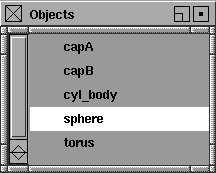
- Displays a window that lists all objects to which the active shader is assigned, or all objects to which the active light is linked.
-
- The Objects window lists lights with or without a Light component. If you select a different shader or light while the Objects window is still open, the window updates automatically. Active objects appear highlighted in the Objects window. Polysets that contain lighting information in their vertices appear with a c (colored) next to their name. Polysets that do not contain lighting information appear with an nc (not colored). See Storing Polygon Color Information on page 96 of the Polygonal Modeling in Alias book.
Pick Objects
-
- Automatically selects all objects to which the active shader is assigned, or all objects to which the active light is linked (including the light itself).
-
- Although you can select Shading > Pick Objects with multiple shaders or lights selected, only the first shader or light that you select is used to pick objects.
-
- When multiple shaders are assigned to a single polyset, selecting any of these shaders and then selecting Shading > Pick Objects will automatically select the entire polyset. To determine which polygons in a polyset use which shaders, select Render > Quick render or DisplayTgls > Shade to preview the polyset.
Link Lights
-
- Links active surfaces to the active light. See Linking a Light on page 229. Selecting Shading > Link Lights links lights with or without a Light component.
Unlink Lights
-
- Removes the link between the active light and the active surfaces. Selecting Shading > Unlink Lights unlinks lights with or without a Light component.
Tgl Shader Clred (Toggle Shader Colored)
-
- Determines whether all polysets that use the active shader use or ignore any lighting information contained in their vertices (see Storing Polygon Color Information on page 96 of the Polygonal Modeling in Alias book).
|


