4 |
Color Editor |
|
|
The Color Editor is the interface you use to edit environment, shader, texture, and light parameters that have a color field in the Control Window. In This Section:
Color Editor Overview |
|
| |
|
|
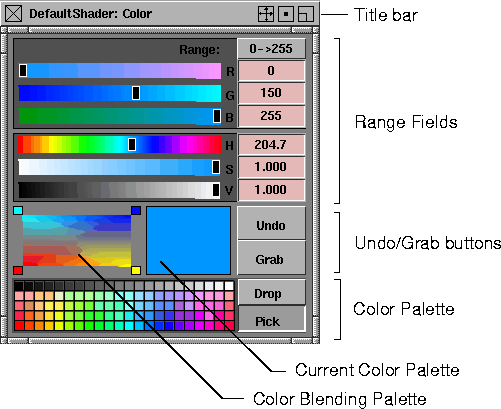
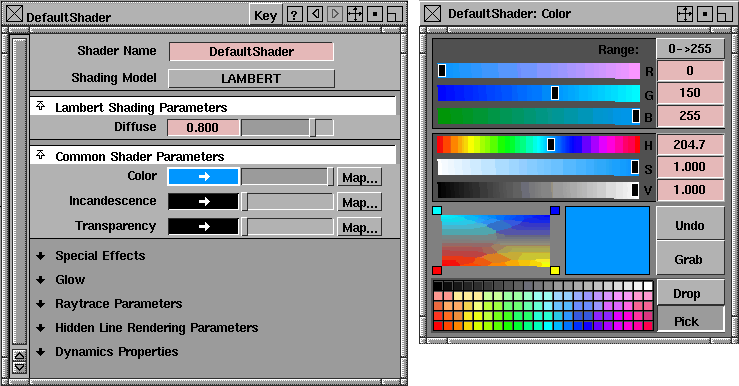
The Color Editor lets you edit or select a color using several methods: RGB and HSV range fields, color palette, color blending palette, or by grabbing a color from the screen.
Title BarThe title bar indicates the active environment, shader, texture, or light name, and the name of the parameter that you are editing.
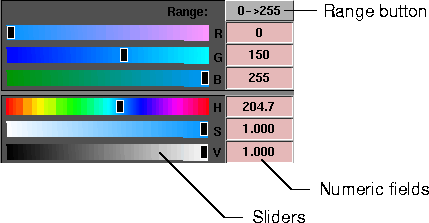
Range FieldsThe range fields let you edit the current color by entering RGB or HSV values, using either sliders or numeric fields.
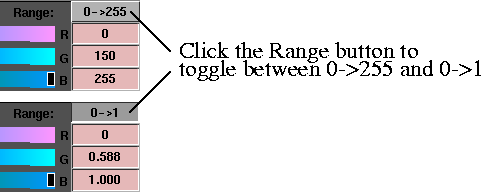
RGB Range FieldsThe RGB (Red, Green, Blue) range fields use the standard additive color specification of electronic media. By default, each field has a range of 0 to 255. You can change the range to 0 to 1 (or back to 0 to 255) by clicking the Range button. If all fields are set to 0, the color will be black. If all fields are set to the maximum (255 or 1), the color will be white. You can enter values greater than the range maximum (255 or 1) in the numeric field (for example, to create special effects).
HSV Range FieldsThe HSV (Hue, Saturation, Value) range fields use the more intuitive tint (Hue), shade (Saturation), and tone (Value or grey scale) color specification. The Hue field has a range from 0 to 359. The Saturation and Value fields have a range from 0 to 1. You can enter values greater than the range maximums in the numeric field. Color Blending PaletteThe color blending palette represents a blend of four colors (the colors in the four corner squares of the palette). You can use the color blending palette to select a color by clicking anywhere within the palette. If you click-drag within the palette, the current color will update interactively. You can change the corner colors of the palette by setting the current color (for example, using the range fields), and then clicking a corner square of the color blending palette.
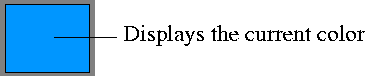
Current Color PaletteThe current color palette displays the current color. If you edit the color (for example, using the range fields), the current color palette updates interactively.
Undo
Grab
Color PaletteThe color palette lets you select a color from a customizable collection of colors. The Drop and Pick buttons toggle between the two modes: adding a color to the color palette (Drop), and selecting a color from the color palette (Pick). The default mode is Pick.
Drop
Pick
Opening the Color Editor |
|
| |
You can open the Color Editor either from the Control Window, or from the Multi-lister. To open the Color Editor from the Control Window:
| |
| |
Once the Color Editor is open, you can select any swatch in the Multi-lister and/or any parameter's color field in the Control Window, and the Color Editor will automatically update. To open the Color Editor from the Multi-lister:
Selecting and Editing Colors | |
|
| |
You can set the current color by selecting a color from the color palettes, editing the current color using the range fields, or by grabbing a color from anywhere on the screen. To edit a color using RGB values:
To edit a color using HSV values:
To select a color using the color palette:
To select a color using the color blending palette:
To grab a color from the screen:
You cannot use this method to grab a color from a Show Pix or wrl image (that is, a pix file that you are viewing using either File > Show > Pix or the UNIX command wrl) because the image's window will close when you click on it. Use the following method, instead. To grab a color from a Show Pix or wrl image:
To undo a change you have made:
Customizing the Color Palettes | |
|
| |
You can customize the color palette and the color blending palette to make it easy to select certain colors. To add a color to the color palette:
To add a color to the color blending palette:
| |
| Copyright © 1998, Alias|Wavefront, a division of Silicon Graphics Limited. All rights reserved. | Please send questions or comments regarding the documentation to: [email protected] |