|
|
Render menu >
Polyset Prelight
|
Storing Polygon Color Information
|
|
|
|
|
Poluset Prelight renders the scene and stores the color information in the polygon vertices. This allows polygons to be rendered in color very quickly.
Overview
This tool renders the scene, and then "freezes" the colors, shading, highlights, etc. onto the polygons by storing the color information in the vertices.
This means polygons will be rendered much faster than with a real lighting model, since the display routine does not have to perform complex calculations.
However, it also means the light and shading on the polygons will not change. For example: pre-light a sphere with a light overhead, then turn the sphere upside down. Because the color information was frozen into the vertices, the highlight will now be on the bottom of the sphere, and the shadow on the top.
Prelighting the polygons in a scene
-
1
-
Choose Polyset prelight -
 from the Render menu. from the Render menu.
-
2
-
Set up the options in the Polyset Prelight Rendering Parameters window (see below), then click Go to prelight the polygons.
Removing lighting information from polygons
-
1
-
Choose Polyset prelight - from the Render menu.
-
2
-
Check the Remove Light option on.
-
3
-
Click Go to remove all lighting information.
Using lighting information with the Multi-lister
- After prelighting, you have the option to use or ignore the lighting information for each shader. This option affects all polygons that use the shader.
-
In the Multi-lister, select a shader and choose Shader > Tgl
Shader Clred to toggle use of the lighting information. If
the shader is not assigned to any polygons, the command
has no effect.
- Since an option in the shader determines whether lighting information is used, make sure that all polygons using the shader have been pre-lit before turning the option on.
|
|
Polyset prelight calculates
colors using the current
QuickRender settings.
|
-
In the Multi-lister, select a shader and choose Shader > List
Objects to see a list of objects associated with the shader.
Polysets with lighting information will have a c (colored)
next to their name. Polysets without lighting information
will have nc (not colored).
|
|
Instances cannot have
individual pre-lighting.
|
- When you choose Color Shaders in the Polyset Prelight options window, affected shaders will automatically be set to use the lighting information.
Polygon Prelight Options
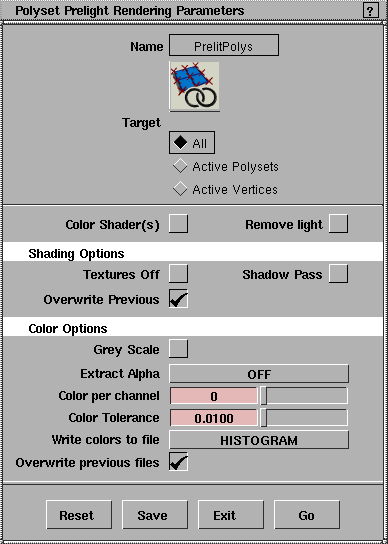
Target
- All - prelights all polysets.
- Active Polysets - prelights picked polysets.
- Active Vertices - prelights only picked vertices.
Color Shaders
-
- Check this box to set the shaders of the affected polygons to use the pre-lit color values.
Remove Light
-
- Removes lighting information from vertices (do not prelight).
Textures Off
-
- Does not apply textures when prelighting.
Shadow Pass
-
- Calculates shadows during prelighting.
-
- With Shadow Pass on, Polyset Prelight QuickRenders the scene before prelighting. Use the same set-up to use the Shadow Pass
option as when you want to Quickrender shadows:
- Only spotlights will cast shadows.
- Spotlights must have Shadow Casting turned on.
- Make the perspective window active before choosing Polyset Prelight.
-
- If a shadow pass has previously been performed, Polyset Prelight will use the shadows already calculated.
Overwrite Previous
-
- Replaces any previous lighting information with the new values.
Grey Scale
-
- Converts color values to gray before storing them in the vertices.
Extract Alpha
|
|
|
-
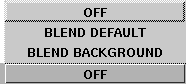
- Normally, Polyset Prelight simulates transparency when it pre-lights the scene by pre-multiplying the alpha of the shader and storing the resulting color with an alpha of 255 (no transparency). Use this option to extract non-multiplied values:
- Off - pre-multiplies alpha values (as described above).
- Blend Default - uses alpha channel to blend shader with RGBA color 170, 170, 170, 0 (light grey).
- Blend Background - uses alpha channel to blend shader with RGBA color 0, 0, 0, 0 (black).
Colors per Channel
-
- Use this option to limit the number of unique colors that prelighting can use.
-
- Enter the number of colors allowed for each of the red, green, blue and alpha channels of a pre-lit vertex color. Enter 0 to allow unrestricted use of colors.
Color Tolerance
-
- When Colors per Channel is restricted (set to a number other than zero), this number determines how different two colors must be for Alias to allocate a new color.
Write Colors to File
|
|
|
-
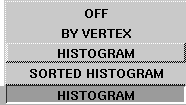
- You can output pix format files containing the prelight colors used in each polyset. One of these files is will be output to the pix directory of your project, with the name of the polyset prefixed by pre_cpal_. Pixels are order left to right, bottom to top (starting at the bottom left). Unused pixels are colored black.
- Off - does not write palette files.
- By Vertex - sorts the colors in the order of the vertices, from first to last.
- Histogram - sorts the colors by brightness.
- Sorted Histogram - sorts the colors by brightness and channel (sort priority is red, green, blue, alpha).
Overwrite Previous Files
-
- Replaces any previous files generated by Write Colors to File with the new files.
|


