|
Poly Shading palette > Flip |
Unifying the Normal Direction | ||
|
| |||
|
|
Flip or unify the directions of polygon normals. OverviewNormals determine which side of the polygon is the front and which is the back. Use this tool to make sure all the normals in a polyset point in the correct direction (usually out from the center of the object). >
How to UseSelect Flip from the Poly Shading palette, or click its icon. The system displays normals for all polygons (see Flip Normal Options below) and prompts you to select a polygon, BTN1 flip, BTN2 all, BTN3 unify, and click shift to deselect.
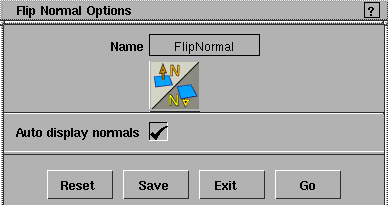
Flip Normal Options
To display the Flip Normal Options box, double-click the Flip icon in the Poly Shading palette, or select Flip -
Auto display normals
|
| Copyright © 1998, Alias|Wavefront, a division of Silicon Graphics Limited. All rights reserved. | Please send questions or comments regarding the documentation to: [email protected] |

 from the Poly Shading menu.