|
|
Preferences > User
Options > Alias
preferences
|
Editing Alias Preferences
|
|
|
|
|
The Alias Preferences Editor contains default values for various optional settings and peripheral devices, which you want to keep the same between different sessions. For some of the option settings to take effect, you may have to restart Alias.
>
|
Note:
|
It also lets you set your coordinate system to either Z-up
(common in industrial design) or Y-up (common in the
video animation industry).
|
Creating a Personal Set of Alias Preferences
Alias preferences information is stored in the AliasPrefs file located in the /usr/aw/alias directory by default. The first time you select Alias preferences and set your personal preferences, the default .AliasPrefs file is copied into your home directory with the preferences you set. If you want to return to the default preferences at any time, simply delete the file from an IRIX shell with the command:
rm $HOME/.AliasPrefs
Managing Preferences for All Users
A site administrator can change the default set of preferences for all users. To do this, the site administrator must be the owner of the default preferences file stored in the /usr/alias directory. This can be done by executing the following commands from a UNIX shell as root:
chown <administrator_user> /usr/alias/.AliasPrefs

chmod u+w /usr/alias/.AliasPrefs
From this point on, when the user whose user name is <administrator_user> edits the preferences through Alias preferences, the default preferences are assigned to all users.
How to Use
To edit the contents of your Alias Preferences file, select Preferences > User Options > Alias preferences. Set your preferences (explained below), then click the Save
button at the bottom of the window.
Alias needs to be restarted for some of the preferences to take effect.
|
|
If changes are made to this
group of Alias Preferences,
you must restart the system
to see the changes. See Alias
Preferences: Restart Needed on
page 534.
|
|
|
If changes are made to this
group of Alias Preferences,
you don't need to restart the
system to see the changes.
See Alias Preferences: Restart
Not Needed on page 543.
|
|
|
|
|
Alias Preferences: Restart Needed
|
|
|
|
|
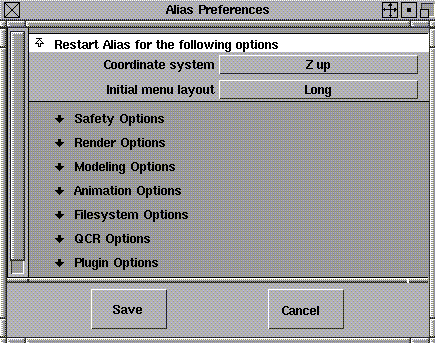
The preferences described in this section take effect only after you restart Alias.
Coordinate System
-
- Click to the right of the heading to select either the Z-up or Y-up coordinate system from the menu.
Initial menu layout
-
- Click to the right of the heading to select either the Long
or
Short menu layout from the menu. The default is Long.
Safety Options
The Safety
Options
control Alias's automatic save features.
Checkpoints
-
- For the system to automatically save your model each time you click the requested number of menu items, set this slider to the desired number of menu items. A value of 10 is recommended for complex models, with a value of 50 recommended for simple models.
-
- The default value of 0 disables this feature.
Check Versions
-
- To maintain a selected number of versions of checkpointed wire files, set this slider to a non-zero value. The default value of 1 maintains only the most recent checkpoint.
Render Options
The Render Options
contain values that affect Alias rendering.

Render Control Options
Default Shader
-
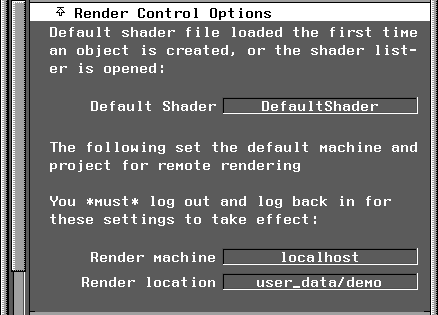
- This specifies an alternate shader to be loaded the first time an object is created or the shader lister is opened.
Render machine
-
- This specifies which machine should be used as the default for remote rendering.
Render location
-
- This specifies what location and project should be used for remote rendering.
Distributed Render Control Options
|
|
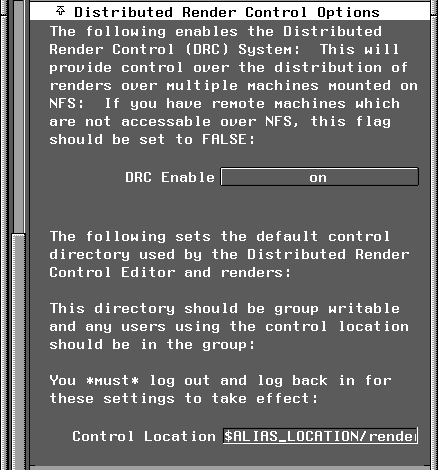
See Render > Globals in the
Rendering in Alias book for
more information on
Distributed Render Controls
options.
|
Modeling Options
The Modeling
Options
contain values that affect Alias' modeling tools.
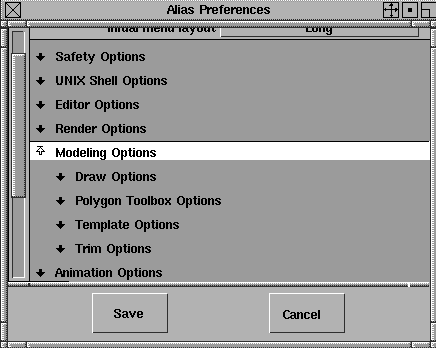
Draw Options
Click the arrow next to Draw Options
to expand the Draw Options section. In this section, you can click on the Default buttons to use pop-up menus.
|
|
|
|
|
|
|
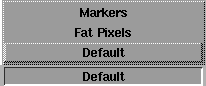
CV/Vertex Draw Style
-
- Click the button beside CV/Vertex draw style to display the associated pop-up menu.
-
- By default, Alias uses the drawing style for CVs and vertices that runs fastest on your platform while maintaining the optimum visual clarity. However, you can now force the system to use Markers or Fat Pixels as the CV and Vertex draw style in both the Action window and the modeling windows.
|
|
|
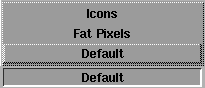
Joint Draw Style
-
- Click the button beside joint draw style to display the associated pop-up menu.
-
- By default, Alias uses the drawing style for joints that runs fastest on your platform while maintaining the optimum visual clarity. However, you can now force the system to use Icons or Fat Pixels as the joint draw style in both the Action window and the modeling windows.
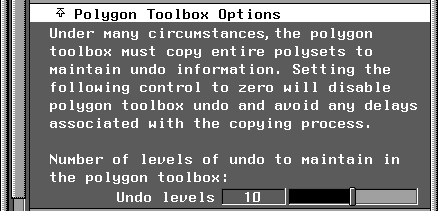
Polygon Toolbox Options
|
|
See the Polygonal Modeling in
Alias manual for more
information.
|
Template Options

Allow components
-
- If set to on
, objects picked at the component level can be templated.
Trim Options

Trim dashed CoS
-
- If set to on
, trim and divide functions consider curves-on-surface with the dashed line style attribute as valid trim curves.
Animation Options
|
|
The Animation Options
values affect Alias'
animation tools.
|
|
|
|
PlayBlast memory
-
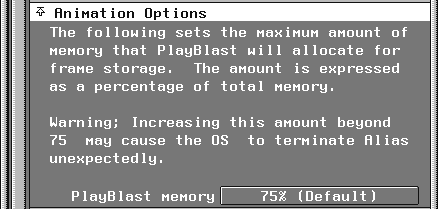
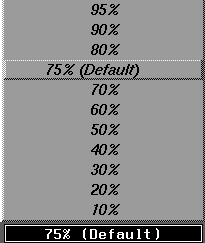
- Click the field to the right of the heading to display a menu from which you can select the maximum amount of memory that PlayBlast
will allocate for frame storage. The amount is expressed as a percentage of total memory.
>
|
Note:
|
Increasing this amount beyond the default of 75% may
cause the operating system to terminate Alias unexpectedly
if it runs out of swap space.
|
Filesystem Options
|
|
The Filesystem Options
contain values that affect the
layout of files on your
system.
|
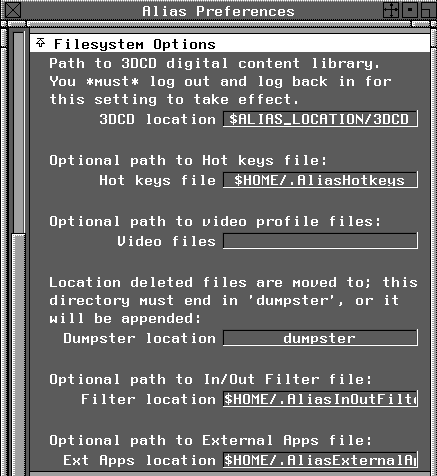
Hot keys file
-
- This option is not currently available.
Video files
-
- Specifies where Alias looks for video device configuration files. Under normal circumstances, these files are maintained on a project by project basis, and are stored in the misc_data directory in your active project. Specifying a path here causes Alias to look in this alternate path for video device setup files. This lets you set up one master video configuration area.
>
|
Note:
|
These are the old Alias video drivers not used with
Composer. These are kept for compatibility during the
transition to Composer.
|
Dumpster location
-
- Specifies where deleted files are moved. This directory name must end with the string dumpster, or it will be appended by Alias automatically when used. The default value is dumpster. If a full path is not specified, then the path will be relative to your user_data directory.
Filter location
-
- Specifies the location of the file that stores the information from the External Filters
lister from the options available from File > Open and File > Save As.
External Apps location
-
- Specifies the location of the file that stores the information from the External Applications lister from the File >External Applications window.
System Directories

The System Directories options specify the default paths for the file lister.
These paths are project relative if not full path names. If a full path is used for one of these variables, then that path will not change when the current project is changed.
QCR Options
The QCR Options
contain preferences that affect film output from within Alias.

QCR delay
-
- Specifies how many seconds Alias should wait after sending an initialization signal to your film record
Plugin Options
This section contains the search path(s) that are used to locate and load plugins into Alias.
Messages
-
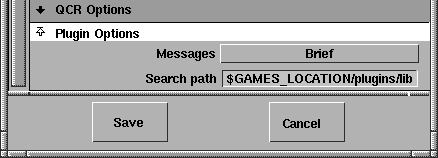
- Plug-in messages are printed to the errlog. (Use File > Show > Errlog to see the errlog file.)
|
|
|
-
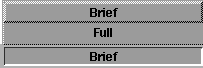
- Click the field next to the heading to display the associated pop-up menu:
- Brief
-your messages about the plug-ins are brief.
- Full
-you get detailed messages if an error occurs while loading or unloading a plug-in.
Search path
-
- This field lets you select the order and path(s) that are searched for "plugins" when they are loaded. Paths are searched from left to right and are separated with a colon.
-
- For instance, you can load the xpaint.plugin using this field. If the path to the plug-in is added to the Search Path, the xpaint.addin plug-in is available in the Plug-in Manager window and appended to the Utilities menu.
- The Search path
field used to be called the Plugin search path.
- For more information about the Utilities > Plug-in Manager
window, see Loading Plug-ins on page 399. See the online Alias Stand-alone Utilities Guide for more information on plugins.
Alias Preferences: Restart Not Needed
|
|
|
|
|
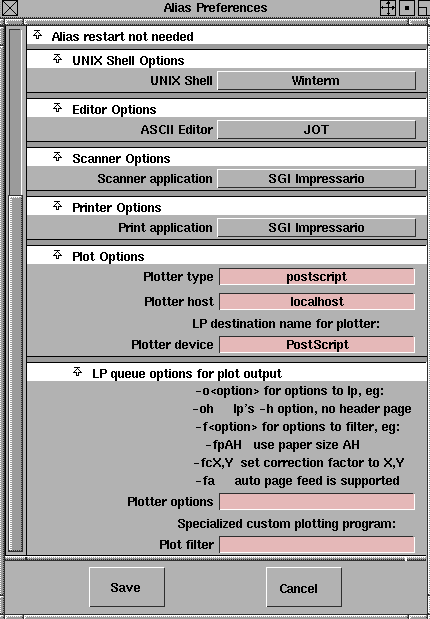
These preference take effect immediately. Alias does not need to be restarted.
UNIX Shell Options
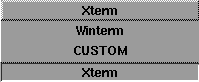
The UNIX Shell Options let you select an alternate UNIX shell to the default version of Winterm.
|
|
|
UNIX Shell
-
- Click to the right of the heading to display a menu from which you can select a number of pre-defined UNIX shells.
Custom UNIX Shell
-
- If CUSTOM
is selected from the menu, the following options are displayed.

-
The value of this field will be used as a command to be run
when a UNIX shell is selected.
Editor Options
The Editor Options
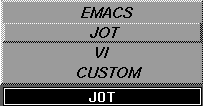
let you select an alternate text editor to the default version of JOT

|
|
|
ASCII Editor
-
- Click to the right of the heading to display a menu from which you can select from a number of pre-defined editors.
>
|
Note:
|
Some of the editors indicated may not be loaded on your
system.
|
Custom Editor
-
- If CUSTOM
is selected from the menu, the following additional controls appear:

-
The value in this field is used as a command to be run
when an ASCII file is edited.
Scanner Options
The Scanner Options
contain preferences that affect scanning from within Alias.

|
|
|
Scanner application
-
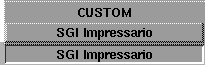
- Click to the right of the heading to display a menu from which you can select SGI's Impressario or a custom program.
Custom Scan program options
|
|
If you select CUSTOM from
the menu, additional
controls appear.
|
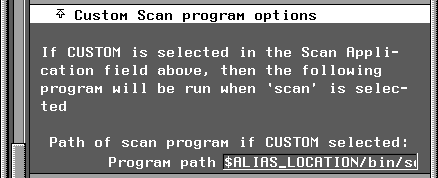
Program path
-
- You can specify a third party scan program to be run whenever the Scan button is pressed within Alias. Specify the full path to the alternate scan program in this field.
Printer Options
The Printer Options
contain preferences that affect printing from within Alias.
Print application
-
- Click to the right of the heading to display a menu from which you can select the SGI Impressario printing program (sgi_impressario
) or an alternate printing program.

>
|
Note:
|
SGI's Impressario printing package converts Alias PIX files
to the SGI files that Impressario expects.
|
Custom Print program options
|
|
If you select CUSTOM from
the menu, additional options
appear.
|
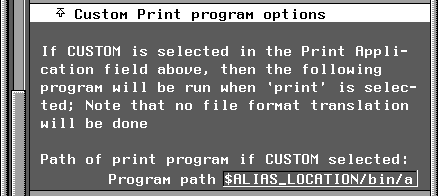
Program path
-
- Specifies the path of a program that will be run whenever you click on the Print button in Alias.
Plot Options
|
|
The Plot Options
contain
preferences that affect
plotting from within Alias.
|
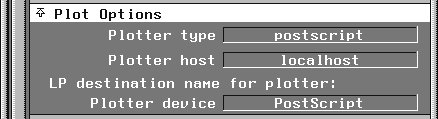
Plotter type
-
- Specifies the default plotter type used by the plotting interface.
Plotter host
-
- This specifies which machine your plotter is connected to on your network. Specifying localhost
indicates the machine you are logged on to.
LP destination name for plotter
-
- This specifies to which print queue plotter output should be sent.
LP queue options for plot output
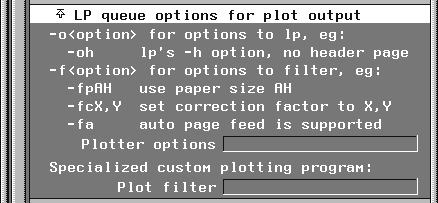
Plotter options
-
- This specifies options to be used when submitting jobs to lp.
Plot filter
-
- This specifies a custom program filter plot file output and creates actual plotter commands.
|


