|
For more information on
plug-ins, see the online
Standalone Utilities Guide.
|
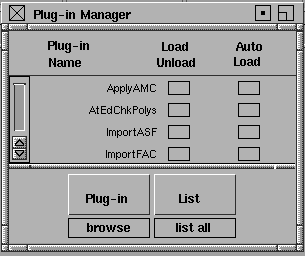
The Plug-in Manager lets you import various plug-in packages. It is accessible from Utilities > Plug-in Manager.
Overview
The Plug-in Manager lists the name of each plug-in, shows whether it's loaded or unloaded, and if auto load is set. It has the option of listing all the plug-ins or just those loaded on your system.
The large button at the bottom left of the manager allows you to browse through, load or unload all the plug-ins. The small buttons are labels that show what the last operation was.
Disclaimer
In the directory $ALIAS_LOCATION/ODS/, there are a number of pre-compiled plug-ins and source code examples. These plug-ins and source code examples are provided to you on an "AS-IS" basis. You are free to make use of these plug-ins and source code examples, however Alias|Wavefront does not provide any support in connection with them.
Alias|Wavefront makes no warranties, express, implied, or arising by custom or trade usage, and to the extent permitted by applicable law, specifically disclaims any implied warranties of title, noninfringement or of fitness for a particular purpose to the extent permitted by applicable law, (i) Alias|Wavefront's liability in contract, tort or otherwise arising out of or in connection with the plug-ins or source code shall not exceed the purchase price paid by the customer for the plug-ins or source code examples, and (ii) in no event shall Alias|Wavefront be liable for any punitive damages or lost profits or other special, indirect, incidental, or consequential damages, including any damages resulting from loss of business arising out of or in connection with the performance of the plug-ins or source code examples, even if Alias|Wavefront has been advised of the possibility of such damages. The customer shall indemnify Alias|Wavefront and hold it harmless from and against any loss, claim or damage to any person arising out of the customer's use of the plug-ins or source code examples.
Special Features
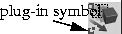
Plug-in icons distinguish themselves from other icons in three ways:
|
|
-
3
-
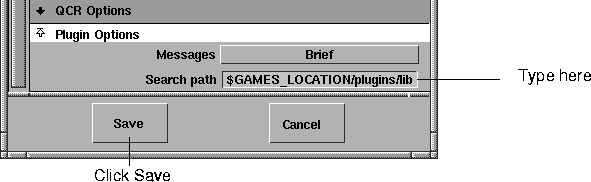
Click the Save button at the bottom of the Alias Preferences window.
-
4
-
Exit and restart Alias.
-
5
-
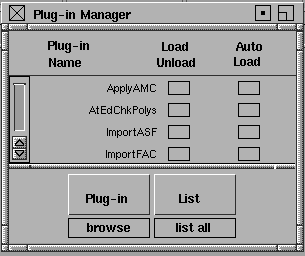
Once you have restarted Alias, select Utilities > Plug-in Manager to open the Plug-in Manager window.
Plug-in Manager window
Load/Unload
-
- To load the plug-in you want to use, click in the box in the Load/Unload column beside the plug-in. A check mark appears.
-
- To unload the plug-in, click in the box again. (To load or unload all plug-ins, select the appropriate choice from the menu at the bottom left of the window.)
Auto Load
-
- To automatically load the plug-in you want to use, click the box in the column beside the plug-in. This reloads the plug-in each time you restart Alias.
List menu
-
- This menu appears at the bottom right of the Plug-in Manager window and lets you filter the plug-ins listed in the window.
All
-
- Lists all plug-ins that you have included in the Plug-in Manager window. (This is the default.)
Loaded
-
- Lists only those plug-ins that are loaded. If you unload a plug-in while this filter is on, the plug-in is removed from the Plug-in Manager window.
Plug-in menu
This menu appears at the bottom left of the Plug-in Manager window and lets you load or unload all plug-ins simultaneously, or add a new plug-in to the list.
Load all
-
- Loads all of the plug-ins listed in the Plug-in Manager window. A check mark appears in the Load Unload column beside every plug-in that is listed.
Unload all
-
- Unloads all plug-ins currently listed in the Plug-in Manager window. Check marks are removed in the Load Unload column from any plug-ins that were previously loaded.
Plug-in Browse
To add a plug-in to the Plug-in Manager window:
-
1
-
Select the Plug-in Browse choice from the menu at the bottom left of the Plug-in Manager window. The File Requestor window appears.
|