|
Windows > Information > Information window |
Getting Detailed Information | ||
|
| |||
Provides numeric statistical information on the entities in your scene. How to UseSelect Windows > Information > Information window for any active entity. >
Types of Information WindowsInformation windows vary according to the type of object they are invoked for. See the following sections for details: Using Information WindowsThere are four types of cells in any Information Window: labels
editable cells
non-editable cells
Common ParametersThe following parameters are used in the Surface, Cluster, Lights, Cameras, and Joints Information Windows. Name
Transform informationTranslate
Rotate
Scale
Pivot informationRotate Pivot
| |||
|
See Setting Local Axes on page 202 for information. |
Local Axes
Scale Pivot
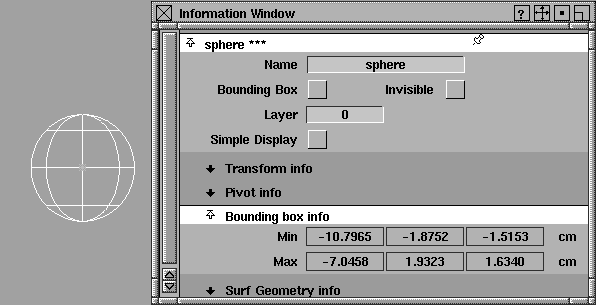
Bounding box informationMin/Max
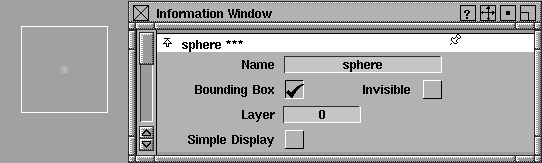
TogglesBounding Box
| ||
| |||
| |||
| |||
|
Invisible
Simple Display
| |||
|
To find out more about layers, see Introduction to Layers on page 235. |
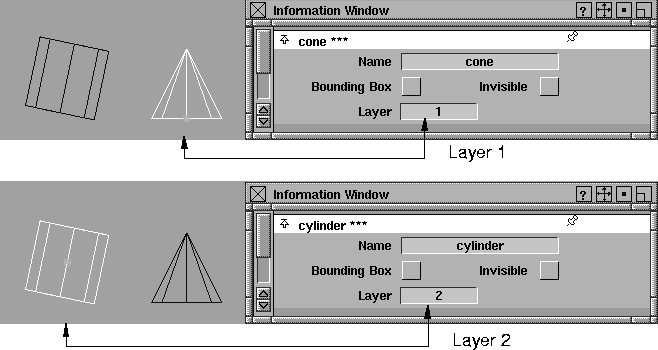
LayerThis field indicates which layer the active object belongs to. See Toggling between Layer Names and Numbers on page 271. | ||
| |||
Information Window pin
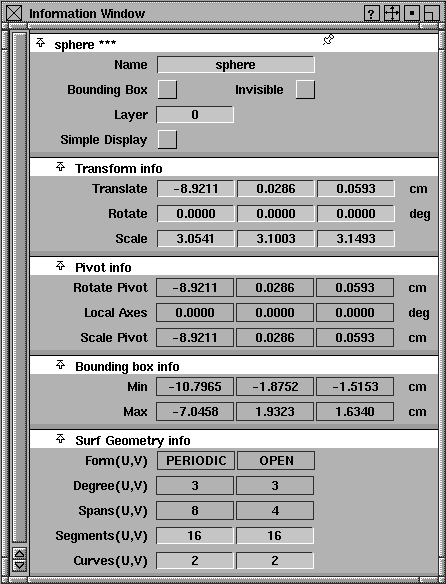
The push pin is a way to keep the object in the list even when the object is deselected. The three asterisks to the right of the object's name indicate the item is active. For example, when an object is active and you click the pin then select Pick > Nothing, the object remains listed in the Information Window. Surface Information Window
See Common Parameters on page 380 for details on the statistics in the first four sections of the above window. Surf Geometry infoForm (U,V)
Degree (U,V)
Spans (U,V)
Segments (U,V)
Curves (U,V)
| |||
|
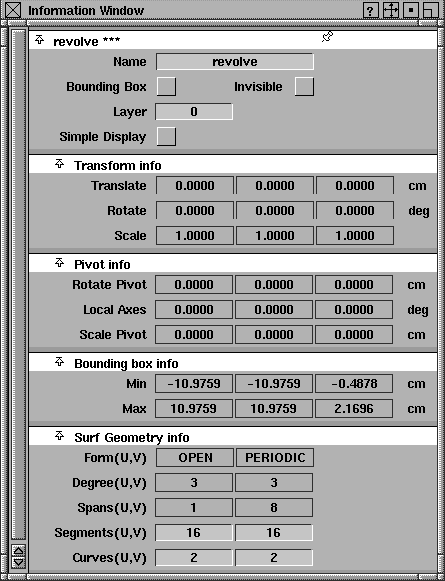
If you build a surface using any one of the Surfaces tools, the Information window updates to include that new surface's statistics. This example shows the Information Window for a revolved surface (Surfaces > Revolve). |
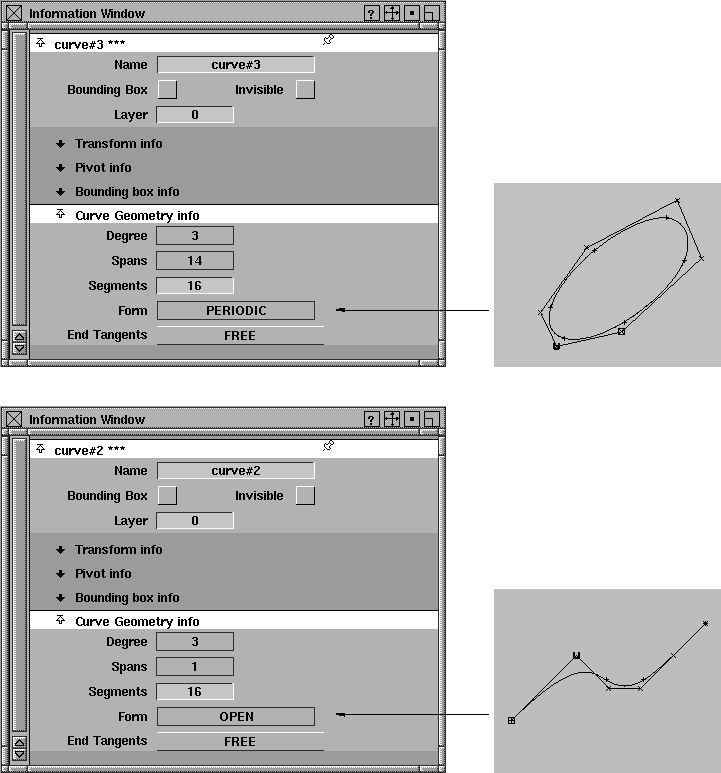
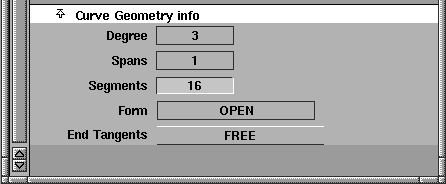
Curve Geometry Information WindowIf a curve is selected, the Information window is updated to include the following.
Degree
Spans
Segments
Form
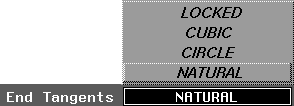
End tangents
The following examples show the Information Window for an active OPEN and PERIODIC (closed) curve. | ||
| |||
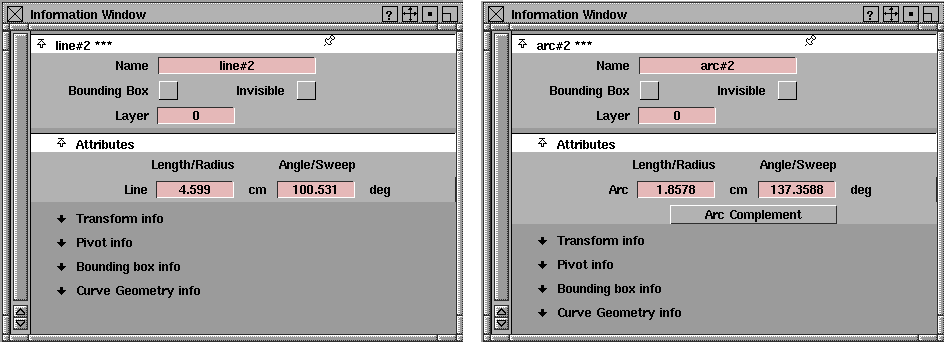
Line / Arc Information WindowIf an arc or line (created with Curve > Lines, Curve > Arcs or Curve > Line-arc) is selected, the Information window will contain, in addition to the common parameters and curve geometry information already mentioned, an Attributes section as shown in the following windows. | |||
| |||
Attribute informationLength/Radius
Angle/Sweep
Arc Complement
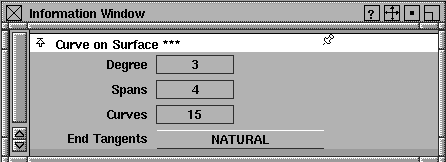
Curve-on-Surface Information WindowTo view information on a curve-on-surface: The Information Window displays the following additional section:
| |||
|
For information on the Degree, Spans, and Curves statistics, see Curve Geometry Information Window on page 386. |
End tangents
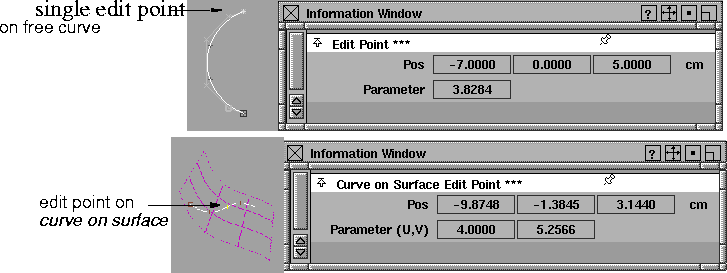
Edit Point Information WindowIf you select a single edit point using Pick > Edit point and then show the Information window, it displays the following section: | ||
| |||
|
Pos
Parameter (U,V)
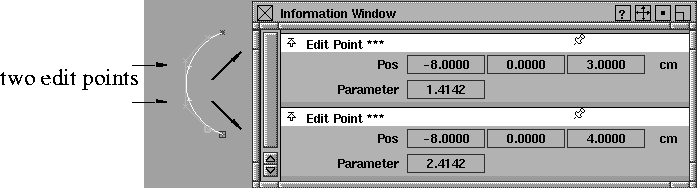
If you select more that one edit point, the Information Window adds a section for each point selected. See the following example. | |||
| |||
CV Information Window | |||
|
To select a CV on a curve, use Pick > Point Types > CV. |
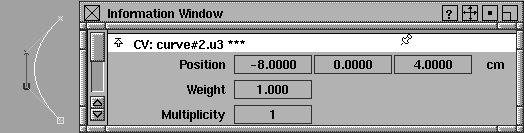
If you select a CV on a curve and then open the Information window, it shows the following section, which contains the statistics for the CVs on a curve:
| ||
|
To select a surface CV, make
sure CVs is toggled ON in
the Control window
(ObjectDisplay > Control - |
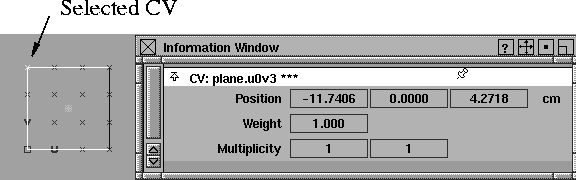
If you select a CV on a surface and then open the Information window, it shows the following section, which contains the statistics for the CVs on a primitive plane. | ||
| |||
|
Position
| |||
|
See Changing the Weight of CVs in the NURBS Modeling manual for details. |
Weight
| ||
|
See Making Sharper Bends in Curves with Multiplicity in the NURBS Modeling manual for details. |
Multiplicity
| ||
|
See Common Parameters on page 380 for details on the Cluster statistics. |
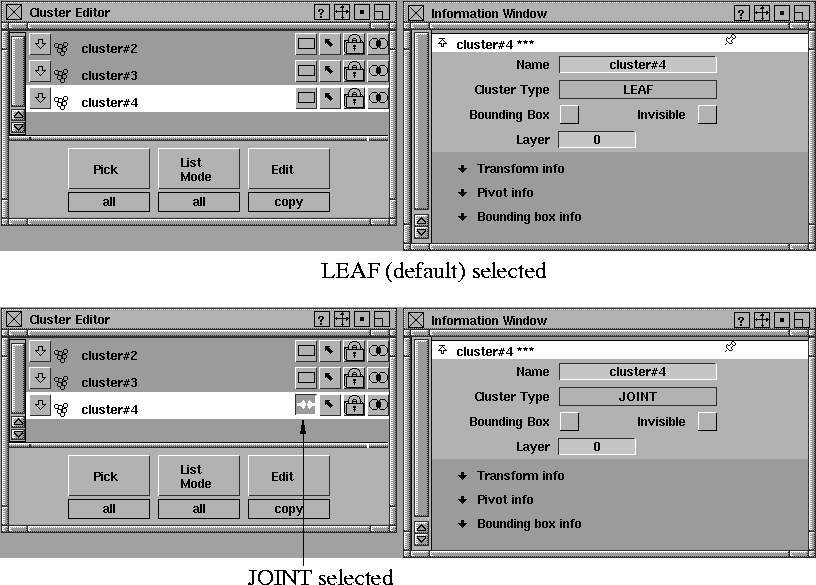
Cluster Information WindowThis window is displayed when a cluster node is active. The JOINT or LEAF parameters are displayed if they are selected. | ||
| |||
Light Information Window | |||
|
To select a light in your scene, select Pick > Object and then select the light. |
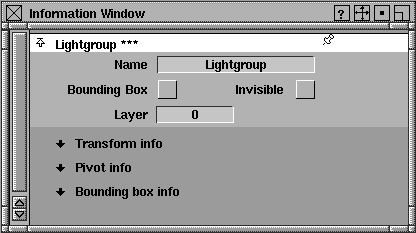
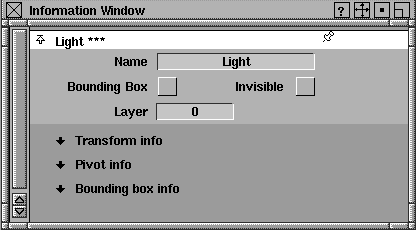
This section displays the statistics of lights in a scene. See Common Parameters on page 380 for details on the statistics.
If you select the light at the component level (Pick > Component), the Information Window displays the following.
Camera Information Window | ||
|
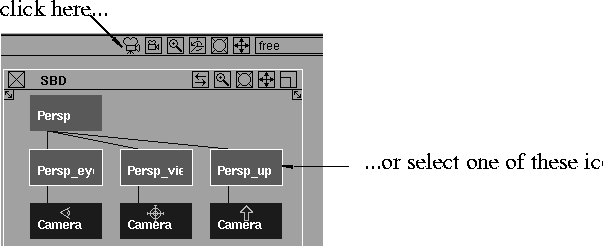
To pick a camera, pick the camera icon in the title bar of the Perspective window, or the camera's three nodes in the SBD window. |
This section shows camera information. See Common Parameters on page 380 for details on the statistics.
To pick a camera, pick the camera icon in the title bar of the Perspective window, or one of the camera's three nodes in the SBD window. | ||
| |||
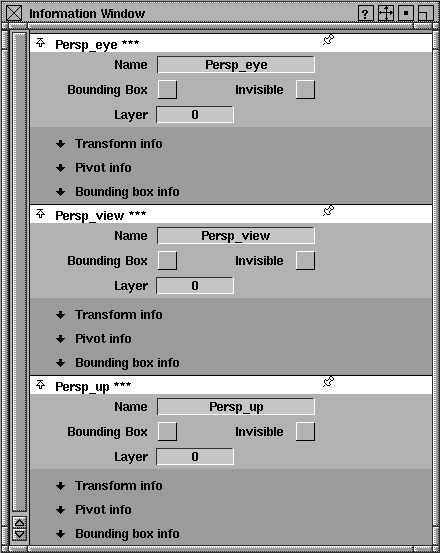
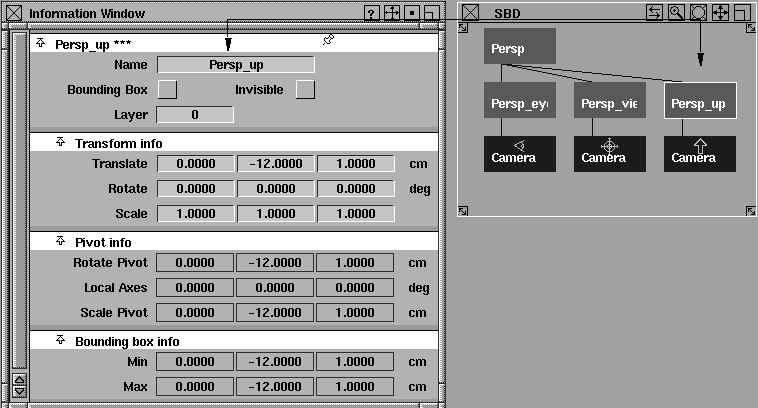
Each time you select the Eye, View, or Up node from the SDB window, the Information Window shows information for that component of the camera, as in the following example. | |||
| |||
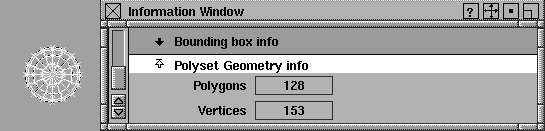
Polyset Information WindowThis window is displayed when a polyset is active. The following shows the Information Window for a primitive sphere polyset. The Polyset Geometry Info section is displayed below the sphere statistics. | |||
| |||
|
Polygons
Vertices
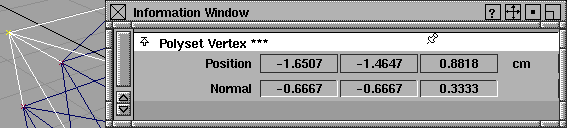
See Common Parameters on page 380 for details on the other statistics. Polyset Vertex Information WindowThis window is displayed when a polyset vertex is active. To see the statistical information for the polyset vertex, select Windows > Information > Information window before you click the Go button to perform a Split or Merge operation.
position
normal
| |||
|
To build a skeleton, use
Objects > Draw skeleton.
(See Animating in Alias.) |
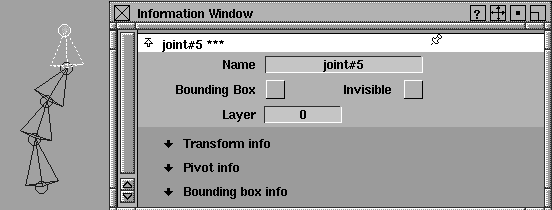
Joint Information WindowThis section displays information for joints on a skeleton.See Common Parameters on page 380 for details on the statistics. If you select one joint, the Information window shows information for that joint: | ||
| |||
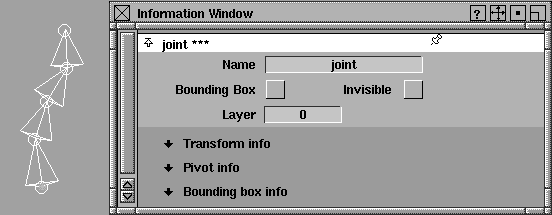
If you select multiple joints, the Information window displays information for the combined joints: | |||
| |||
Shell Information Window | |||
|
For information on shells, see NURBS Modeling. |
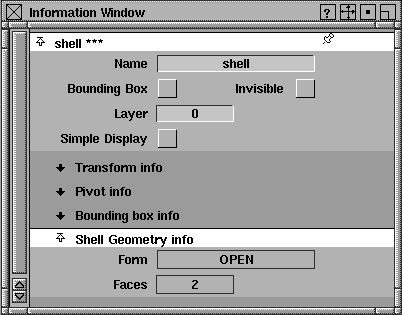
This section shows information on shells.
Form
Faces
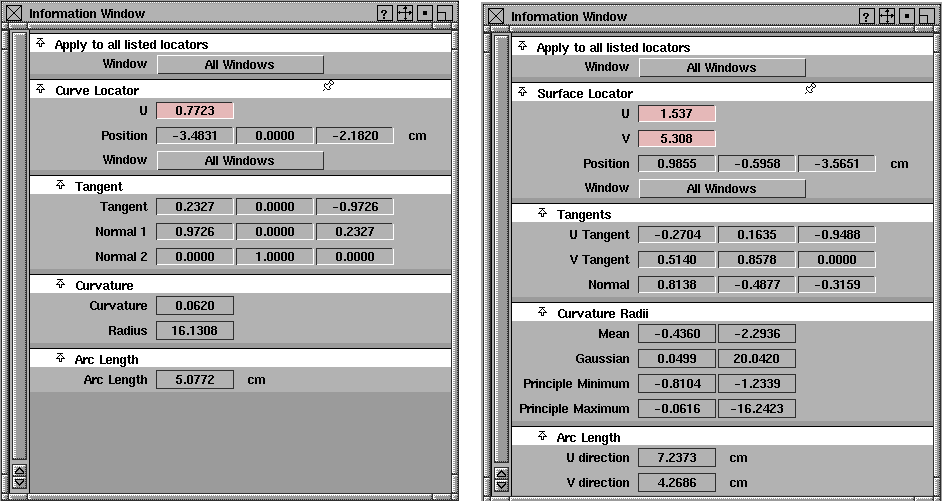
See Common Parameters on page 380 for details on the other statistics. Curve / Surface Locator Information WindowUse the Locators > Move locator tool to select a curve or surface locator, then open the Information window. Click the black arrow to the left of the heading to open the Tangents , Curvatures , or Arc Length parameter sections. | ||
| |||
|
U/V sliders
Window
Position
TangentThese non-editable fields show the following information on tangent parameters.
CurvatureThese non-editable fields show the following information on curvature:
Arc LengthAlong U and V
Space locator | |||

| |||
See Curve / Surface Locator Information Window on page 397 for the description of these statistics. | |||
| Copyright © 1998, Alias|Wavefront, a division of Silicon Graphics Limited. All rights reserved. | Please send questions or comments regarding the documentation to: [email protected] |

 )
and then use Pick > Point
Types > CV.
)
and then use Pick > Point
Types > CV.