|
Preferences > Interface > Hotkeys/Menus |
Setting Up Your Own Menus and Hot Keys | ||||||
|
| |||||||
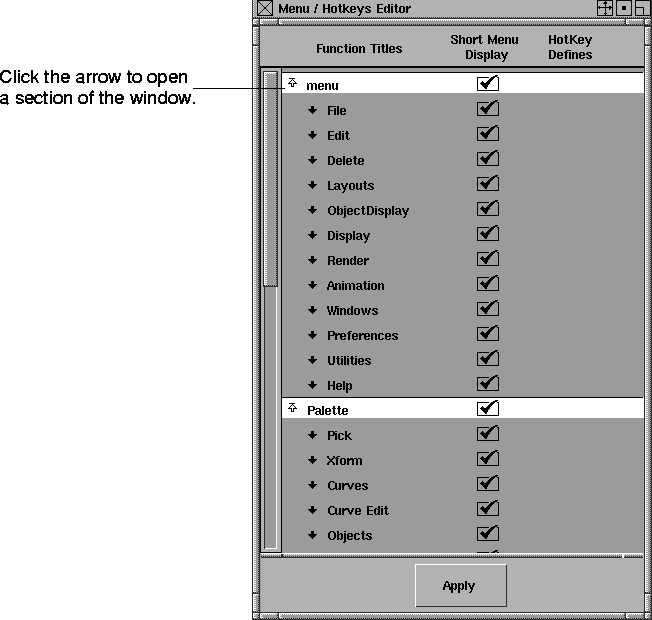
To invoke commonly used functions in Alias by using a keyboard combination and to tailor the menus, shelves, and tool boxes to suit your needs. OverviewHotkeys are used as a shortcut to invoke any function from the Alias menus. You can set up your own hotkeys with your favorite and most commonly used keyboard to menu mappings. Then, by simply pressing the appropriate hotkeys, that function is invoked. For example, pressing the Alt key and the letter w simultaneously is mapped to Layouts > All windows (User windows) by default, so whenever you press the Alt w key combination, the Layouts > All windows (User windows) function is invoked. How to UseTo customize your own menus, shelves, or tool palette, select Preferences > Interface > Hotkeys/Menus. Click the arrow beside the Function Title to open a specific section of the window. | |||||||
| |||||||
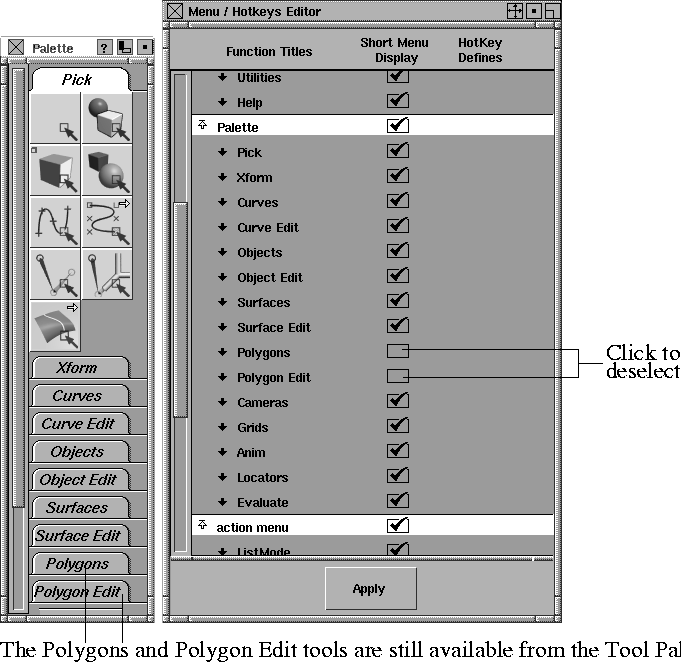
Removing Specific Menus or Palette TabsYou can remove the specific menu items, shelf items, or Palette tabs you don't need. In the following example, the Polygons and Polygon Edit tabs (and all their tools) are removed from the Tool Palette. | |||||||
| |||||||
|
|
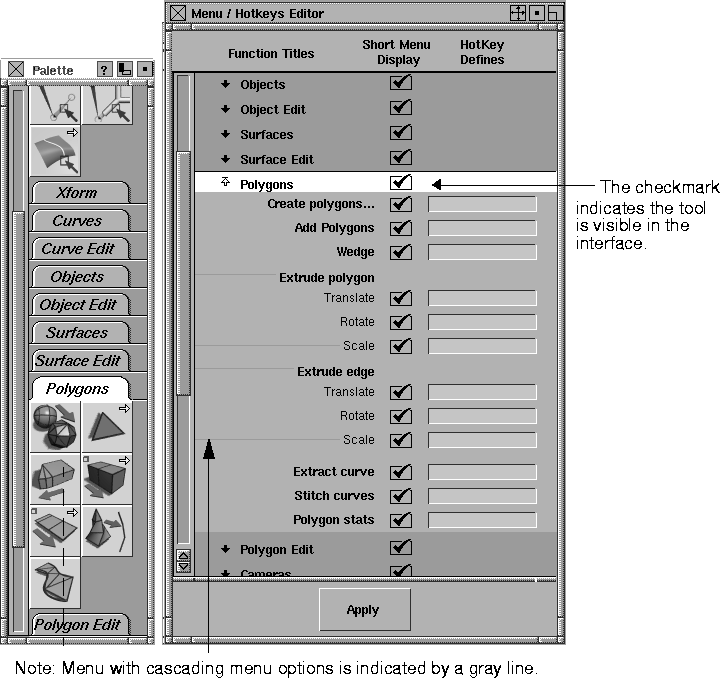
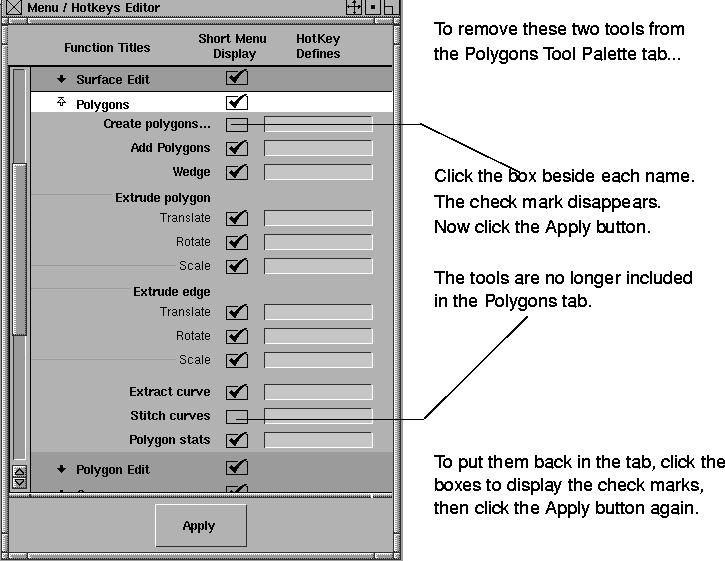
Removing Specific Menu Items and Palette ToolsYou can remove specific items from any menu, option from any shelf, or tools from any Tool Palette tab. In the following example, two tools are removed from the Polygons Tool Palette tab: Create polygons and Stitch curves.
| ||||||
| |||||||
| |||||||
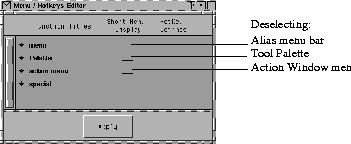
Removing Whole Menu Bars and Palette TabsRemoving all Menus in the menu barYou can remove all of the menus in the menu bar by clicking to deselect the box beside menu (the check mark disappears) and then clicking the Apply button. | |||||||
| |||||||
|
|
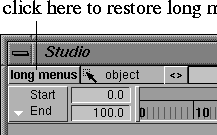
The menu bar disappears and is replaced by a button called long menus. To bring back the menu bar, click the long menus button. >
Removing all Action Window MenusYou can remove all of the menus in the Action Window menu bar.
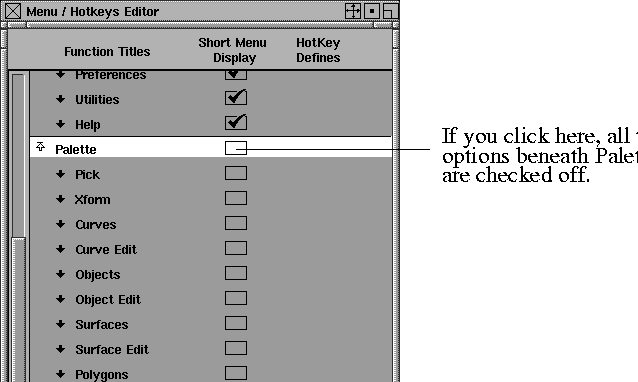
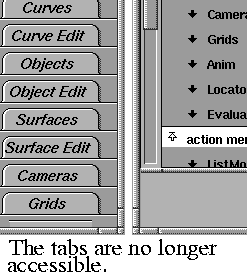
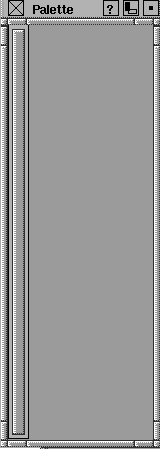
Removing all Tool Palette tabsYou can remove all of the tabs in the tool palette. | ||||||
| |||||||
|
|
Using the Hotkeys EditorYou can add, remove, or change any of the hotkey mappings found in the Hotkey Editor. Defining HotkeysTo define your own hotkey for a tool, first find the tool in the Menu/Hotkeys Editor window. Click in the pink editable field to the right of the tool's name, then type the control key sequence (a combination of the words Alt, Shift, or Ctrl) followed by a letter and press Enter. The input is case insensitive (you can type lower case, upper case, or mixed case text) and does not require any blanks or other spacers. For example, typing "shiftaltb" will be translated as "Shift+Alt+B". The hotkeys you assign become active immediately and appear in the menu.
When you have finished editing your hotkeys, click the Apply button at the bottom of the window to save the hotkey setup for the next session. The hotkeys assignments are saved in file $HOME/.Alias/Prefs.2/.AliasHotkeys.scm.
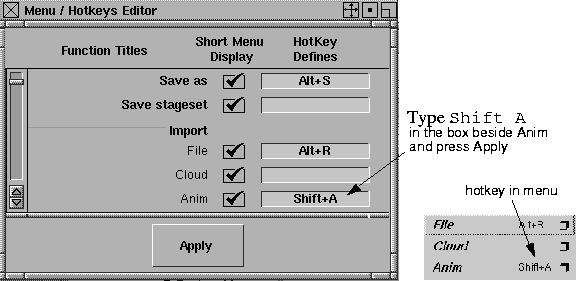
In the following example, a hotkey is assigned to the Import Anim function. | ||||||
| |||||||
Now when you open the File menu, you can see the new hotkey for Import Anim displayed beside the name. Removing Hotkey AssignmentsTo remove a hotkey assignment, click in the hotkey field, press the Esc key, press the space bar, then press Enter. Hotkeys on Shelf ItemsYou can also assign hotkeys to items on your shelves. The list of shelf functions to which you can assign hotkeys is built dynamically as you drag functions to each shelf tab. To assign a hotkey to a tool with a different set of options: See the pictures below. | |||||||
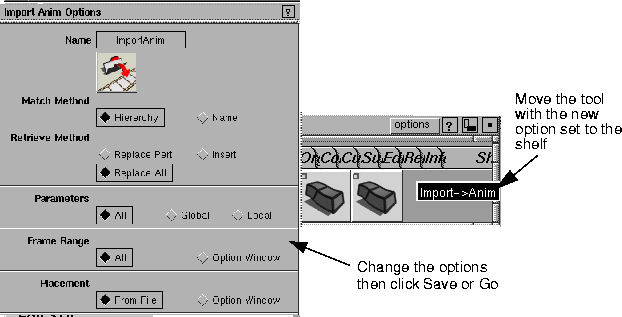
| |||||||
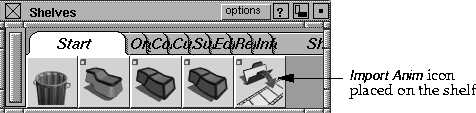
| |||||||
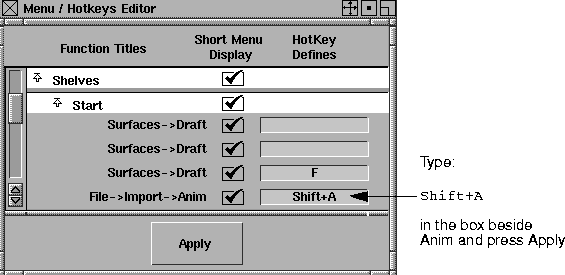
| |||||||
LimitationSometimes a hotkey is already assigned to another function. When you press Enter to assign a hotkey which is already assigned, a dialog box appears to let you know which function is using this hotkey | |||||||
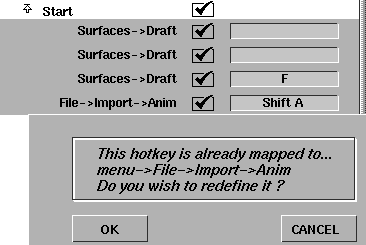
| |||||||
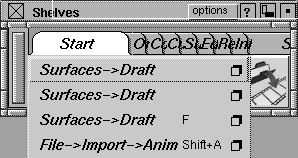
Now when you go to the Start shelf and click the Start tab with the right mouse button, a pull-down menu appears next to Import Anim displaying the hotkey.
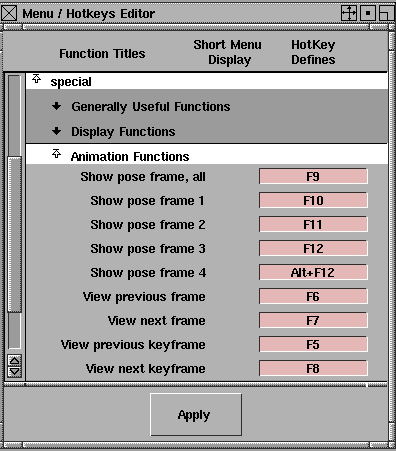
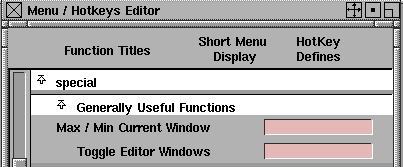
Special FunctionsThere are also a few specialized hotkey functions that do operations that are not directly related to the Alias menus. Generally Useful FunctionsMax/Min Curent Window
Toggle Editor Windows
Display Functions
Display choices
Toggle Local Axes, all windows
Special Animation Functions
Show pose frame all
Show pose frame 1, 2, 3, 4
View previous frame
View next frame
View previous keyframe
View next keyframe
Important NoteThe Alias hotkeys file is copied to the file .Alias/Prefs.2/.AliasHotkeys.scm in your home directory. | |||||||
| Copyright © 1998, Alias|Wavefront, a division of Silicon Graphics Limited. All rights reserved. | Please send questions or comments regarding the documentation to: [email protected] |
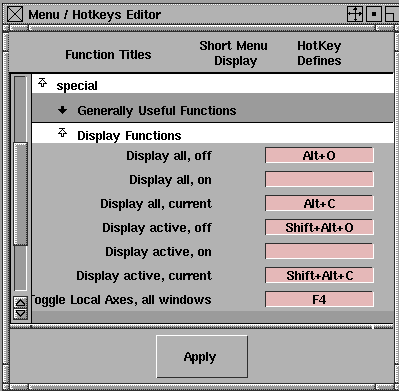
 and setting the Toggle Type option to All Windows in the Toggle Pivots Options box, then toggling the Local Axes Display option ON or OFF.