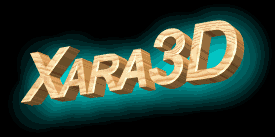
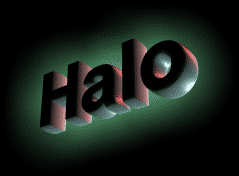
Alter the shadow blur and transparency.
You can only just see the shadow behind the text so we need
to make it bigger.
Click  to
display the Shadow dialog box. We used a "Transparency of 0"
and a "Blur of 50" but you may prefer different value,
especially for Blur which sets the size of the Halo.
to
display the Shadow dialog box. We used a "Transparency of 0"
and a "Blur of 50" but you may prefer different value,
especially for Blur which sets the size of the Halo.