|
Curso de Paint Shop Pro
(PSP)
03 Dibujos 3D
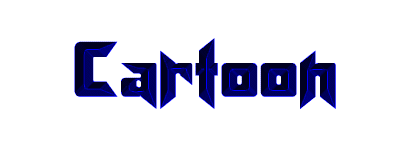
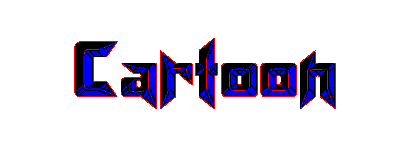
Step 1 This technique gives text an interesting
cartoonish 3-D appearance. I think it resembles something that you might
find in a comic book. Start by opening a new file, 400 x 150 pixels, 16
million colors with a white background. Now lay down some text. I think
this effect looks best with a font that has a lot of angles. Here I've
used a font called Klingon Blade, 72 pt bold.
Step 2 Now go to the Selections menu:Invert. The
area outside of your text should now be highlighted. In the Image menu
choose Effects: Chisel. Check 'Transparent', and set the size to 12.
Your text should become nicely 3D.
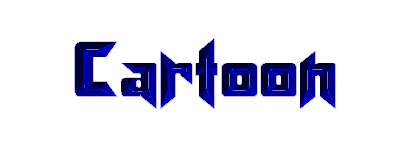
Step 3 This is just a bit dark, so we're going to
lighten it a little. In the Colors menu, select Adjust:Hue/Saturation/Lightness.
Set the Hue and the Saturation to 0, and the Lightness to 50.
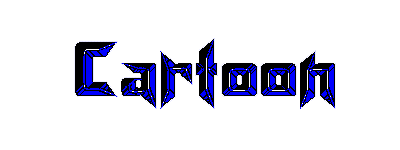
Step 4 Okay, here's where we start to get that
cartoonish appearance. In the Image menu, go to Edge: Enhance More. This
will give a bunch of lines and interesting details.
Step 5 To complete the full effect and bring out
more detail, choose Colors:Posterize.
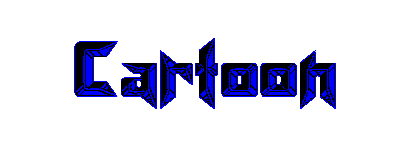
Step 6 Personally, I like the white highlights. But
if you think that they make your graphic look messy, set your background
color to white and use the replacer brush to fill in the highlights with
your text color. I would recommend setting the brush size to a large
value, such as 100.
Step 7 As a variation, set your foreground to a
color that contrasts with your text before you use the Replacer brush.
Espero que les sirva de algo
la ayudita
|
|
|