|
Curso de Photoshop 6.0
43 Papel
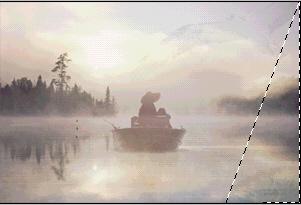
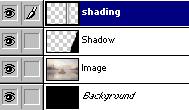
Cortado Step 1 Create a new document with black as your background. Step 2 Next paste your image in a new layer. Step 3 Once again create a new layer and name it shadow and then select
Polygonal Lasso tool ( Step 4 Create another layer and name it shading. Now using the
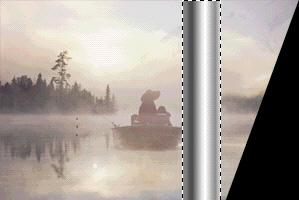
Rectangular Marquee tool draw a rectangle selection. Please note it
is very important that you use layers to create this effect. Step 5 Now use the Linear Gradient tool using this setting or (download
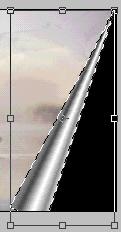
the Gradient File) to fill the selection. Step 6 Next we go to Edit> Transform> Perspective, drag the 2 points to
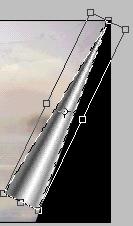
the center and apply the transformation. Step 7 Once again go to Edit> Transform and select Rotate. And rotate it
to the setting as shown in the image, once set apply the
transformation. Once again go to Edit> Transform and this time
select scale, and drag it all the way down as shown and apply the
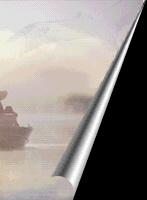
transformation, and then press Ctrl+D to deselect. Step 8 Once you deselect you may have some jagged edges on the right
hand side. In this case make a copy of the shadow layer, and place
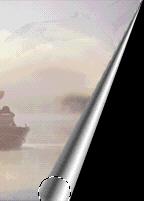
it on the top of the shading layer. Step 9 Now select the Elliptical Marquee tool to make a circle, and
place it at the bottom of the shading, as shown in the image, then
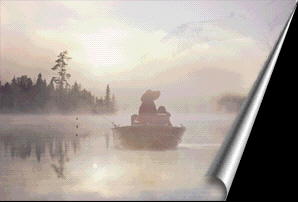
press Delete. Step 10 Now to add some shadow. Go to Layers> Effect> Dropshadow. Set the
angle to 90 and the rest of your choice. I have used the Distance 8
and Blur 8.
Espero que les sirva
de algo la ayudita
|
|
|



 )
to create a triangle as shown in the image below. Fill the selection
with black, and then press Crtl+ D to deselect.
)
to create a triangle as shown in the image below. Fill the selection
with black, and then press Crtl+ D to deselect.