|
Curso de Photoshop 6.0
30 Esquina
Redondeada
Step 1 Let's start by opening a new document (Ctrl+N) with white as the
foreground and black background. Go to the channels tab, and click to
make a new channel (Alpha1). Step 2 Using the Rectangle Marquee tool draw out a square with and fill with
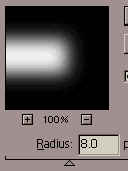
white. Press Ctrl+D to deselect. Step 3 Next go to Filter> Blur> Gaussian Blur. Use a setting between 3 and
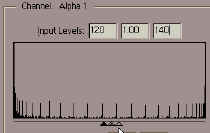
10, higher the number the more round corner you will get. Step 4 Now to smooth the image go to Image> Adjust> Levels (or Ctrl+L). Pull
the left black level and right white level towards the middle until you
image is nice and smooth, or type in 120 and 140 as shown below : Step 5 You now have your round corners! Now load selection by pressing the
Ctrl and right click the Alpha1 channel, then click on the RGB channel
and go back to the layers tab, and make a new layer, fill it with the
color of your choice.
Espero que les sirva
de algo la ayudita
|
|
|