|
Curso de Photoshop 6.0
37 Botón 3D
Step 1 Open a new document, and create a new layer. Step 2 Using the Rectangular Marquee Tool draw a square selection. Step 3 Now select the Angle Gradient Tool Step 4 Now go to Select> Modify> Contract and contract the selection by 2
pixels, and fill that selection with dark grey, and press (Ctrl+D) to
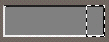
deselect. Step 5 Once again select the Rectangular Marquee and draw a selection on
your image as shown. Step 6 Now press the Shift+Ctrl+Alt key together and using your right arrow
key drag the image towards the right. Step 7 You can now use the Layer> Effects to give various effects to your
button.
Espero que les sirva
de algo la ayudita
|
|
|




 and fill the
selection using white as the foreground and black as the background.
and fill the
selection using white as the foreground and black as the background.