|
Curso de Photoshop 6.0
36 Texto
Cromo
Step 1 Open a new document. Type your text using bold type (it gives a
better effect), and don't forget to Render the Text (Layer> Type> Render
Layer). Step 2 Now to get those ants marching press the Ctrl key and click on the
active layer in the Layer palette to load the selection.
Step 3 Go to Channels and create a new layer (it should come up as Alpha1),
fill the selection with white. And then duplicate the layer (it should
come up as Alpha2). Step 4 Press Ctrl+D to deselect and Gaussian Blur the Alpha2 (Filters> Blur>
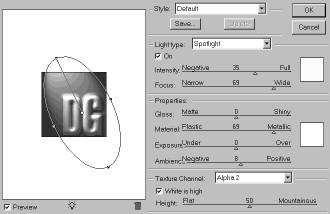
Gaussian Blur) to a Radius of 3 pixels. Step 5 Go to layers and click on the text layer to make sure its active.
Next go to Filters> Renders> Lighting Effects. Use the default style and
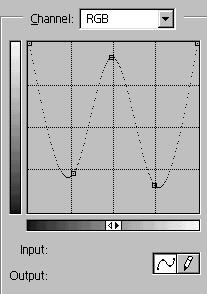
in 'Texture Channel' select Alpha2. Step 6 Next go to Curves (Ctrl+M) or (Image> Adjust> Curves) and do the
setting as shown. Create a W or a M. It's best to play around in those 2
shapes, till you get the right shade you want. Step 7 To apply color, go to (Image> Adjust> Variations). Make sure the 'Midtones'
is ticked. Now apply the selected color or combinations of colors to get
the right effect.
Espero que les sirva
de algo la ayudita
|