|
Curso de Photoshop 6.0
33 Gif
Transparente
Step 1 Open or create an image. Pick white as background color, and select
it with the Magic wand tool. Once the selection made, delete it (Delete
key). Step 2 You get an image with a transparent background (grey & white squares
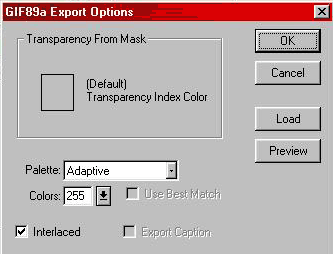
as a default option). Step 3 When you have a transparent background, go to: File> Export> Gif89a
Export. A window will appear, as shown below. Choose your options. Click
OK and save your image. Step 4 This is the same image. It appears better on a light background
because it was created on a light background from the start. The Magic
wand tool has a hard time selecting colors with a non rectangular image.
This is the reason you have to pay attention to the color your going to
delete. The problem is due to anti-aliasing, used to shape borders, and
the resulting "pixelized" effect.
Espero que les sirva
de algo la ayudita
|
|
|