Curso de Photoshop 6.0
Step 1
Start with a new document. Write your text in white on a black
background.
Press Ctrl+E or change to Grayscale mode to have the text and background
merge into one layer.
Next, go to: Filter> Blur> Gaussian Blur, and use a Radius of 2.4 pixels.
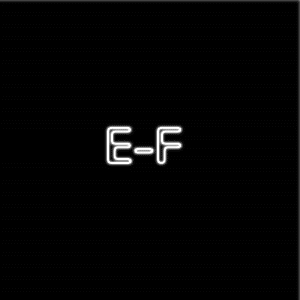
Next, select: Filter> Stylize> Solarize. Press Ctrl+Shift+L, and you
will get an image as shown below:
Step 2
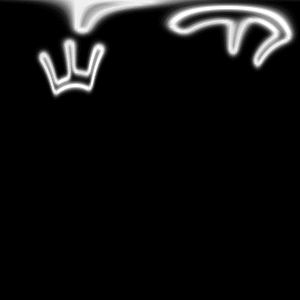
Duplicate your layer. Go to: Filter> Distort> Polar Coordinates:
Polar to Rectangular. Your image should be the same as shown below. Now
select: Image> Rotate Canvas: 90° CW .
Step 3
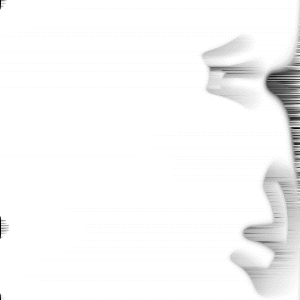
Press Ctrl+I to invert colors. Select: Filter> Stylize> Wind: Wind-Left.
Press Ctrl+F twice and select: Image> Adjust> Auto-Levels (Ctrl+L).
Step 4
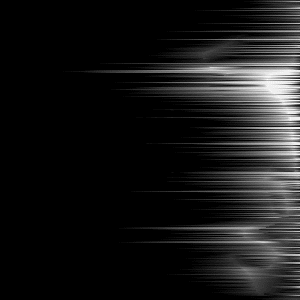
Press Ctrl+I again. Press Ctrl+F three times. Then go to: Image>
Rotate Canvas: 90°CCW.
Step 5
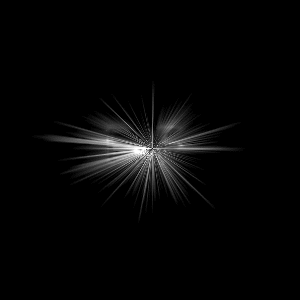
Now select: Filter> Distort> Polar Coordinates: Rectangular to Polar.
Your image should look like this:
Step 6
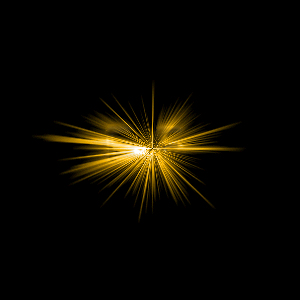
Change to RGB mode (if you were working with Grayscale mode), and
select: Image> Adjust> Hue/Saturation: Hue: 45 | Sat: 100 | Lightness:
0. Be sure 'Colorize' is checked.
Step 7
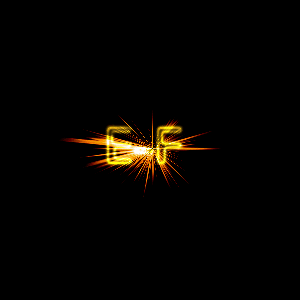
To render the text with more clarity, some changes are to be made.
The bigger the text from the start, the better the explosive effect may
be.
Step 8
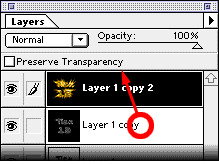
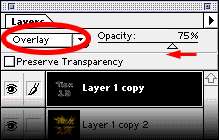
Take the duplicate layer and place it before the "explosive" layer,
as shown in image1. Next, select layer1 (the "non-explosive" layer) and
change it from 'Normal' to 'Overlay', as in image2. You can read your
text more clearly now.
Espero que les sirva
de algo la ayudita
|


