20 Marquito
Step 1
Try Complete Wood Texture Page before starting this tutorial.
Create a new file and view Grids. Using snap to Grids and Polygon Lasso
Tool, set a selection segment points to create the top part of the frame.
Make a new layer and fill the selection with black .
Make another layer for left side part of the frame.

Step 2
Create a wood texture and drag it over the layer of the top part of
the frame.
Layer > Group with Previous
Same wood texture will be used for left side part of the frame. The
texture should have vertical lines. No need to make it again. Select the
file.
Image > Rotate Canvas 90 CW
Drag it over the layer of the left part of the frame.
Layer > Group with Previous
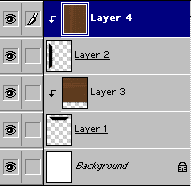
Step 3
Merge down the texture layer with its base layer.
Select the texture layer. Go to the properties of layer palette and
select Merge Down.
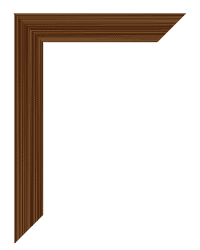
Step 4
Make a copy of each layer.
Flip the copy of the top part vertically and the copy of the left part
horizontally.
Edit > Transform > Flip Horizontal
Edit > Transform > Flip Vertical
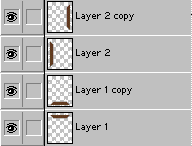
Step 5
Adjust all the parts properly to create the frame structure.
Off the visibility icon i.e. EYE of the background layer select any of
the frame layer and click 'Merge Visible' to get frame with single layer.
Using Elliptical Marquee Tool create a realistic knot on the left part
of the frame. Check out the procedure in Wood Texture Page.

Step 6
To make the frame more realistic use bevel effect on the frame.
Layer > Layer Style > Bevel & Emboss > Inner Bevel
Drag the image on the frame. Drag the image layer below the frame layer.