13
Animación de Neón
Step 1
You need to know
Glow Effect to proceed with this tutorial.
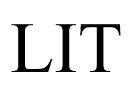
Type the text with black color on white background
Make the duplicate of Text layer
Step 2
Merge the bottom text layer with white background
Hide upper text layer and follow the
Glow Effect procedure on the bottom layer

Step 3
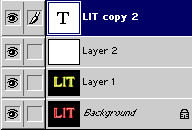
Create a New Layer. Place it just below upper text Layer. Fill the
newly created layer with white color. Merge the Text layer with white
background and follow the same Neon effect.
Step 4
You can type the text with slightly bigger size to add flavor to
animation.
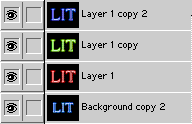
You can make as many layer as you want with different colors.
The layer palette of photoshop will look like this. Observe it carefully.
Save your file.
Step 5
File > Jump To > Image Ready 3.0
Image Ready 3.0 will get opened.
Click the black triangle at the upper right corner of the animation
Palette to open a menu . And Select " Make Frames from Layers ".
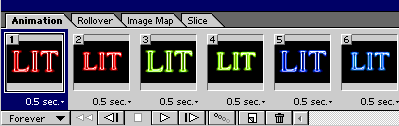
All the layers will get displayed in the animation palette in the form
of frames.
The Animation Palette will look like this.
Step 6
You can change the positions of the frames to get different types of
effects.
There is a small black triangle at the bottom of each frame in the
Animation palette. It is used to set the time. Click it and set the
time. You can select any number of frames at a time by pressing Shift
and set the same time for the selected frames.
Below the first frame there is a bigger black triangle used to set the
looping of the animation. Use it to set the number of time you want to
play Animation.
After completing the animation try to check the performance in the
browser
File > Preview In > Click the browser you want save the file with File >
Save Optimized or File > Save Optimized As