|
Curso de Photoshop 6.0
11
Animación Simple
Step 1 Open Photoshop 6.0 first. Create new file with 72 PPI fill the
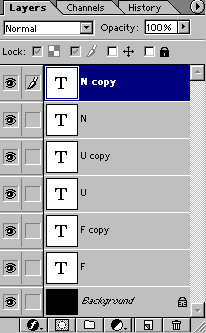
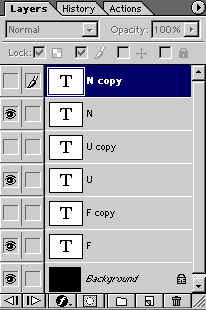
background layer with black. Step 2 The layer palette of photoshop will look like this. Observe it
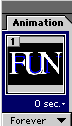
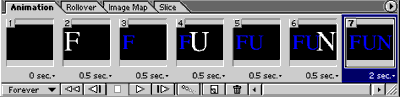
carefully. Save your file. Step 3 File > Jump To > Image Ready 3.0 Step 4 Animation palette of the file will contain following frame. Initially
there will be only one frame. Step 5 Press 8th button from the bottom left which Duplicates current frame.
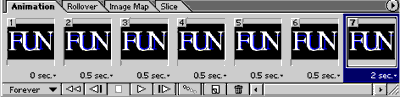
Create six more frames. Total frames will be 7. Step 6 Select first frame. Here you need to display only black background.
So in the layer palette of Image Ready, hide all the layers except
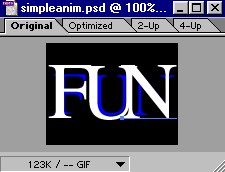
background. Step 7 Select second frame. Here you want to display only big sized white
colored 'F' with black background. So in the layer palette hide all the
layers except White F and background. Step 8 There is a small black triangle at the bottom of each frame in the
Animation palette. It is used to set the time. Click it and set the
time. You can select any number of frames at a time and set the same
time for the selected frames. Step 9 After completing the animation try to check the performance in the
browser Step 10 Save the file with
Espero que les sirva de algo
la ayudita
|
|
|