Curso de Photoshop 6.0

6 Efecto Canal

Step 1

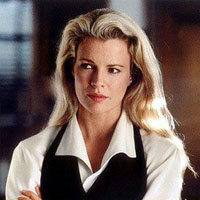
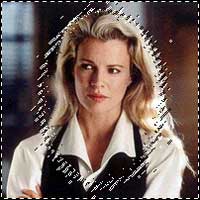
Figure 1: Open Photoshop. Open desired image.
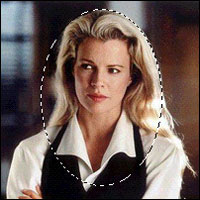
Figure 2: Select Elliptical Marquee Tool and draw ellipse in such a way to accomodate the main portion of the image.


Figure 1 

Figure 2 

Step 2

Click Channel Palette or select Channel Palette Tab.
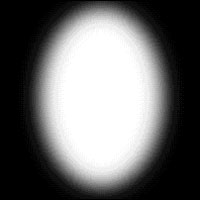
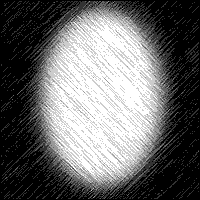
Create New Channel. the Image will become black and the selection will remain on the black background.
Select > Feather > Feather Radius (9 pixels).
Fill White color in the selection by pressing Alt + Del.

Step 3

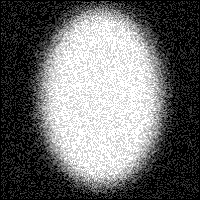
Figure 1 : Filter > Noise > Add Noise
Amount : 25
Distribution : Uniform
Monocromatic

Figure 2 : Filter > Brush Strokes> Angled Strokes
Direction Balance : 50
Stroke Length : 15
Sharpness : 3


Figure 1 

Figure 2 


Step 4

Click Layer Tab. Select the image layer.
Select > Load Selection
Select Alpha 1
Select > Inverse

Step 5

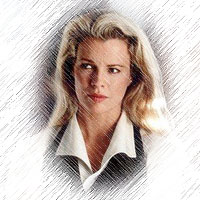
Fill the Image with white color by pressing Alt + Del.


Espero que les sirva de algo la ayudita
Hosted by www.Geocities.ws

1