
 ChassisMain BoardCentral Processing UnitRandom Access MemoryVideoAudioHard Disk DriveOptical Disk DriveInput DevicesOutput DevicesPower Supply UnitAdditional Hardware
Software
Operating SystemApplication SoftwareMaintenance SoftwareImagine your mind as the software while your arm as the hardware. Without your mind, you are unable to move your arm. This concept is similar to the relation between an operating system and a bare system. For desktop PCs, Microsoft Windows OS is more popular compared to Linux. Here, Windows XP Home and Professional Edition setup should be sufficient.
Power up the system. Enter the BIOS during system POST by pressing "Delete" or "F2" by default. Please refer to the main board manual for boot sequence menu if you have difficulties locating it. Select the Optical Drive as the first boot priority. Insert the Windows Installation CD into the optical drive. The system would automatically boot from the CD. Follow on-screen instruction to create disk partition and proceed with setup.
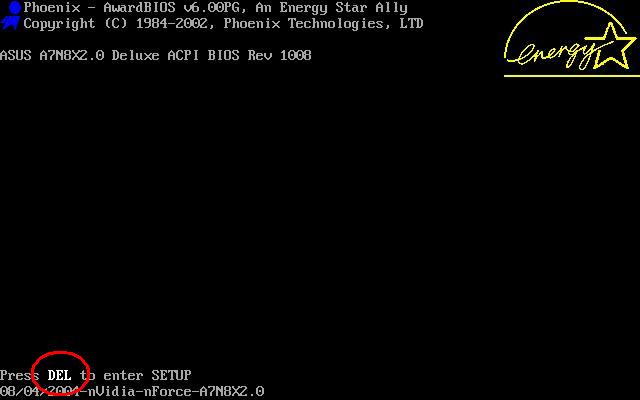
Click to enlarge
Step 1
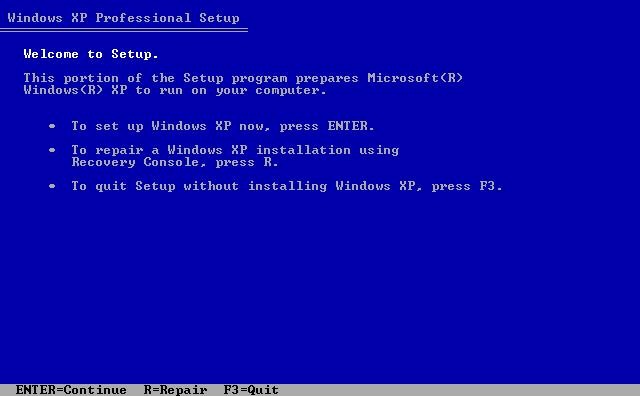
Click to enlarge
Step 2
During the installation, you will be prompted to configure system settings and fill required fields. Once the OS installation is done, continue with software driver installation. For every piece of hardware in your system, install each of them especially the main board chipset and utility, graphics and sound drivers.
 Back
Back

©2006 CHC Team