What's New for Animators |
|
5 |
Animation |
In This Section:
Improved Performance |
|
| |
For Playblast | |
|
For more information, see Viewing Running Animation in Animating in Alias. |
|
|
|
Edit > Cut/Copy/Paste Keyframes For Editing |
|
For more information, see Keyframe Animation in Animating in Alias. |
The performance rate of Cut keyframes, Copy keyframes, and Paste keyframes is up to 600% faster than in Version 8.5. In the Action window, expression editing has improved performance for error checking. |
|
For more information, see Working in the Action Window in Animating in Alias. |
For Particles |
|
For more information, see Dynamics and Particle Systems in Animating in Alias. |
Improvements have been made for particle collisions with deforming surfaces, displacement mapped/warped surfaces, and splitting. For more on particles, see Improvements for Your Particle Workflow on page 51.
Mirroring Animation |
|
| |
|
For more information, see Making a Mirror Copy in Basic Tools. |
Mirror lets you create symmetrical duplicates of hierarchies, which include skeletons, IK handles, constraints, rest poses, limits, animation, and selection handles. Defining a Constraint Target |
|
| |
|
For more information, see Constraining An Object to Another Object in Animating in Alias. |
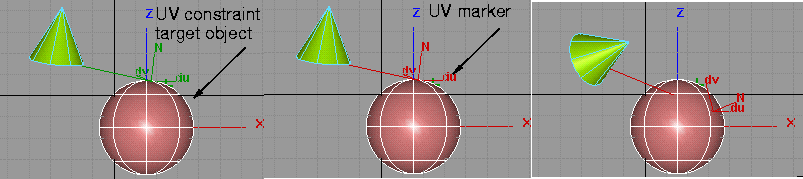
In addition to the existing object constraint, there is a new UV constraint. Where the object constraint constrains to the pivot of an object, the UV constraint constrains to either a UV coordinate, or the orientation of a surface normal at a UV coordinate on a surface. The U and V coordinate values can be animated.
Object Edit > Constrain > Edit uv constraint Editing UV Constraints |
|
| |
|
For more information, see Editing UV Constraints in Animating in Alias. |
You can pick and modify any UV constraint assigned to a constraint target object using Object Edit > Constrain > Edit uv constraint. Alternatively, you can edit a UV constraint by using the Information window and opening Constraint Info. |
| |
Windows > Information > Anim Stats Counting Animation-Related Attributes | |
|
| |
|
For more information, see Using the Anim Stats Window in Animating in Alias. |
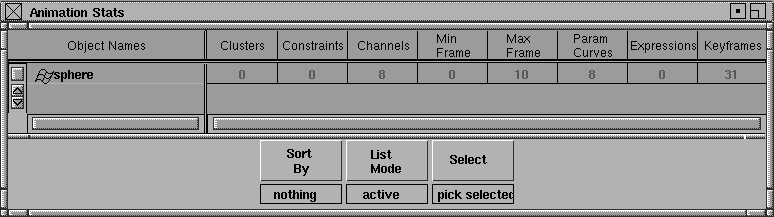
The Anim Stats window displays a number of animation-related attributes for the specified DAG nodes. These attribute names are arranged along the top of the window over their respective columns. Menus let you sort nodes by type or by name, and filter nodes to constrained, clustered, animated, active, or hierarchies.
Counting Attributes in a Scene |
|
| |
Windows > Information > Scene Info The Scene Info window has five sections, each of which displays a number of attributes for the specified file. | |
|
For more information, see Using the Scene Info Window in Animating in Alias. |
Action Window Enhancements |
|
| |
|
For more information, see Working in the Action Window in Animating in Alias. |
|
|
|
Model-Pick button
|
|
|
pin object button
|
|
|
padlock
Animating While in the Camera Editor |
|
| |
|
For more information, see Camera Editor in Rendering in Alias. |
|
|
|
Improvements for Your Particle Workflow |
|
| |
Saving Particles in a File
| |
|
For more information, see Viewing Running Animation in Animating in Alias. |
Improved Workflow |
|
For more information, see Multi-lister in Rendering in Alias. |
Workflow with particle files has been improved in the following areas:
Naming Selection Handles |
|
| |
|
For more information, see Viewing Selection Handles in Basic Tools. |
When an object has a selection handle, you can show the node name next to the selection handle using the Annotation option in Display Tgls > Selection handles- |
|
|
The name is in the same color of the selection handle, so that the name's color will be changed according to whether the object is active or not. You can pick this name to pick a selection handle-a feature that is useful if you are working with a complex model. Motion Blur Compensation in Bake Plug-in |
|
| |
The renderer evaluates animations at a motion blur sample point, interpolating between these values. Constraint animation is limited to a -180/+180 degree range. If the constraint jumps from -180 to +180, the object doesn't actually move. However, the motion blur sampling reads a value between these degree ranges and the object appears to flip, even though it doesn't. Extra keyframes are created with the motion blur bake compensation at the motion blur sample times whenever this flipping problem is detected. | |
| Copyright © 1998, Alias|Wavefront, a division of Silicon Graphics Limited. All rights reserved. | Please send questions or comments regarding the documentation to: [email protected] |



 .
.