|
|
Render > Fast
render
|
Fast Render
|
|
|
|
|
This feature is available in AutoStudio, and is a purchasable PowerModeling and Studio option.
Fast Render renders a preview-quality image of your scene or model that can include some or all geometry, shaders, textures, lights, and reflection maps, and continuously updates the rendered image. You can use Fast Render to interactively control the view of your rendered model, to view camera animation, or to view snapshots of model animation.
Fast Render is designed to take advantage of the Reality Engine board developed by SGI. This piece of hardware is recommended for maximum performance; however, Fast Render is also supported on lower end SGI hardware.
Fast Render has the following limitations:
- Fast Render does not display transparency maps; however, Fast Render does display regular transparency (that is, by value as opposed to texture maps).
- Fast Render does not display bump maps or displacement maps.
- Fast Render does not display solid textures.
Fast Render uses stages to let you selectively render geometry, and to specify a particular view and background to render.
Using Fast Render
You can use Fast Render in either interactive mode (within Alias) or batch mode (from a UNIX command line).
Interactive Fast Render
You can use Fast Render in interactive mode either to render the model or scene currently loaded in Alias, or to render a FR (Fast Render) data file that you have previously saved.
To Fast Render geometry that is loaded in Alias:
|
|
See Fast Render Control
Window on page 376.
|
-
1
-
Select Render > Fast render to open the Fast Render Control window.
|
|
See UPDATE on page 378.
|
-
2
-
Click UPDATE to open the ReallyReallyFastRender (RRFR) window.
To save geometry as a Fast Render data file:
|
|
See Fast Render Control
Window on page 376.
|
-
1
-
Select Render > Fast render to open the Fast Render Control window.
|
|
See Output on page 377.
|
-
2
-
Set Output to FILE.
|
|
See UPDATE on page 378.
|
-
3
-
Click UPDATE to open the File Requestor.
-
4
-
Type in the name of the file, or click Show List to select the file using the File Lister, and click Save RRFR file.
-
5
-
The file is saved in the rrfr directory of the current project.
To Fast Render geometry that is saved as a FR (Fast Render) data file:
|
|
See Fast Render Control
Window on page 376.
|
-
1
-
Select Render > Fast render to open the Fast Render Control window.
|
|
See Input on page 377.
|
-
2
-
Set Input to FILE.
|
|
See UPDATE on page 378.
|
-
3
-
Click UPDATE to open the File Requestor.
-
4
-
Type in the name of the file, or click Show List to select the file using the File Lister, and click Retrieve RRFR file to open the RRFR window.
To stop the Fast Renderer and close the RRFR window:
- Click the close icon on the left side of the ReallyReallyFastRender window's title bar, or
|
|
See quit on page 380.
|
- Click File > quit in the ReallyReallyFastRender window.
Batch Mode Fast Render
|
|
See fastrender in the Alias
Stand-alone Utilities Guide
online documentation.
|
You can only use Fast Render in batch mode to render a FR (Fast Render) data file that you have previously saved (see Interactive Fast Render on page 374). In this case, the process runs independent from Alias.
To Fast Render a Fast Render data file in batch mode:
-
1
-
Open a UNIX shell (for example, by selecting Utilities > UNIX shell) and change the directory to that of the FR file.
-
cd /usr/u/kozyniak/user_data/demo/rrfr
-
2
-
Type:
-
fastrender filename
-
The RRFR window opens and displays the rendered FR
file.
Fast Render Control Window
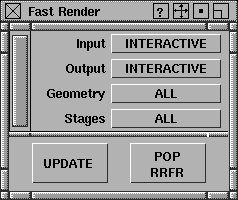
When you first activate Fast Render in interactive mode, the Fast Render Control window appears. You use this window to specify the input and output of the Fast Render, and to update the rendered display.
|
|
|
Input
-
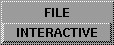
- The source of data input to the Fast Renderer. The FILE option is not available if Output is set to FILE. The default setting is INTERACTIVE.
| INTERACTIVE
| the current model or scene in Alias
|
| FILE
| a previously saved FR (Fast Render) data file
|
|
|
|
Output
-
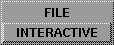
- The destination of data output from the Fast Renderer. The FILE option is not available if Input is set to FILE. The default setting is INTERACTIVE.
| INTERACTIVE
| Model data is displayed on screen in the RRFR window.
|
| FILE
| Model data is saved as a FR (Fast Render) data file. By saving model data to a FR file, you can Fast Render the file as an independent process at a later time or on another computer.
|
|
|
|
Geometry
-
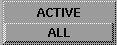
- The source of geometry data input to the Fast Renderer. The default setting is ALL.
| ALL
| all non-templated, visible geometry. If Geometry is ALL, you can also control
|
| ACTIVE
| all active geometry (of the current stage)
|
|
|
|
Stages
-
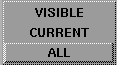
- The stage(s) from which geometry source data is input to the Fast Renderer. The Fast Renderer recognizes multiple stages and lets you toggle the display of geometry in the RRFR window for individual stages. See Using Stages in the Basic Tools in Alias book and RRFR Stage Editor on page 390. The ALL and VISIBLE options are not available if Geometry is set to ACTIVE. The default setting is CURRENT.
| ALL
| geometry from all stages
|
| CURRENT
| geometry from the current stage
|
| VISIBLE
| geometry from stages that have their geometry visible
|
UPDATE
-
- Opens (and/or updates the display in) the RRFR window, or opens the File Requestor and prompts you for an input or output file name. The UPDATE button functions differently depending on the settings of the Input and Output parameters, and whether the RRFR window is already open.
- If Input and Output are both INTERACTIVE and the RRFR window is not open, pressing UPDATE opens the RRFR window and displays the rendered view of the model.
- If Output is INTERACTIVE and the RRFR window is already open, pressing UPDATE updates the display in the RRFR window.
- If Input is FILE, pressing UPDATE opens the File Requestor and prompts you for an input file name. After you enter a file name, the RRFR window opens and displays the rendered view of the file.
- If Output is FILE, pressing UPDATE opens the File Requestor and prompts you for an output file name.
-
- The RRFR window may not update immediately after you press UPDATE, because it takes time to triangulate the geometry. The length of time it takes depends on the size of the model and the current option settings.
|
|
See Global Rendering
Parameters on page 396 on
page and Object Rendering
Parameters on page 422.
|
-
- You can set the level of triangulation for all geometry by opening the Render Globals window, setting Quality Type to GLOBAL, and then setting the Global Quality Parameters. To set the level of triangulation on a per object basis, set Quality Type to PER OBJECT (in the Render Globals window), and then open the Render Stats window and set the subdivision parameters (Minimum Subdiv and Maximum Subdiv, or Uniform U and Univorm V).
POP RRFR
-
- POPs or raises the RRFR window to the top of the window stack, so that it becomes the frontmost window, in the event that another application window has been layered over it.
ReallyReallyFastRender Window
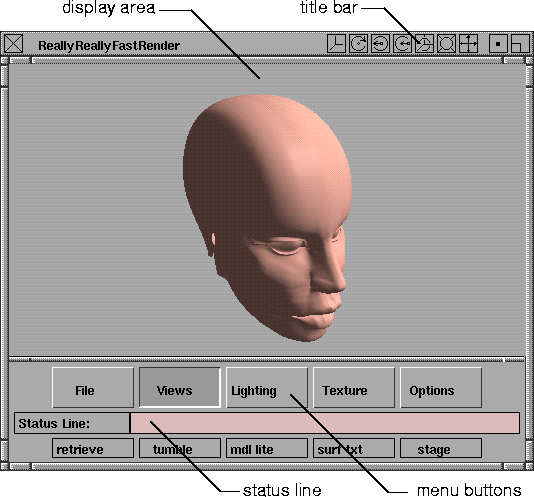
Fast Render displays a rendered image of your model or scene in the ReallyReallyFastRender (RRFR) window. This window contains tools which let you interactively control the view of your model, and determine which sets of geometry, shading functions, lights, and texture maps are displayed.
The RRFR window's title bar contains standard window control icons (close, iconize, and full screen) and icons to control camera orientation.
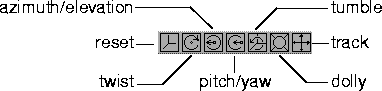
To use a camera control icon, place the mouse pointer over the icon, and click-drag to re-orient the camera. If you hold the Shift key while dragging, the camera deflection is measured by the distance the cursor is from its position when you pressed the Shift key.
The RRFR window status line displays information about the current state of the Fast Renderer.
The RRFR window menus contain options which let you control the view, control the display of lights and textures, and animate the view in the RRFR window. To display a menu, click and hold the mouse on a menu button at the bottom of the RRFR window.The default active menu item is displayed below each button.
|
|

|
File Menu
quit
-
- Closes the RRFR window.
retrieve
-
- Opens the File Requestor and lets you retrieve any fast render data file that was previously saved (by setting Output to FILE in the Fast Render Control window). The data file retrieved replaces the current view model.
|
|
|
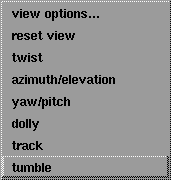
Views Menu
The Views menu options let you control the orientation of the camera view displayed in the RRFR window. You can access these same tools using the icons in the RRFR window title bar.
tumble, track, dolly, yaw/pitch, azimuth/elevation, twist
-
- Re-orients the camera view in the RRFR window. To use one of these options, select it from the Views menu, and then click-drag in the RRFR window display area. See Using Cameras in the Basic Tools in Alias book.
reset
-
- Resets the view in the RRFR window to that when the RRFR window was first opened.
|
|
See RRFR View Options on
page 382.
|
view options
-
- Opens the RRFR View Options window. This window lets you control the orientation of the camera view by entering numeric values.
|
|
|
Lighting Menu
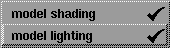
The Lighting menu options control how the RRFR window shades and illuminates surfaces. A check mark indicates that an option is toggled ON.
model lighting
-
- Illuminates the model using the model's light sources (up to a maximum of eight light sources). If model lighting is OFF, a single infinite point light illuminates the model. The default setting is ON.
model shading
-
- Displays surfaces using their assigned shading model (for example, Lambert, Phong, Blinn). If model shading is OFF, all surfaces are displayed using the Lambert shading model. The default setting is ON.
|
|
|
Texture Menu
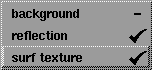
The Texture menu options control how the RRFR window displays textures. A check mark indicates that an option is toggled ON.
surf texture
-
- Displays all surface textures (except for reflection-mapped surface textures). If surf texture is OFF, surfaces are displayed in their non-texture mapped color.
reflection
-
- Displays reflection-mapped textures.
background
-
- Displays the background indicated in the RRFR Stage Editor. Fast Render can only display backgrounds that use a Ball environment texture (see Ball Texture on page 108).
|
|
|
Options Menu
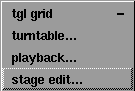
tgl grid
-
- Displays the ground plane grid. A check mark indicates that this option is toggled ON.
|
|
See RRFR Turntable Control
on page 384.
|
turntable
-
- Opens the RRFR Turntable Control window which lets you rotate the model about a fixed point (the world space origin).
|
|
See RRFR Playback Control on
page 385.
|
playback
-
- Opens the RRFR Playback Control window which lets you use motion paths to specify a sequence of positions for the camera Eye, View, and Up vector.
|
|
See RRFR Stage Editor on
page 390.
|
stage edit
-
- Opens the RRFR Stage Editor which lets you display geometry for selected stages, apply the turntable function for selected stages, etc.
RRFR View Options
|
|
See Camera Properties on
page 334.
|
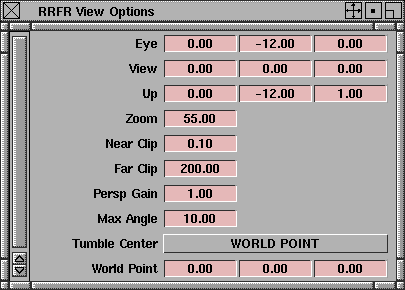
The RRFR View Options control the orientation of the view displayed in the RRFR window. To open the RRFR View Options window, select Views > view options in the RRFR window.
Eye, View, Up
-
- Determines the view by defining the eye's position (Eye), view point (View), and up vector end point (Up). Each parameter has three fields, corresponding to the XYZ coordinates for that parameter.
Zoom
-
- The angle (in degrees) of the field of view.
Near Clip, Far Clip
-
- The distance from the eye point to the near and far clipping planes.
|
|
See tumble, track, dolly, yaw/
pitch, azimuth/elevation, twist
on page 380.
|
Persp Gain
-
- A scaling factor applied to the tracking control (Views > track or the track icon in the RRFR window title bar).
Max Angle
-
- The maximum angular change in view.
|
|

|
Tumble Center
-
- Determines which point the camera will tumble about: the World Point (WORLD POINT) or the View point (VIEW CENTER).
World Point
-
- The XYZ world space coordinates of the point about which the camera will tumble, if Tumble Center is WORLD POINT.
RRFR Turntable Control
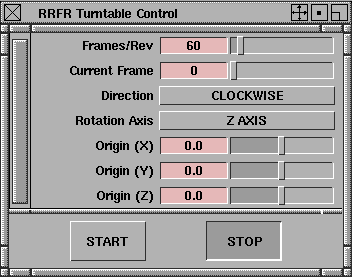
The RRFR Turntable Control window controls the turntable animation of the scene or model. To open the RRFR Turntable Control window, select Options > turntable in the RRFR window.
The turntable function only rotates models that have their On Turntable field ON in the RRFR Stage Editor (see On Turntable on page 390). If you close the RRFR Turntable Control window, the turntable rotation automatically stops.
Frames/Rev
-
- The number of frames per revolution, which controls the speed of the turntable rotation. The slider range is 1 to 720. The default value is 60.
Current Frame
-
- The frame number of the current rotational position of the turntable. If you change the Current Frame value, the RRFR window will display that frame of the turntable rotation. If you start the turntable, the Current Frame value will continuously change as the turntable rotates. The slider range is 0 to the Frames/Rev value. The default value is 0.
|
|
|
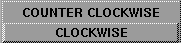
Direction
-
- The rotational direction of the turntable. The default setting is CLOCKWISE.
|
|
|
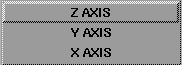
Rotation Axis
-
- The axis of rotation of the turntable. The default setting is Z AXIS.
Origin (X), Origin (Y), Origin (Z)
-
- The XYZ position of the point about which the turntable rotates. The slider range is -500 to 500. The default setting is 0,0,0.
START
-
- Starts the turntable rotation.
STOP
-
- Stops the turntable rotation.
RRFR Playback Control
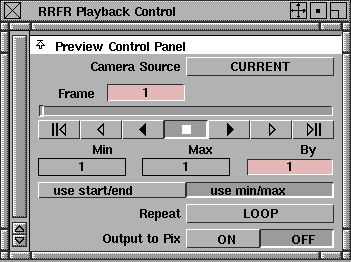
The RRFR Playback Control window lets you animate the view in the RRFR window using any existing autofly or keyframed camera animation. This camera animation information is stored with the stage data. To open the RRFR Playback Control window, select Options > playback in the RRFR window.
Preview Control Panel
|
|
|
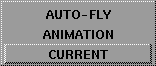
Camera Source
-
- The source of camera information to be used for animated playback. The default setting is CURRENT.
| CURRENT
| The current, static camera view is used for playback (that is, no animation).
|
| AUTOFLY
| The camera's autofly animation is used for playback. This option is only available if you have animated the camera using Anim > Autofly. See Animating a Camera View Along a Path in the Animating in Alias book.
|
| ANIMATION
| The camera's keyframe animation is used for playback. This option is only available if you have animated the camera using keyframes (the Key button in the Camera Editor).
|
Frame
-
- The frame number of the animation currently displayed in the RRFR window. If you change the Frame value, the RRFR window will display that frame of the animation. If you start the playback, the Frame value will continuously change as the animation plays. The slider control for this parameter is below the Frame field.

-
- The slider range represents the frame range defined either by the Min and Max fields (if use min/max is selected), or the Start and End fields (if use start/end is selected). The slider position represents the current Frame value.
Playback Controls
-
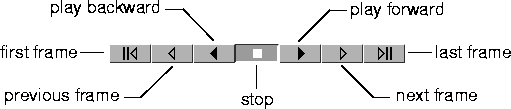
- The Playback Controls in the RRFR Playback Control window let you control the animation playback in the RRFR window. These controls are similar to the animation preview buttons in the Alias time slider (see Preview Buttons in the Animating in Alias book).
Min, Max
-
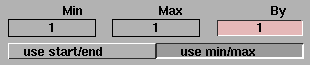
- The first and last frame of the animation. The Min and Max values are only displayed if use min/max is selected. You cannot edit the Min and Max values.
Start, End
-
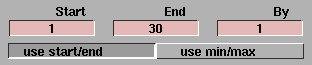
- The first and last frame of the animation. The Start and End values are only displayed if use start/end is selected. You can edit the Start and End values to playback only a section of the animation. The default value is 1 for Start and 30 for End.
By
-
- The frame increment to be used during the animation. For example, if the By value is 2, every other frame will be displayed during the animation. The default setting is 1 (all frames are displayed during the animation).
use start/end
-
- Lets you specify the first and last frame of the animation using the Start and End parameters. When you select use start/end, the Min and Max parameters are replaced by the Start and End parameters.
use max/min
-
- Automatically sets the first and last frame of the animation (so that the entire animation is displayed) by setting the Min and Max parameters. When you select use min/max, the Start and End parameters are replaced by the Min and Max parameters.
|
|
|
Repeat
-
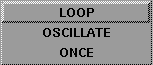
- Determines if and how the animation is repeated. The default setting is LOOP.
| LOOP
| the animation continuously repeats until you stop it
|
| OSCILLATE
| the animation plays once forward, then once backward, repeatedly, until you stop it
|
| ONCE
| the animation plays once and then stops
|
Output to Pix
-
- Saves each frame's rendered image as a pix file. The default setting is OFF (frame images are displayed, but not saved).
-
- If Output to Pix is ON when you playback the animation, the File Requestor will appear and prompt you for a file name for the pix file images. During the animation, as each frame is saved as a pix file, a frame number is appended to this file name.
-
- When you set Output to Pix ON, the RRFR Playback Control window expands to display three additional sets of parameters: Image File Output, Predefined Image Resolutions, and Pix Filename Extension.
Image File Output
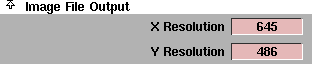
X Resolution, Y Resolution
-
- The X and Y resolution of the pix file image. These parameters also represent the size of the RRFR window. For example, if you change the X Resolution and Y Resolution values, the size of the RRFR window will also change, and vice versa.
Predefined Image Resolutions
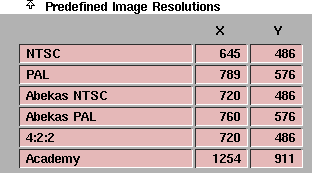
The Predefined Resolutions section of the RRFR Playback Control window contains a list of common screen resolutions. You can select a predefined resolution by clicking on it. The corresponding X Resolution and Y Resolution values are automatically set. You can change the X Resolution or Y Resolution value of a predefined resolution by double-clicking in the appropriate field in the Predefined Image Resolutions list, and entering a new value.
Pix Filename Extension
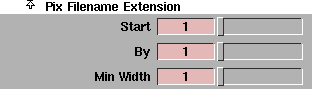
The Pix Filename Extension parameters control the numbering of pix file extensions.
Start
-
- The extension appended to the first frame's file name. The slider range is 1 to 1000. The default value is 1.
By
-
- The amount that the extension is incremented between frames. The slider range is 1 to 1000. The default value is 1.
Min Width
-
- The zero-filled width of the file name extension. For example, if the Min Width value is 1, the file name extensions would be .01, .02, .03, and so on. If the Min Width value is 2, the file name extensions would be .001, .002, .003, and so on. The slider range is 1 to 5. The default value is 1.
RRFR Stage Editor
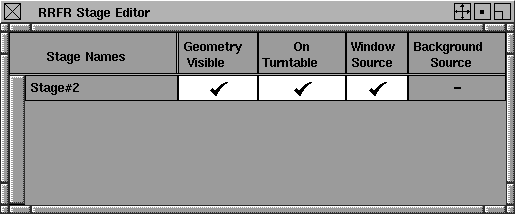
The RRFR Stage Editor lets you selectively toggle the display of geometry, and apply the turntable function for individual stages. The RRFR Stage Editor is similar to the Alias Stage Editor (see Using Stages in the Basic Tools in Alias book). To open the RRFR Stage Editor, select Options > stage edit in the RRFR window.
Stage Names
-
- The name of all stages that you can display in the RRFR window. This list is based on the setting of the Stages parameter in the Fast Render Control window when the RRFR was last updated (see Stages on page 377).
Geometry Visible
-
- The stages of the geometry that is displayed in the RRFR window.
On Turntable
-
- The stages of the geometry that the turntable function will rotate in the RRFR window.
Window Source
-
- The stage of the camera used to generate the view in the RRFR window. Only one stage can have the Window Source option selected.
Background Source
-
- The stage of the background displayed in the RRFR window. Only one stage can have the Background Source option selected.
|


