|
See renderer in the Alias
Standalone Utilities Guide
online documentation.
|
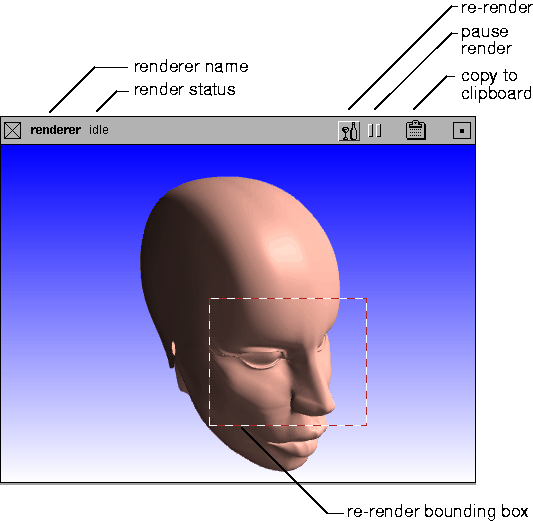
Direct render opens a new window on top of the active window, and renders that window's view using one of the four stand-alone renderers (renderer, raytracer, powercaster, or powertracer) in one of five render modes (Raycaster, Raytracer, Hidden Line, Powercaster, or Powertracer).
Using Direct Render
To direct render a window:
- Select Render > Direct render. The Direct Render window appears on top of the active window and renders the window's view.
-
To stop a direct render, click in the Direct Render window.
-
To pause/restart a direct render, click the pause icon in the
Direct Render window title bar.
-
To re-render a direct render, click the re-render icon in the
Direct Render window title bar.
-
To re-render a particular region of the direct render, click-
drag a box in the Direct Render window.
To close the Direct Render window:
- Click the close icon on the left side of the title bar.
To open the Direct Rendering Options window:
- Select Render > Direct render
 . .
Direct Render Window
Direct Rendering Options
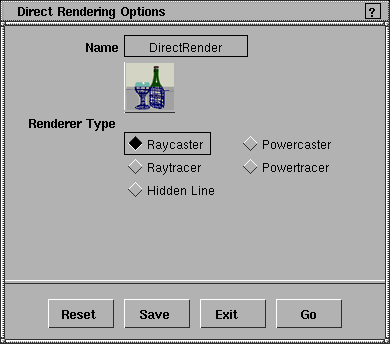
Renderer Type
-
- The type of renderer used: Raycaster, Raytracer, Hidden Line, Powercaster, or Powertracer. If Renderer Type is Powercaster or Powertracer, the Processors parameter becomes available. The default setting is Raycaster.
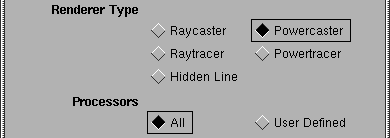
Processors
-
- Determines whether the renderer uses all available processors (All), or only a certain number of the available processors (User Defined). This parameter is only available when Renderer Type is Powercaster or Powertracer. If Processors is User Defined, the Num Processors parameter becomes available. The default setting is All.

Num Processors
-
- The number of processors the renderer uses. This parameter is only available if Renderer Type is Powercaster or Powertracer, and Processors is User Defined. The valid/slider range is 1 to 32. The default value is 8.
|


