gis 520 portfolio
advanced geospatial analysis - spring 2014

Editorial Staff:
Steven Mohr - [email protected]
RALEIGH, THURSDAY, APRIL 24, 2014
"All the News
That's Fit to Print"
Customization for ArcMap
Problem
In this assignment, we are given the task of improving the operable display of the ArcMap interface we or our employees use. When a job requires heavy use of this vast and often dense piece of software, it is important to streamline things as much as possible. For that reason, creating specially designed toolbars and context menus for our own purposes is a very important thing. It can save a lot of time and difficulty. The following are some of the tools I put together in the two toolbars I made for this project. My first toolbar, which was aptly named… “My First Toolbar” contained the tools: Animation Controls, Capture View, Add Destination, GPS Position, Select Features on Screen, and Easy Calculate. It also had a dropdown menu that contained the tools: Add Edge Barrier and Add Junction Barrier. The second toolbar I made (also very aptly named…) “My Second Toolbar” was comprised of a dropdown menu that contained the tools: Align Horizontal Center, Align Vertical Center, Apply Layout Task, and Align by Angle.
Analysis Procedures
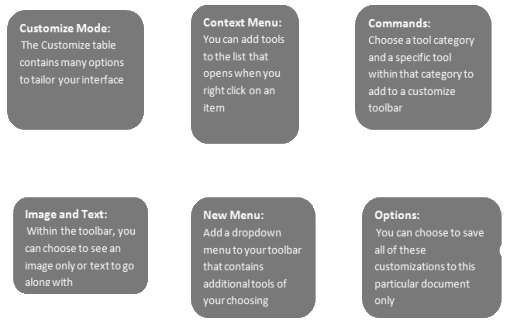
Strategies: Being that this whole procedure regards tailoring ArcMap to best suit your usage of it, ESRI is a great resource. Using these tutorials to understand the best, most functional tools to place on the toolbar and in various menus is a great idea. Another good information piece when there are questions in regards to tailoring this interface is the Help guide contained within ArcMap. In order to perform this task, the user needs to use the Customize table that allows the user to add toolbars, add to toolbars already there, add menus to these toolbars, add tools to the context menus, or subtract these various items from these toolbars, menus, and context menu.
Methods: In order to complete this assignment, there are various tables to access, tools and menus to add, and screen images to take. All of these tasks help the user to better understand the applications accessible to the user that can streamline and maximize any type of workflow this user may have.
Application & Reflection
Problem description: The information taught in this assignment allows the user to know the best ways to provide an interface that has sensible tools for a particular user’s workflow. There could be a case where a city GIS manager needs to build an interface that most suits his workforce. Maybe one particular GIS analyst employee works on updating the building structures shapefile for this city.
Data needed: The manager would need to know which tools are needed for this type of analysis. This analysis would certainly need to display the Editor Toolbar. This toolbar contains a number of tools that are essential to this process. There are also useful tools such as the Snapping toolbar that contains options to streamline that workflow.
Analysis procedures: For a process like this, it is important to put together the most sensible interface. But then it is important to take a step back, use what was created, and re-evaluate from there. Often it is hard to completely project what will be needed beforehand. You may just have to make changes over time based on how the workflow went.
Additional Assignment Reflection
Understanding how to tailor ArcMap to best fit your own work type or the work type of your employees is extremely important. After making an attempt to use the tools I placed on my newly created toolbars, I realized how much time can be saved by intuitively placing buttons to increase efficiency. Above this, it also allows for less orientation time for new users because everything a worker needs can be placed right on the front interface panels. Over time, this feature could be a great cost saver for GIS organizations.
Results
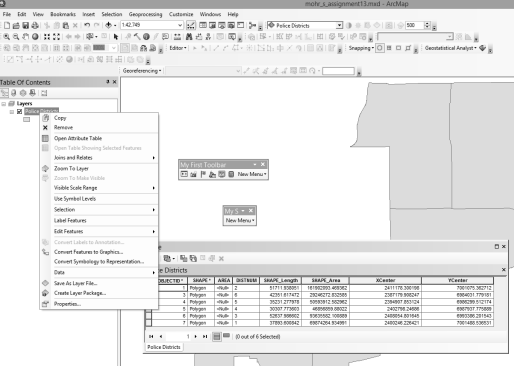
This screen shot shows the toolbars and other customizations I designed for this project.
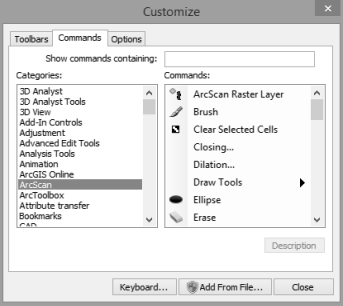
This screen shot shows the Customize table.
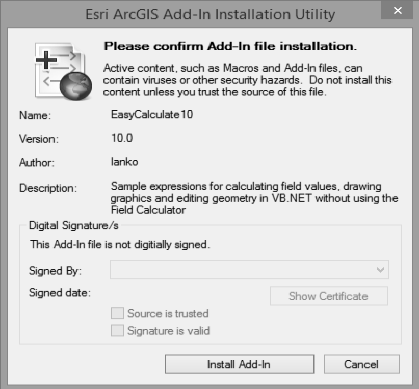
This screen shot shows installation utility used to install the add-in tool Easy Calculate 10.
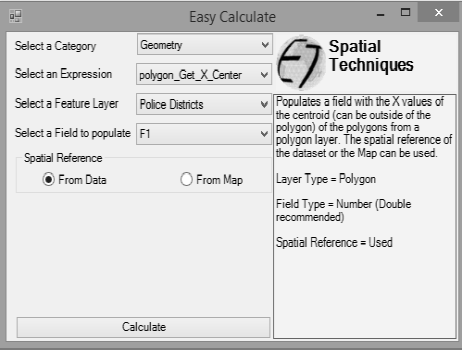
This screen shot shows Easy Calculate 10 tool.
World News

Local Traffic
Environmental News
Regional Weather