|
|
Basic Modeling
|
|
|
4
|
Creating Objects
|
|
In This Section:
Notes:
- Draw skeleton and Add IK handle are discussed in the Animating in Alias book.
- Lights, Warps, and Projections are discussed in the Rendering in Alias book.
|
|
|
|
|
|
Objects > Primitives
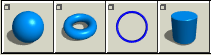
> Sphere, Torus,
Circle, Cylinder,
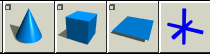
Cone, Cube, Plane,
Jack
|
Creating Geometric Primitives
|
|
|
|
|
Overview
The primitive tools allow you to add basic 3D and 2D shapes to your scene. You can then move, scale, and change these objects as regular surfaces and curves.

How To
To add a primitive object to your scene:
-
1
-
Choose a primitive tool from the Objects > Primitives palette.
|
|
To add a primitive in a
perspective window, use the
snap modifiers.
|
-
2
-
Click in a window to place the new primitive.
-
or
-
Type the coordinates of the new primitive in the command
line.
-
3
-
A new primitive will appear in the scene.
- If you used the mouse, Alias orients the primitive so that the "top" of the primitive (or the "face" of the circle) points toward you in the window where you clicked.
- If you used the keyboard, Alias orients the primitive so that the "top" of the primitive (or the "face" of the circle) appears in the Top window.
-
4
-
Use the manipulator to rotate, scale, or move the new primitive (see below).
-
5
-
To create another primitive, click elsewhere in a view window. To stop creating primitives, choose another tool.
To use the primitive manipulator:
|
|
|
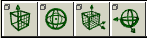
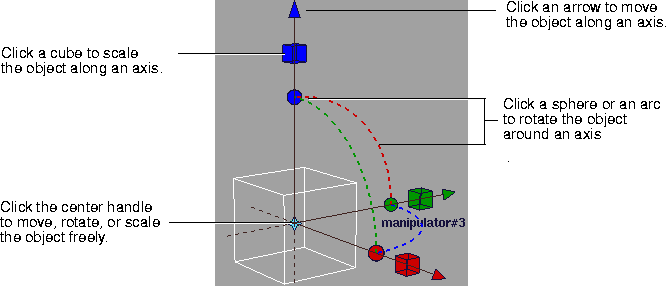
- Drag a handle, as shown above, to move/rotate/scale interactively.
- The function of the center handle changes according to the previously selected handle:
- Click an arrow to change the center handle to the free move handle. Then drag the center handle to move the object freely.
- Click a cube to change the center handle to the proportional scale handle. Then drag the center handle to scale the new object in all directions.
- Click a sphere to change the center handle to the free rotate handle. Then drag the center handle to rotate the object freely.
Tips and Notes
|
|
See Units on page 61 for
information on changing the
units.
|
- The default behavior of the primitive tools is to create a 1 unit wide (10 units for AutoStudio) primitive where you click.
|
|
See Construction Planes on
page 38.
|
- When you place or move an object in the perspective window while a construction plane is active, the object is automatically constrained to the construction plane.
- The Circle, Sphere, Cylinder, Cone and Torus tools will only create perfect circles if you use rational geometry. Otherwise it will approximate a circle using non-rational geometry.
|
|
See Setting Options for
Modeling on page 58.
|
-
To create primitives using rational geometry, turn on the
Primitives checkbox under Rational Flags in the Construction
Options window.
Options
Common Options
Object Degree
-
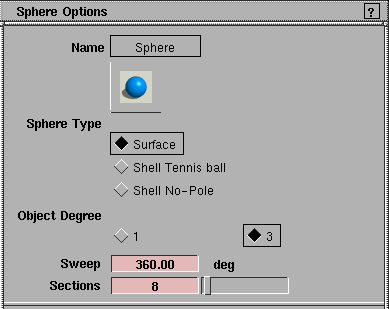
- The degree of the curves or surfaces used to create the object. Choose 1 (linear) or 3 (cubic).
|
|
This option is available for
the Circle, Cone, Sphere,
Cylinder and Torus tools.
|
Sweep
-
- The degrees of rotation around the center of radial primitives.
-
- For example, if you enter 180 degrees in the sphere tool, Alias will create a hemisphere.
|
|
This option is only used for
non-rational geometry.
|
Sections
-
- The number of subdivisions on the surface of radial primitives.
-
- The default is 8. At least 4 subdivisions are usually needed to create a workable primitive shape. It is not usually necessary to use more than 20 subdivisions.
Sphere Options
Type
-
- Surface-create sphere from a single NURBS surface.
|
|
See Shells and Faces on
page 25.
These two options do not
appear when Create surface
type is Polyset (see Modeling
Modes on page 65).
|
-
- Shell Tennis Ball-create a sphere from two interlocking surfaces stitched into a shell like a tennis ball.
-
- Shell No-Pole-create a sphere from eight surfaces stitched into a shell.
Torus Options
Size
-
- This can be either Absolute or Relative, and determines which of the parameters below can be set.
|
|
|
Major radius
-
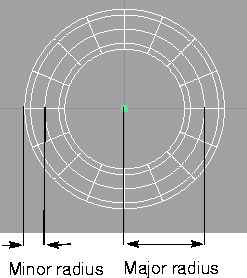
- The distance between the center of the ring and the center of the tube. This option is only available if Size is set to Absolute.
Minor radius
-
- The radius of the tube. This option is only available if Size is set to Absolute.
Ring Thickness
-
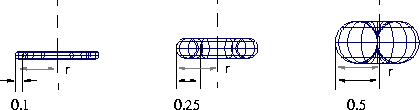
- The diameter of the ring relative to the diameter of the entire torus. This option is only available if Size is set to Relative.
-
- As the ring thickness approaches 0.5, the hole gets smaller. At 0.5 the torus has no hole. See figure below.

Cylinder and Cone Options
Caps
-
- Caps are disc-shaped surfaces grouped with the cylinder to create a closed surface. Choose 0 (no caps), 1 (a cap at one end), or 2 (caps at both ends).
See Also
|
Objects > Text

|
Creating Text
|
|
|
|
|
Purpose
Create 3D objects from a text string in a particular font.
How To
To add a text object to the scene:
-
1
-
Choose the Text tool from the Objects palette.
-
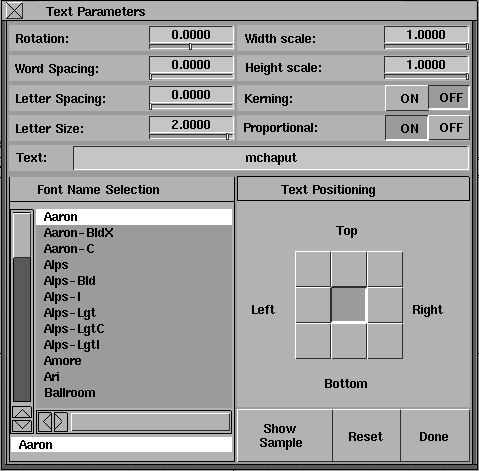
The Text Parameters window will appear.
-
2
-
Choose a font from the scrolling list in the bottom left of the window.
-
3
-
Double click in the Text box and type the text you want to turn into a 3D object.
-
4
-
Set any other Text Parameters you want to change (see below).
-
5
-
Move the mouse pointer to a view window. A preview of the text follows the cursor.
-
6
-
Position the text in a view window and click to create the objects.
-
You can keep clicking in view windows to create text
objects, even after you close the Text Parameters window.
-
7
-
To stop creating text, choose another tool.
>
|
Note:
|
Once you create 3D objects from the text, you cannot edit the
objects as text. If you want to change the content of the text,
the font, or any other text parameters, delete the object and
recreate it.
|
Tips and Notes
- Normally you will want to leave Proportional on, however non-proportional spacing is useful when you need letters to line up vertically.
- The Text Positioning point also determines the pivot point of the object.
- When you place or move an object in the perspective window while a construction plane is active, the object is automatically constrained to the construction plane. See Construction Planes on page 38.
- The Text tool uses Bitstream fonts. Contact Bitstream (www.bitstream.com) regarding additional fonts in Bitstream format.
- The curves that make up text faces may not all travel in the same direction from letter to letter. If you duplicate text curves to create surfaces, and the direction of the curves matters, you should verify it and use Reverse Direction if necessary.
Text Parameters
Rotation
-
- From 180º to -180º of rotation around the axis perpendicular to the face of the text. Enter a positive number to rotate the text counter-clockwise. Enter a negative number to rotate the text clockwise.

-
- Note that in this scheme, 180º and -180º are equivalent.
Word Spacing
Letter Spacing
-
- Amount of extra space (in grid units) between words/letters. Enter 0.0 for the font's default spacing. Enter a positive number to increase the spacing. Enter a negative number to decrease the spacing.
Letter Size
-
- The size of the text. This number is in grid units, not points.
Width Scale
Height Scale
-
- Scale factor for the character widths/heights. Default is 1.0 (no scaling).
-
-
Kerning
-
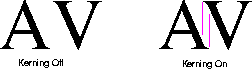
- Use kerning to make text tighter and more attractive.
-
- Certain combinations of letterforms have complementary shapes. For example, the combinations "AV" and "Td" have areas of strokes and whitespace that fit together. Most fonts define special letter spacings for these combinations.
Proportional
-
- Use proportional spacing.
-
- Proportional spacing spaces letters according to their real width (for example, "W" is much wider than "I"). When proportional spacing is off, the letters are spaced a uniform width (roughly the width of a capital "M").
Font Name
-
- The name of the typeface in which to create the letters.
-
- Move the pointer into a view window to see the text string written in this font, or click Show Sample to see samples of all the characters.
Text Positioning
-
- The corner of the text that is attached to the pointer when you place text.
|