This tutorial mainly deals with colouring in Photoshop 7. I know CS is out now but I don't have it so if you have CS, then I'm sorry if some of the stuff I mention here doesn't work in CS.

Before I start, I admit that I am not that good of an artist. I only draw for fun. If you already know stuff about colouring with Photoshop or you can colour better than me (check out the gallery) then this tutorial will be useless to you.

This tutorial is mainly for beginners who don't have a clue how to colour in Photoshop and yet want to at least colour as good as the pics in my gallery.

Remember that to colour as good as the pics in my gallery, you do NOT need artistic talents. All you need is some common sense, imagination, LOTS of patience and dedication.


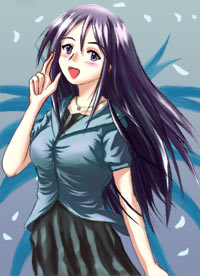
For this tutorial I will be using this pic in the gallery for reference:

At the end of this tutorial you should be able to achieve this level of colouring. ^^


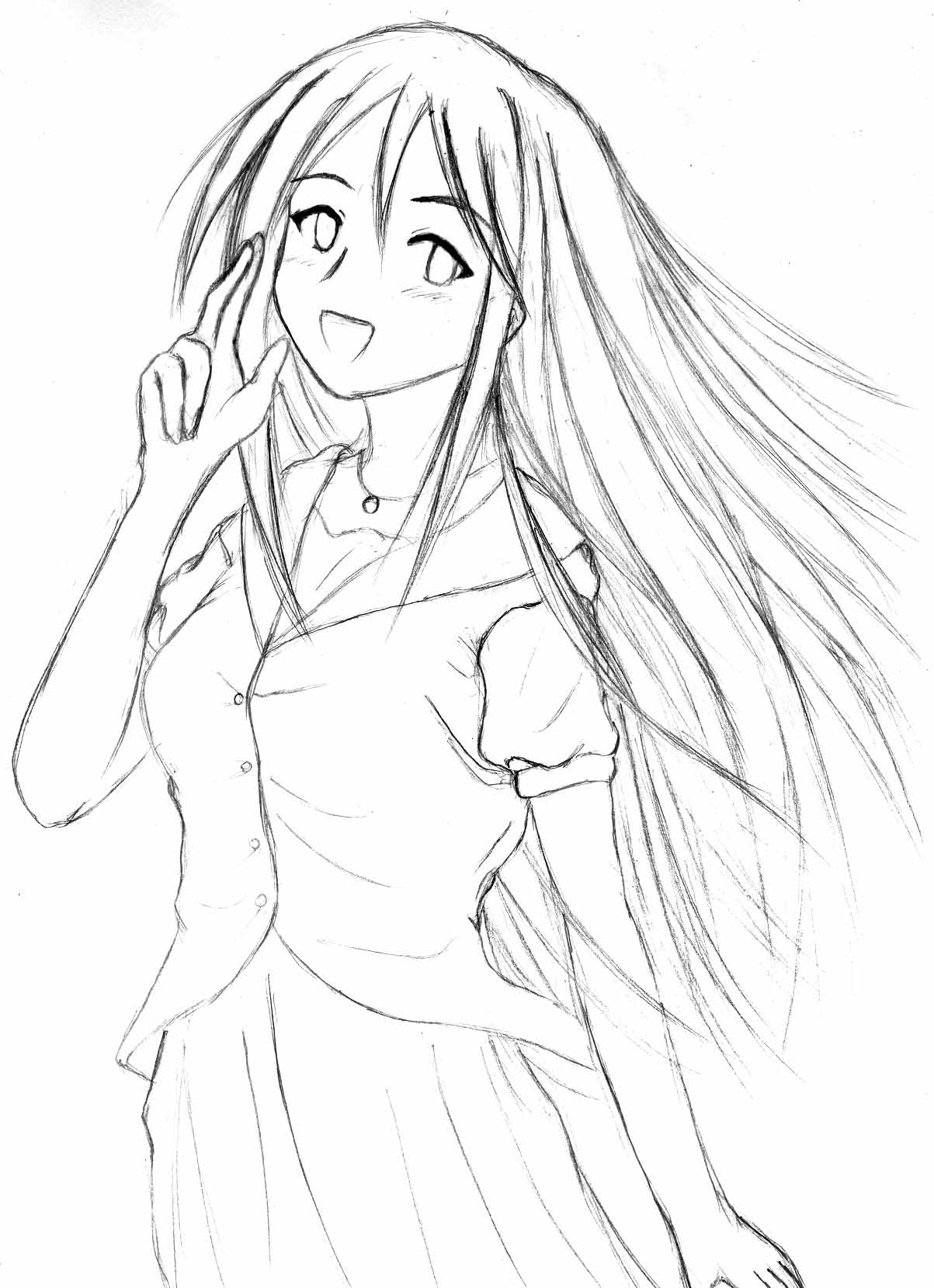
Ok, before you start there is one thing you will need and that is a good lineart drawing. A good lineart is much easier to colour on, especially for ceases on clothes. For the sake of this tutorial, I will allow you to download the original sized lineart of the pic. Just click on the pic below to download (132K)

As you can see from this pic, the size is huge. The first thing you must keep in mind when colour pics using any software on the computer is the original lineart must be BIG. So after you scanned your pic, keep it BIG (over 1500x1500 pixels). This will make colouring much easier and gives a much better end result.


Now that you have everything ready, let's start the colouring process!

NEXT: Create layers


Table of contents:

1.0 Create layers
2.0 Base colour
3.0 Shading
3.1 Skin tone
3.2 Hair
3.3 Eyes
3.4 Clothes
3.5 Dress
4.0 Final touches


One last thing before you start, memorise this list of hot keys. Using hot keys can save you HEAPS of time.

E = eraser
B = brush
R = smudge tool (if you select the blur tool instead, click and hold on the blur tool button which looks like a water drop, then select Smudge tool from the pop up box)
W = magic wand
I = eyedropper tool
L = Polygonal lasso tool
M = Rectangular lasso tool
T = text input
X = swap between the foreground and background colour on the colour palette
D = Set the colour palette back to default (black foreground, white background)
Alt + Backspace = fill
Ctrl + Z = undo
Ctrl + E = merge layers


  Diary | Gallery | About me | Links | Photoshop Tutorial | Home    
Hosted by www.Geocities.ws

1