4.0 THE FINAL TOUCHES


4.1 - Change the colour

Merge all the clothes layers into one, dress layers into one and skin layers into one (select the layer and press Ctrl + E).

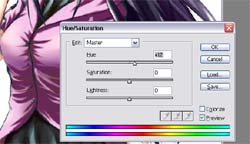
Choose the layer you want to change colour. Press Ctrl + U, this will bring up the Hue/Saturation window. Slide the Hue bar left and right to get the desired colour. You can also play around with the Saturation and Lightness for different results too.


4.2 - Colour the lineart

Do this step If you want to make your pic looks more 3D.

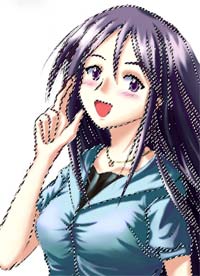
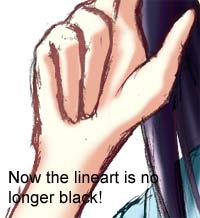
Hold Ctrl and select the lineart layer. This will make a selection around the lineart (press ctrl + H to hide the dotted lines). Pick the brush and now you can make the lineart in whatever colour you want!


4.3 - Get rid of unwanted parts

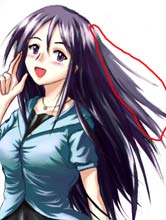
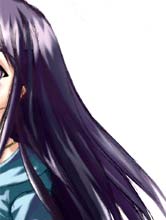
In this picture, that extra bit of hair circled in red doesn't really belong there. To get rid of it, simply use the lasso tool to select that part of the hair and press delete. Now that part of the hair is gone!


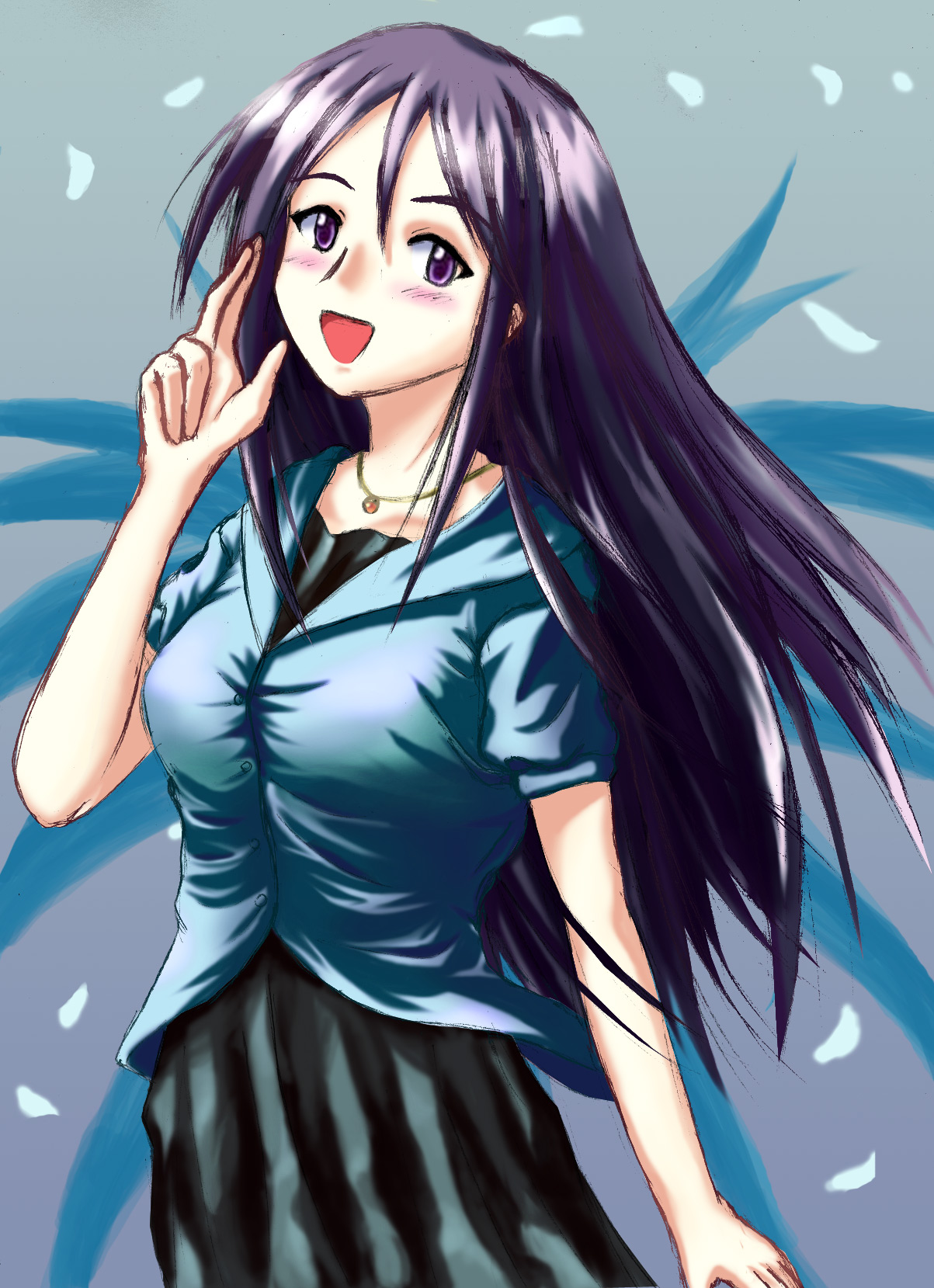
Add a background and then everything is done!


Thank you for reading up to here. In order to reward you, I have put up the original full sized pic here for you to download. (452K)


Back to index

BACK: Shading (dress)


  Diary | Gallery | About me | Links | Photoshop Tutorial | Home    
Hosted by www.Geocities.ws

1