
VEGGIEMAN
.jpg)
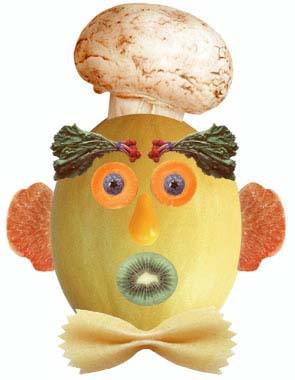 Using the parts on the left image,we will form a veggieman that will result into the picture on the right.
So, here are the steps:
1.Open Adobe Photoshop.
2.Click New and make the canvass be 8X8 inches.
3.Open the files necessary for making it.
4.In the left image, use the rectangular marquee tool for selecting a part, then move it to the 8X8 canvass using the move tool.
5.To remove each background, use the magic wand tool and adjust its tolerance
6.Repeat the previous steps(step 3 and 4) until you already moved all the parts of the veggieman
7.Arrange the veggieman according to its designated places using the move tool
8.To resize an object, Click Ctri+T for transformation.
9.When you're already done, save it with JPEG format.
So, that's how you make a veggieman ^___^