
NO MORE WRINKLES
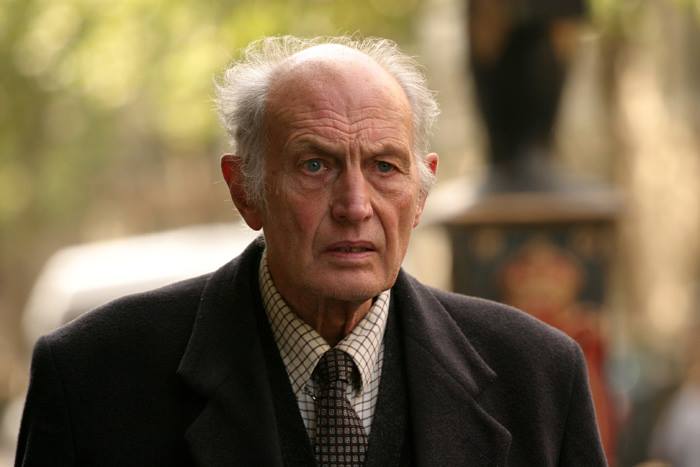

So, here are the steps:
1.Open Adobe Photoshop.
2.Open the necessary files.
3.Click the Patch Tool on the toolbox and pick source on the upper part of Photoshop
4.Draw a selection on the part that has no wrinkles, then pick destination.
5.Patch the selection on the parts that has wrinkles. Do not forget every single part because the picture will not be realistic.
6.When you're done, save it as a JPEG file.
So, that's how you use the patch tool in Photoshop ^_^