
KITCHEN WORLD
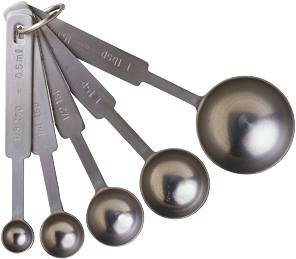



So, here are the steps:
1.Open Adobe Photoshop.
2.Make a new canvass(8X8).
3.Use the rectangular marquee tool to select the parts,then transfer it to your canvass by the use of the move tool.
4.To select the white part,use the magic wand and click the white portion,when the white portion is now selected,press the delete key in your keyboard.
5.Repeat step 3-4 for the other parts. When your done transferring all the parts,use the move tool to arrange it to it�s proper place.
6.For the background,use the paint bucket tool to fill it with the color you want.
7.Lastly,click the type tool,then type the word �Kitchen World��
8.When you're done, save it as a JPEG file.
So, that's how you make Kitchen World in Photoshop ^_^