
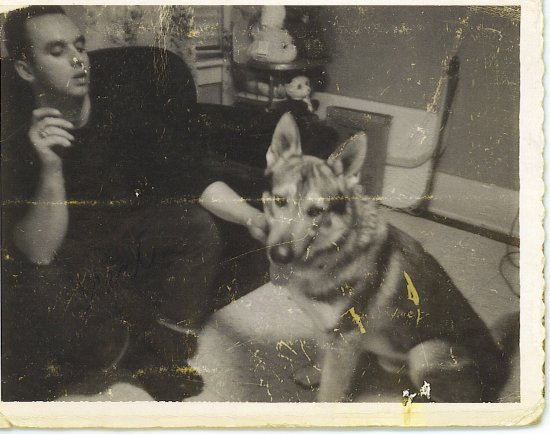
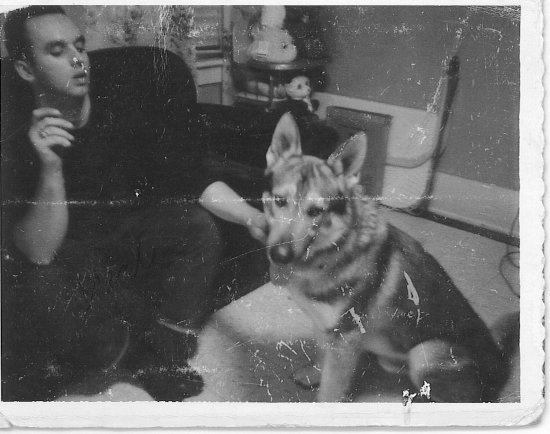
Man and Dog RestorationThe finished photos at the bottom are full size, if you are using Netscape a right click will allow you to see them at full size I haven't figured out how to do this in IE. |
 |
 |
 |
I use the clone brush set small and build up the missing
tones, I have
the clone brush set to nonaligned and use it as stamp so as not
to
drag the tone, and try to match the tones nearest to the scratch.
Remembering that it isn't a solid tone it is important to mix the tone
a bit to get the right blends. 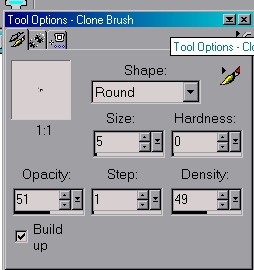 |
The Soften retouch brush is use to blend the mixture of
cloned pixels,
the size of the brush changes with the size of the area to be
softened. 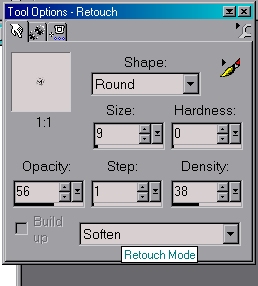 |
The Push and Smudge brushes a used sparingly to smooth areas
and I
sometime use the push brush to help define a line after the soften
brush
has caused it to loose definition.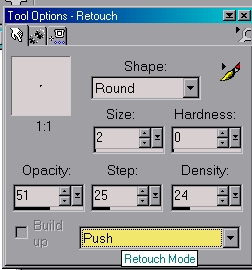 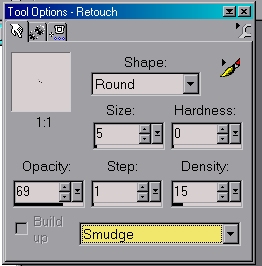 |
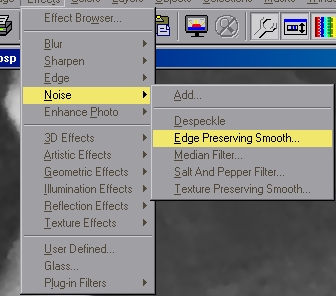 |
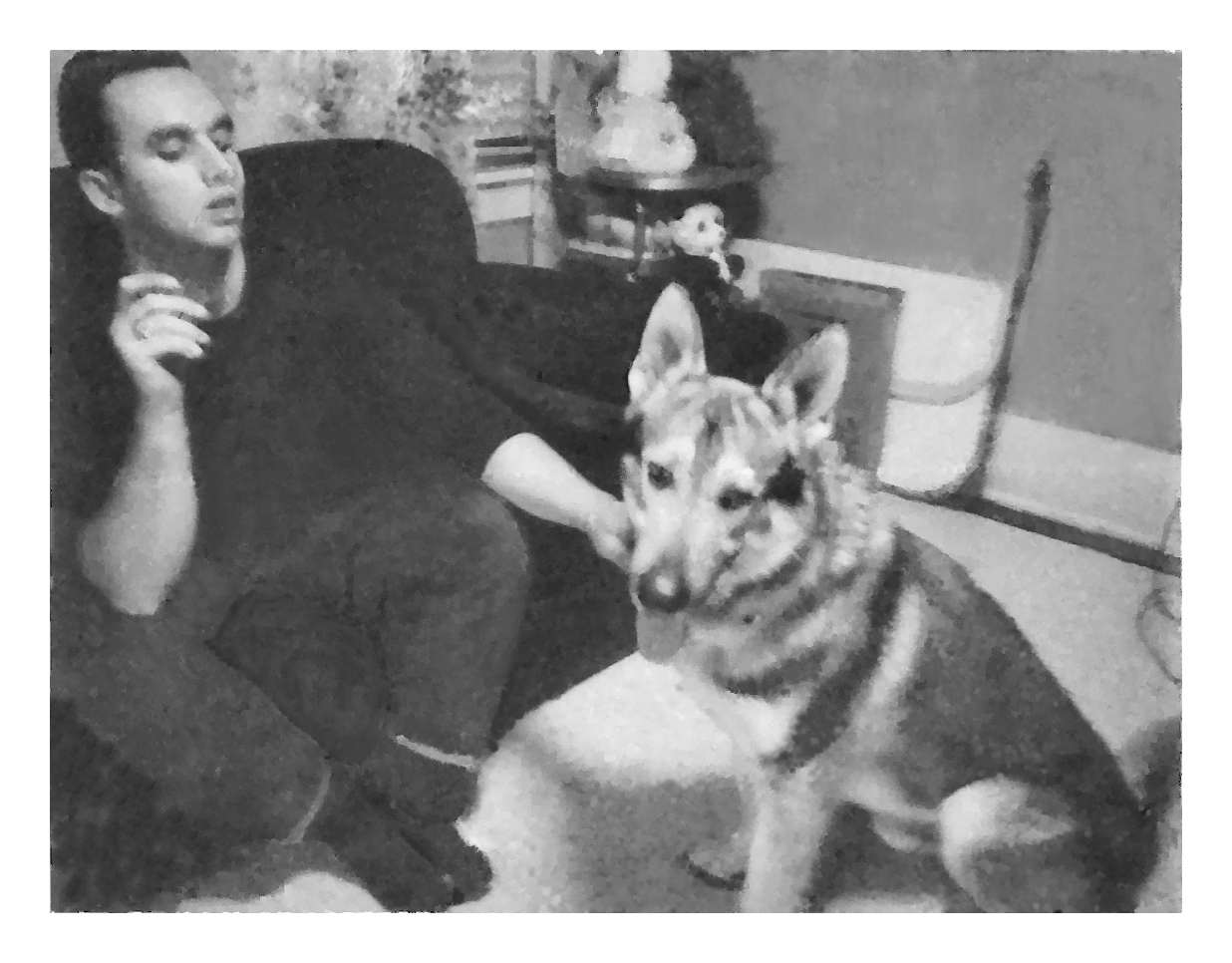 This one only has had the Salt and Pepper filter applied after the cloning and other touch-ups were done |
This one has Edge preserving Smooth filter added to the
Salt
and Pepper filter.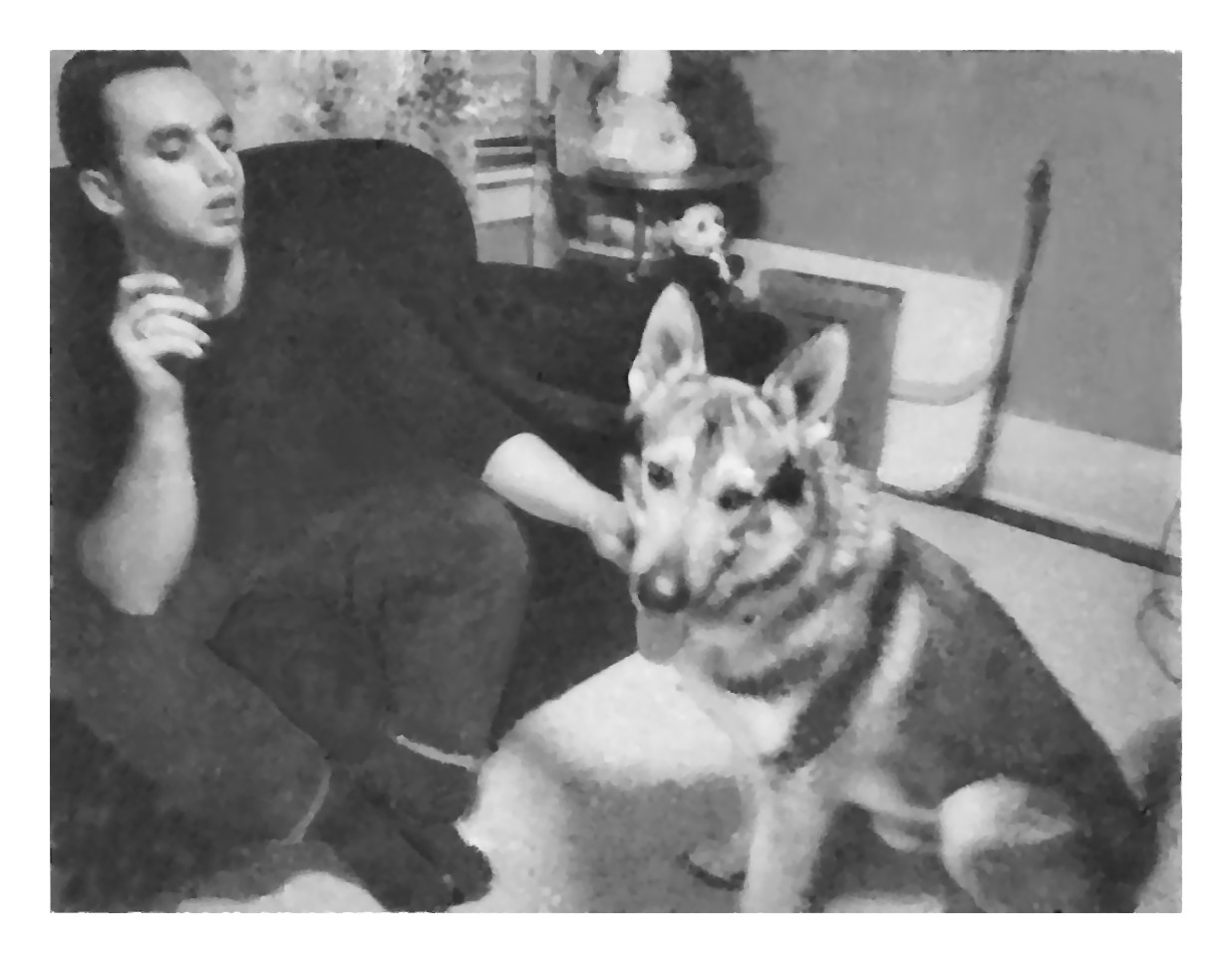 |
Home |