 |
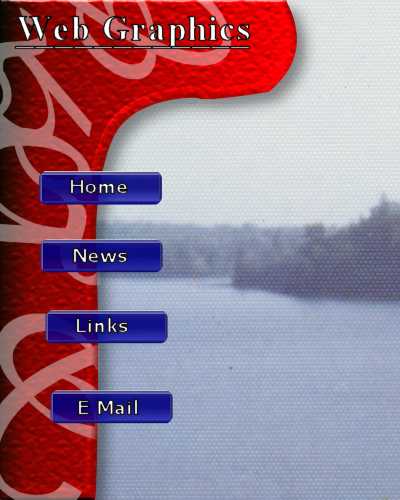
This graphic was made in PSP 7.04 from a Photo Shop Web page Tutorial,
found at:
http://www.pegaweb.com/tutorials/fiveminutewebsitetutorial/five-minute-website-tutorial.htm I will attempt to explain the tools used in PSP 7.04:
(This is the most difficult part of the the whole Tutorial) |
|
|
Fig. 3.
|
Fig. 3. Once you have the curves made to suit you ( I used
both curve before and after) click outside the image and it will fill and
your vector layer is complete. Before you rasterzie the layer create a
selection in the Selection menu 'from vector object', now change the vector
layer to a raster layer in the layers menu. The object will
remain selected so you can now add your texture and dimensional effects.
(Step 2)
Step 3. The watermark was easy I used the Windings font "jk" set as a vector, white stroke and fill, on their on own layer, pulled and stretched them until I got the desired effect. To fade them it is just a matter of layer transparency, (you can also play with the layer composting if you wish) . Step 4 needs no explanation.. Step 5. The buttons you have a choice of using the buttons available in the vector shapes or making your own. I made mine using the rounded rectangle selection tool, filled it with the blue gradient. Used the buttonize effect. copied and paste for repeated buttons. There are other tools available in PSP that could be interesting to add here like mouse over but since I've not used it before I stick with the simply button. Note: if you have worked each step on its own layer, You can now finish
up by slipping the picture into the background layer..
|
|
|
This should be a seamless left bordered tile but it has been sometime
since I worked with bordered tiles, I have forgotten how to get it only
tile the border on the left without repeating it across the page. I had
a Tutorial for this but don't know where it is at the moment.
This page has been constructed using a table without cell padding using Netscape Composer 4.7 |
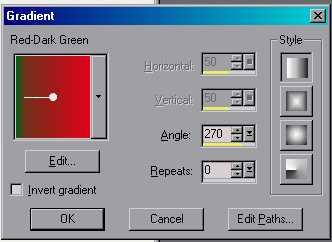 Fig.
1.
Fig.
1.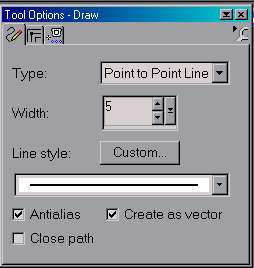 Fig.
2.
Fig.
2. 
