How I make a transparent Gif:
2. I am choosing a tube and in the case of this particular tube I am using it at 50%.
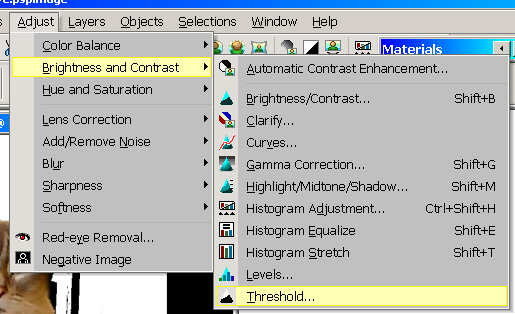 This is the first image I will use to make a
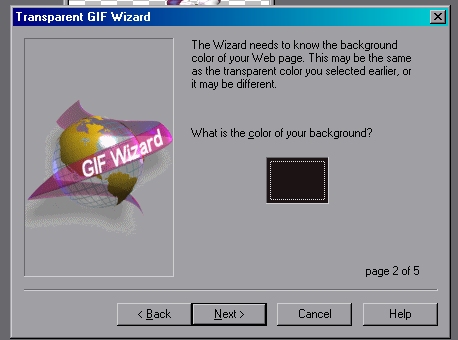
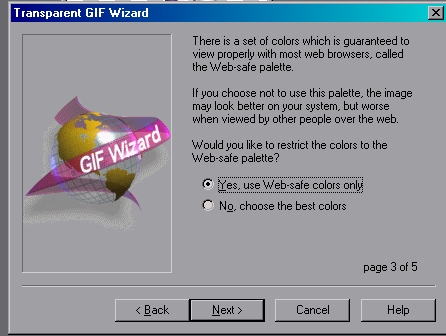
Transparent gif for a black background. Why would I use a background colour,
because it will allow the image to blend with out visible artifacts if your custom make the gif to fit the colour of the web page background.
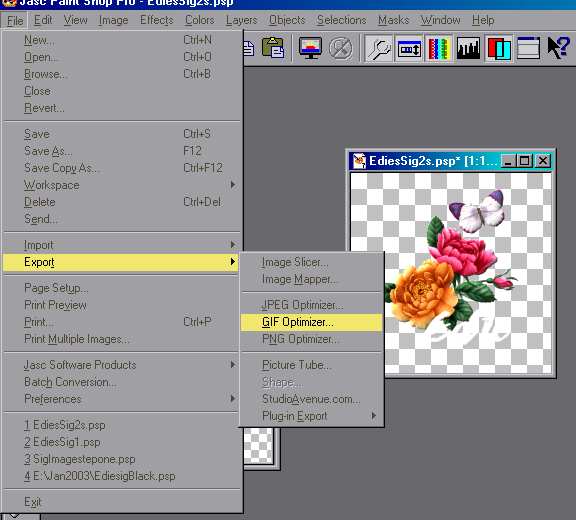
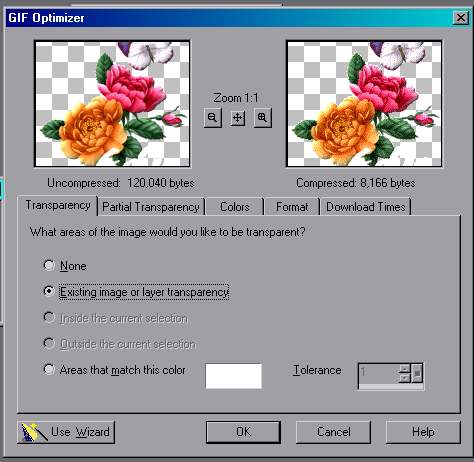
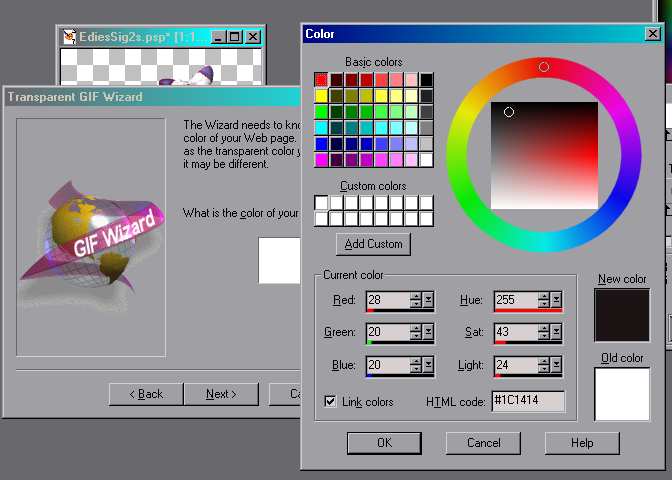

 I
added a drop shadow to the image here and chose a red background for the
finished gif.
I
added a drop shadow to the image here and chose a red background for the
finished gif.
 This is
the same image but it wasn't exported with a matching background
This is
the same image but it wasn't exported with a matching background

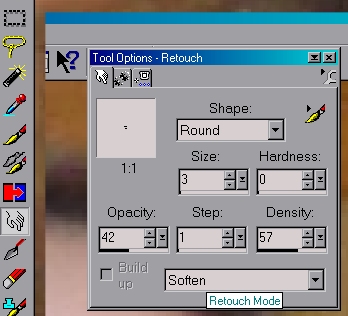
 I
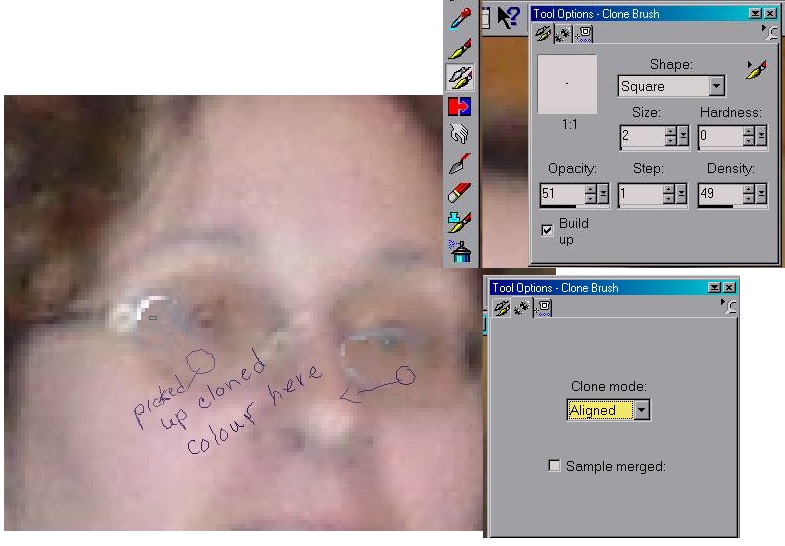
used the soften brush to clean up the areas and leave a bit ot a highlight.
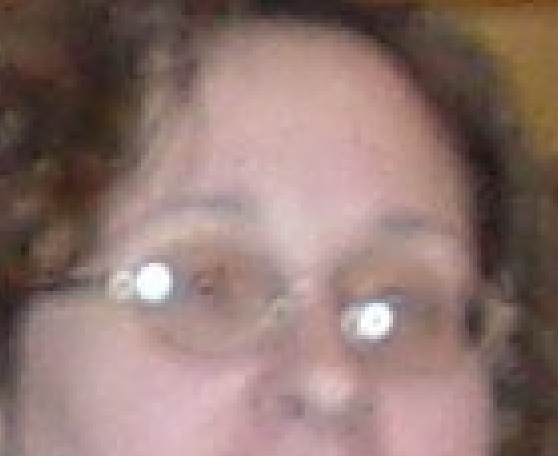
This photo may not be the best example as it is a bit fuzzy. I also had
to use the red-eye tool to give her a bit of an eye. Let me know
if you need to know how I did that. There are some tutorials on the board
on how to use the red eye tool.
I
used the soften brush to clean up the areas and leave a bit ot a highlight.
This photo may not be the best example as it is a bit fuzzy. I also had
to use the red-eye tool to give her a bit of an eye. Let me know
if you need to know how I did that. There are some tutorials on the board
on how to use the red eye tool.