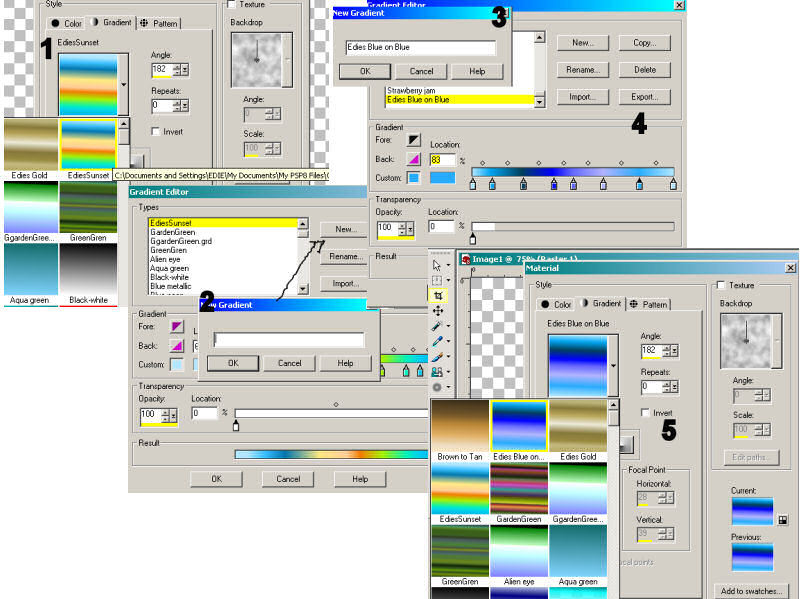
2. I want to add a new one I start by clicking on New this opens a box for me to name my gradient. 3. I type in " Edies Blue on Blue", hit okay and now it is listed and I have a blank strip( I forgot to screen print that before I made my gradient) you can see how I put the colours in and when I have them as I want then I click Okay . 5. when you click on the gradient window you now see I have 3 custom gradient in the menu. 6. I have placed an enlarged shot of the default location of the gradient file as it shows when you place your mouse over the gradient.

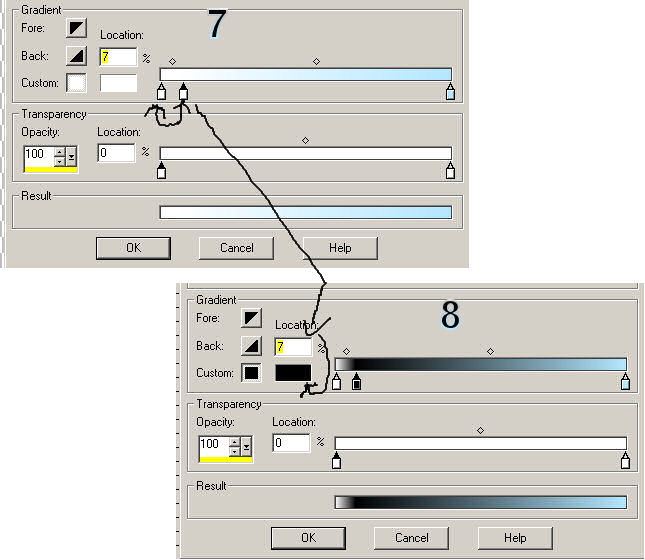
I realized today when I was looking at this tutorial I for got to show a step between 3 and 4. To illustrate this I have here with 7 and 8 how we go about creating or edit a gradient. with your mouse you can move the tube icons along the strip, Starting with position 0 which in this illustration is white, we pull off another tube and move it to position 7, double click on the colour block and chose your colour, and by repeating this procedure you can build your own gradient or edit an existing one.