|

|
Add Polygons creates polygons in a new polyset or add to an existing polyset.
Overview
If no polyset is picked when you select this tool, it will start a new polyset. If one polyset is picked when you select this tool, it will add to that polyset. The active polyset is highlighted in purple.
How to Use
Select Add Polygon from the Polygon
menu, or click the side icon:
- Click or drag the left mouse button to place a point.
- Click or drag the middle mouse button to place a point on the same horizontal plane as the previous point.
- Click or drag the right mouse button to place a point on the same vertical plane as the previous point.
- Type three dimensional coordinates in the command line to place new vertices.
- Press and hold Shift and click the left mouse button to complete the polygon or strip with the points drawn so far.
- Press and hold Shift and click the middle mouse button to complete the polygon or strip with the points drawn so far, then deselect the polygon/strip. This allows you to quickly draw multiple strips.
- Press and hold Shift and click the right mouse button to cancel the polygon in progress and deselect the strip.
>
|
Note:
|
The order in which vertices are added affects the facing
direction of the polygon. If you draw the polygon clockwise,
it will face you (that is, the view you use to draw will show
the polygon's front face). If you draw the polygon counter-
clockwise, it will face away (the view you use to draw will
show the polygon's back face). The first polygon you draw
in a strip determines the facing for the entire strip.
|
|
|
When you choose another tool, any polygon in progress will
be lost.
|
|
|
If you snap to a vertex with Magnet snap, the new vertex
takes the UV values of the vertex it is snapped to. If the
vertex snapped to is in the same polyset as the new vertex,
the vertex is re-used (no new vertex is created).
|
|
|
When using a construction plane, vertex coordinates are
specified in the coordinate system of the active construction
plane.
|
To see which way the polygons of a polyset are facing:
-
1
-
Pick the polyset and select Windows > Render stats.
-
2
-
Deselect the Double Sided option, then select Display > Tgl shade. Only the front faces of polygons in the polyset are rendered. A closed surface, like a sphere, should be completely rendered in this mode, because all of the polygons on it should be facing outward.
Add Polygons Options
To display the Add Polygons Options box, double-click the Add Polygons icon, or select Add Polygons - from the Polygons menu. from the Polygons menu.
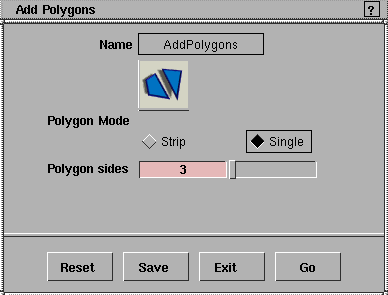
Polygon Mode
Strip
-
- Creates polygon strips
Single
-
- Creates single polygons.
Polygon sides
-
- For strips, choose 2 (polylines), 3 (triangle strips), or 4 (quad strips).
-
- For single polygons, choose 1 (polypoint), 2 (polyline), 3 or more. This sets the maximum number of sides (you can complete the polygon with fewer sides by pressing and holding Shift and clicking the left mouse button).
Per Polygon STs
-
- This option is available when Polygon Mode
is set to Strip
. Normally, the Add Polygons
tool creates normalized texture coordinates (ST values) across the entire strip. Check this box to create normalized ST values per polygon.
|


